
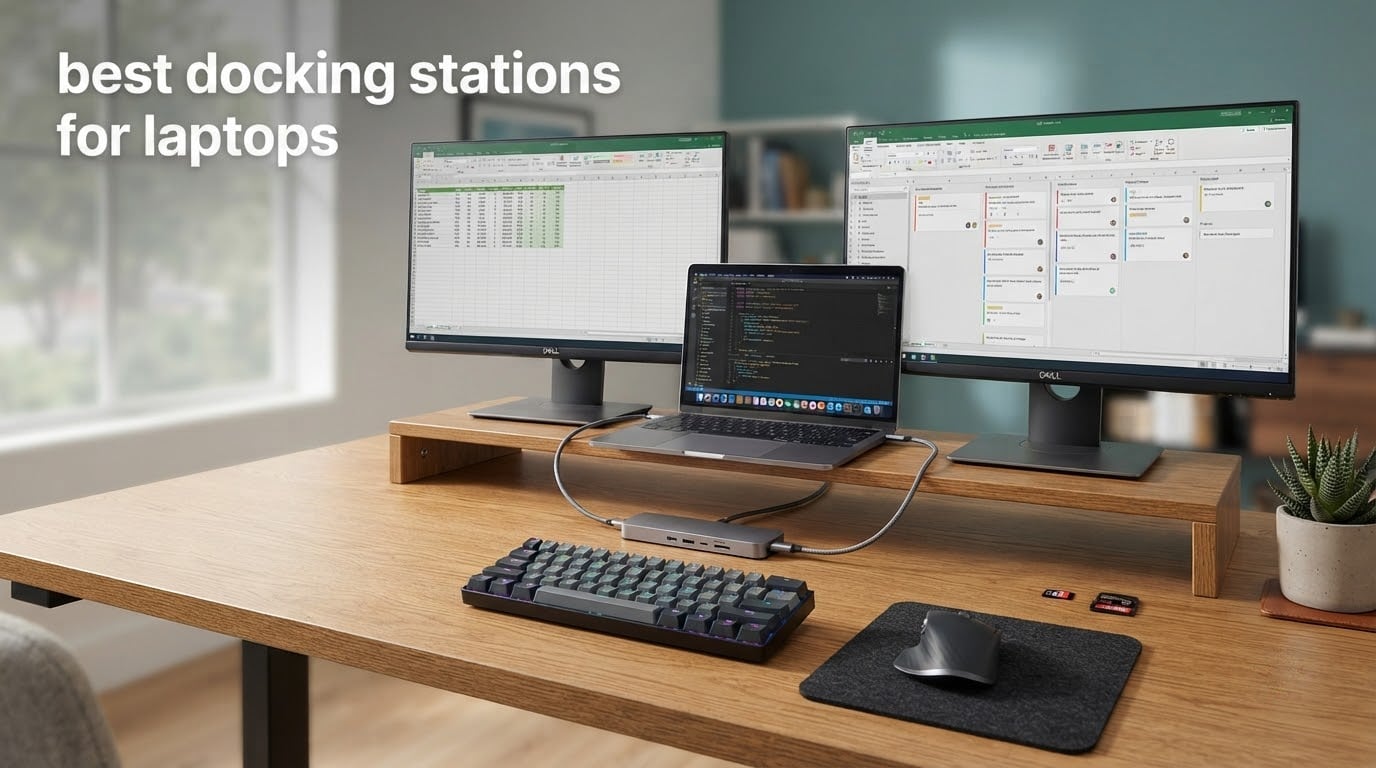
The best docking stations for laptops turn one USB-C port into a full desk: two or three monitors, wired Ethernet, USB-A peripherals, SD card readers and laptop charging, all over a single cable. Our top pick is the Anker 8-in-1 USB C Hub, the smallest and lightest option here that still passes 85W of power back to the host.
That combination matters more than it sounds. Modern laptops ship with two or three ports, usually all USB-C and none shaped for a monitor cable. Without a dock you either carry an adapter bag or plug and unplug four cables every time you sit down. A dock puts that back to one connection, and in most cases adds charging on the same wire.
We compared ten docks that cover the range most buyers actually need: pocket-sized hubs for travel, full 13-in-1 and 14-in-1 desk units with gigabit Ethernet and card readers, and one DisplayLink model built to drive three screens from a Mac that natively supports only one. Every entry below lists the real port layout, the resolution ceilings each manufacturer states, and the specific complaints owners keep reporting.
One theme runs through the whole list. On macOS, most of these docks mirror the same image on every external screen instead of extending across them, because they rely on DisplayPort Alt Mode rather than Thunderbolt. Windows users get the full multi-monitor experience. If you own a Mac, our best pick for you sits further down the list.
Table of Contents
Top 3 Picks for Laptops Right Now (October 2026)

Anker 8-in-1 USB C Hub
- Dual 4K HDMI output
- 85W pass-through charging
- Ethernet and microSD reader
- Only 3.2 ounces

Selore 14-in-1 USB C Dock
- Fourteen ports including VGA
- 100W input and 87W to laptop
- Gigabit Ethernet
- 10Gbps USB-A and USB-C

UGREEN 7-in-1 Aluminium Dock
- Dual 4K@60Hz HDMI
- Four 10Gbps data ports
- 100W PD charging
- Only 91 grams
Three picks cover most situations. The Anker 8-in-1 wins on weight and review volume, the Selore 14-in-1 wins on port count per dollar, and the UGREEN 7-in-1 is the cheapest route to genuine dual 4K@60Hz over HDMI without paying for ports you will never plug in.
All Ten Docking Stations Compared in 2026
| Product | Specs | Action |
|---|---|---|
| Anker 8-in-1 USB C Hub |
|
Check Latest Price |
| Selore 14-in-1 USB C Dock |
|
Check Latest Price |
 LIONWEI 13-in-1 USB C Hub LIONWEI 13-in-1 USB C Hub |
|
Check Latest Price |
 Plugable 12-Port Universal Dock Plugable 12-Port Universal Dock |
|
Check Latest Price |
 HODO 8-in-1 USB C Dock HODO 8-in-1 USB C Dock |
|
Check Latest Price |
| UGREEN 7-in-1 Aluminium Dock |
|
Check Latest Price |
 Acer 9-in-1 USB C Dock Acer 9-in-1 USB C Dock |
|
Check Latest Price |
 VVB 14-in-1 USB C Dock VVB 14-in-1 USB C Dock |
|
Check Latest Price |
 Plugable 13-in-1 DisplayLink Dock Plugable 13-in-1 DisplayLink Dock |
|
Check Latest Price |
 Anker 13-in-1 Vertical Dock Anker 13-in-1 Vertical Dock |
|
Check Latest Price |
The table above covers connection type, power delivery and port mix for all ten picks. Every one of these docks is a USB-C unit, so the difference between them is port layout, wattage delivered to the laptop and how many screens you can actually run.
1. Anker 8-in-1 USB C Hub – Best Overall and Lightest Option
Anker Laptop Docking Station Dual Monitor, 8-in-1 USB C Hub with 4K HDMI
8 ports
Dual HDMI at 4K
85W pass-through charging
Ethernet and microSD
3.2 ounces
Pros
- Dual HDMI plus Ethernet and card readers in a 3.2 ounce body
- 85W pass-through charging keeps a single-cable workflow
- No drivers or configuration on Windows 10
- 11 or ChromeOS
- Owners report multi-year durability
Cons
- macOS mirrors identical content on both external monitors
- SD card reader transfers are slow
- Needs a separate 100W charger for pass-through charging
This is the dock we keep coming back to because it does the least and gets the fundamentals right. Eight ports cover two HDMI outputs, an Ethernet jack, two USB-A data ports, a microSD slot and a USB-C power input. At 3.2 ounces and just under five inches long, it disappears into a laptop bag.
Video output depends on the machine you plug it into. On Windows, one HDMI port runs 4K@60Hz and both can run 4K@30Hz together. On a Mac, both screens show the same image, because there is no DisplayLink silicon here to extend the desktop.

Charging is the part that catches people out. The 85W pass-through works, but the dock ships without a power supply, so you need a 100W USB-C charger already in your bag. If you do not travel with one, budget for it before you decide the dock does not charge well.
The rating and review volume back this up. With tens of thousands of reviews averaging 4.5, this is the most proven unit in the group, and the durability comments in owner reviews consistently mention multi-year service rather than first-year survival.
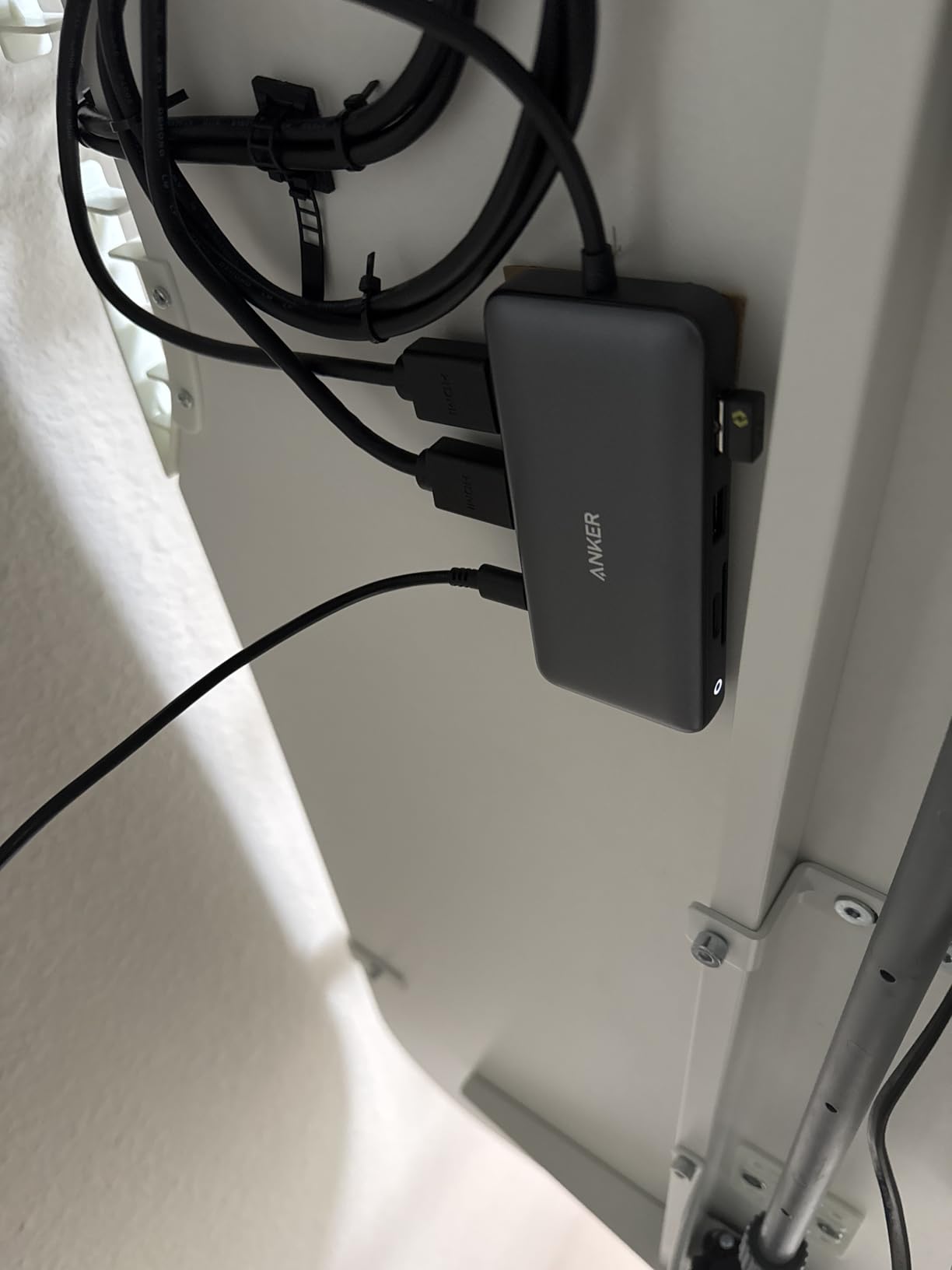
Is the Anker 8-in-1 the right dock for your laptop?
It suits Windows users who want two monitors, Ethernet and a card reader in one small box. It also works for travel, because at 3.2 ounces it weighs less than most power banks.
If your laptop only has USB-A ports, this does nothing for you. You need a USB-C port with DisplayPort Alt Mode and Power Delivery, which is now standard on most modern laptops but not on every older or budget model.
Where the Anker 8-in-1 falls short
Mac owners should skip it. Mirrored output across two external screens is the single most common complaint in reviews, and there is no setting or firmware update that changes it.
SD card transfers are also the slow end of the group. For photographers pulling large files off a card, a dedicated reader is still faster than the slot on this dock.
2. Selore 14-in-1 USB C Dock – Best Value for Port Count
Selore USB C Docking Station Dual Monitor, 14-in-1 Laptop Docking Station
14 ports
7 USB ports
100W input, 87W to laptop
Gigabit Ethernet
VGA and 3.5mm audio
Pros
- Fourteen ports covering video
- networking
- audio
- charging and cards
- 100W input with 87W safe output keeps the laptop powered
- 10Gbps USB-A and USB-C for fast transfers
- Plug-and-play with no driver install
- Two-year warranty
Cons
- macOS limited to mirror mode with identical content
- Extended and mirror modes need a DP1.4 laptop and monitor
- USB ports carry data only with no video output
- SD and microSD capped at up to 200Mbps
Fourteen ports is the headline here, and the layout is unusually sensible for that number. You get two HDMI outputs, a VGA port for older projectors and monitors, five USB-A ports, a 10Gbps USB-C data port, gigabit Ethernet, SD and microSD readers and a 3.5mm audio jack. Very few docks at this level include VGA and gigabit Ethernet together.
Power handling is the quiet strength. The USB-C input accepts up to 100W and passes 87W back to the host, which covers most 13-inch and 14-inch Windows laptops at full speed while you work.

The compromise is platform behaviour. On macOS, every external display mirrors the same image, and M-series Macs can run three identical screens at that. On Windows you get mirror and extend modes, but only with a DP1.4 source and a matching monitor.
Card read speed is modest at up to 200Mbps, so this is a convenience slot for small files rather than a working card reader for a camera.
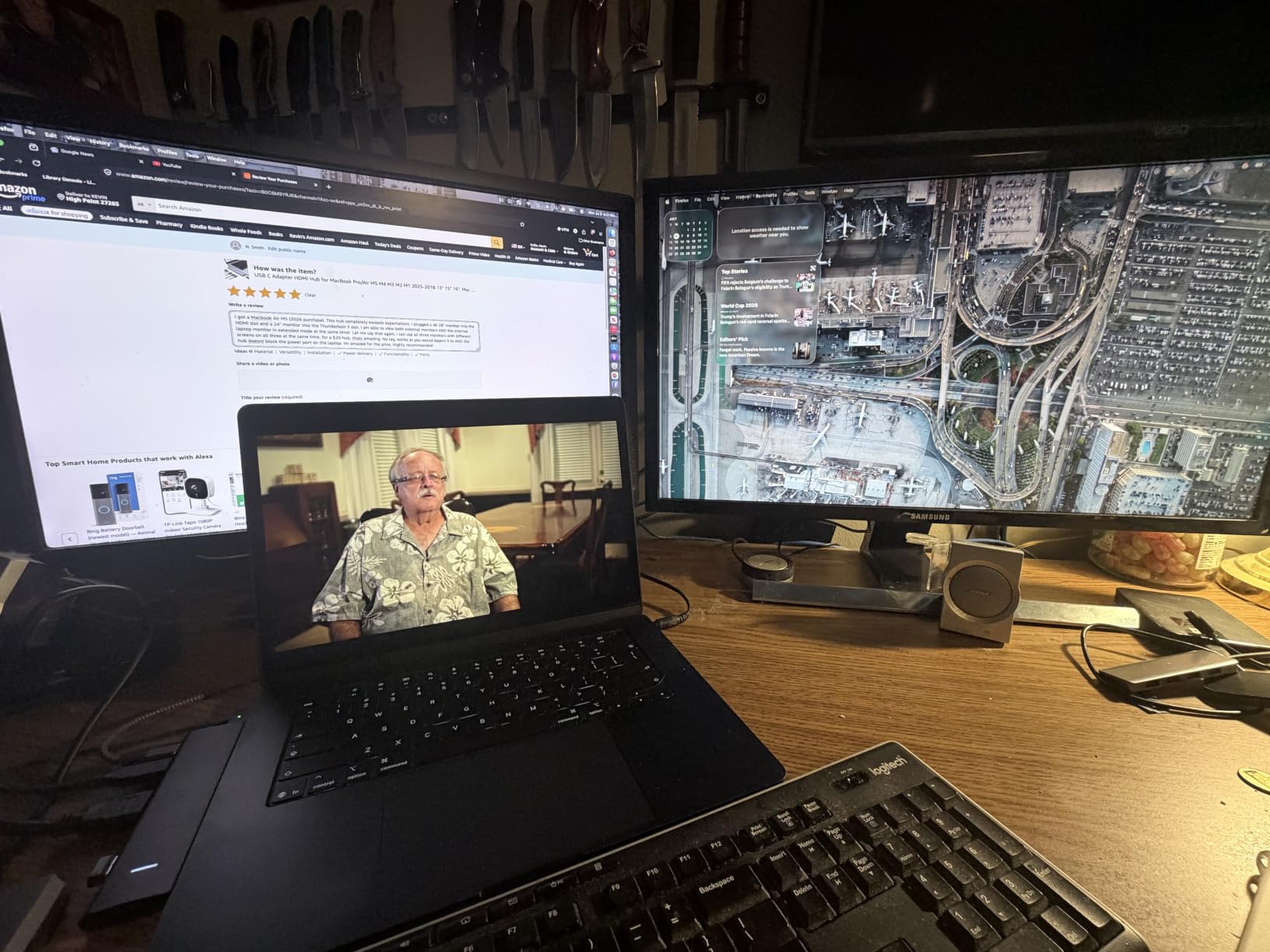
Who should pick the Selore 14-in-1?
It is the pick for a shared or hot-desking setup where you want everything in one box, including VGA for a meeting room display. Two-year warranty coverage is also better than most rivals at this tier.
If you transfer large video files regularly, pair it with a faster reader instead of relying on the built-in slot.
Where the Selore 14-in-1 falls short
It is not a Mac solution, and buyers expecting an extended desktop on macOS consistently report disappointment.
The USB-A and USB-C data ports handle data and charging duties but no video, which means the display options are fixed to the two HDMI outputs and the VGA.
3. LIONWEI 13-in-1 USB C Hub – Best for Three Screens on Windows
Docking Station Dual Monitor 4K HDMI 13-in-1 USB C Hub for Laptop MacBook
13 ports
Dual 4K HDMI plus DisplayPort
100W PD with 87W to laptop
10Gbps data
140 grams
Pros
- Dual 4K HDMI plus DisplayPort enables three-display setups on Windows
- 100W PD charging alongside a 10Gbps USB-C 3.1 port
- Gigabit Ethernet and a 3.5mm audio and mic combo jack
- Light 140 gram body
- 18 month warranty and support
Cons
- macOS extends only one external monitor at 4K@60Hz
- Dock draws about 13W leaving 87W for the host
- Triple display depends on Windows MST or SST support
- Full 4K output needs a DP1.4 host
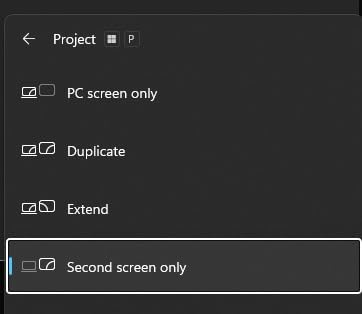
This is the pick for a Windows power user who genuinely needs three screens rather than a spec-sheet number. Two HDMI outputs and a DisplayPort input give you a proper triple-monitor arrangement, with HDMI and DisplayPort reaching 4K@60Hz from a DP1.4 source.
The port list backs up the video claim rather than padding the count. You get a 100W Power Delivery port, a separate 10Gbps USB-C 3.1 data port, USB-A ports, gigabit Ethernet and a combined 3.5mm headphone and mic jack. At 140 grams it stays travel-friendly.
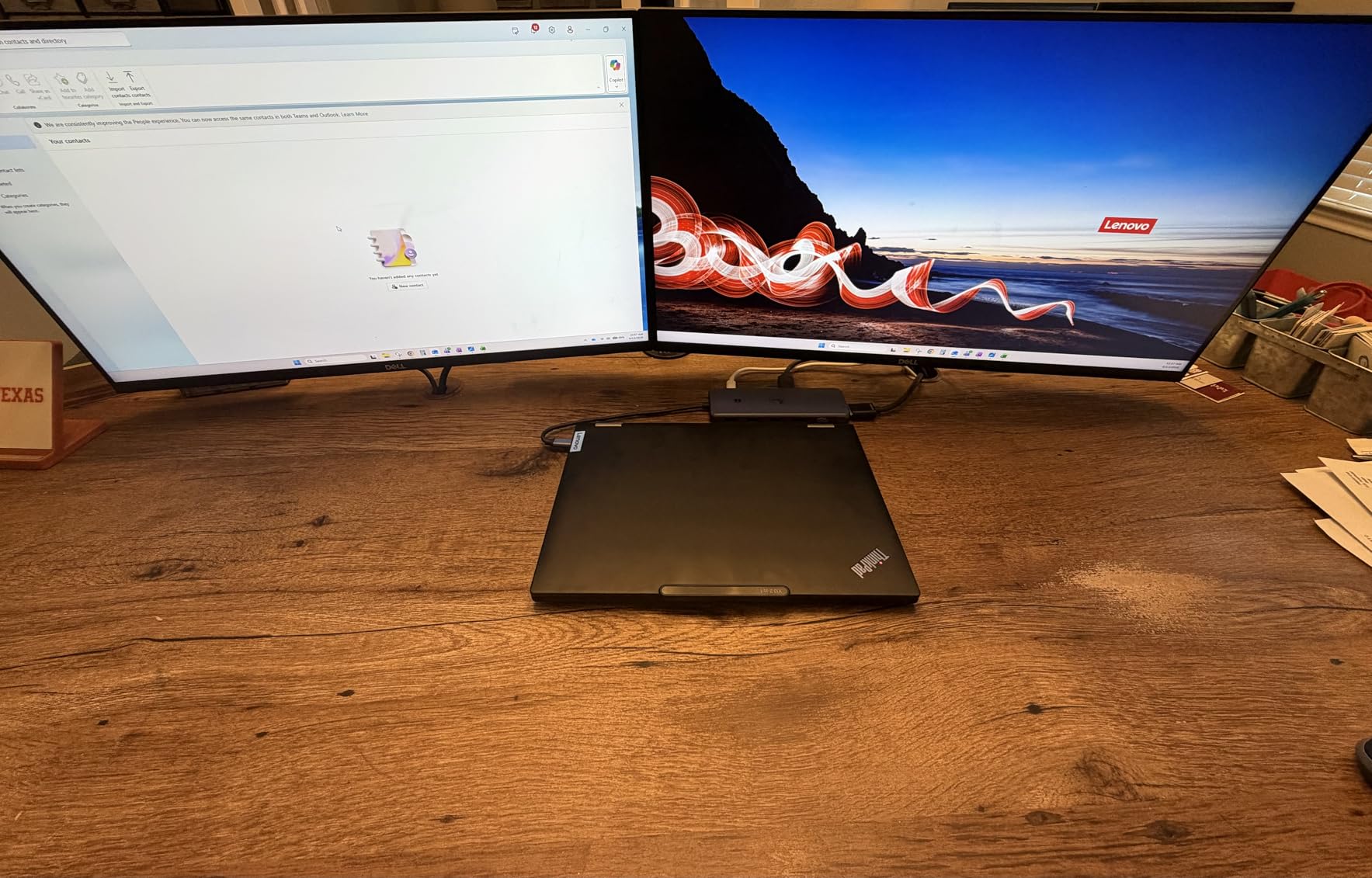
Understand the power budget. The dock itself draws roughly 13W, so of a 100W supply, 87W reaches the laptop. That is enough for most thin-and-light Windows machines but leaves little margin for a large workstation laptop under sustained load.
Multi-monitor mode on Windows relies on MST or SST support from the host, so a few business laptops will only present two of the three outputs.
Who should pick the LIONWEI 13-in-1?
A Windows user running a spreadsheet beside a browser beside a video call will get more from this than from any cheaper dock. The mix of DisplayPort and HDMI also makes it easier to match a mixed-monitor desk.
Reviewers rate the combination of 100W charging, 10Gbps transfer and gigabit Ethernet at this level highly, and the 18-month warranty is a reasonable support commitment.
Where the LIONWEI 13-in-1 falls short
Mac owners only get one external display at 4K@60Hz, so this is a Windows recommendation in practice.
If your laptop ships with a fixed 65W charger and a USB-C port without DP1.4, you will not see the advertised 4K output.
4. Plugable 12-Port Universal Dock – Best for Dual 1080p Office Work
Plugable USB 3.0 Universal Laptop Docking Station, Dual HDMI Monitor
12 ports
2 HDMI up to 1920x1200
Gigabit Ethernet
6 USB ports
2-year warranty
Pros
- Hybrid USB 3.0 and USB-C cable works with either port type
- Two HDMI
- gigabit Ethernet
- audio jacks and six USB ports
- Two-year warranty with lifetime technical support
- TAA-compliant for enterprise and government use
Cons
- Dual displays capped at 1920x1200 with no 4K
- macOS 14 and later need a manual DisplayLink driver
- No DisplayPort and no HDCP protected content
- Does not charge the host laptop
This dock has been in production long enough that its support policy is a genuine advantage: a two-year warranty with lifetime technical support from a North American team. Several owners mention that support experience in reviews as often as the hardware itself.
The connection choice is unusually flexible. A hybrid 2-in-1 USB 3.0 and USB-C cable means the same dock works with a USB-A laptop port or a USB-C port, which makes it easier to standardise across an older and newer mixed fleet.
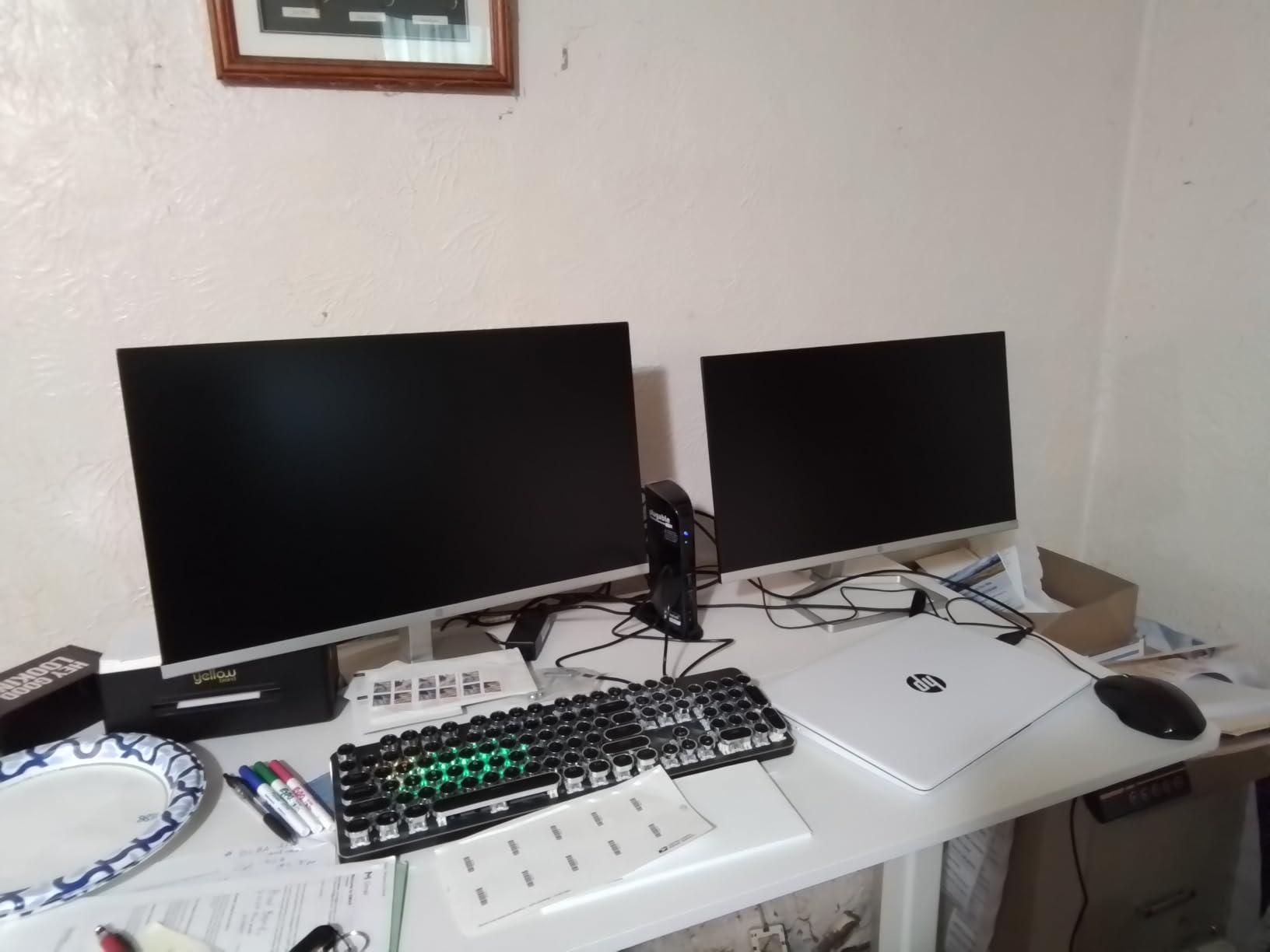
Video is the trade-off. Dual displays run at 1920×1200@60Hz, and a single display reaches 2560×1440@50Hz. There is no 4K output and no DisplayPort, which is a fair deal for spreadsheet and browser work and a poor one for photo or video editing.
macOS 14 and later require a manual DisplayLink driver install, because this dock uses compressed video rather than native Thunderbolt streaming. Protected streaming content will not display, since HDCP is not supported.

Who should pick the Plugable 12-Port Dock?
IT buyers deploying to a mixed fleet will like the TAA compliance and the single model covering both USB-A and USB-C laptops. It also suits anyone whose desk is two 1080p monitors and a keyboard.
Enterprise buyers should note it is one of the few options here with documented government procurement compliance.
Where the Plugable 12-Port Dock falls short
It does not charge the host laptop, so you still carry the charger. That is a real penalty for anyone trying to travel with a single cable.
If you need 4K panels, streaming services or a card reader for large media, this is the wrong tool and you should spend up.
5. HODO 8-in-1 USB C Dock – Most Versatile with Four Video Outputs
USB C Docking Station Dual Monitor for HP,Laptop Docking Station 3 Monitors
8 ports
Dual HDMI, DisplayPort, VGA
100W input, 87W to laptop
USB 2.0 ports
Pros
- Four video outputs allow unusual multi-monitor arrangements
- 100W input with 87W safe output keeps the laptop powered from one port
- Plug-and-play with no software installation
- Compact multi-monitor desk from a single cable
Cons
- Only USB 2.0 ports at 480Mbps with no charging or video
- Using VGA drops every display to 1080p
- macOS shows identical content on all external monitors
- Needs a USB-C port with DisplayPort Alt Mode
The unusual selling point here is the number of video outputs for the money. Dual HDMI, one DisplayPort and one VGA means you can cover a three-monitor desk or keep a spare output for a projector in a meeting room, which most docks at this level do not offer.
Charging is handled properly. The USB-C input accepts up to 100W and delivers 87W to the laptop, though no adapter is included, so you need your own 100W charger.
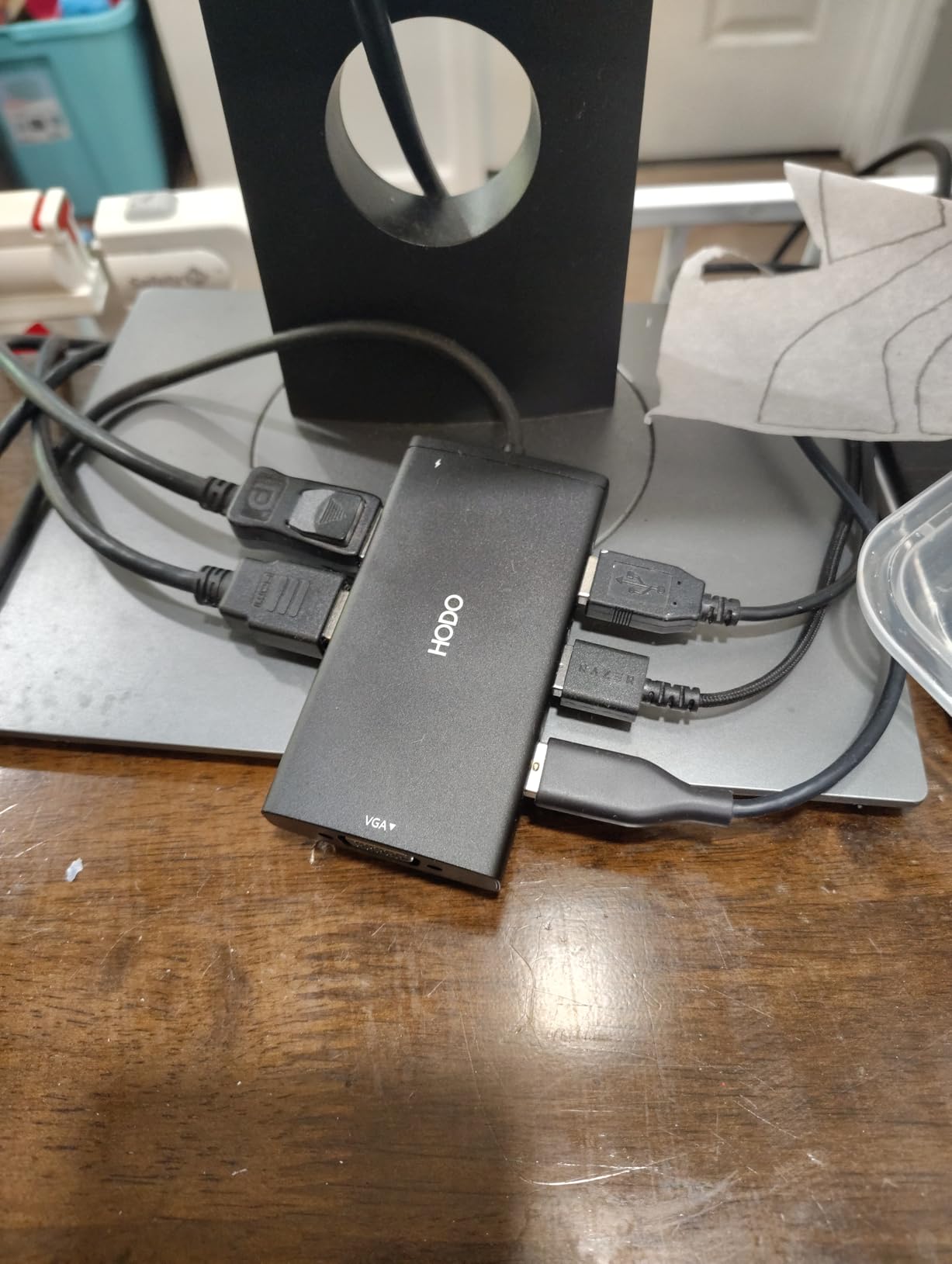
Understand the USB situation before you buy. All three USB ports run at 480Mbps, which is USB 2.0 speed. That is fine for a keyboard and mouse and poor for an external SSD or a network adapter.
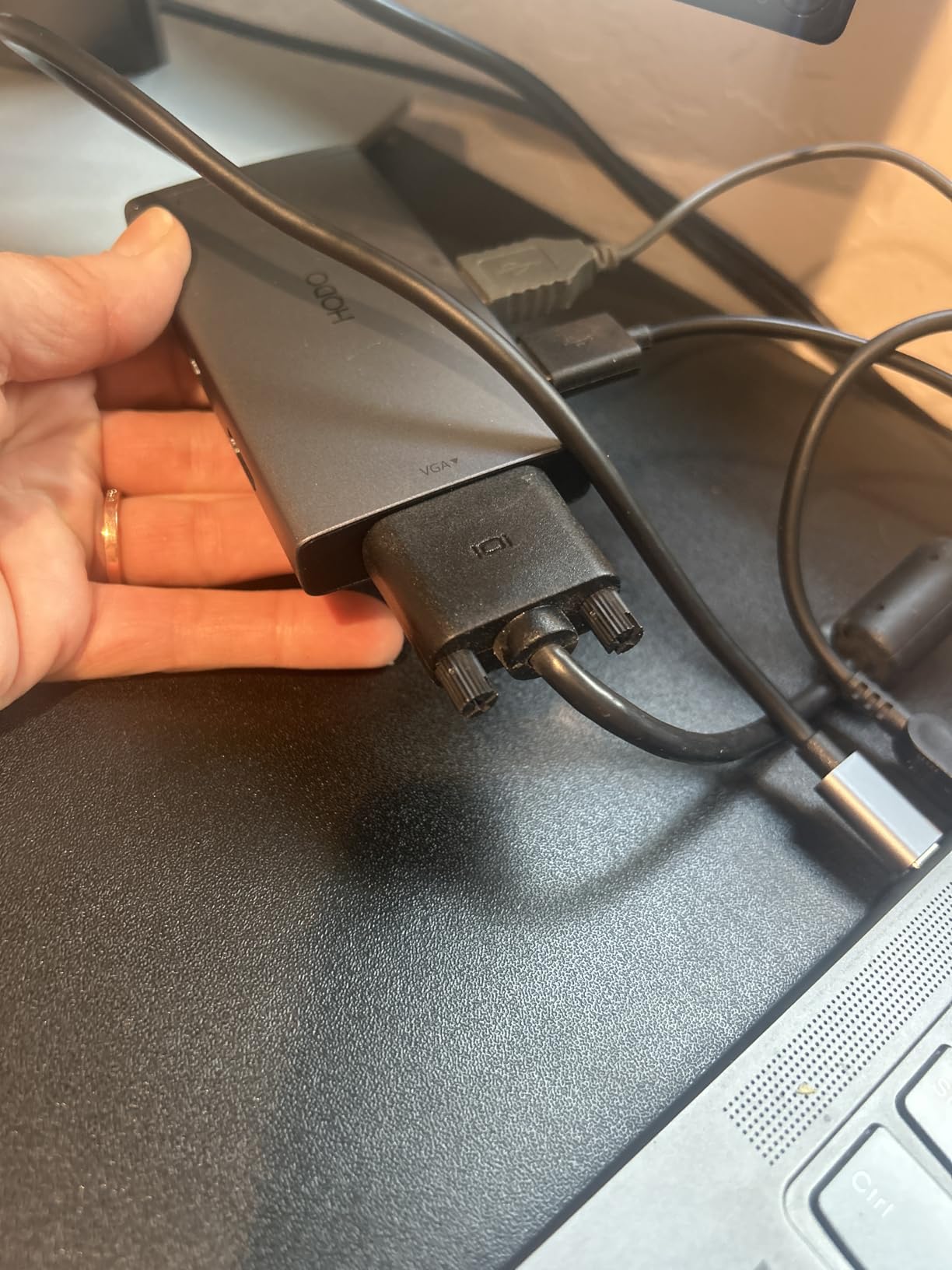
Using the VGA output drags every connected display down to 1080p, so treat VGA as a fallback rather than part of a daily three-screen setup.
Who should pick the HODO 8-in-1?
It suits a shared meeting room desk where an old projector needs VGA and new monitors need HDMI, all fed from one cable. It is also a sensible second dock for a guest machine.
Check your laptop first. Owners report a long list of USB-C ports that fail to work, because the port must support DisplayPort Alt Mode and Power Delivery.
Where the HODO 8-in-1 falls short
No high-speed data and no USB charging means you are limited to slow peripherals on those three ports.
macOS users get mirrored images across every external screen, so this is a Windows-first recommendation.
6. UGREEN 7-in-1 Aluminium Dock – Best Lightweight Dock with 10Gbps Ports
UGREEN USB C Docking Station Dual Monitor, 7-in-1 Aluminum Dock with 2xHDMI
7 ports
Dual 4K@60Hz HDMI
4 data ports at 10Gbps
100W PD
91 grams
Pros
- Genuine dual 4K@60Hz from a compact seven-port dock
- Four 10Gbps USB-A and USB-C data ports for fast transfers
- 100W Power Delivery keeps the laptop running through the dock
- Lightweight aluminium body
Cons
- macOS shows identical content on all extended monitors
- 10Gbps ports carry data only with no charging
- video or audio
- 100W charging needs a 100W or higher charger not included
- Dual 4K@60Hz requires a DP1.4 host
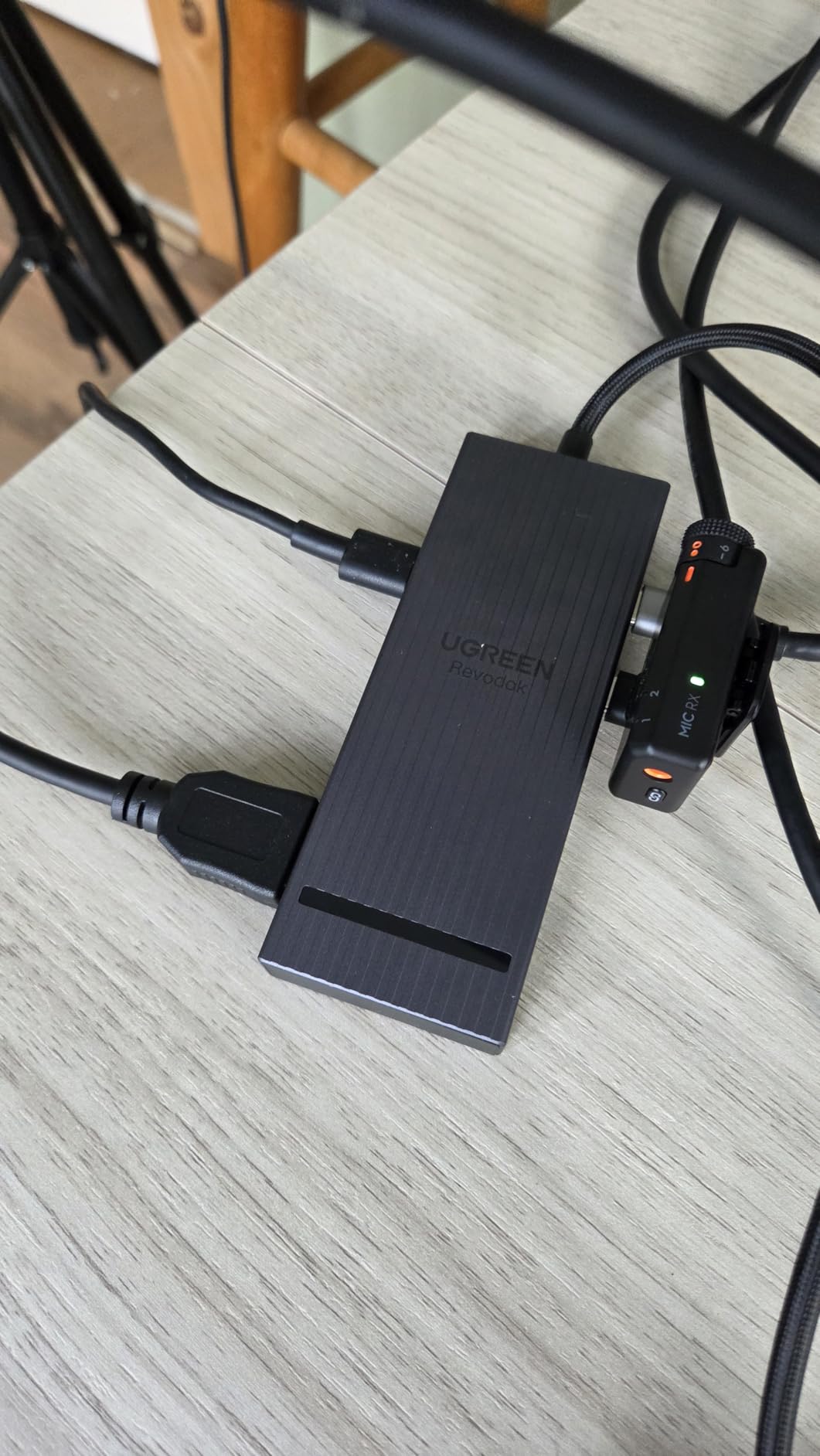
This is the smallest dock here that still delivers true dual 4K@60Hz over HDMI and four 10Gbps data ports. Seven ports is fewer than most competitors, but every one of them does something at full speed, which is the difference between this and a port-count exercise.
Two 10Gbps USB-A ports and two 10Gbps USB-C data ports cover an external SSD, a network adapter and a backup drive without queuing. The aluminium body keeps it at 91 grams, so it works as a permanent travel dock.
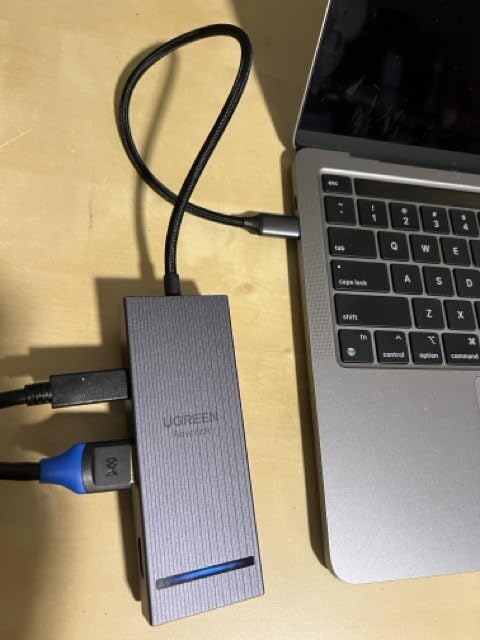
The 100W Power Delivery port charges the laptop, but the charging cable and power adapter are not in the box. Bring your own 100W or higher charger or the charging half of the dock does nothing.
Dual 4K@60Hz needs a host that supports DP1.4. On older laptops you fall back to mirrored output or a lower refresh rate.
Who should pick the UGREEN 7-in-1?
Photographers and editors moving files will benefit most from the 10Gbps ports, since SD slots on smaller docks are usually the bottleneck. It is also a good travel dock for anyone who wants real 4K output rather than 1080p.
At the lowest price in this roundup it is the budget pick that does not compromise on display quality, and it pairs well with a USB-C monitor hub for a single-cable setup if your laptop has only two ports.
Where the UGREEN 7-in-1 falls short
There is no Ethernet, no audio jack and no card reader, so a desk with wired networking still needs a separate adapter.
Mac users should expect mirrored output on both HDMI ports, which removes the main reason to buy a two-display dock.
7. Acer 9-in-1 USB C Dock – Best for a Travel-Ready Aluminium Build
Acer USB-C Docking Station Dual Monitor, 9-in-1 Laptop Dock with 2 HDMI
9 ports
Dual 4K@60Hz HDMI
100W input, 90W to laptop
SD and microSD
Built-in cable
Pros
- Genuine dual 4K@60Hz HDMI in a slim aluminium body
- Reliable 100W pass-through delivering up to 90W to the host
- Built-in 0.65 foot cable removes a loose dongle
- Lock button for device security at work
Cons
- Short stiff built-in cable can point ports away from you
- Power adapter not included and 100W or higher is required
- macOS mirrors identical content on all monitors
- SD and microSD read at only 104Mbps
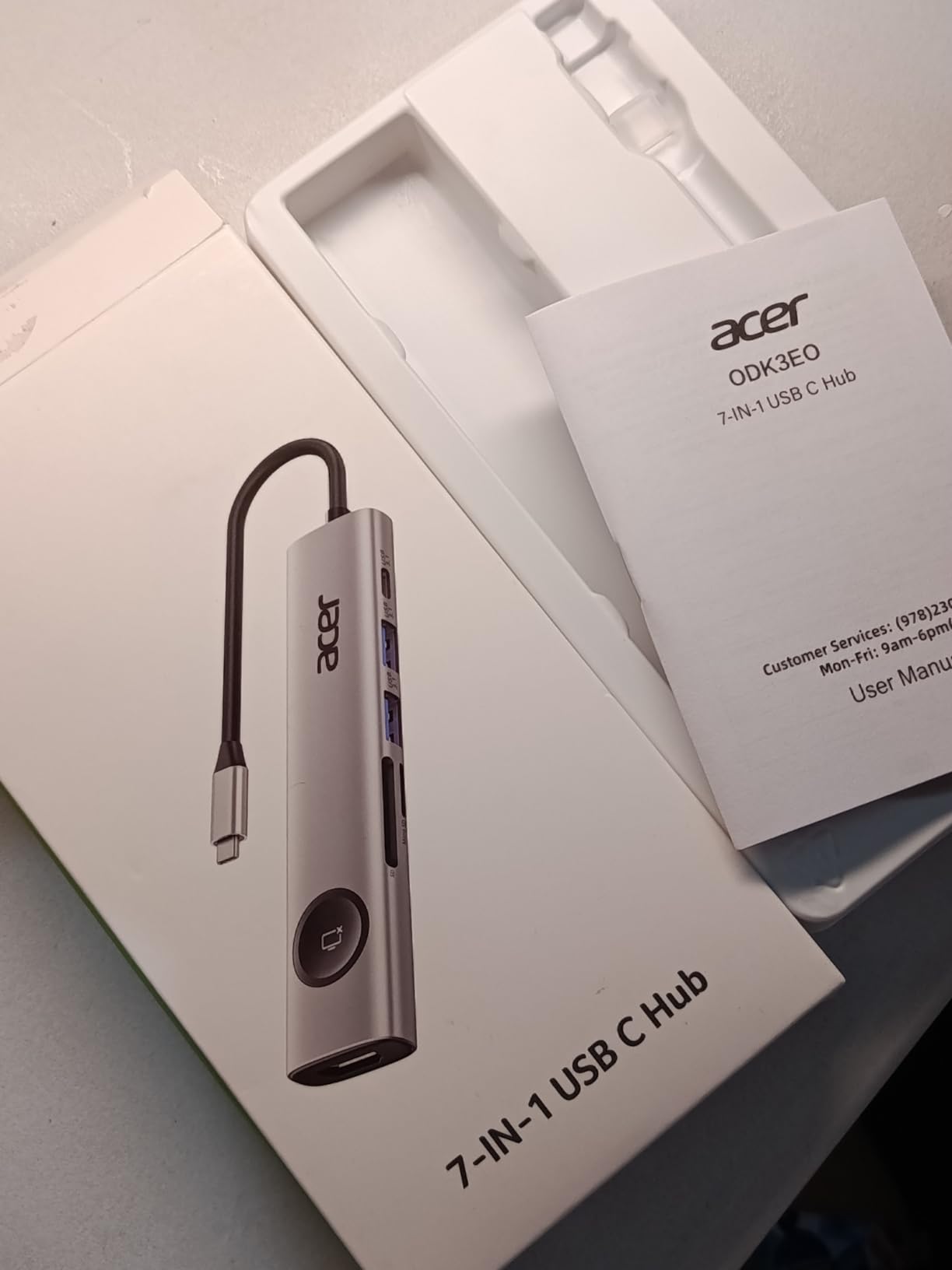
The aluminium alloy body and the attached cable are what set this apart. A built-in 0.65 foot lead means there is no separate dongle to lose in a bag, and at nine ports it still covers two HDMI outputs, USB-A, USB-C data and card readers.
Charging is the best number in this group. It accepts 100W of input and passes up to 90W to the host, so a 14-inch Windows laptop charges at full speed while the dock is running.
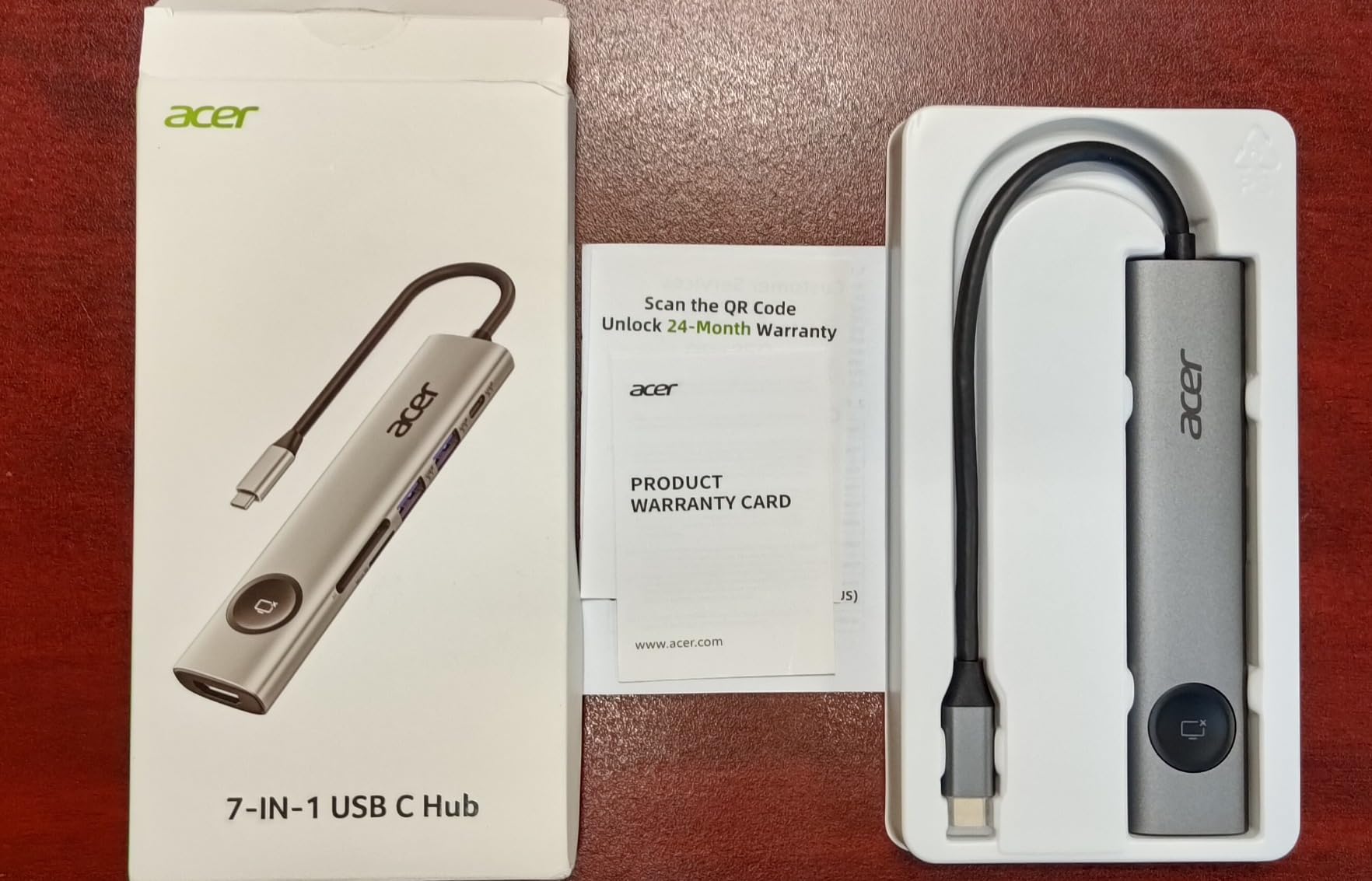
Display output is accurate to the spec sheet: two HDMI ports at 4K@60Hz, extending or mirroring on Windows. On macOS both external monitors show the same content, which is the standard limitation across this list.
Card slots read at 104Mbps. That is fine for a few dozen photos at a time and frustrating for a full shoot, so photographers should carry a separate reader.
Who should pick the Acer 9-in-1?
Anyone building a fixed desk from a single cable will like the 90W pass-through and the lock button, which secures the device in a shared office. The integrated cable suits travel setups where loose adapters get lost.
Owner reviews split on the cable itself. Several describe it as short and stiff enough to force the dock into an awkward position depending on which side the port sits on.
Where the Acer 9-in-1 falls short
A small number of reviews report intermittent HDMI, USB and audio buzzing after extended daily use, alongside a larger number describing years of trouble-free service. Treat it as a dock with a mixed owner history rather than a single hidden fault.
No Ethernet port means a wired desk still needs a separate adapter.
8. VVB 14-in-1 USB C Dock – Best for Business Laptop Fleets
USB C Laptop Docking Station Dual Monitor HDMI USB C Hub Multiport Adapter
14 ports
Dual 4K HDMI plus DisplayPort
100W PD with 87W output
Gigabit Ethernet
10Gbps data
Pros
- Fourteen ports including dual 4K HDMI
- DisplayPort
- Ethernet
- card reader and audio
- 100W Power Delivery keeps one-cable desks tidy
- 10Gbps USB-C and USB-A alongside USB 2.0 for slow peripherals
- Works across Dell
- HP
- Lenovo and Surface laptops
- Several owners bought a second unit for other machines
Cons
- macOS shows identical images across external monitors
- Dual monitor output drops to 4K@30Hz plus 1080p@60Hz
- USB-C data ports carry no video signal
- Runs warm under load with some examples reporting intermittent disconnects
Port density is the argument here. Fourteen ports covering dual 4K HDMI, DisplayPort, 100W Power Delivery, gigabit Ethernet, 10Gbps USB-C and USB-A, two slower USB 2.0 ports, SD and microSD readers and a 3.5mm microphone and audio jack covers most desks without a second adapter.
The manufacturer rates compatibility broadly across Dell, HP, Lenovo and Surface machines, and owners frequently describe buying a second unit for another laptop at home or in the office.
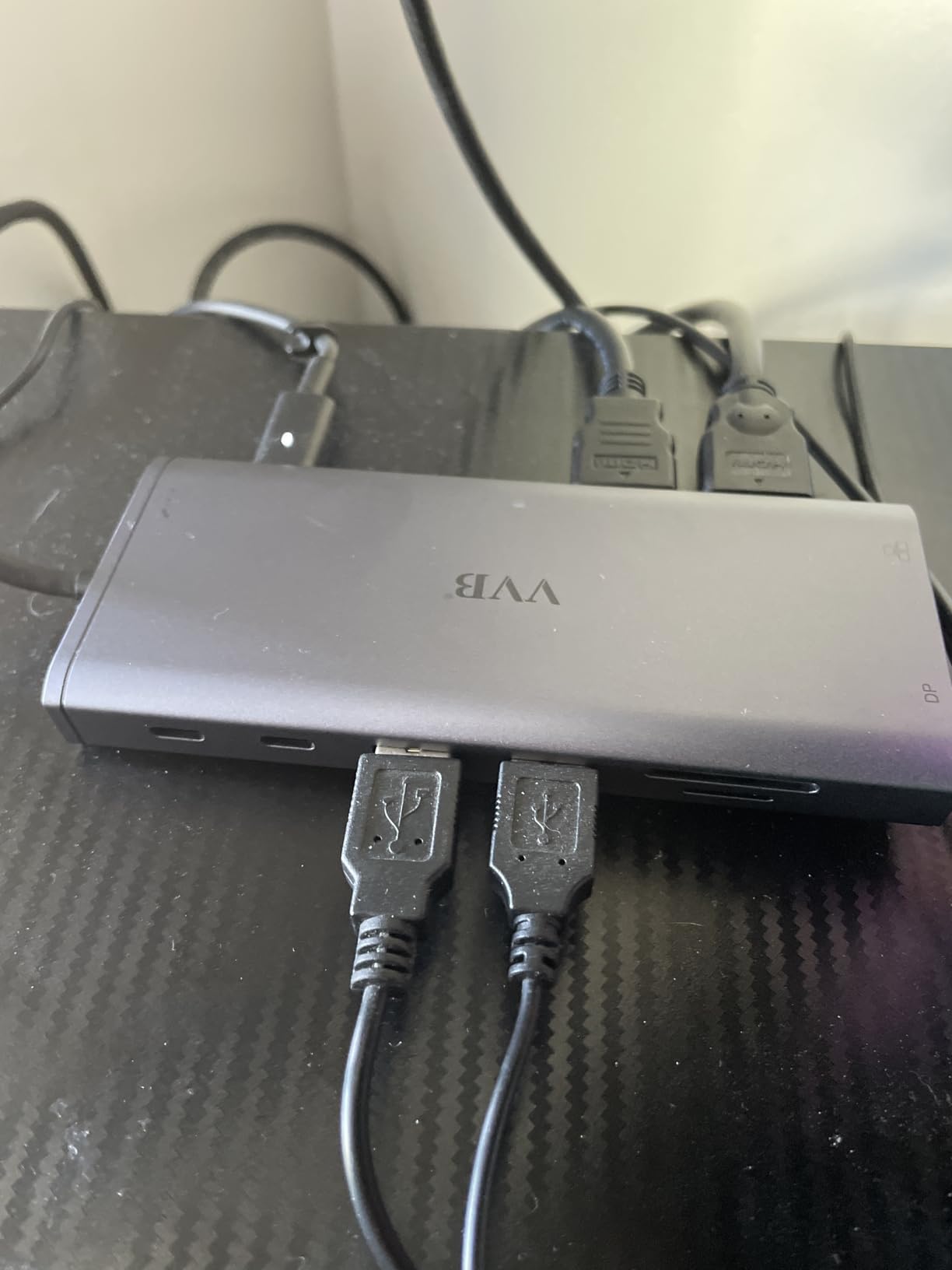
Multi-monitor resolution is where the spec sheet softens. Dual output runs at 4K@30Hz alongside 1080p@60Hz, and triple output drops to 1080p. Fine for documents and mail, marginal for design or editing work.
The USB-C ports carry data only, so video stays on the HDMI and DisplayPort outputs. The enclosure also runs warm under load, and a small number of owners report disconnects after about a year of daily use.
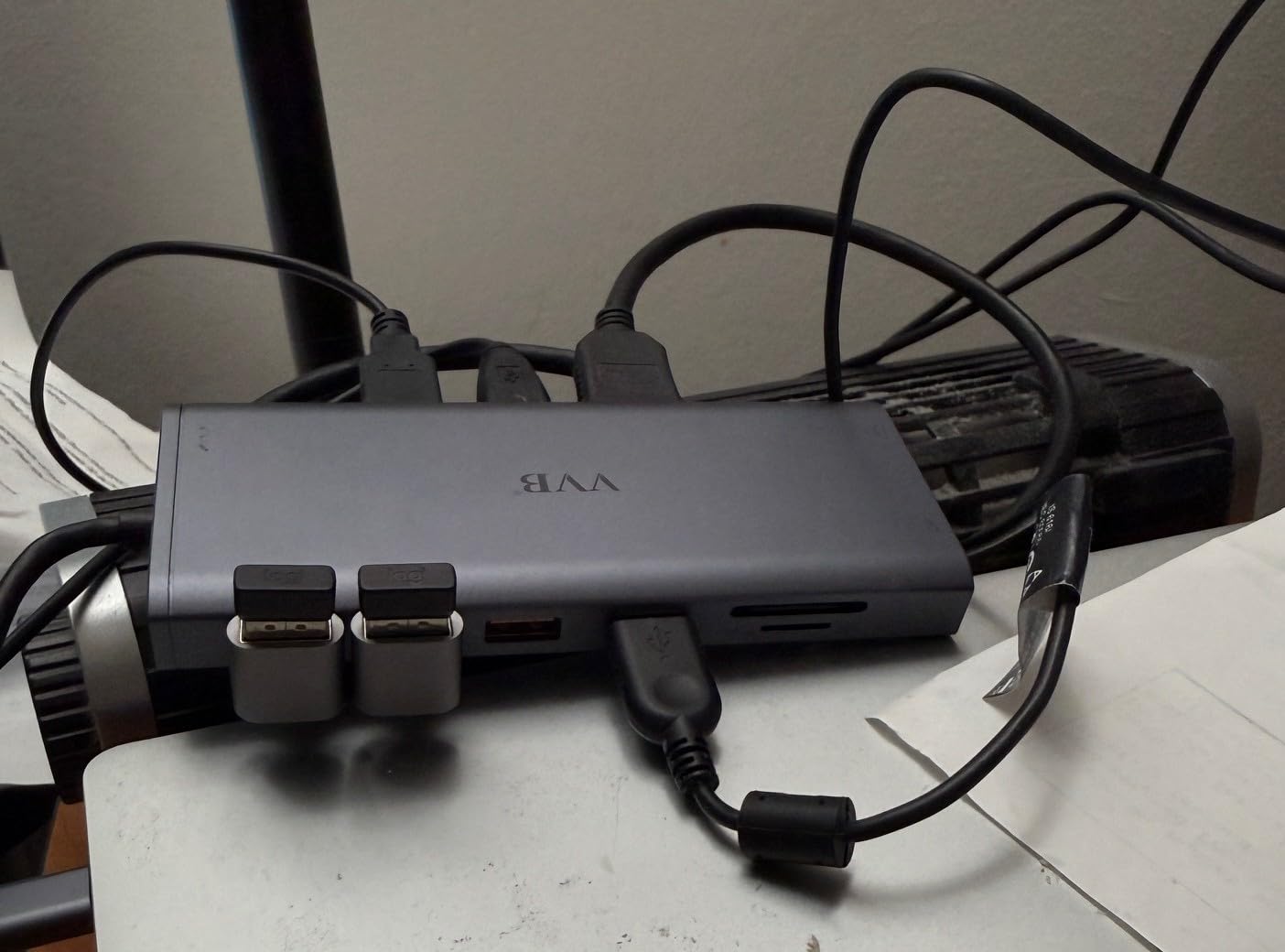
Who should pick the VVB 14-in-1?
It is a good fit for an office where several different business laptops need the same dock. Gigabit Ethernet, a card reader and 100W charging in one unit removes most of the adapter drawer.
The 14-port layout also works for a shared hot desk where different people plug in different peripherals each day.
Where the VVB 14-in-1 falls short
MacBook owners only get mirrored images, and the mixed 4K@30Hz and 1080p dual-output profile will frustrate anyone with 4K panels.
If your workflow depends on sustained maximum data throughput across many devices at once, the shared link and warm enclosure are worth considering elsewhere.
9. Plugable 13-in-1 DisplayLink Dock – Best for Three Screens on a Mac
Plugable USB-C Triple Monitor Docking Station, 13-in-1, 100W Charging
13 ports
DisplayLink triple display
100W host plus 20W device charging
Gigabit Ethernet
TAA and NDAA compliant
Pros
- DisplayLink drives three extended monitors even on Macs limited to one
- 100W host charging plus a 20W front USB-C port for phones
- TAA
- NDAA and Section 889 compliant for fleet deployment
- Three HDMI
- four USB-A
- gigabit Ethernet
- SD reader and audio in and out
Cons
- DisplayLink driver install is required and adds slight visual lag
- No HDCP so protected streaming content will not display
- Only HDMI 1 reaches 4K while the others cap at 1920x1200
- DisplayLink is not supported on SteamOS
This is the only dock in the list that solves the most common Mac problem. M-series MacBooks support a single external display natively, and DisplayLink silicon adds two more, giving three extended screens from one cable. Owners on Mac hardware consistently cite that as the reason they bought it.
Charging is generous. The host port delivers 100W and a front USB-C port adds 20W for a phone, so you can leave the laptop charger at home on a normal workday.
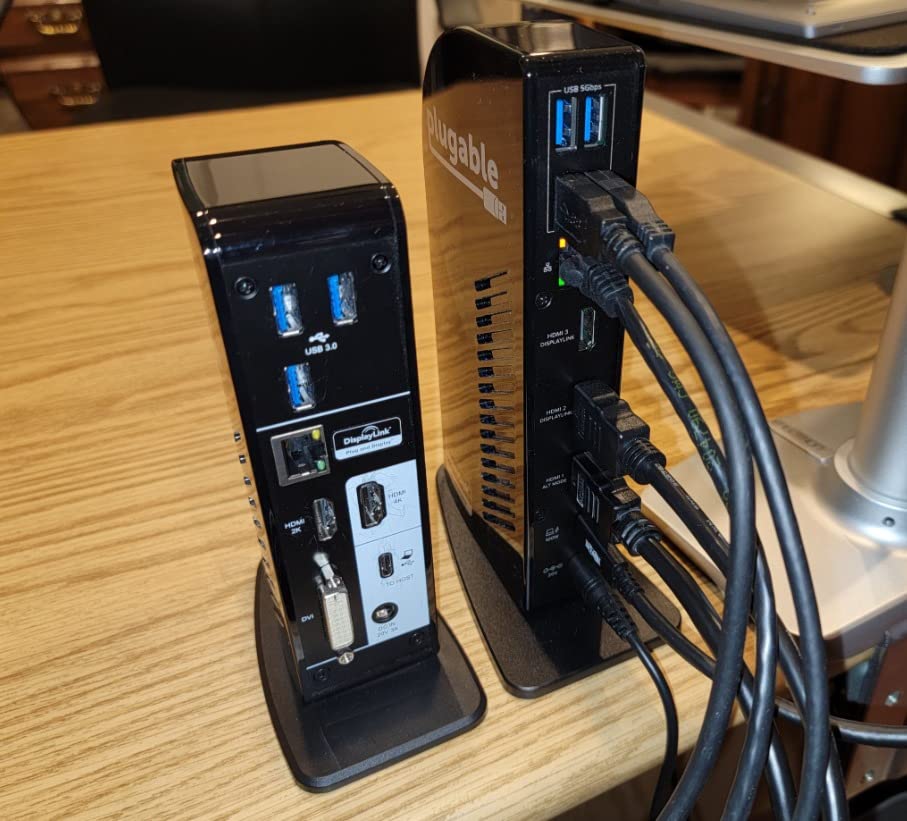
The cost of that capability is honesty about the trade-off. DisplayLink compresses video on the graphics side, which adds slight visual lag on scrolling and motion, and it requires the DisplayLink Manager driver on macOS 11 and later.
There is no HDCP support, which means protected streaming services will not display through these outputs. Resolution is also uneven: HDMI 1 reaches 4K at 30Hz while HDMI 2 and 3 cap at 1920×1200 at 60Hz.

Who should pick the Plugable 13-in-1 DisplayLink Dock?
Mac users running a trading, editing or engineering setup where two extra screens matter more than perfect motion will find nothing else in this list that does the same job.
IT teams deploying to government and regulated buyers should note the TAA, NDAA and Section 889 compliance, which is documented on the product.
Where the Plugable 13-in-1 DisplayLink Dock falls short
If you watch streaming services or play games on the extra screens, the lack of HDCP and the added lag rule it out. DisplayLink is also unsupported on SteamOS.
Buyers expecting equal 4K on all three outputs will be disappointed by the resolution split between HDMI 1 and the other two.
10. Anker 13-in-1 Vertical Dock – Best All-in-One with a Power Adapter Included
Anker Laptop Docking Station, 13-in-1 USB C Docking Station, Triple Display
13 ports
85W host plus 18W device
135W adapter included
Vertical 4.9 inch design
Three 1080p displays
Pros
- Thirteen ports including DisplayPort
- gigabit Ethernet and card readers
- 135W power adapter included in the box
- Three external monitors at 1080p@60Hz or one 4K@60Hz display
- Vertical design saves desk space
Cons
- macOS limits all external monitors to mirror mode
- Triple extended displays need MST on Windows 10
- 11 or ChromeOS
- 10Gbps USB-C and 5Gbps USB-A share a single upstream link
- Lowest rating in this group at 4 out of 5
Only a few docks ship with a power supply, and this one includes a 135W adapter. That removes the single most common complaint in this category, where buyers discover the dock cannot deliver its advertised wattage without a charger they do not have.
The vertical body stands about 4.9 inches tall and holds thirteen ports: two HDMI, DisplayPort, three USB-C, three USB-A, gigabit Ethernet, SD and microSD readers, a 3.5mm audio jack and a DC input. It runs up to three monitors at 1080p@60Hz or one at 4K@60Hz.
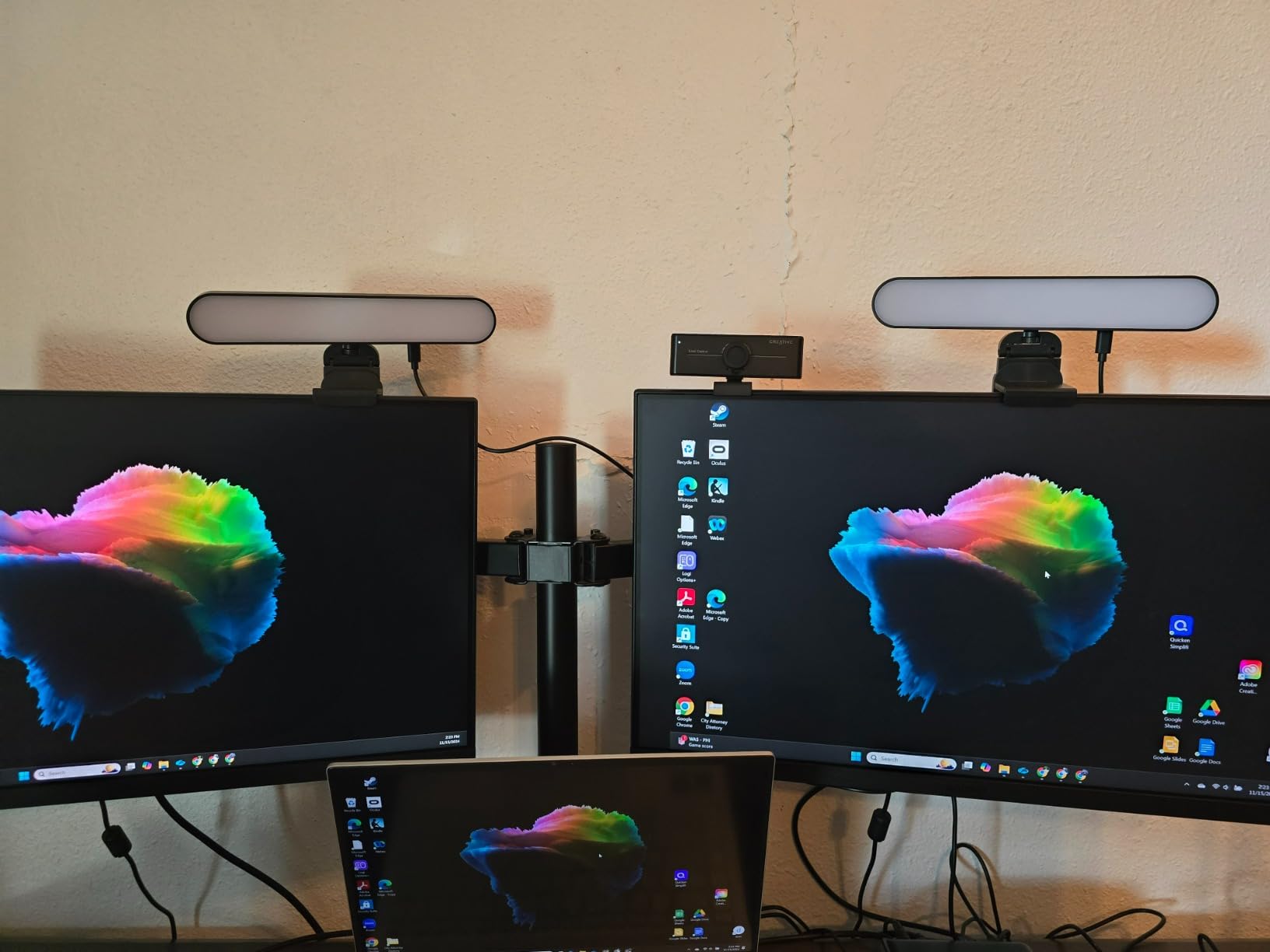
Host charging is 85W with an additional 18W port for a phone, so two devices can charge at once from one wall socket. The vertical footprint is genuinely useful on a small desk compared with a flat brick.
Extended triple displays need MST support on Windows 10, 11 or ChromeOS. macOS output mirrors across every external screen, and all data speeds share a single upstream link.
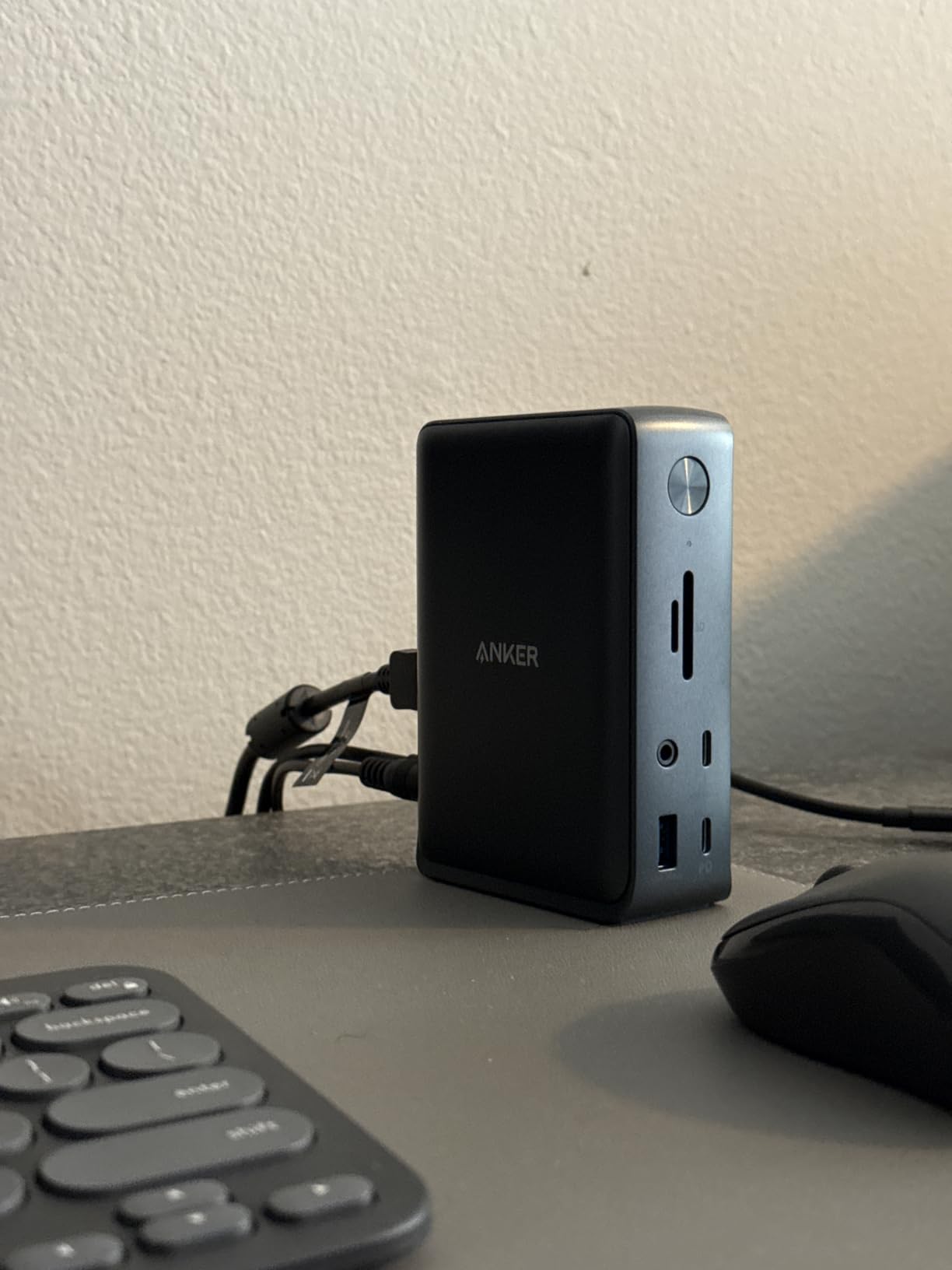
Who should pick the Anker 13-in-1 Vertical Dock?
It suits someone who wants a full desk from one cable and does not want to shop for a 100W charger first. The included adapter and the vertical footprint make it a strong fit for a small home office.
Owners frequently mention the brand’s support reputation as part of the experience, alongside the all-in-one design.
Where the Anker 13-in-1 Vertical Dock falls short
At 4 out of 5, this has the lowest rating in the group, which points to genuinely mixed experiences rather than one recurring fault. Test the DisplayPort output early if your desk depends on it.
Shared upstream bandwidth means a fast external SSD and a network adapter will compete for the same link, and macOS users should treat it as a single-screen dock with mirrored extras.
How to Choose a Laptop Docking Station
Start by checking what your laptop actually has, because no dock can fix a missing port. Look for a USB-C port carrying the Thunderbolt lightning symbol or a DisplayPort Alt Mode symbol. Data-only USB-C ports on older or budget laptops will not drive a display or charge the host. Systems with only USB-A ports need the hybrid-cable model, which is why the Plugable 12-port dock sits in this list.
Second, size the power delivery against your laptop. A dock advertising 100W of input typically delivers 85W to 90W to the host after its own overhead, and the LIONWEI model explicitly draws about 13W. Match that against the charger your laptop shipped with: 65W for a thin ultraportable, 100W for a 14-inch performance machine or a workstation-class mobile workstation. Buying a 65W dock for a 100W laptop produces slow charging under load, which is one of the most commonly reported problems in owner reviews.
Third, check the resolution ceiling before you care about port count. A dock that says dual monitor may mean 4K@30Hz on one screen and 1080p on the other, or two 1080p screens like the Plugable 12-port unit. The VVB runs 4K@30Hz plus 1080p in dual mode, while the Anker 8-in-1 and Acer 9-in-1 both reach dual 4K@60Hz on a DP1.4 host.
Thunderbolt dock or USB-C dock with DisplayLink?
A native Thunderbolt dock tunnels PCIe directly, so peripherals get full bandwidth, video runs without compression and there is no extra driver. A DisplayLink-based USB-C dock compresses video on the graphics side instead, which means you can drive more screens than the native bandwidth allows, at the cost of slight motion lag and no HDCP streaming.
None of the ten docks here require Thunderbolt to work. They all run on DisplayPort Alt Mode over USB-C, which is why several carry dual display output without a Thunderbolt logo. For a typical home desk, the difference in day-to-day use is small; for Mac users who need more than one external screen, the DisplayLink route in the Plugable 13-in-1 is the practical answer.
Which ports do you actually need
Gigabit Ethernet is the most commonly regretted omission in a small dock, so prioritise it if your desk relies on wired networking. Card readers matter for photographers, but check the stated speed: slots on the smaller docks here run from 104Mbps to 200Mbps, while 10Gbps USB-C and USB-A data ports let you use a much faster external reader instead.
Count audio jacks and USB-A ports last. Keyboards and mice need almost no bandwidth, so USB 2.0 ports at 480Mbps, as on the HODO 8-in-1, are perfectly adequate for them.
Which docking station is right for you
Two monitors on Windows and something that fits in a laptop bag points to the Anker 8-in-1. A meeting room desk with a VGA projector points to the Selore 14-in-1. Three 4K screens on a Windows workstation points to the LIONWEI 13-in-1. A Mac that needs more than one external display points to the Plugable 13-in-1 DisplayLink dock. A mixed fleet of business laptops points to the Plugable 12-port universal dock or the VVB 14-in-1. A tight budget that still needs true 4K points to the UGREEN 7-in-1.
If you only ever run one external monitor with a keyboard and mouse, a dock is overkill. A basic USB-C hub does the same job and costs less, and forum discussion in this category repeatedly makes that point.
Fixing the three most common dock problems
If a monitor is not detected after waking from sleep, the fix is almost always to update the dock’s firmware first, then disconnect the power brick for fifteen seconds and reconnect it before the cable to the laptop. ThinkPad and Dell owners in support communities report the same sleep and wake class of bug across multiple dock generations, and some resolve it through device manager power-management settings.
For slow charging, measure what your laptop actually draws rather than trusting the advertised number. A dock accepting 100W does not deliver 100W. Check that you are plugging a 100W or higher charger into the dock’s PD input, since most docks here ship without one, and confirm your laptop’s charger wattage is not the ceiling.
For intermittent USB disconnects, check whether the dock is bus-powered for the ports you are using, cut USB-C charging to a single device where the dock supports it, and update firmware before suspecting hardware. Owner communities consistently name a full dock power cycle, rather than a simple unplug, as the thing that actually clears a stuck dock.
Sharing one dock between two laptops
If a Mac and a Windows machine share the same desk, you have two sensible options rather than a reason to buy two docks. A USB-C switch lets both laptops plug into one dock, and owners in Mac and Windows communities recommend this over replacing a perfectly good dock. The alternative is a dual-monitor setup with an HDMI splitter, which lets both machines drive the same displays without extra software, at the cost of losing the extended-desktop arrangement.
Whichever route you take, test both machines before you commit, because macOS mirroring behaviour on these docks is the single most common source of surprise in this category.
Desk footprint and cable routing
Dock size matters more than most buyers expect at purchase time and less than they expect after a week. The Anker 8-in-1 at 3.2 ounces and the UGREEN 7-in-1 at 91 grams both vanish; the Plugable 13-in-1 DisplayLink dock is noticeably larger because of the components DisplayLink requires. The Anker 13-in-1 stands vertically at about 4.9 inches, which is a practical choice on a shallow desk.
Allow space for the power brick, since nine of the ten docks here need one and none of them include a cable long enough to reach a wall socket behind a monitor stand. Route the host cable from the dock’s side nearest you rather than the far side, since several owner reviews describe docks positioned so that ports point away from the user.
How We Chose These Docking Stations
We built this list around what buyers actually plug in, rather than around the highest specification available. Five criteria decided the order, and every product here passed all five.
First, real port coverage, weighted toward the ports people regret missing. A dock with gigabit Ethernet and a card reader beats one with a third HDMI port every time, because Ethernet and card readers are the two omissions owners complain about most after purchase.
Second, delivered power rather than advertised power. We read the host wattage in each specification rather than the input wattage, since a 100W input typically means 87W to 90W at the laptop. Docks that ship without a power adapter are flagged in their entry, because that is the single most common reason a good dock appears to charge badly.
Third, stated display resolution, checked per operating system. A dock that reaches dual 4K@60Hz on Windows but mirrors on macOS is a different product from one that extends everywhere, and we treat those as separate use cases rather than a single ranking.
Fourth, owner experience at volume. Ratings here come from owner reviews rather than editorial scores, and we read the complaints as closely as the praise. Sleep and wake failures, disconnects, slow card readers and missing chargers are the patterns that separate a dock that survives a year from one that does not.
Fifth, warranty and support length as a proxy for staying power. Two-year and 18-month coverage on a device you will keep for three to five years tells you something about whether the manufacturer plans to support it.
We deliberately excluded Thunderbolt 5 docks. They exist and they are excellent, but nothing in the ten docks here needs one to drive two displays at 4K, so paying for the newer silicon would add cost without changing the desk experience. That is a general principle in this category: buy the connection your laptop already has, and spend the difference on power delivery and ports.
Frequently Asked Questions
What should I consider before buying a docking station?
Check four things: whether your laptop has a USB-C port with DisplayPort Alt Mode or Thunderbolt, how many displays you need at what resolution, whether the dock’s delivered wattage matches your laptop’s charger, and whether it includes the ports you actually use such as gigabit Ethernet or a card reader. Also confirm whether you run macOS, since most USB-C docks mirror identical content on every external monitor.
What is the difference between a docking station and a docking hub?
A docking hub is a simple pass-through splitter with a few USB-A ports and one display output, usually powered by the laptop. A docking station is a powered device with its own power supply that adds host charging, more display outputs, Ethernet and often audio, which is why it can drive several monitors at 4K and charge the laptop at the same time.
Which is better, a Thunderbolt dock or a USB-C dock?
A Thunderbolt dock tunnels PCIe directly, so it delivers full bandwidth, uncompressed video and no extra driver. A USB-C dock with DisplayLink compresses video on the graphics side, which allows more screens than native bandwidth but adds slight motion lag and blocks HDCP protected streaming. For a single or dual monitor desk, a good USB-C dock is usually the simpler and cheaper choice.
Is Thunderbolt better than DisplayLink?
Thunderbolt is better where quality matters: no compression, no driver install and full peripheral bandwidth. DisplayLink wins in one specific situation, which is driving more than one external monitor from a MacBook, where native USB-C and Thunderbolt allow only a single extended display. If that is your situation, a DisplayLink dock is the practical answer despite the added lag.
How much power delivery do I need for my laptop?
Match the dock to the charger your laptop shipped with. A 65W laptop needs a dock delivering around 65W, and a 100W laptop needs one delivering 85W to 90W. Note that a dock advertised as 100W input typically delivers 87W to 90W to the host after its own overhead, and most docks in this roundup ship without a power adapter.
Why is my laptop not recognizing my docking station?
Most cases trace back to the host port rather than the dock. Confirm the USB-C port supports DisplayPort Alt Mode and Power Delivery, then update the dock firmware, unplug the power brick for fifteen seconds and reconnect it before the cable. On macOS 14 and later, DisplayLink-based docks such as the Plugable models also need a manual driver install.
Conclusion: Which Docking Station Should You Buy in 2026
The Anker 8-in-1 USB C Hub is our pick for most people because it weighs 3.2 ounces, passes 85W of charging and runs two monitors plus Ethernet and a card reader from one small box, with the largest review base in this roundup behind it. Buy the Selore 14-in-1 if port count matters most, the UGREEN 7-in-1 if you want true dual 4K on the cheapest budget, and the LIONWEI 13-in-1 if your Windows machine needs three screens at 4K.
Mac users have a narrower path. If you need more than one extended display, the Plugable 13-in-1 DisplayLink dock is the model that solves it, and you should accept the driver install and added motion lag in exchange. Otherwise, check your host port, match the dock’s delivered wattage to your laptop’s charger, and update the firmware on day one, since that single step resolves the largest category of dock complaints.
Whichever you pick, test it with your own laptop and your own monitors before you commit to a permanent desk setup. Dock behaviour varies more between laptop models than between dock models.