
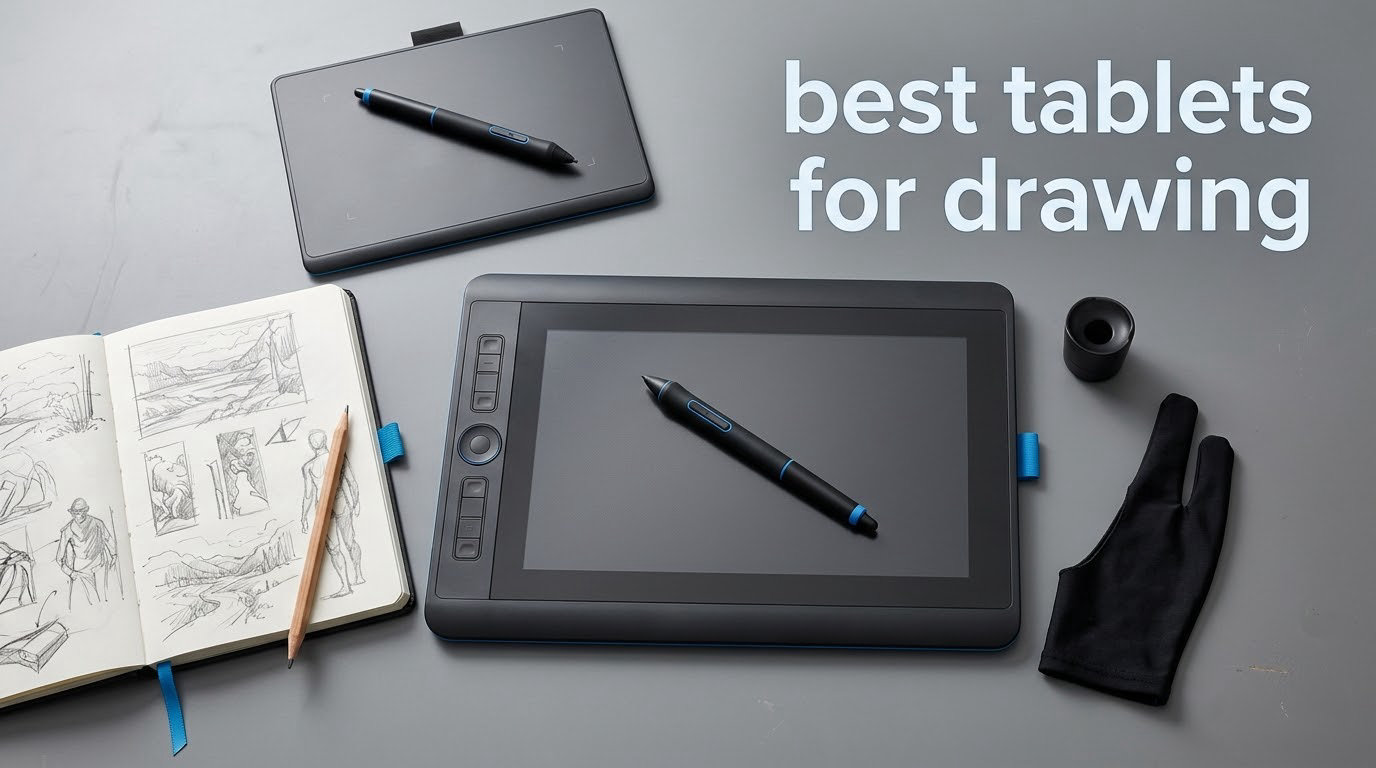
If you want the short answer: the Wacom Intuos Small is the best tablet for drawing for most beginners, the XP-Pen Artist 15.6 Pro is the best all-round pen display, and the XP-Pen Deco 01 V3 is the best value pick. Those three cover almost every first purchase in 2026.
That answer only holds because “drawing tablet” means three very different things. A screenless pen tablet is a blank drawing surface that needs a computer. A pen display is a monitor you draw directly on, and it also needs a computer. A standalone tablet runs its own apps and needs nothing else. Pick the wrong family and you will spend your money on the wrong tool.
I have worked through all twelve devices in this roundup, read the owner reviews closely, and sorted them by what actually changes the way your art looks. Two things dominate every decision: how much pressure detail the pen reports, and whether you can see your hand while you draw. Everything else is preference.
I will also be blunt about the category’s biggest trap. Spec sheets for drawing gear are full of numbers that mean nothing for artwork. Refresh rate matters for scrolling, not for line quality. Resolution matters less than whether the screen surface is laminated to the digitizer. And pressure level counts above 8192 deliver almost no visible benefit once your software has a good curve editor.
What follows is the complete guide: what each device type is, twelve picks with real detail, a buying guide that explains which numbers matter, and answers to the questions beginners ask most. Updated for October 2026.
Table of Contents
Top 3 Picks for Drawing Tablets in 2026

All three need a computer. If you want something that works on a train with no cables, jump to the standalone picks further down.
Which Type of Drawing Tablet Do You Need?
Three families, three different workflows. Here is how to tell them apart before you spend anything.
Screenless pen tablet
A flat pad with a pen and no screen. You look at your computer monitor and move your hand to match what you see on screen. There is an indirect coordination step, and some people find it takes a week to stop fighting it. In exchange you get a large drawing area for very little money, a pen that never needs charging, and zero cables to fiddle with on a single-monitor desk.
Regulars on drawing forums almost universally describe this as the correct first purchase. You learn pressure control, line weight and brush behavior before you spend more money, and if the hobby does not stick, you are out very little.
Pen display
A monitor with a pen-sensitive screen. Your hand sits exactly where the line appears, which removes the coordination problem and makes detail work much easier. You still need a computer, and usually two cables plus power. Pair it with a monitor arm and the ergonomics are excellent; use the folding stand it ships with and most people end up with a sore neck within a month.
One warning from experienced users: budget brands have improved a lot, but reliability and regional support remain less tested than Wacom. Budget a little for the possibility of a warranty replacement.
Standalone tablet
A full tablet with its own processor, screen and apps. Nothing to plug in, which makes it the only option if you draw while travelling or away from a desk. The trade-offs are a smaller drawing surface, less RAM and storage than a desktop, and an app ecosystem that cannot run every professional program.
Standalone Android tablets are the cheapest route into this family and work well for sketching and study. iPads have the deepest app support of any portable device, but this roundup covers what the data gives us, and that means Android standalone models.
The three numbers worth understanding
Pressure levels. A pressure-sensitive pen reports how hard you press, and the software turns that into line width and opacity. 4096 levels is the practical floor today. Above 8192 you are adding resolution your eye and hand cannot use without a tuned curve.
Parallax and lamination. Parallax is the visual gap between the pen tip and the cursor on a non-laminated display, because the glass sits above the sensor. Full lamination bonds the layers together and removes almost all of it. If you draw fine detail, lamination matters more than any other spec on this list.
Latency. The delay between your stroke and the ink appearing. On a quality pen tablet it is not something you notice. On a display it is the first thing people notice. Budget screenless models in this roundup report lag-free tracking in owner reviews, so start there if latency worries you.
Best Tablets for Drawing: Quick Overview in 2026
| Product | Specs | Action |
|---|---|---|
| Wacom Intuos Small |
|
Check Latest Price |
 XP-Pen Deco 01 V3 XP-Pen Deco 01 V3 |
|
Check Latest Price |
 Huion Inspiroy 2 Large Huion Inspiroy 2 Large |
|
Check Latest Price |
 Wacom Intuos Pro Medium Wacom Intuos Pro Medium |
|
Check Latest Price |
 XP-Pen Artist12 XP-Pen Artist12 |
|
Check Latest Price |
 GAOMON PD1161 GAOMON PD1161 |
|
Check Latest Price |
 Huion Kamvas 13 Gen 3 Huion Kamvas 13 Gen 3 |
|
Check Latest Price |
 UGEE UE16 UGEE UE16 |
|
Check Latest Price |
 XP-Pen Artist 15.6 Pro XP-Pen Artist 15.6 Pro |
|
Check Latest Price |
 Huion Kamvas Pro 16 Plus Huion Kamvas Pro 16 Plus |
|
Check Latest Price |
 PicassoTab X14 PicassoTab X14 |
|
Check Latest Price |
 RubensTab T11 Pro RubensTab T11 Pro |
|
Check Latest Price |
1. Wacom Intuos Small: The Best Drawing Tablet for Most Beginners
Wacom Intuos Small, Wired Graphic Drawing Tablet with Pen + Software
6 x 3.7 inch active area
4096 pressure levels
Battery-free EMR pen
4 ExpressKeys
Pros
- Battery-free EMR pen with a pen-on-paper feel
- Works with Windows macOS Linux and Chromebook
- Compact and scratch-resistant plastic body
- 4 ExpressKeys plus remappable precision mode
- Bundled drawing software and training
Cons
- Small drawing area for large monitors
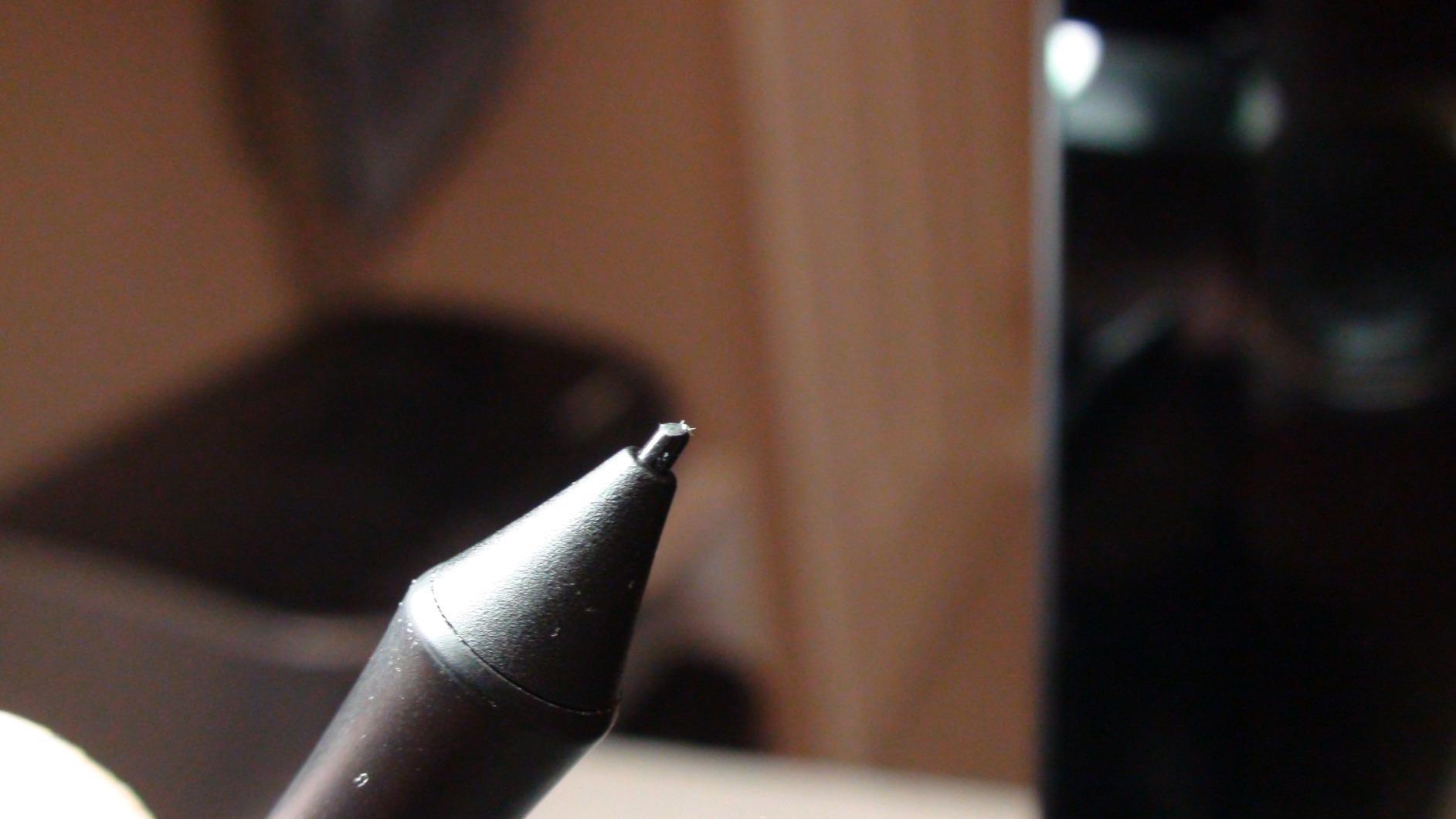
- Included nibs wear down quickly
- Fixed wired cable with no USB-C adapter included
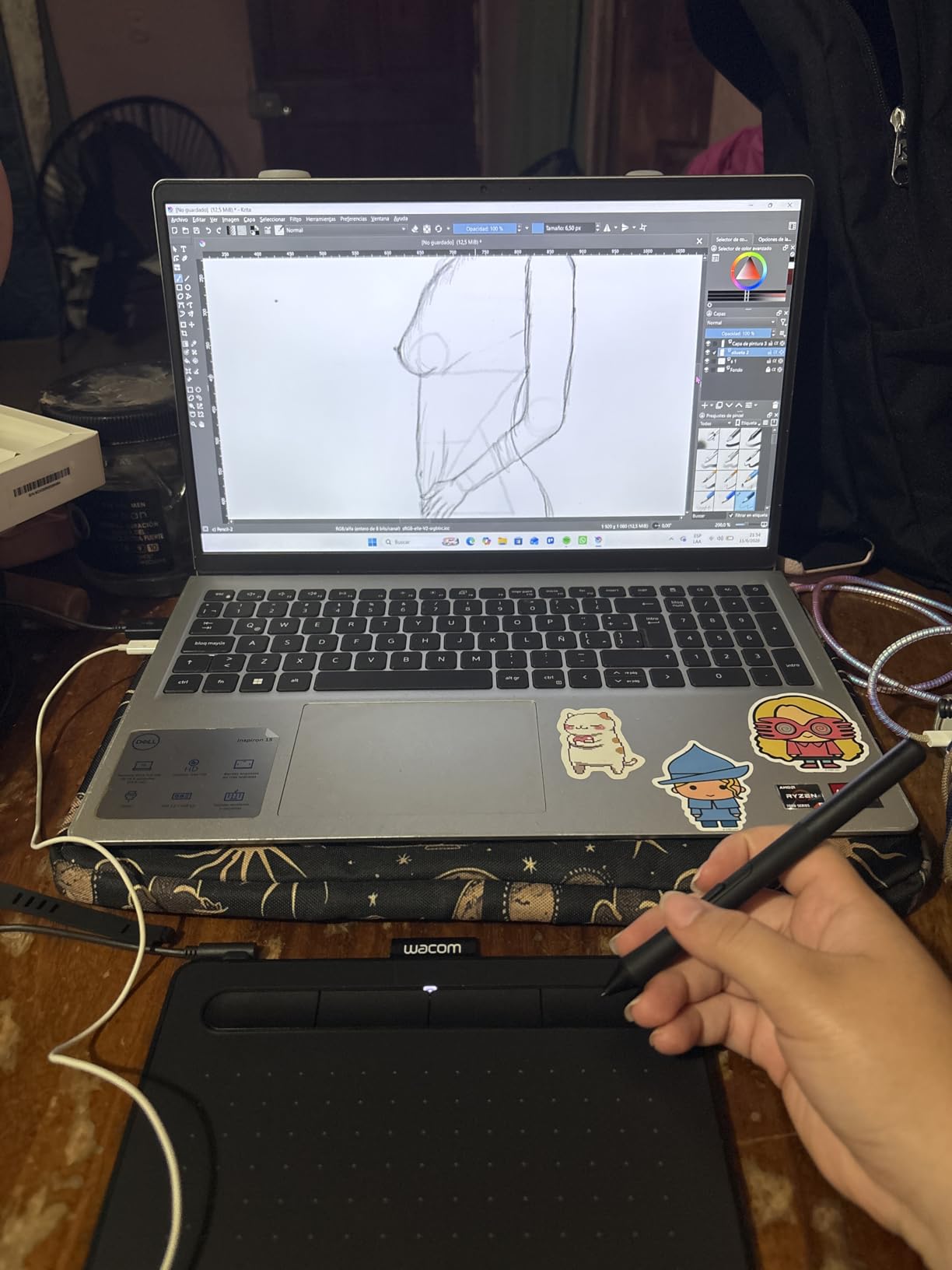
I have recommended this tablet to more beginners than any other, and it has earned the spot. Owners describe the setup as genuinely plug-and-play: connect the cable, install a driver, and the pen works. Across more than 23,000 reviews the same strengths come up repeatedly, including dependable behavior in Photoshop, Krita, Affinity and even Linux, which is more than most rivals manage.
What makes it feel special is the pen. Wacom’s EMR technology is battery-free, so there is no charging, no pairing and no flat-pen surprise halfway through a session. The nib glides with a light friction that many owners describe as the closest thing to pencil on paper they have found at this level.
The honest weakness is size. A 6 x 3.7 inch active area is small next to a 27-inch monitor, and the mapping means your hand covers a big stretch of screen. Wacom’s precision mode helps by shrinking the mapped area for detail work, but if you plan on painting large backgrounds you will be zooming and panning constantly.
The wired cable is the other limitation. It is USB-A with an L-shaped connector, so it plugs in tight and leaves little room for a second device on the same hub. Reviewers also note that the spare nibs wear faster than expected, which is a five-second fix as long as you keep spares.
Is the small drawing area a real problem?
It depends on your screen. On a 15-inch laptop the mapping feels natural and you will not notice it. On a large desktop display many owners switch to precision mode permanently, which effectively turns the tablet into a detail tool with a small working window.
If you draw a lot of full-canvas illustration, the XP-Pen Deco 01 V3 below gives you 10 x 6.25 inches at a similar weight in the hand. That is the pick if you want to paint bigger areas without changing habits.
Is it worth skipping a pen display?
For a first year, yes. Forums consistently report that screenless tablets teach pressure control and brush fundamentals cheaply, and you can always add a display later. This is the lowest-risk way to find out whether digital art is for you.
Skip it instead if you work on fine line detail, if you have wrist or shoulder issues, or if you already know you will draw daily for years. In that case a laminated display pays back its extra cost immediately.
2. XP-Pen Deco 01 V3: Best Value Screenless Tablet With a Large Canvas
XPPen Deco 01 V3 10×6 Drawing Tablet, 16K Battery-Free Stylus, 8 Keys
10 x 6.25 inch active area
16384 pressure levels
8 customizable keys
8 mm slim body
Pros
- 16384-level pressure with 60-degree tilt
- 8 fully remappable ExpressKeys
- Out-of-the-box Linux driver support
- 8 mm slim body easy to carry
- Works directly with Android phones and tablets
Cons
- Nib tips wear quickly
- Stylus tip feels soft and slightly wobbly
- Included protective film does not adhere well
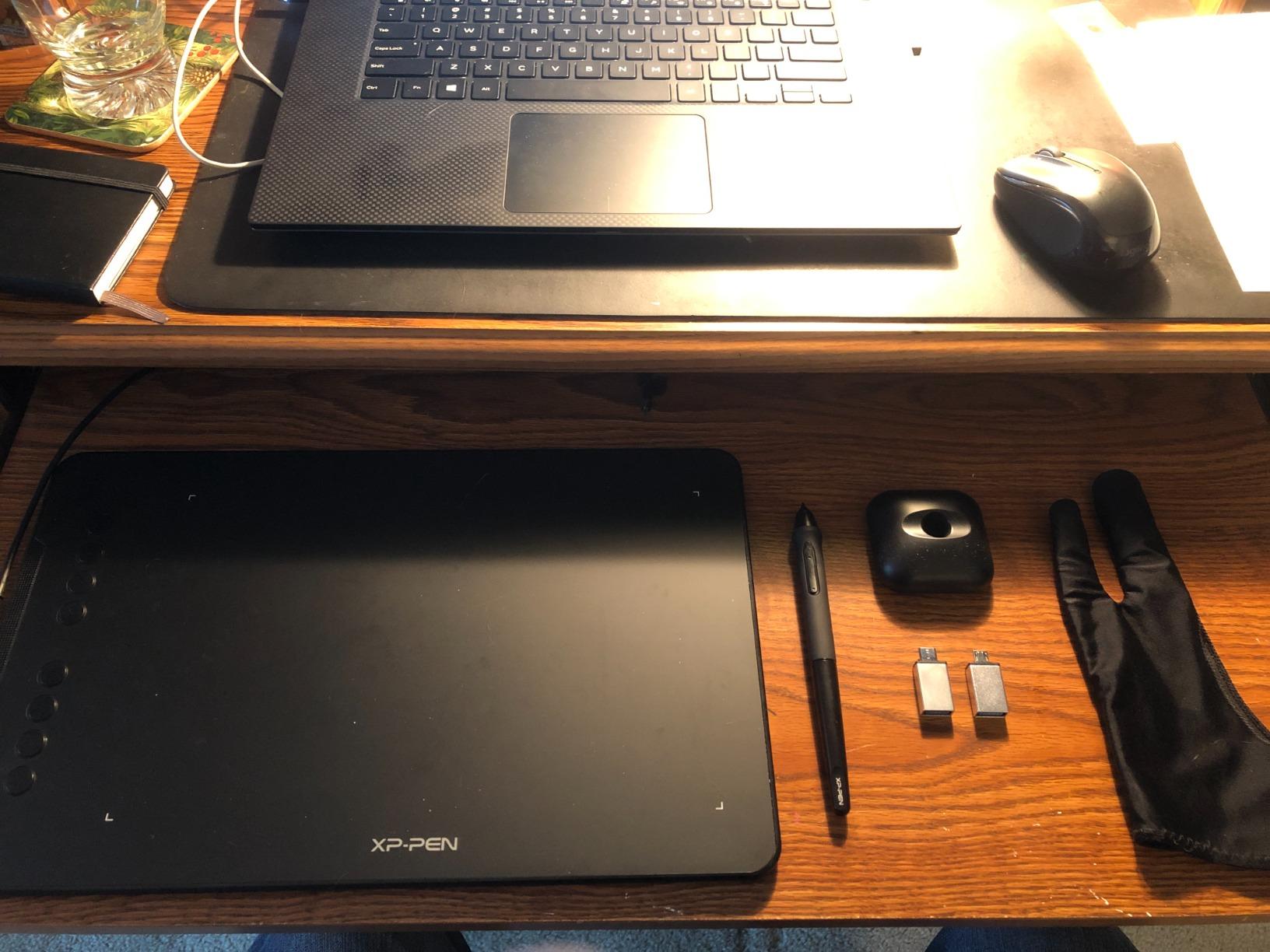
This is the one I recommend most often as an upgrade from a first tablet. The 10 x 6.25 inch active area is roughly 68 percent larger than the Wacom Intuos Small, and at 8 mm thick it is thin enough to carry in a laptop sleeve without a case.
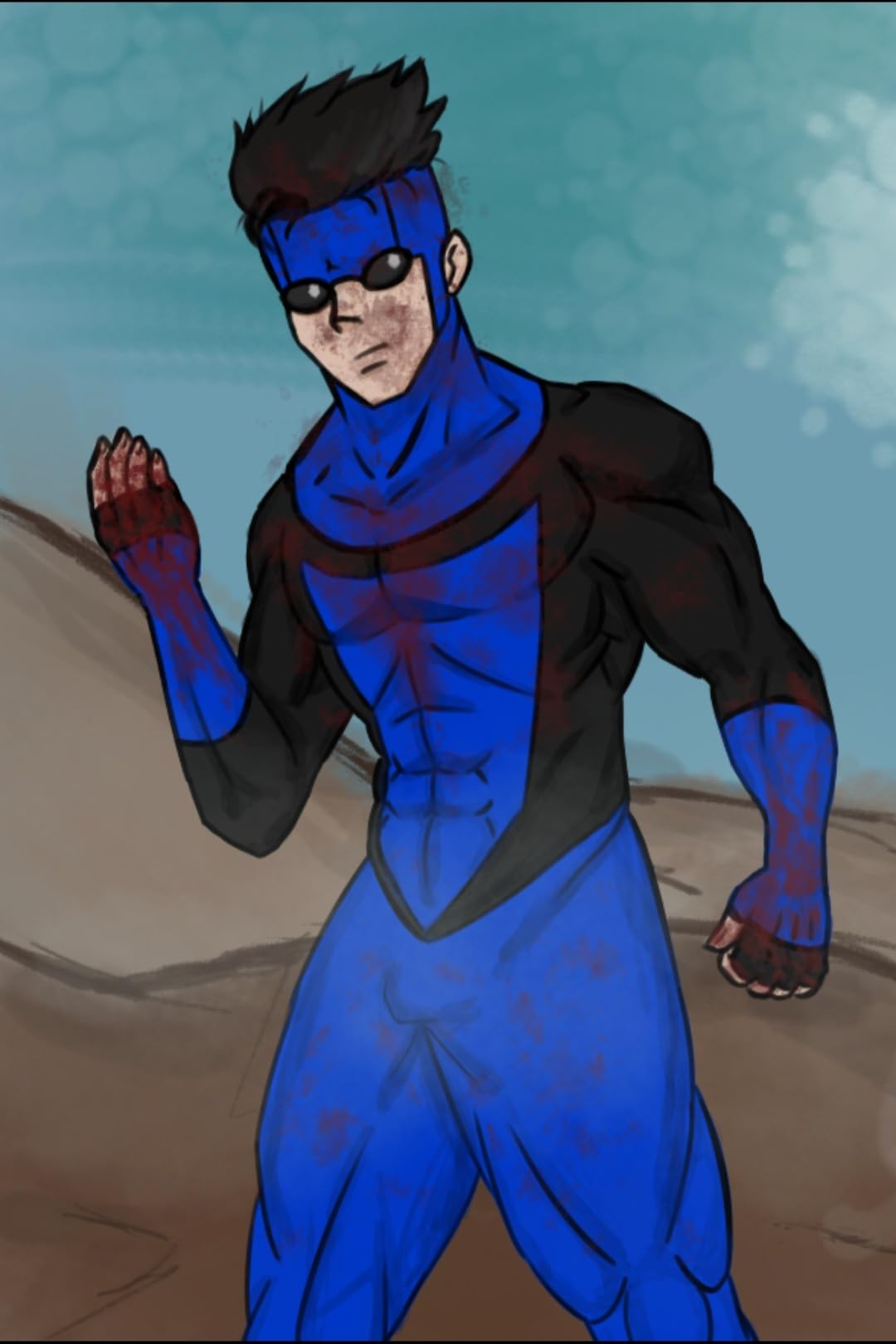
Pressure control is the standout. Sixteen thousand levels sounds like marketing until you actually lay down a brush stroke and watch the taper behave. Owners repeatedly compare it favorably against entry-level Wacom models, and the pen buttons and eight keys can be remapped per application, which matters more than the raw number once you get serious.
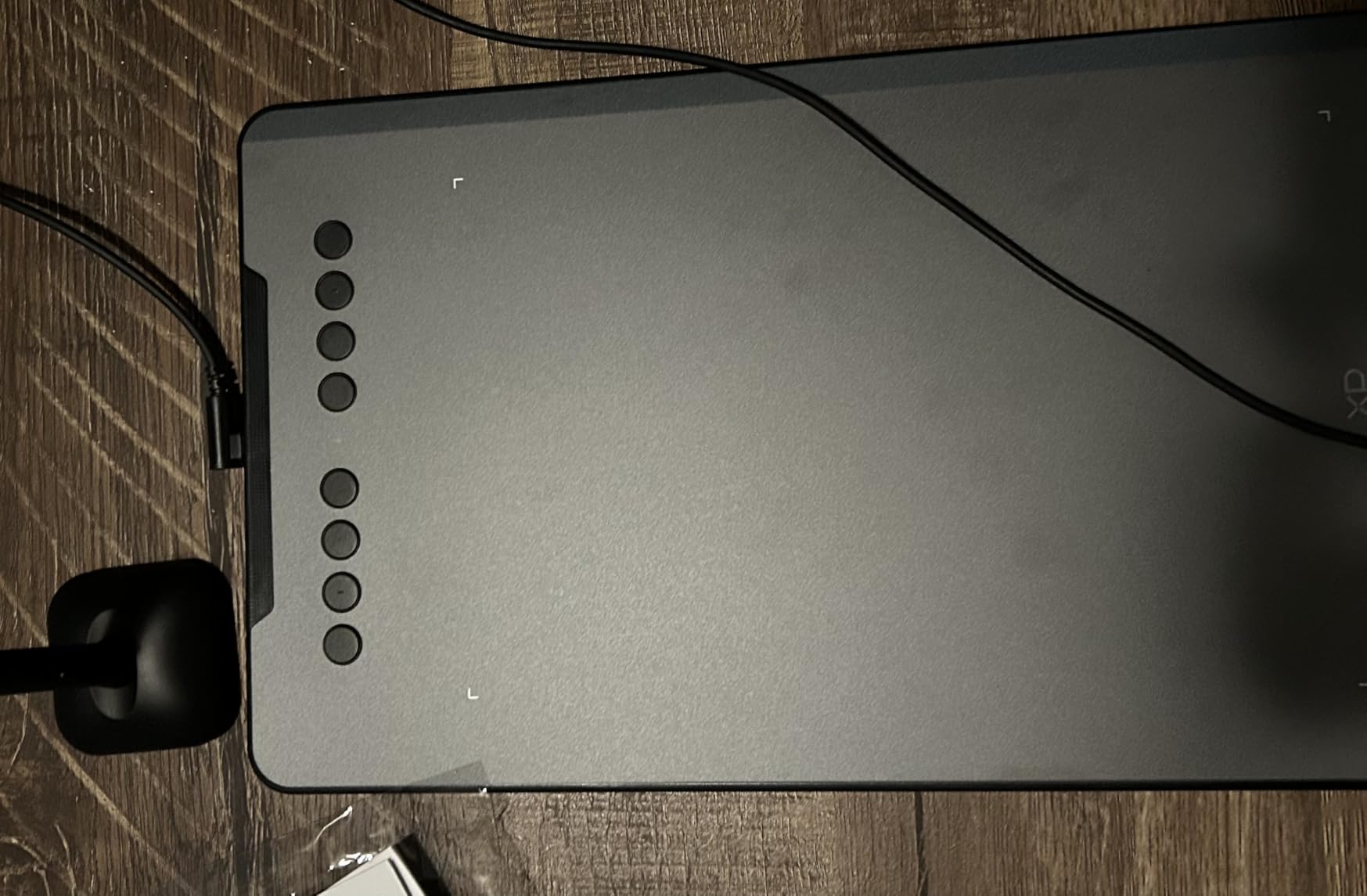
Linux support deserves a mention because almost nobody gets it right. This tablet includes drivers for all the major distributions, which is unusual at this price and saves an evening of troubleshooting for anyone running Linux as a creative workstation.
The complaints cluster around the pen hardware. Nib tips wear fairly quickly, which is why ten spares come in the box, and the tip itself feels soft and a little wobbly next to a stiffer pen. The included screen film also tends not to stick down cleanly. None of that stops the drawing, but the film is worth skipping.
When does 16384 levels of pressure actually help?
Mostly at the light end. The extra range shows up in fine detail work, in tapering line ends and in soft shading, where the difference between 8192 and 16384 is visible. If you paint broad areas and do little line work, you will not notice the difference and could save money with an 8192-level model.
Software curve settings matter more than the hardware ceiling. Spend an evening tuning your brush curve before you decide the tablet is underpowered. A well-tuned 4096-level pen can produce a wider usable range than a badly configured 16384-level one.
Should you choose this over a Wacom?
If you already own Wacom pens and grips and love the feel, stay inside that ecosystem. If you are starting fresh, the larger canvas and the key remapping give you more room to grow, and the Linux and Android support closes doors that Wacom leaves open.
The one case where Wacom wins is longevity perception. Experienced owners report very long lifespans with Wacom gear, and the EMR pen design has changed very little in years, so accessories stay compatible. XP-Pen hardware cycles faster, which is realistic for the money.
3. Huion Inspiroy 2 Large: Best Screenless Canvas for Workflow-Heavy Illustrators
HUION Inspiroy 2 Large Drawing Tablet with 3-Group 8 Customized ExpressKeys
10.5 x 6.56 inch active area
8192 pressure levels
Scroll wheel
3 sets of 8 ExpressKeys
Pros
- Smooth surface that produces clean lines quickly
- Scroll wheel plus multiple ExpressKey sets
- Silicone-grip pen with side buttons
- Strong value against Wacom entry models
- Light enough to move between desk and lap
Cons
- Shortcut bindings sometimes reset to defaults
- Configuration software limited on some Linux distributions
- Wired only with no wireless option
- Occasional pen tracking complaints
The Inspiroy 2 Large is the one to look at if you already draw and want a bigger working area than a basic pad. At 10.5 x 6.56 inches it is the largest screenless surface in this roundup, and it weighs only 1.2 pounds, so it does not pin your forearm to the desk.
Where it separates from the Deco is control hardware. A programmable scroll wheel plus three switchable sets of eight ExpressKeys gives you twenty-four assignable shortcuts, which is a lot of keyboard replacement for illustration work. Reviewers call out the speed this adds to a real workflow rather than treating it as a gimmick.

PenTech 3.0 tracking is steady in normal use, and the battery-free PW110 stylus has a soft silicone grip that is comfortable over long sessions. The surface itself is smooth and well calibrated, so you can get clean lines without fighting a scratchy texture.
The recurring complaint in reviews is that shortcut bindings sometimes reset to defaults and need reconfiguring, usually after a driver update or a machine change. It is a two-minute fix if you know it is coming. The pen grip is also wired-only, with no wireless option in this line, and the configuration software is limited on some non-Ubuntu Linux distributions.
Is the extra shortcut capacity worth it over a simpler pad?
If you have never used more than four keys, no. You will not press twenty-four shortcuts in your first month. If you already work in Photoshop or Clip Studio and find yourself reaching for the keyboard constantly, then yes, and this is where the larger key count starts paying for itself within weeks.
The scroll wheel is the underrated part. Mapping it to canvas zoom or brush size means you can keep your eyes on the drawing, which is a bigger productivity gain than the individual keys provide.
What are the reliability caveats?
Some owners report occasional unreliable pen tracking, and the tablet is wired only, so placement is fixed by your cable length. Long-term users of Huion gear in general describe support as uneven, so keep the box and receipt and check the warranty terms for your region before you buy.
None of this makes it a poor choice. It is a well-specified tablet at a sensible price, and the drawbacks are known and manageable rather than hidden. Just buy it from a seller with straightforward returns.
4. Wacom Intuos Pro Medium: Best Screenless Tablet for Wireless Multi-Computer Work
Wacom Intuos Pro Medium, Bluetooth Graphic Drawing Tablet with ProPen 3
8.7 x 5.8 inch active area
8192 pressure levels
Bluetooth wireless
10 keys plus 2 dials
Pros
- Pro Pen 3 with tilt and lag-free tracking
- 10 ExpressKeys plus 2 mechanical dials
- Bluetooth switching between multiple computers
- 4 mm magnesium body
- Customizable grips and balance weight
Cons
- Only 279 ratings so far
- Highest share of 1-star ratings in this group
- Medium 8.7 x 5.8 inch area for the money
- No screen so you draw on a separate monitor
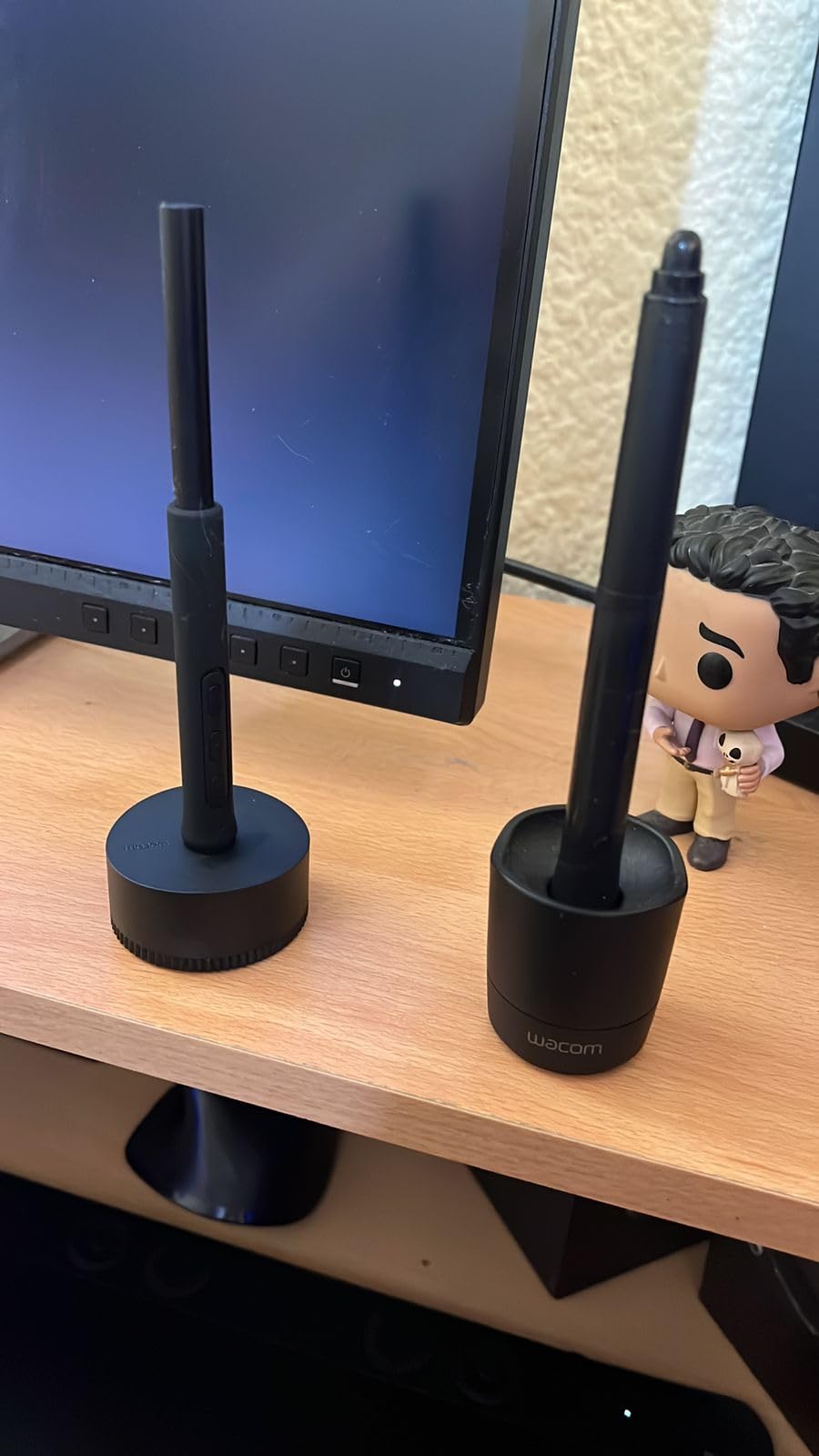
Everything else on this list is tethered to a cable or a computer. This one is the exception: it runs over Bluetooth, so you can move between a desktop at work and a laptop at home without unplugging anything. That single feature changes how the tablet feels in daily use.
The pen is the reason to consider it. Pro Pen 3 delivers 8192 pressure levels with tilt support, and the grips, balance weight and button layout are all user-customizable, which is unusual at any level. Ten ExpressKeys and two mechanical dials handle most of what the keyboard would otherwise do.
At 4 mm at its thinnest point with a magnesium body, it feels far more substantial than plastic entry pads, and the medium 8.7 x 5.8 inch active area is 16:9 to match a modern wide monitor. Resolution is 5080 LPI, which is high enough that line placement feels precise at normal zoom.
Be careful reading the ratings here. With 279 reviews, this model has far less long-term data behind it than the volume sellers, and the share of 1-star ratings is the highest in this group, which hints at occasional fit-and-finish inconsistency. The medium active area is also modest for the money, and you still draw on a separate monitor.
Is Bluetooth worth giving up screen size for?
If you work across two or more machines daily, absolutely. If you sit at one desk permanently with a long cable, the wireless advantage shrinks to a tidy desk and nothing more. In that case the Deco 01 V3 gives you a much larger canvas for far less.
Wireless does introduce one small risk: if the tablet sleeps during a long line session, you may need to tap it to wake the pen. That is uncommon, but it happens and it is worth knowing about.
Who should skip this tablet?
Skip it if you need a big drawing area, if you want a screen, or if you are sensitive to early-generation hardware inconsistency. Wacom’s pen ecosystem and driver stability are the appeal, and you are paying for the brand’s decade of refinement rather than for raw value.
It is also the pick to consider if you already own Wacom gear and want the ecosystem to stay consistent. Accessories and grips from older Wacom pens generally work here, which reduces the cost of switching up.
5. XP-Pen Artist12: Best First Pen Display for Learning to Draw on Screen
XP-PEN Artist12 11.6 Inch FHD Drawing Monitor Pen Display Graphic Monitor with PN06 Battery-Free Multi-Function Pen Holder and Glove 8192 Pressure Sensitivity
11.6 inch 1920x1080 IPS display
8192 pressure levels
Battery-free PN06 pen
6 keys plus touch bar
Pros
- Sharp 11.6 inch FHD IPS screen owners compare to laptops
- Hexagonal PN06 pen feels like a real pencil
- Excellent palm rejection
- Programmable touch bar and 6 shortcut keys
- Strong value against Wacom Cintiq pricing
Cons
- Needs HDMI plus USB-A and power to set up
- Not full-laminated so slight parallax shows
- Small relative to many laptops
- Pen side button sits under the grip
When people move from a screenless tablet to a pen display, the model most often recommended as the first step is the Artist12. It does the one thing that matters most at this stage: put the drawing surface exactly where your line appears, at a price that does not require a research project.
The screen is 11.6 inches at 1920×1080 with 100% sRGB coverage, and owners frequently say it rivals or beats the display on their own laptop. The pre-installed anti-reflective film takes the edge off reflections without the softness of a matte layer, which is the right choice for a screen you will also use for interface work.
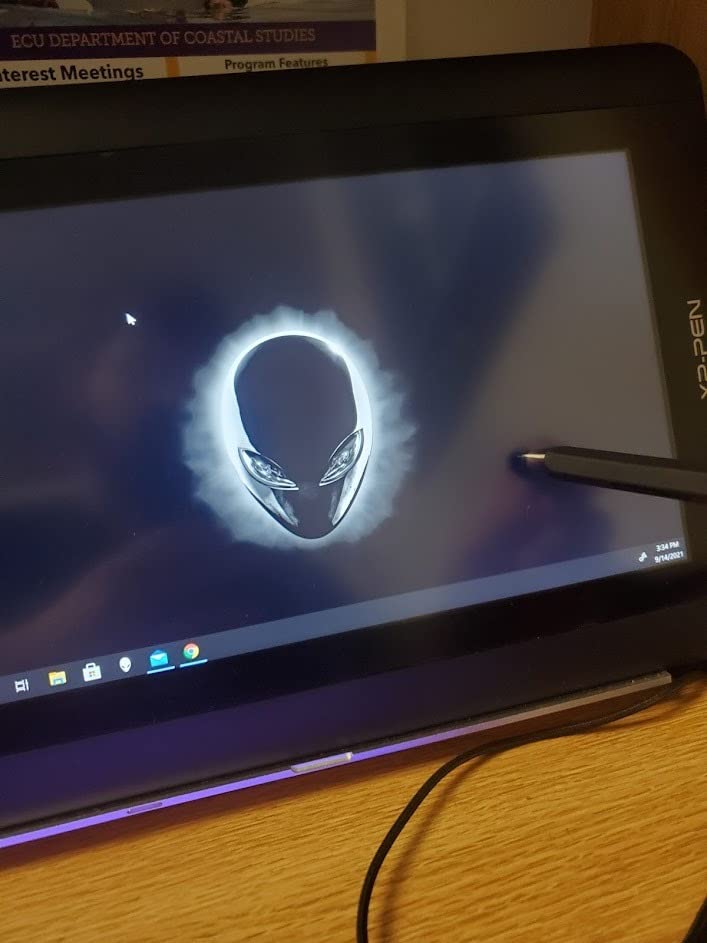
Palm rejection is the underrated strength. Across reviews it is described as excellent, often good enough that the included glove goes unused. That matters more in practice than most spec sheets suggest, because a display that cannot ignore your resting hand turns every session into an exercise in careful positioning.
The trade-offs are honest ones. The screen is not full-laminated, so a small parallax gap sits between nib and cursor. Setup needs HDMI and USB-A together, and some laptops require extra power. And at 11.6 inches it can feel cramped if you are used to a large monitor.
Does parallax matter if you are not a line artist?
Less than you would think for painting, shading and rendering, where strokes are broad. More than you would think for inking, technical drawing and anything with a fine outline, where you are repeatedly aligning a thin line to a reference. If your work is line-heavy, spend the extra and move up a size class.
Another factor is the pen side button. It sits under where your grip naturally rests, so it can be pressed accidentally mid-stroke. Remapping it to a tool you rarely use solves it in ten seconds.
Is this a good first pen display or a false economy?
It is a genuine step up, not a compromise, and its value is strongest for people who already draw seriously on a screenless pad. For a complete beginner, a cheaper screenless tablet still teaches the fundamentals at a fraction of the commitment.
The 11.6 inch footprint is also a genuine constraint for anyone with larger hands or a habit of drawing full-body compositions. Check the physical size against your desk depth before committing, and remember you will need a monitor arm for a comfortable posture over long sessions.
6. GAOMON PD1161: Best Matte Pen Display Under a Small Budget
GAOMON PD1161 Drawing Tablet with Screen, Tilt, 8 Shortcut Keys, 11.6″ FHD
11.6 inch FHD IPS display
Pre-installed matte film
8192 pressure levels
8 keys plus 2 pen buttons
Pros
- Matte anti-glare film gives a paper-like feel
- Battery-free AP50 pen with 60-degree tilt
- 8 programmable keys plus 2 pen buttons
- Works with Krita MediBang Blender and Photoshop
- Good entry-level pen display value
Cons
- 11.6 inch 1080p panel feels cramped for large work
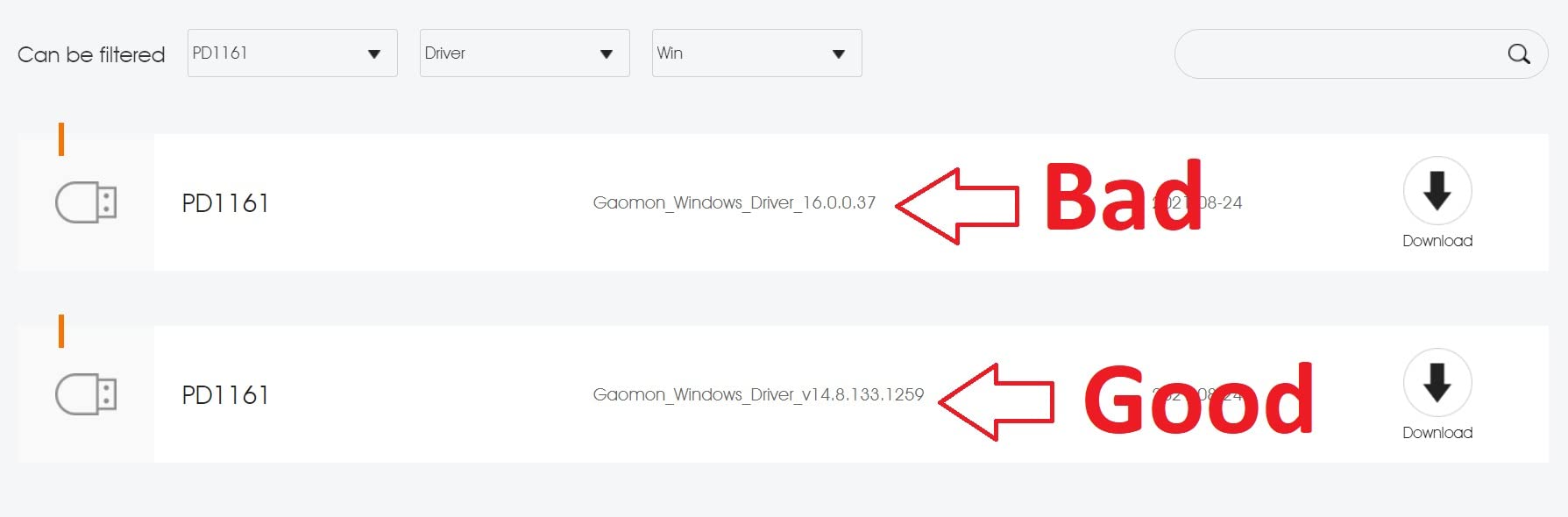
- Some pen input and driver issues on certain setups
- Needs HDMI plus USB and sometimes the AC adapter
- Build quality trails newer models at the same money
The PD1161 competes on one specific decision: it ships with a matte anti-glare film already fitted. That is the surface many illustrators prefer for drawing, because it cuts reflections and gives the pen a slightly grippier, paper-like feel compared with the glossy default.
Everything else is competent rather than remarkable, which is exactly what you want at this budget. You get an 11.6 inch 1920×1080 IPS panel with 100% sRGB, an 8192-level battery-free AP50 stylus with 60-degree tilt, and eight programmable press keys plus two pen buttons for shortcuts.
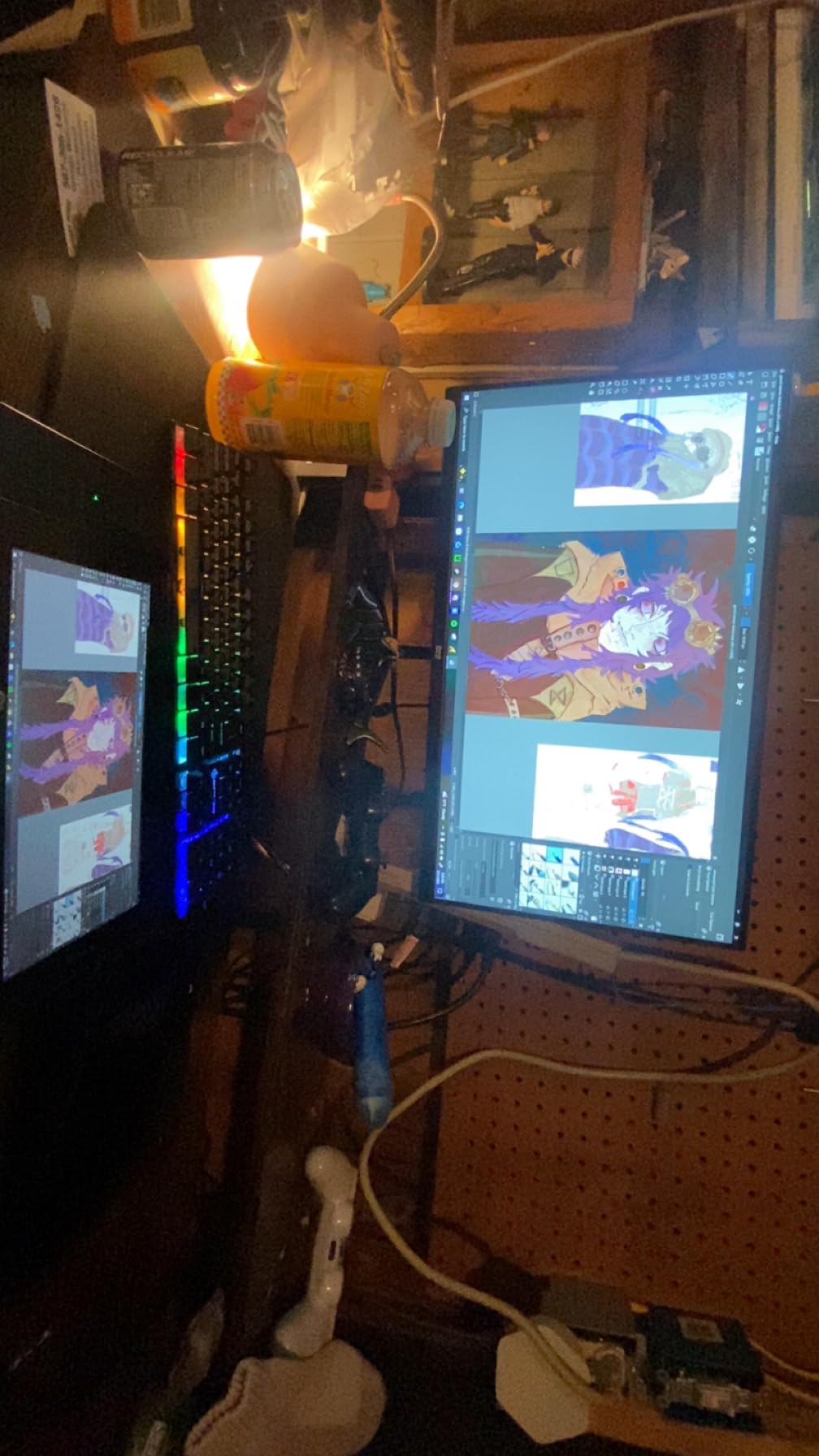
The key remapping is genuinely useful. Eight keys is enough to bind your brush, eraser, fill and zoom controls so you rarely leave the stylus, and reviewer feedback on the shortcut workflow is consistently positive across drawing, animation and teaching use.
Where it falls short is physical. The 11.6 inch canvas is small for large work, the build and screen quality lag newer models at the same money, and some owners report pen input or driver friction on particular setups. You will also need HDMI and USB, and the AC adapter if your laptop cannot supply enough power.
Is a matte surface better than glossy for drawing?
It is a real trade-off rather than a straight upgrade. Matte reduces glare and reflections, which many people find far more comfortable over long sessions, and it hides fingerprints. Glossy screens are sharper and more color-accurate, and they show fine detail more crisply when you zoom in for line work.
If you work in a bright room or you have noticed eye strain on glossy displays, matte is the right call. If you are color-critical, the screen as shipped may need calibration and a color-aware workflow.
How does this compare with the Artist12?
They sit in the same size class with the same pressure specification, and the honest difference is surface and price. The GAOMON wins on the matte film and on cost. The XP-Pen wins on pen feel, the hexagonal grip, and the quality of the shortcut system including a touch scroll bar.
Both need two cables and both are small. If you are torn, look at whether you already own Wacom or XP-Pen software habits, since driver familiarity will save you more time than the hardware gap.
7. Huion Kamvas 13 Gen 3: Best Pen Display for Factory-Calibrated Color Work
HUION Kamvas 13 (Gen 3) Drawing Tablet with Screen 16K Pressure PenTech 4.0
13.3 inch laminated display
16384 pressure levels
99% sRGB and 90% Adobe RGB
2 dials plus 5 keys
Pros
- 16384 pressure levels with 2g activation force
- Canvas Glass 2.0 laminated etched surface
- Dual dials plus 5 silent press keys
- Factory calibrated under delta E 1.5 with certificate
- 11.7 mm thin at 865 g
Cons
- 1920x1080 on a 13.3 inch panel is not 4K
- Must be connected to a computer
- First-connect calibration takes driver work
- Pen is light in the hand
Color-critical work is where this display separates itself. It ships factory calibrated to a delta E under 1.5 and includes a calibration certificate, with 99% sRGB and 90% Adobe RGB coverage. For anyone doing print preparation or client work where color fidelity is contractual, that certificate is worth more than extra resolution.
The laminated Canvas Glass 2.0 surface is nano-etched, which handles glare without the sparkle that some etched glass produces. At 11.7 mm and 865 grams it is the thinnest pen display in this roundup, and the layout is symmetric so it works equally well for either hand.
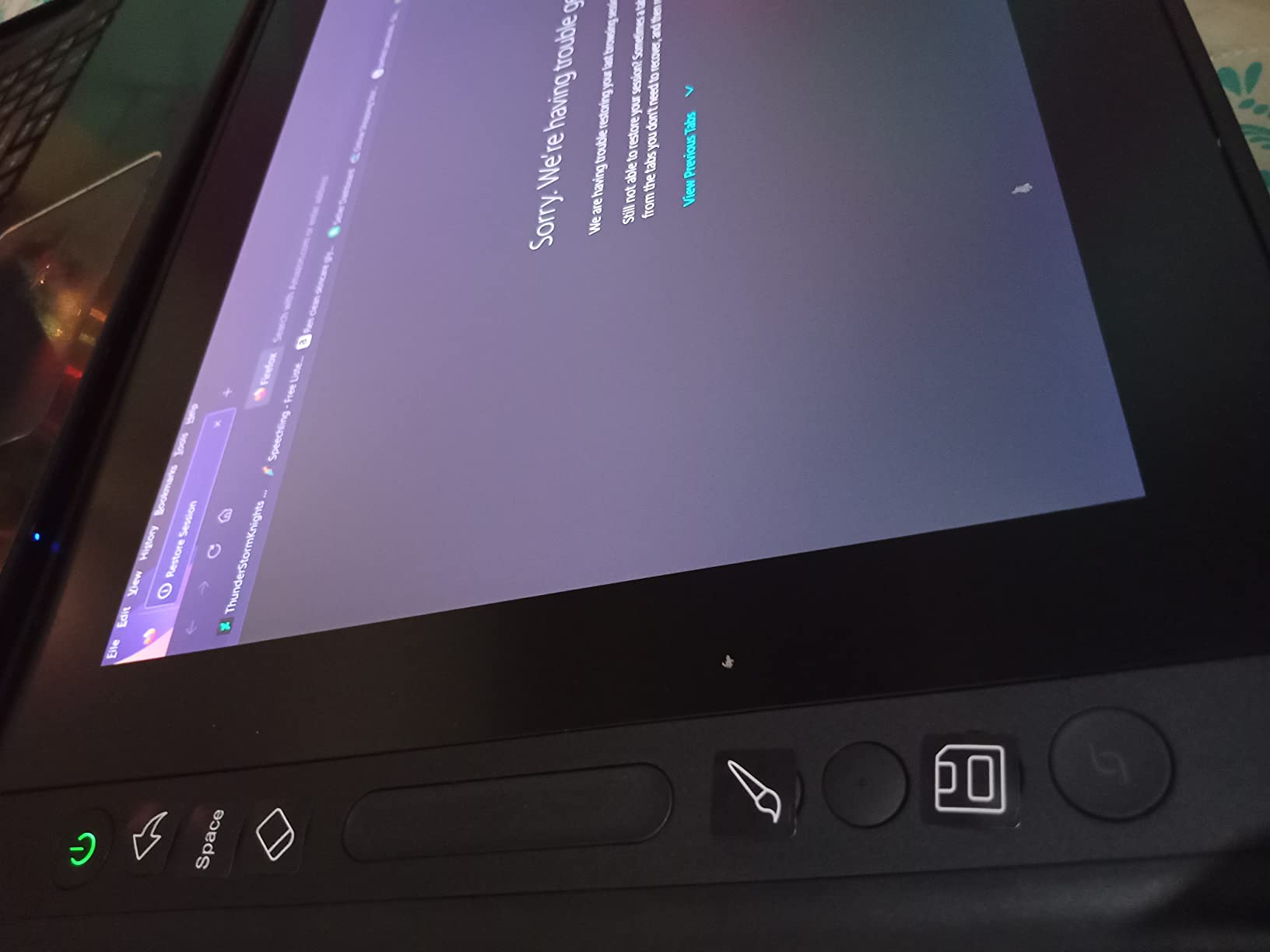
PenTech 4.0 gives 16,384 pressure levels and a 2 gram activation force, so light lines do not require a heavy press. Tilt auto-alignment and a thin nib reduce parallax further, and the two dial controllers plus five silent press keys let you work without touching the keyboard.
The main compromise is resolution. A 1920×1080 panel stretched across 13.3 inches is not 4K, so pixels become visible when you zoom in hard, which line artists will notice. It also needs a wired computer connection, and the first session involves real driver work for screen mapping and calibration.
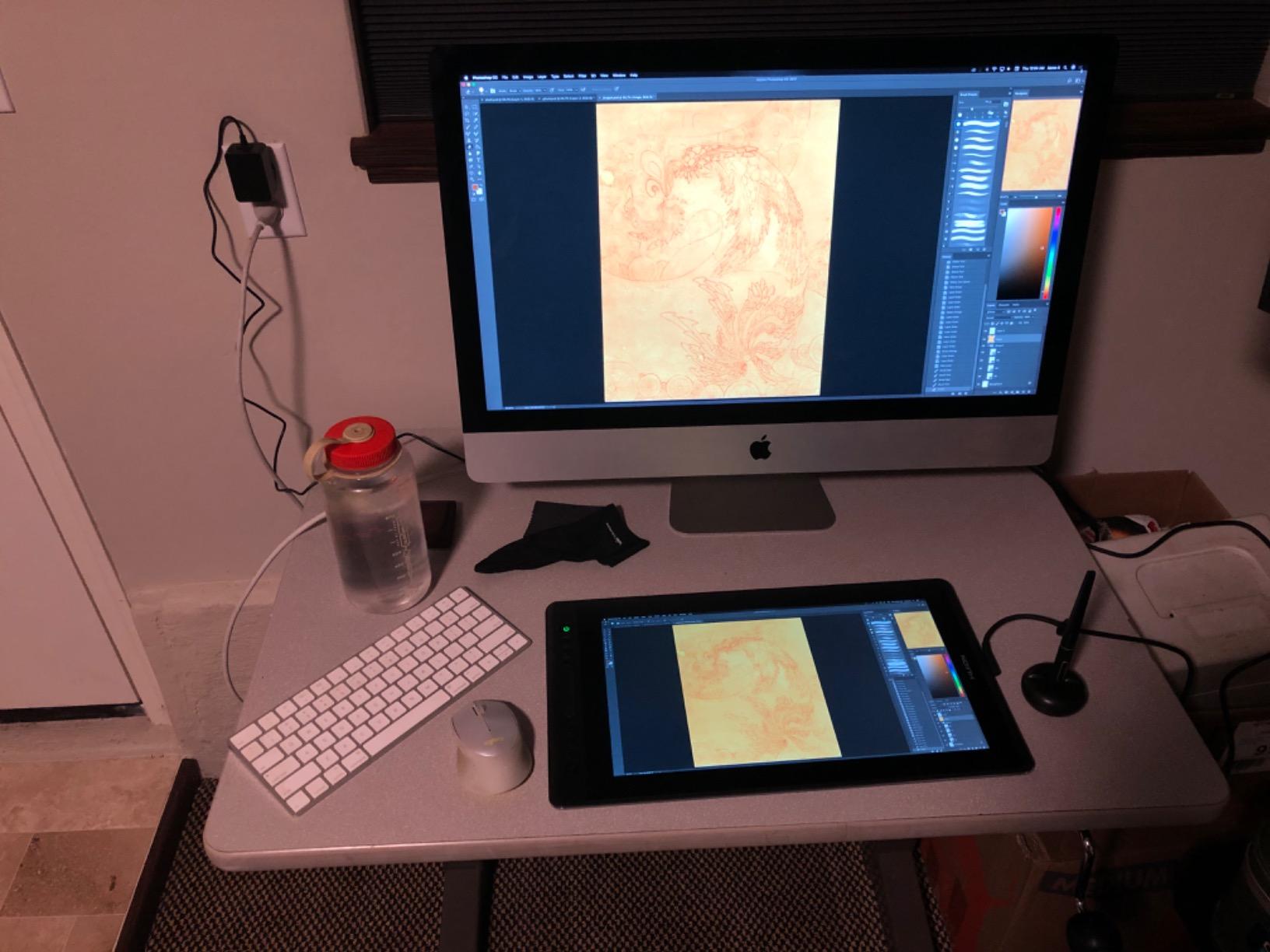
Is 1080p on a 13.3 inch screen a dealbreaker?
For painting, shading and most illustration work, no. At normal zoom the density is acceptable and most artists stop noticing after a few sessions. For inking, technical illustration or anything where you trace fine detail at high magnification, it will frustrate you, and you should move up to a 4K panel.
This is also why the calibration matters. A lower-resolution panel judged on its factory numbers can still produce accurate color, whereas a high-resolution uncalibrated panel will show you more wrong colors more clearly.
Is this the right size for long sessions?
It is a strong middle ground. Thirteen inches is wide enough for a full upper-body composition and narrow enough to sit close to your desk, which keeps your neck neutral. Pair it with a monitor arm and you get a workstation that is genuinely comfortable for hours.
The light pen is worth flagging for people with grip sensitivity. If you draw for more than two hours at a stretch, a heavier pen or an added grip sleeve makes a noticeable difference, and the interchangeable grips available for Wacom-style pens can help.
8. UGEE UE16: Best Large Pen Display for Switching Between Color Spaces
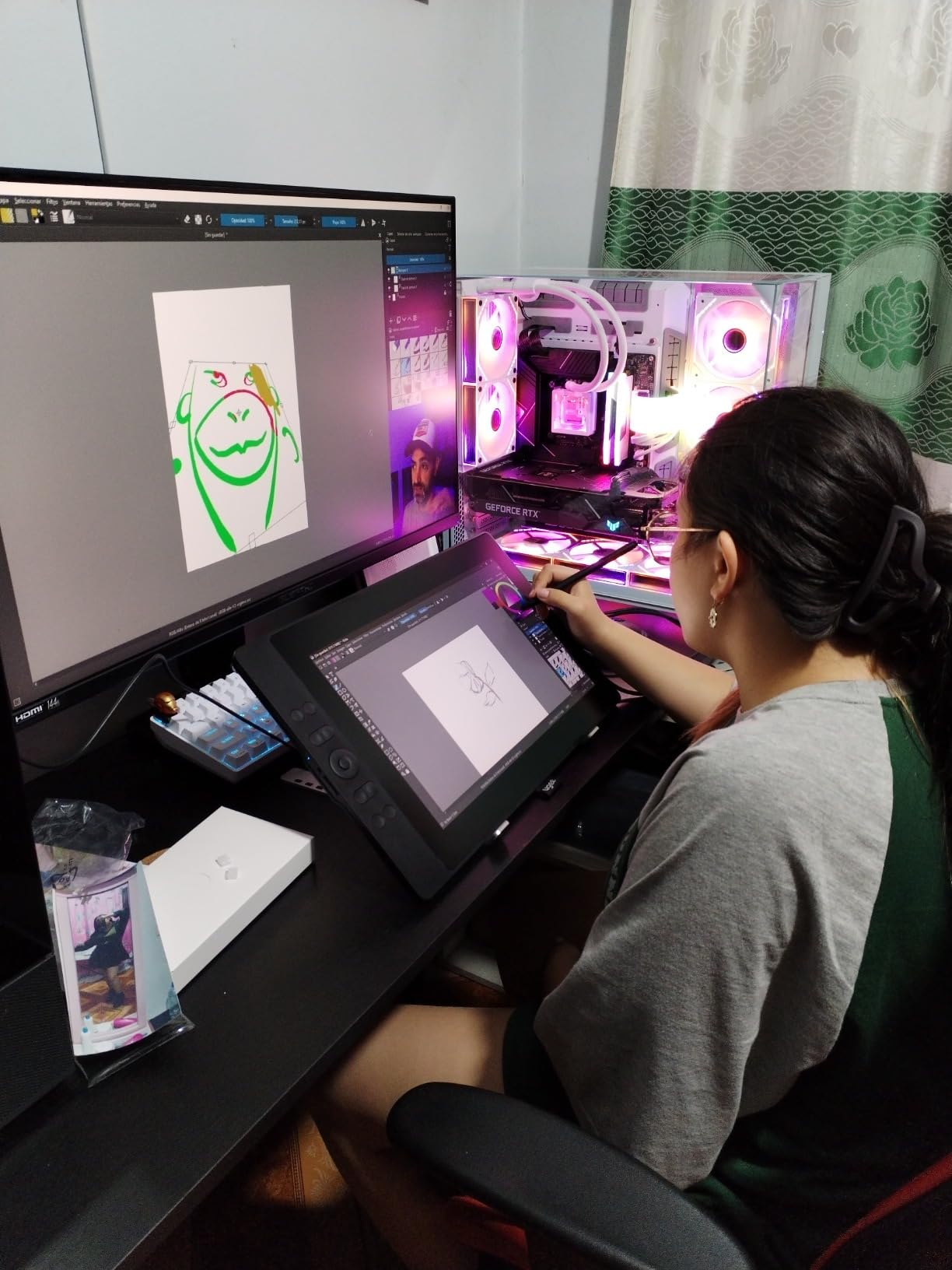
UGEE 15.4 inch Drawing Tablet with Screen,143% sRGB UE16 Computer Graphics Tablet with Full-Laminated Screen 8+1 Hot Keys 16K Level Pressure Battery-Free Stylus,Drawing Pad for PC/Windows/Mac/Android
15.4 inch laminated display
16384 pressure levels
143% sRGB
8 keys plus 4-function scroll wheel
Pros
- 15.4 inch full-laminated anti-glare surface
- 16384 pressure levels with 60-degree tilt
- 143% sRGB with four selectable color spaces
- 8 shortcut keys plus a four-function scroll wheel
- Pen has an eraser end and two hotkeys
Cons
- Only 143 ratings so long-term data is thin
- 3-in-1 cable is packed separately from the box
- 1920x1080 on 15.4 inches is low density
- Must be connected to a computer
The UE16 is the largest screen in this roundup, and its distinguishing feature is not size but color flexibility. It offers four selectable color spaces, including sRGB, Adobe RGB, DCI-P3 and a monochrome mode, at 143% sRGB with 8-bit color depth. Very few displays let you switch workspaces this easily without going into system settings.
Everything else about it is aimed at value. You get a full-laminated 15.4 inch anti-glare surface, 16,384 pressure levels with 60-degree tilt, eight physical shortcut keys and a scroll wheel with four preset functions. The battery-free U-Pencil has an eraser on the reverse end and two customizable hotkeys.
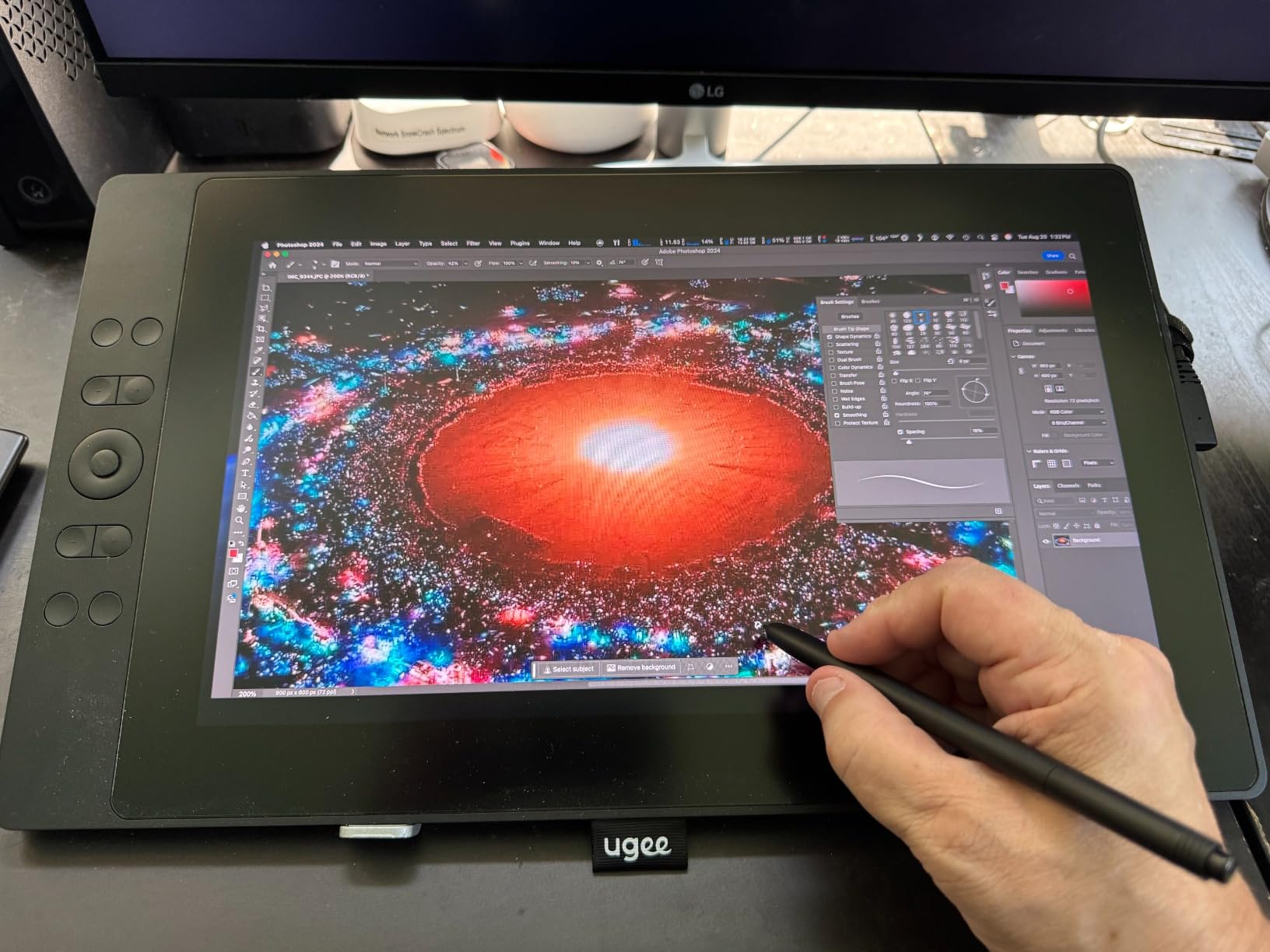
Full lamination on a 15.4 inch panel is genuinely rare at this money. It removes parallax, which is the single biggest comfort upgrade in a pen display, and the anti-glare surface means you are not squinting at reflections for an hour.
The caveats are real. The rating rests on 143 reviews, so there is very little long-term reliability history compared with the volume sellers here. The bundled 3-in-1 cable is packaged separately from the main box and catches people out. And 1920×1080 across 15.4 inches is low density, so zoomed-in detail will show pixels.
Is a 15.4 inch screen too big to work on?
It is at the practical limit of what a desk can hold with a monitor arm. Below about 16 inches you can still position the display close and keep your drawing hand visible, which is essential on a pen display. Above that, the top of the canvas drifts out of your natural sightline.
Because the panel is large and low-density, treat it as a working and painting surface rather than a precision zoom surface. If you are a line artist, resolution matters more than inches and you would be better served by a smaller 4K option.
Should you buy a model with few ratings?
Only with a return policy you trust and with eyes open about the tradeoff. You are getting a well-specified device at a price that reflects its smaller install base, and there is no community consensus to fall back on if something goes wrong.
Check the warranty terms for your region before you buy, and keep the packaging. If the display fails inside the warranty period, a brand with an established support process will get you a replacement faster than one that does not.
9. XP-Pen Artist 15.6 Pro: The Best All-Round Pen Display
15.6″ Drawing Tablet with Screen XPPen Artist 15.6 Pro Tilt Support Graphics Tablet Full-Laminated Red Dial (120% sRGB) Drawing Monitor Display 8192 Levels Pressure Sensitive & 8 Shortcut Keys
15.6 inch full-laminated 1080p display
8192 pressure levels
8 keys plus Red Dial
120% sRGB
Pros
- Full-laminated screen with almost no parallax
- 8 ExpressKeys plus Red Dial for keyboard-free work
- Rich accurate color many owners prefer to their monitors
- Lightweight and sturdy for a 15.6 inch unit
- Very stable pen tip with low activation pressure
Cons
- Several cables connected each session
- Included stand has a limited tilt angle
- No VESA mounting on the back
- Tilt rotation jumps for circular brush rotation
When I set up a working artist at a new desk, this is the display I reach for most often. The 15.6 inch full HD IPS screen is fully laminated, which eliminates almost all parallax, and the matte surface removes glare without the haze that a film can add. You draw directly on the pixels.
The 15.6 inch footprint is the sweet spot. It is wide enough for a real canvas and close enough to your body that your hand never blocks what you are drawing. The matte finish is also comfortable for long sessions, and owners report preferring its color to their own external monitors.
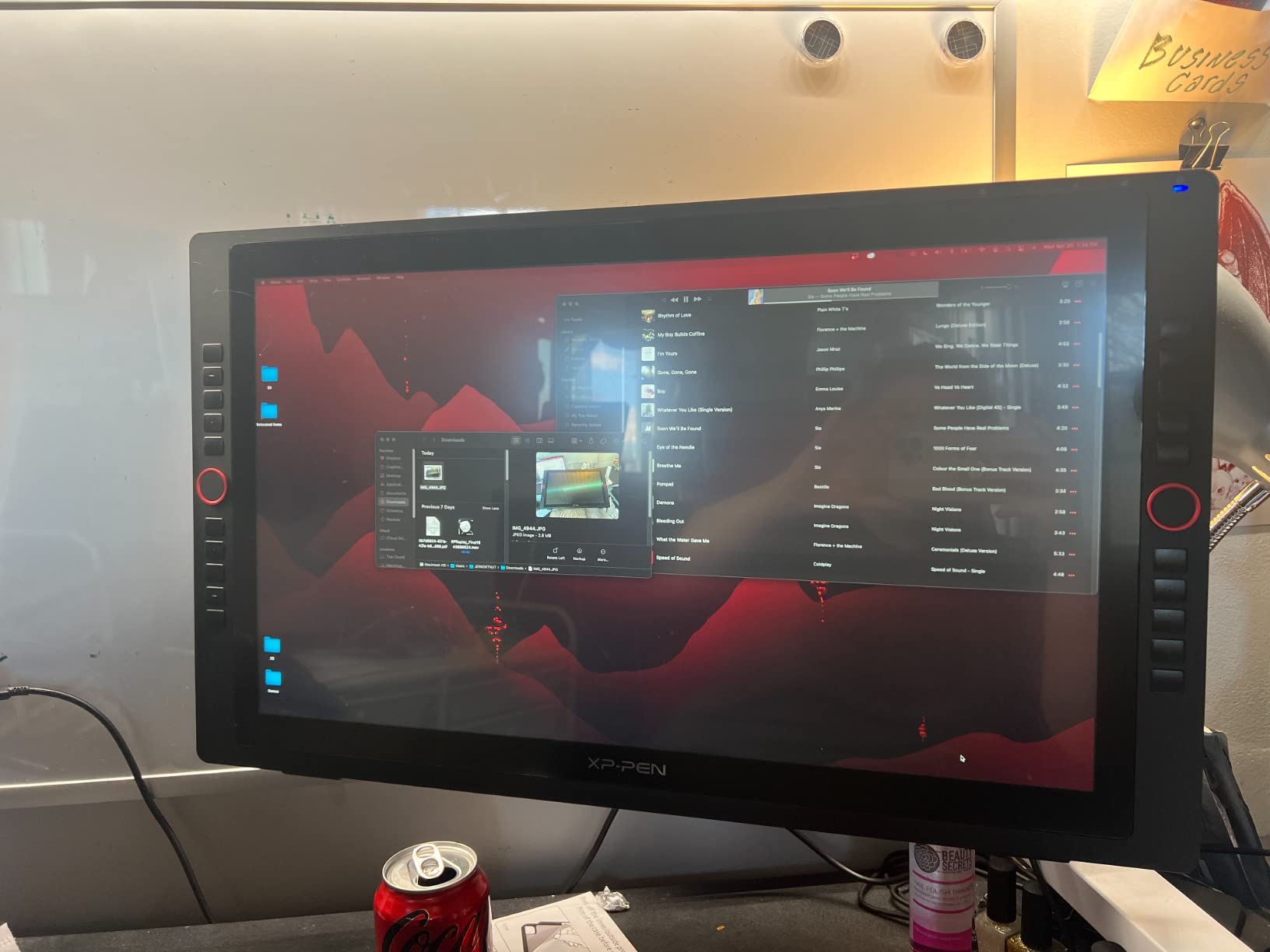
Control hardware is where this display pulls ahead of its price class. Eight fully customizable ExpressKeys plus the Red Dial, a rotary wheel that most software can map to brush size or zoom, let you work without reaching for the keyboard. At 8192 pressure levels with tilt support on the battery-free PA2 stylus, line work feels controlled rather than twitchy.
The compromises are practical rather than fundamental. You connect HDMI and USB every session, the folding stand has a limited tilt and is widely considered weak, and there is no VESA mounting on the back, which means a monitor arm needs an adapter or a different mount. The tilt function also jumps roughly every sixty degrees for circular brush rotation.
Why is lamination the feature that matters most here?
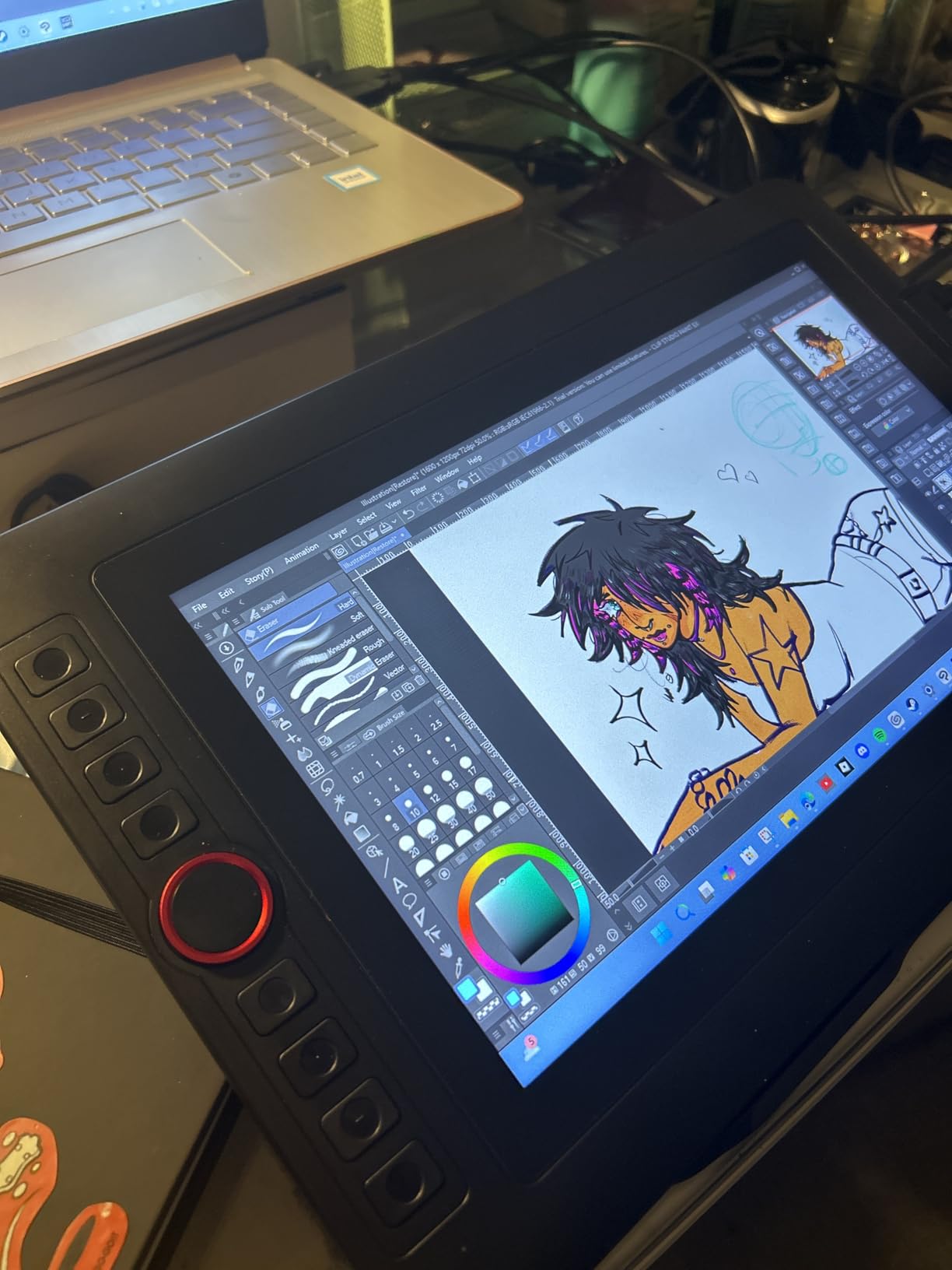
Because it removes the single most common complaint about pen displays. On a non-laminated screen the glass floats above the sensor, so the cursor sits a few millimeters away from your nib and the offset shifts as you tilt the pen. Lamination bonds the layers and the offset effectively disappears.
Once lamination is handled, line placement becomes predictable, fine detail stops drifting, and you can rest your hand flat without visual confusion. It is the difference between drawing on a screen and drawing on a surface.
What should you budget beyond the display itself?
A monitor arm. Users who buy a display tablet almost universally add one, and it is near-essential for comfort because the included stand sits at a fixed shallow angle that forces you to hunch. A proper arm also clears desk space and lets you set the screen height and tilt properly.
Also plan for replacement nibs. The screen protector is included but scratches easily, and the nib removal tool can scratch it further if you are not careful. Keep the film on, and treat the surface with more care than you would a matte monitor.
10. Huion Kamvas Pro 16 Plus: Best 4K Laminated Display for Detail Work
HUION KAMVAS Pro 16 Plus 4K UHD Drawing Tablet with Screen 145% sRGB 15.6″
15.6 inch 4K UHD laminated display
145% sRGB quantum dot
8192 pressure levels
Etched anti-glare glass
Pros
- 4K UHD laminated panel with 145% sRGB
- Etched anti-glare glass with no re-filming needed
- Very low parallax from full lamination
- Battery-free pen with tilt and minimal lag
- Sturdy metal-backed build that ages well
Cons
- 3-in-1 cable is a single point of failure
- Pen feels light and pressure curve less consistent
- Weak foldable stand that lets the display slide
- Dial UI can appear behind other apps
Resolution is the reason this one exists. A 15.6 inch 4K UHD panel at 3840×2160 gives you roughly four times the pixel density of the 1080p displays above, and for detail illustration that difference is visible the moment you zoom past 150 percent. Full lamination means you get that detail with almost no parallax.
The color story is strong as well. Quantum Dot technology with 145% sRGB coverage exceeds what most pen displays offer, and reviewers transitioning from Wacom specifically call out the clarity and wide gamut. The etched anti-glare glass is a permanent surface treatment, so unlike film-based models you will never need to re-apply a protector.
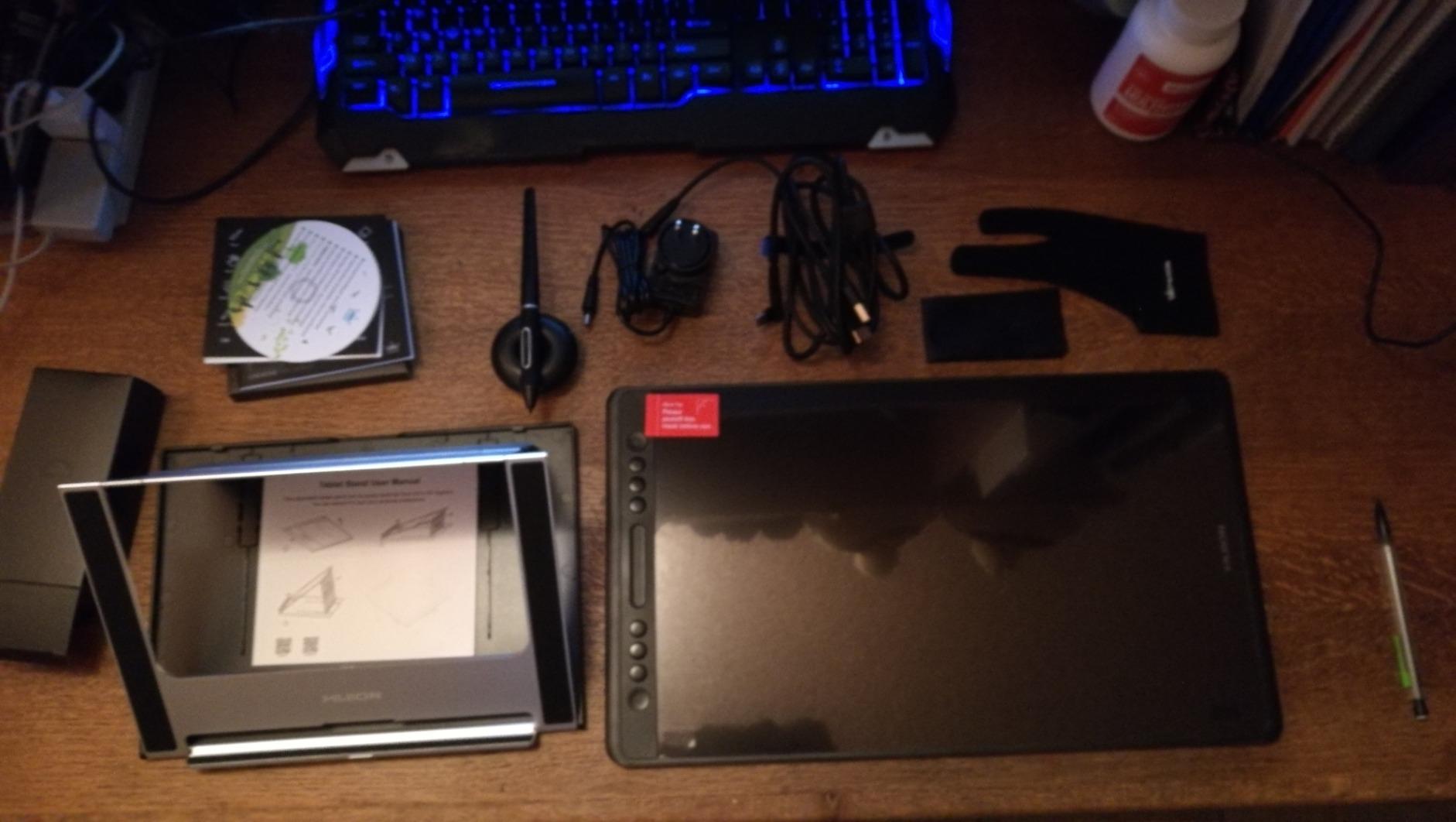
Connectivity is tidier than most rivals thanks to dual USB-C ports and an included 3-in-1 cable. The battery-free PW517 pen provides 8192 pressure levels with plus or minus 60-degree tilt, and the metal-backed build has held up well for owners over years of use.
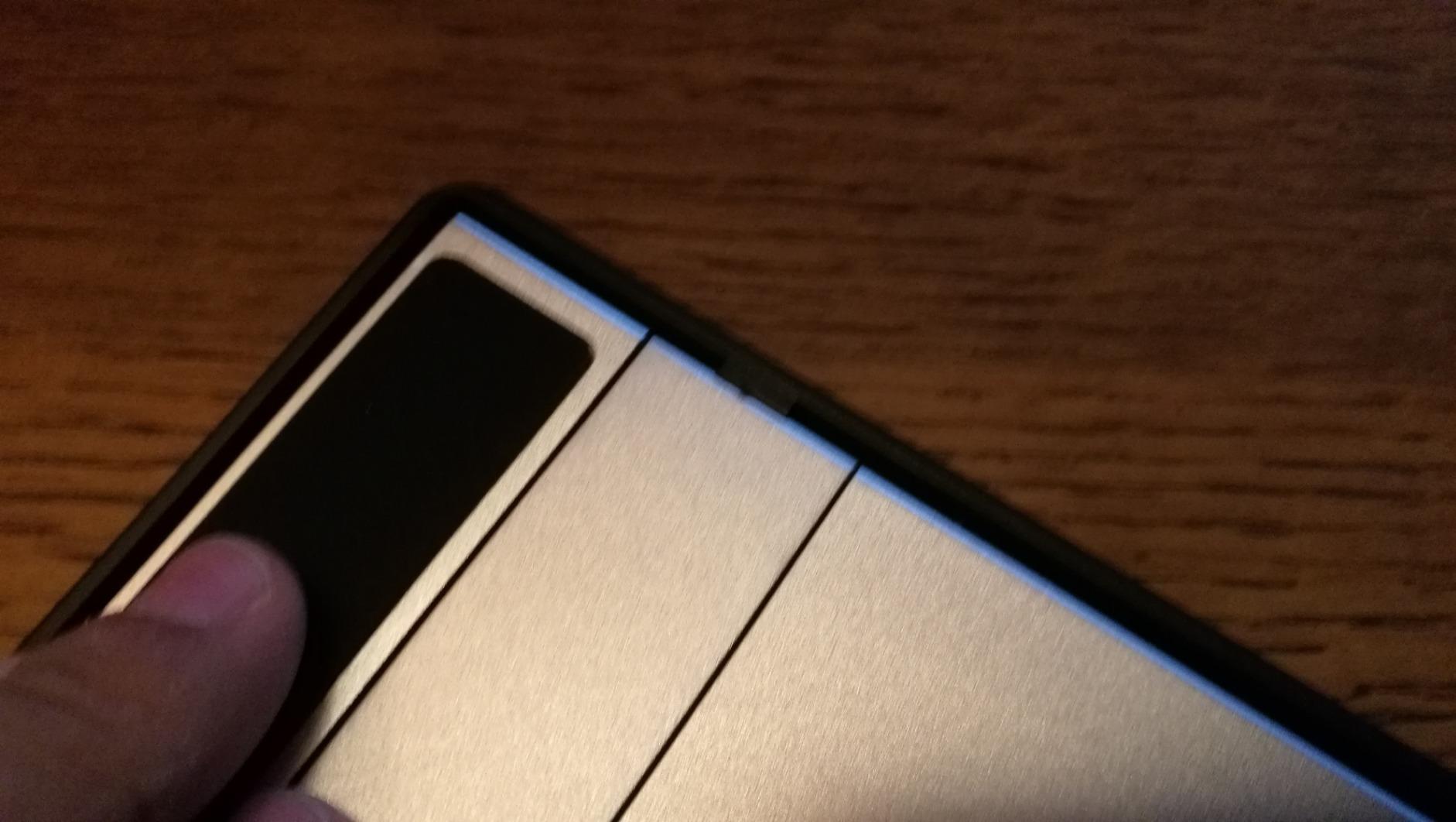
Reviewers also report responsive warranty support that replaced a defective unit, which matters given how many people describe Huion reliability as hit or miss. On the other side, the pen feels light and its pressure curve is less consistent than a Cintiq pen, the foldable stand is weak at steep angles, and the dial interface can appear behind other apps or on the wrong monitor.
Is 4K worth the extra cost for illustration?
If you draw figures, environments, mechanical detail or anything with fine edges, yes. Zooming in to fix a line or check a texture is a normal part of the process, and a 4K panel keeps that zoom clean. The cost difference between this and a good 1080p laminated display is money you would otherwise spend on a monitor arm anyway.
If you paint broad shapes, block in color and rarely zoom past 150 percent, the resolution advantage mostly disappears and a laminated 1080p display is the smarter purchase. Do not pay for pixels you will never resolve.
Should you worry about the cable and stand?
Know them going in. The 3-in-1 cable is the only spare you need, and replacements must come from the manufacturer, so order a second one the day it arrives. That single point of failure is the most common complaint in reviews and the easiest to insure against. Get a second cable when the display arrives and store it with the stand.
The foldable stand is genuinely weak, so budget for a monitor arm regardless. Note also that brightness tops out lower than some rivals and etched glass can produce a faint sparkle or rainbow grain at certain viewing angles, which a few sensitive users notice on a matte-free surface.
11. PicassoTab X14: Best Standalone Tablet for Students and Beginners
14″ Standalone Drawing Tablet, Largest PicassoTab, No Computer Needed -X14
14 inch laminated standalone display
4096 pressure levels
Android 13
6GB RAM and 128GB storage
Pros
- Largest canvas in the PicassoTab line
- Fully laminated screen with low parallax
- Runs with no computer at all
- Octa-core chip with 6GB RAM runs apps smoothly
- Bundle includes case glove adapter and protector
Cons
- 4096 pressure levels is the low end here
- Active pen needs batteries
- 1920x1080 on 14 inches is low density
- Android app ecosystem is limited
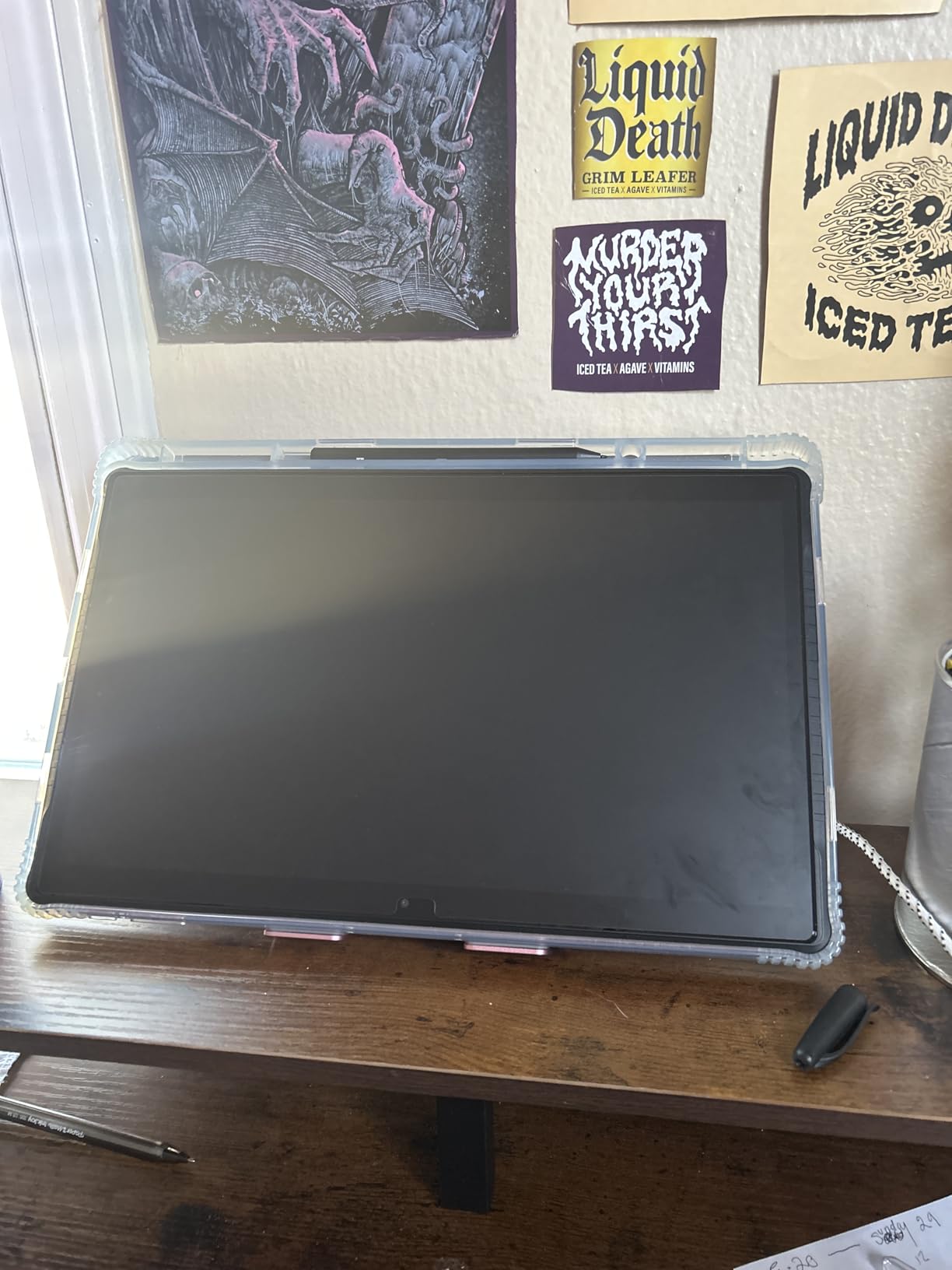
The X14 is the answer when someone says they want to draw but has no computer, or does not want to sit at one. It runs Android 13 on its own octa-core processor with 6GB of RAM and 128GB of expandable storage, and the 14 inch fully laminated display gives a low-parallax, paper-like surface without any cables at all.
That 14 inch canvas is unusually large for a standalone device, and combined with front and rear cameras and multi-touch it works well for a student taking notes in a lecture, sketching on a sofa or working on a commute. Preinstalled drawing, painting and animation apps mean it is usable the moment it finishes charging.
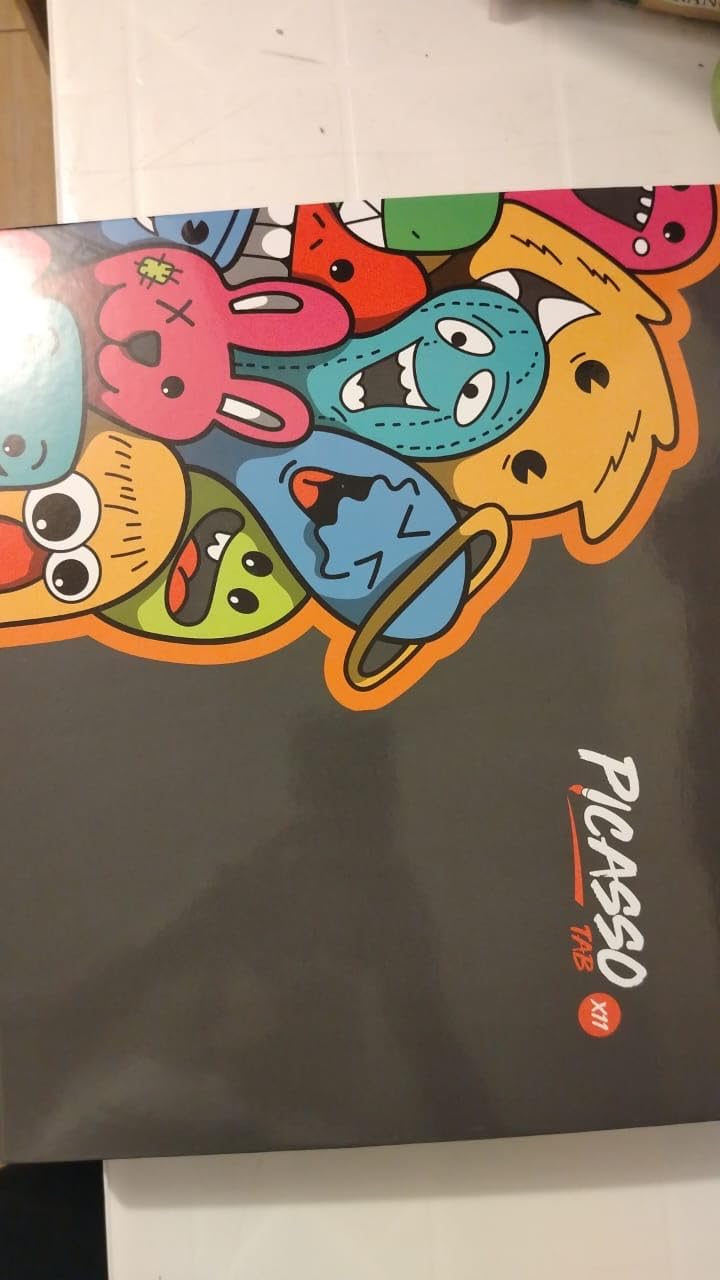
The bundle is unusually complete: case, glove, power adapter, screen protector and app upgrades are all included. That matters for a first-time buyer, who otherwise spends a week researching accessories before drawing anything.
The compromises are structural. 4096 pressure levels is the low end of this roundup, and the active pen takes batteries rather than being battery-free, which means a dead pen mid-session. The 1920×1080 resolution across 14 inches is low density, and the standalone Android drawing app world is a fraction of what desktop software offers.
How limited is the standalone app situation?
For sketching, character design and study work, it is fine. For professional illustration that depends on layered desktop applications or high-end 3D work, it is not. Android drawing apps tend to cover brush work, layers and basic vector tools, but they do not reproduce the full feature set of desktop creative suites.
This is the same trade every standalone tablet makes. You buy freedom from the computer and pay for it in application capability. If you are still deciding whether digital art is for you, that is a good deal. If you already know you need professional tooling, buy a pen display instead.
Is a 14 inch standalone canvas comfortable to hold?
The weight is 2.29 kg, so it is a two-hand device or a desk device rather than something you hold in one hand for a sketch. The laminated screen helps a lot, because you can lay it flat or prop it up and draw with the screen at a natural angle.
Plan for a stand or a stand accessory and a wall charger. Drawing for an hour on battery alone is draining, and this is the one category in the roundup where cable management goes in reverse: you need power more than you need a computer.
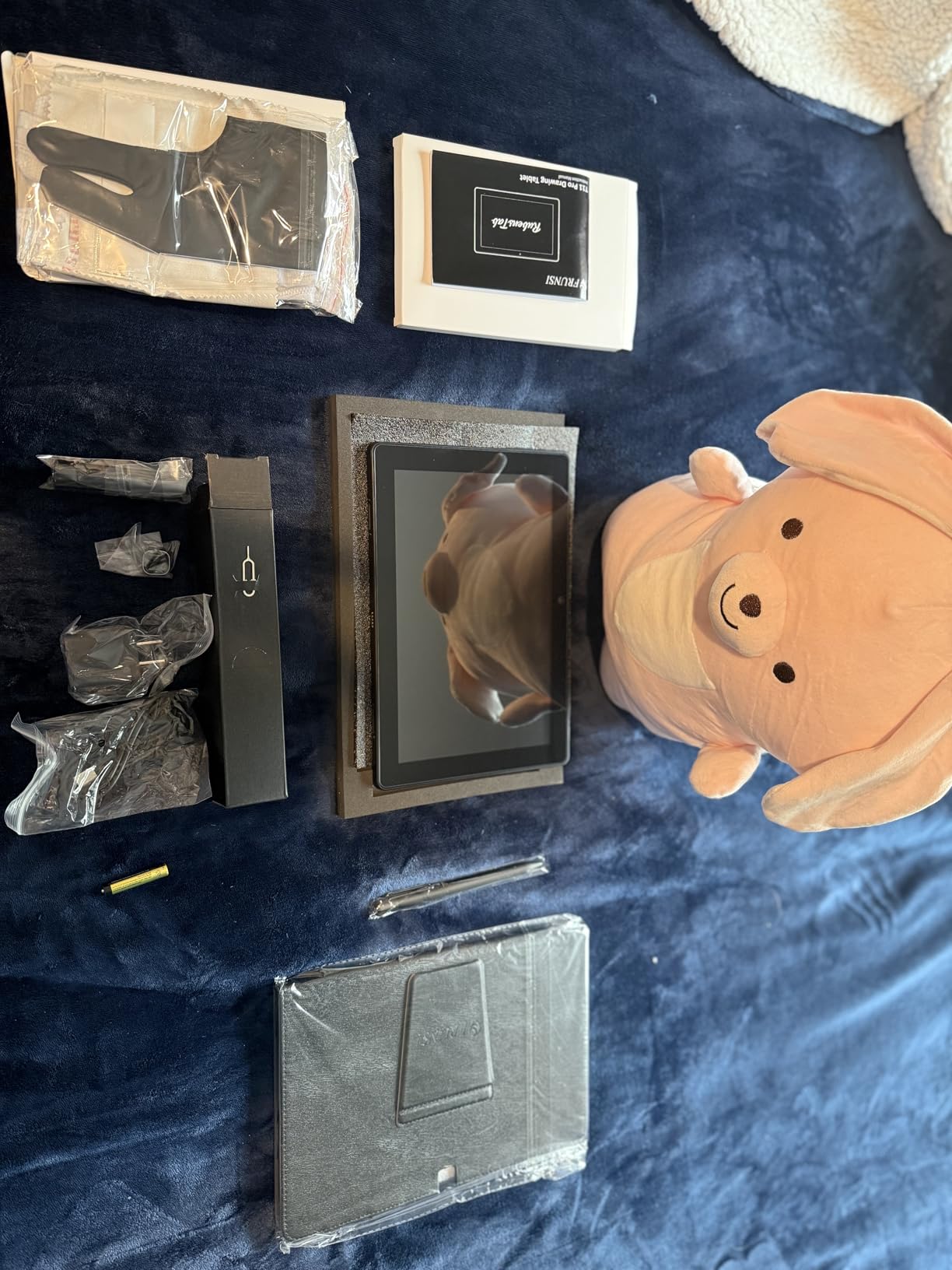
12. RubensTab T11 Pro: Best Gift-Ready Standalone Tablet with Long Battery Life
Frunsi RubensTab T11 Pro standalone Drawing Tablet
10.1 inch 1920x1200 IPS display
1024 pressure levels
5800 mAh battery
Android 12 standalone
Pros
- Fully standalone with no computer needed
- 10.1 inch 1920x1200 screen readable in sunlight
- Battery holds charge very well over idle days
- Krita and Adobe Sketchbook preinstalled
- Includes a fitted protective case glove and cloth
Cons
- Only 1024 pressure levels
- Stylus tip can feel wobbly
- Some battery failures reported after about six months
- Standalone Android apps are limited
This one keeps showing up in the context of gifts, which is a fair signal. It arrives with a fitted adjustable case, a glove and a cleaning cloth, and the preinstalled apps mean a beginner can draw something within minutes of opening the box. There is no computer, no driver and no setup guide to read.
The 10.1 inch 1920×1200 IPS screen is genuinely readable in daylight, which separates it from many cheaper standalone tablets, and the 5800 mAh battery provides up to five hours of continuous use with USB-C charging. Owners report the battery sitting near 87 percent after several idle days, so it holds charge well between sessions.
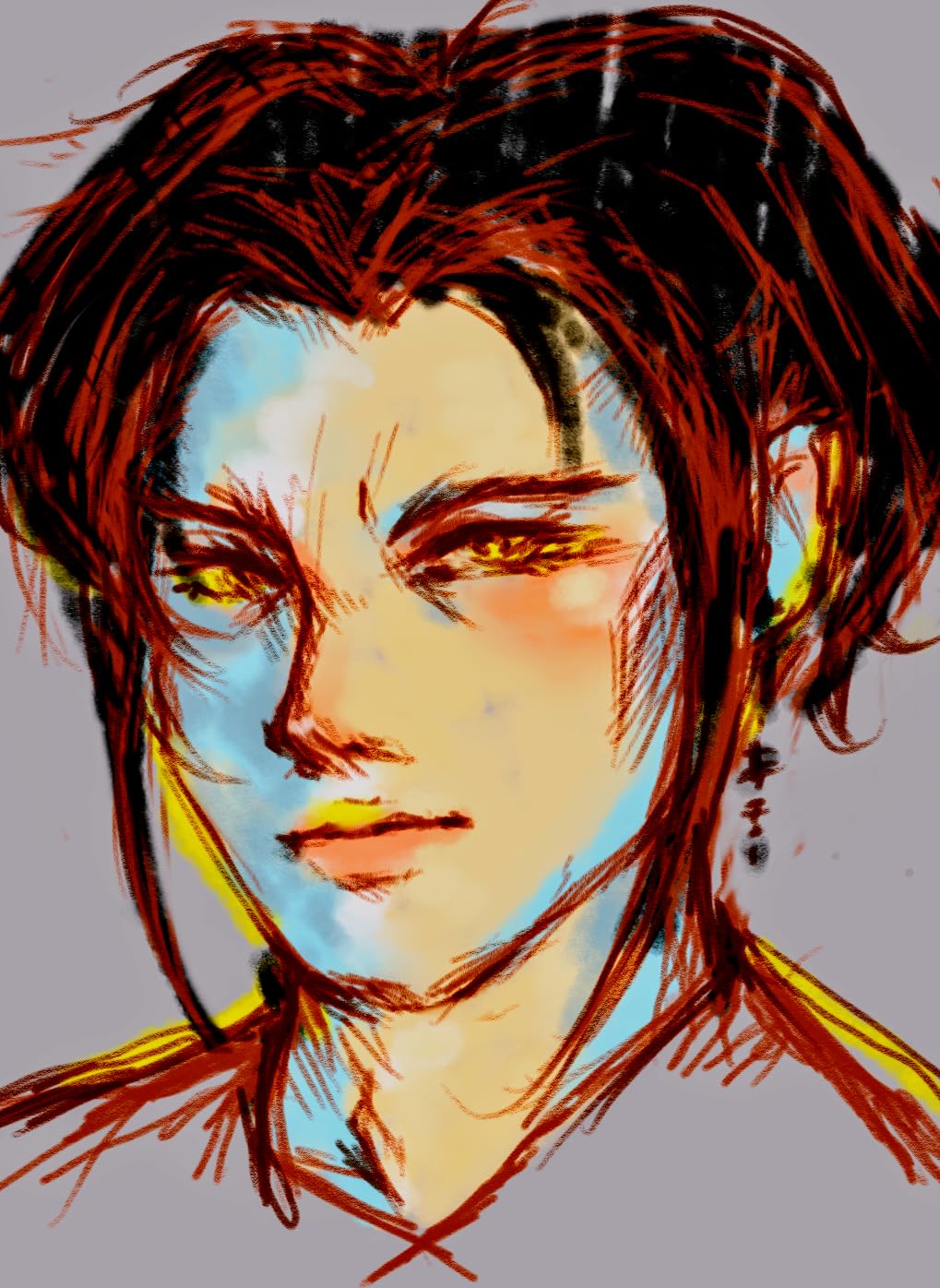
Krita and Adobe Sketchbook are preinstalled, which covers the two programs most beginners actually need. Krita is free and powerful, and having it ready means the first stroke happens on day one. Multi-touch zoom, pan and scroll work alongside the pen, so you can navigate a canvas the way you would on a phone.
The pressure ceiling is the real limitation at 1024 levels, the lowest in this roundup. The stylus also reports its position above the screen but the tip itself can feel wobbly, and some owners report a battery that stopped accepting a charge after roughly six months. Support, though, is consistently praised.
Can 1024 levels of pressure support real drawing?
For learning, note-taking and loose sketching, yes. You get clean line weight variation and can develop brush control. What you lose is the fine taper at the light end, so detailed rendering and smooth shading gradients are harder than on a device with more levels.
If the user is a committed beginner rather than a hobbyist who already draws, that is an acceptable trade for the battery life and screen quality. If they will be working seriously within a year, save up for a device with at least 4096 levels.
What about the battery reports?
They are minority reports, not a pattern, but they matter on a device whose whole appeal is untethered use. Test the charge cycle fully in the first weeks and keep the receipt. Support responsiveness is the reason these are isolated complaints rather than a category-wide problem.
Also check that the stylus in the box is running current firmware, since some owners received units with outdated software or a pen that needed replacing. A quick update on day one prevents a lot of confusion later.
How to Choose a Drawing Tablet: What Actually Matters?
Ignore most of the spec sheet. These are the six things that actually change your artwork.
1. Choose the device type before anything else
Standalone if you draw away from a desk. Pen display if you want to see your hand and your line at the same time, and you already own a capable computer. Screenless if you are starting out, working on a laptop, or want the cheapest path to good fundamentals. Every other decision follows from this one.
This is the question beginners most often get wrong, and it is the one that determines whether you enjoy the medium. Buying a screenless tablet when you need a screen produces a slow start. Buying a display when you mostly draw on the couch produces an expensive paperweight.
2. Size the active area to your monitor, not your ego
A small tablet paired with a large monitor feels cramped immediately. A large tablet paired with a small laptop screen feels oversized and uncomfortable. Match the active area to the display you will actually work in front of, roughly speaking about a quarter to a third of the screen diagonal for most setups.
For pen displays, 11.6 inches is a common first size and 13 to 16 inches is the working range. Above roughly 16 inches you lose your natural sightline to the top of the canvas unless the display is on an arm and angled correctly.
3. Buy lamination over raw pressure levels
Most people over-index on pressure counts. 4096 is enough for almost all drawing, 8192 is comfortably professional, and 16384 shows up as finer tapers in light line work. The visible improvement past 8192 is small enough that you should spend the money on a laminated screen instead.
Lamination removes parallax, which changes how precise fine lines feel. It also reduces eye strain. If you can only choose one upgrade over a base model, choose the laminated screen.
4. Check the pen, not just the tablet
Battery-free electromagnetic pens never need charging and never lose pairing mid-session. That reliability alone is worth more than several hundred extra pressure levels. Tilt support matters for shading and broad strokes. Pen buttons are worth remapping immediately. A light pen is uncomfortable over multi-hour sessions, and a heavier pen or grip sleeve fixes that for very little.
Buy spare nibs in the same order. They wear, they snap, and running out mid-project stops people drawing for a week.
5. Budget for the things outside the box
A monitor arm is close to mandatory for any pen display. The folding stands that ship with these devices are fine for setup and unpleasant for an hour of daily work, and there is no VESA mount on some models at all. Add nibs, a good pen grip if you need one, and for standalone tablets a case and a charger.
Software can also carry a cost. Free options like Krita cover a great deal and run on every device in this roundup. If you need the full desktop versions of Adobe applications, budget for a subscription and a computer, which pushes you firmly toward a pen display rather than a standalone tablet.
6. Think about posture before you buy
Small screens force you to hunch and draw with a cramped wrist, which is the most common reason people quit digital art. If you already know you will draw daily for long stretches, prioritize a larger surface and a monitor arm over a cheaper device.
Take the tablet seriously as a health decision. Repetitive strain from a badly positioned screen is easier to prevent than to fix, and a few minutes adjusting an arm each time you sit down is a routine worth building.
Refurbished and second-hand buying
Older tablets and pen displays hold value unusually well, and a previous generation device with a laminated screen often beats a new budget model without one. The most commonly repeated advice from experienced users is that a slightly older device can be a smarter purchase than a brand-new entry model.
What to check: pressure response across the full surface, palm rejection, screen dead pixels, cable damage on the proprietary connectors, and battery health on any standalone model. Confirm the pen charges or pairs before you commit, and check whether the warranty has transferred with the device.
Frequently Asked Questions
Which tablet is good for drawing?
The Wacom Intuos Small is the best tablet for drawing for most beginners, the XP-Pen Artist 15.6 Pro is the best all-round pen display, and the XP-Pen Deco 01 V3 is the best value pick. If you need a device with no computer at all, the PicassoTab X14 gives you a large laminated standalone screen.
Are tablets or iPads better for drawing?
A dedicated pen display is better for precision work because you draw directly on the screen with no parallax and full palm rejection. An iPad is better for portability and sketching anywhere, and it has the deepest app ecosystem of any portable device, but it cannot run every professional desktop application. Artists who draw daily at a desk generally prefer a display; artists who sketch while travelling prefer a tablet.
What is the difference between a graphic tablet and a drawing tablet?
They are usually the same device, and the two names are used interchangeably. A drawing tablet or graphics tablet is a pressure-sensitive input surface paired with a stylus. The real distinction is between a screenless tablet, a pen display with a built-in screen, and a standalone tablet that runs its own software and needs no computer.
What do professional digital artists use to draw?
Most working illustrators, concept artists and animators use a pen display rather than a tablet, most often a Wacom Cintiq or a Huion or XP-Pen equivalent. The reason is direct screen drawing with a laminated surface and a stable pen tip. Plenty of professionals also keep a standalone tablet for thumbnails, roughing and client work away from the desk.
Do I need a drawing tablet with a screen?
Not to start. A screenless tablet teaches pressure control and brush fundamentals at the lowest cost, and most beginners draw happily that way for months. Move to a pen display when you want to draw fine detail, work on a large monitor, or find yourself fighting the hand-to-screen coordination every session.
The Best Tablet for Drawing Is the One You Will Use Every Day
After going through twelve devices, the pattern was clear. The best tablets for drawing are not the ones with the biggest spec sheet. They are the ones that match your workspace, your software and your patience.
The Wacom Intuos Small is the safest first purchase: dependable, proven and cheap to learn on. The XP-Pen Deco 01 V3 is the better value if you want a larger canvas and a pen that goes deeper. The XP-Pen Artist 15.6 Pro is the display to buy when you are ready to draw directly on a laminated screen and work at a desk every day.
Whichever path you take, buy a monitor arm for a pen display, buy spare nibs, and give the fundamentals a few weeks before you decide. The devices in this roundup will still be doing the same job in 2026.