
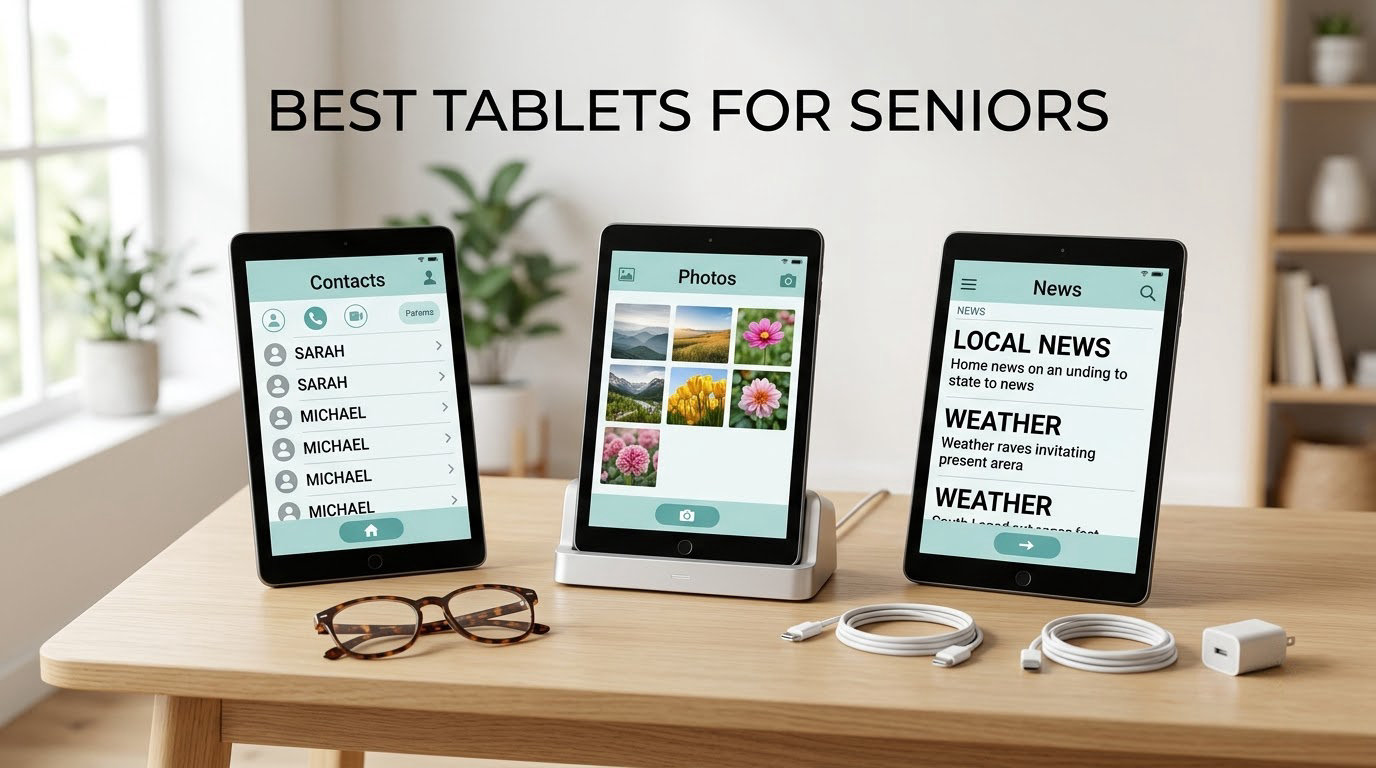
If you want one tablet that balances a genuinely simple interface with a large, bright screen and years of software support, the Apple iPad 11-inch with the A16 chip is our pick for the best tablets for seniors in 2026. If the budget is the deciding factor, the Amazon Fire HD 10 is the low-cost option, with the caveat that its app store is limited.
I have spent the last few months reading thousands of owner reviews, comparing screens, weights, and update windows, and talking through the recurring questions that show up in caregiver forums. That last part matters more than people expect. When someone searches for the best tablet for seniors, they are usually a 45-year-old buying for an 83-year-old parent, and the real question is not which tablet has the fastest chip. It is which one the family will still be able to fix at a distance two years from now.
That reframing changed how I ranked everything here. A device that runs beautifully but leaves a caregiver lost in a maze of settings is a bad senior tablet. A device that is slower but has one home screen, four giant icons, and a family app that lets a son or daughter see what is going on is usually the better buy, even when the spec sheet looks weaker.
Table of Contents
Quick Picks: Best Tablets for Seniors in 2026
Here is the short version, one line per pick, so you can scan the whole list before reading the detail.
Apple iPad 11-inch (A16, 128GB)
Best for: Overall, long update life, video calls, and people who want one device that never feels like a compromise.
Features: 11-inch Liquid Retina display, A16 chip, all-day battery, Touch ID, over a million apps.
Amazon Fire HD 10
Best for: Lowest total cost, reading and streaming on a budget.
Features: 10.1-inch 1080p Full HD screen, up to 13-hour battery claim, Alexa built in, microSD expansion.
GrandPad Easy to Use Tablet
Best for: Absolute beginners and anyone who needs scam protection and a human support line.
Features: 8-inch screen, 4G cellular built in, wireless charging cradle, case and stylus in the box, private network that blocks spam.
Samsung Galaxy Tab A11+
Best for: A big Android screen with strong speakers for video calls and TV.
Features: 11-inch 90Hz LCD, 6GB RAM, 128GB storage, quad Dolby Atmos speakers, Google Gemini.
Samsung Galaxy Tab S10 Lite
Best for: Tremors, arthritis, or anyone who prefers writing to typing.
Features: S Pen included, 10.9-inch 90Hz display, up to 16-hour battery, 1.2 pounds.
Lenovo Tab M11
Best for: Pen use plus good sound, on a mid-range budget.
Features: 11-inch 1920×1200 display, pen in the box, quad speakers, 3.5mm headphone jack, 10-hour battery.
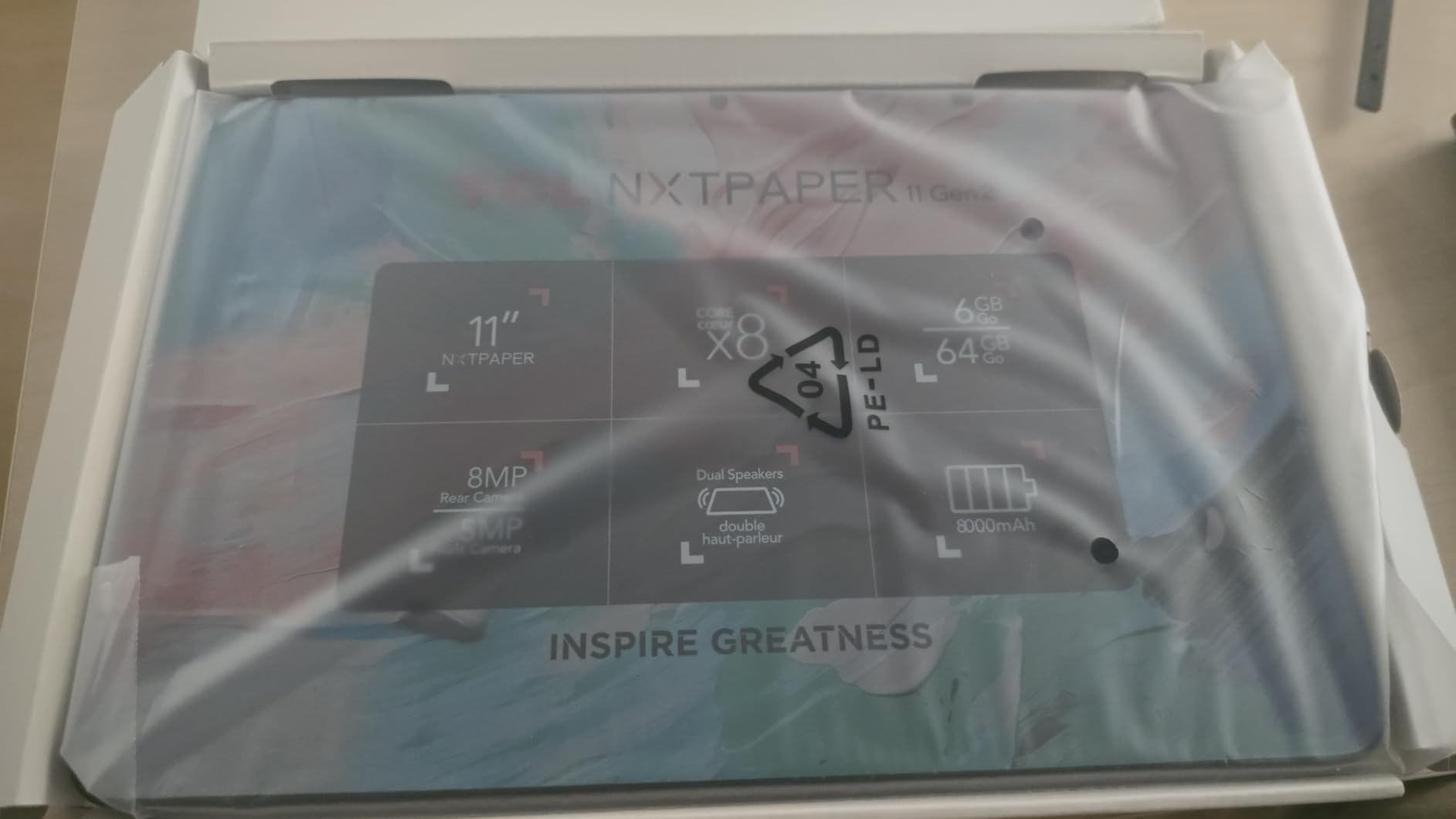
TCL NXTPAPER 11 Gen 2
Best for: Reading and large print, with an anti-glare screen.
Features: True matte anti-reflective display, T-PEN stylus, three paper-like display modes, 8000mAh battery.
Lenovo Tab One
Best for: One-handed use, travel, and a bedside device under a pound.
Features: 8.7-inch HD display, 11.2 ounces, up to 12.5 hours of video, folio stand included, headphone jack.
Lenovo Idea Tab
Best for: The sharpest display you can get at this price with a pen in the box.
Features: 11-inch 2.5K IPS at 90Hz and 500 nits, Tab Pen and folio included, 128GB, quad speakers.
Samsung Galaxy Tab A9+ (Renewed)
Best for: Getting an 11-inch Android tablet for less, accepting a short renewed warranty.
Features: 11-inch 90Hz display, quad Dolby Atmos speakers, Multi Window, microSD, 90-day limited warranty.
Top 3 Tablets for Seniors in 2026

Apple iPad 11-inch A16
- 11-inch Liquid Retina display
- A16 chip
- All-day battery
- Over a million apps

Amazon Fire HD 10
- 10.1-inch 1080p Full HD
- Up to 13-hour battery
- Alexa built in
- MicroSD expansion

All 10 Tablets Compared Side by Side (October 2026)
| Product | Specs | Action |
|---|---|---|
| Apple iPad 11-inch A16 |
|
Check Latest Price |
| Amazon Fire HD 10 |
|
Check Latest Price |
 GrandPad Easy to Use Tablet GrandPad Easy to Use Tablet |
|
Check Latest Price |
| Samsung Galaxy Tab A11+ |
|
Check Latest Price |
 Samsung Galaxy Tab S10 Lite Samsung Galaxy Tab S10 Lite |
|
Check Latest Price |
 Lenovo Tab M11 Lenovo Tab M11 |
|
Check Latest Price |
 TCL NXTPAPER 11 Gen 2 TCL NXTPAPER 11 Gen 2 |
|
Check Latest Price |
 Lenovo Tab One Lenovo Tab One |
|
Check Latest Price |
 Lenovo Idea Tab Lenovo Idea Tab |
|
Check Latest Price |
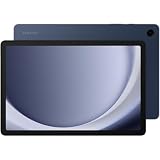 Samsung Galaxy Tab A9+ Renewed Samsung Galaxy Tab A9+ Renewed |
|
Check Latest Price |
1. Apple iPad 11-inch (A16) – Best Overall Pick for Seniors
Apple iPad 11-inch: A16 chip, 11-inch Model, Liquid Retina Display, 128GB, Wi-Fi 6, 12MP Front/12MP Back Camera, Touch ID, All-Day Battery Life — Blue
11-inch Liquid Retina display
Apple A16 chip
128GB storage
1.05 pounds
All-day battery
Pros
- Fast A16 performance
- Bright True Tone 11-inch screen
- Reviewers report around 12 hours of real use
- Over a million apps available
- Long software support window
Cons
- Peak brightness trails some phones
- Accessories sold separately
- Initial setup can be confusing when restoring lots of data
This is the tablet I keep coming back to for families who want one device that will not need replacing in two years. The 11-inch Liquid Retina display is large enough for large print without becoming a brick, and at 1.05 pounds it is light enough to hold one-handed for a whole video call. The A16 chip never stutters, even with a dozen apps open, which matters more than raw speed because a slow tablet feels broken to someone who did not ask for a computer.
Reviewers consistently describe the battery as genuinely all-day, with many reporting around 12 hours of real use rather than the optimistic numbers on a spec sheet. The 12MP Center Stage front camera is the part I would not trade away: it frames the person on the call and keeps their face centred even if they move, which makes a shaky grip far less noticeable on a video call with grandchildren.
Touch ID sits in the top button, so there is no passcode to read aloud or remember, and no face to teach. That single design choice removes the most common reason older adults lock themselves out. The App Store is the practical advantage over the Fire tablet in particular, and it matters for seniors: banks, telehealth providers, and most video-calling apps ship first and most reliably on iPadOS.
The honest drawback is cost, and it is a real one, so it belongs at the top of the list. Accessories are not included, so a senior with a tremor will need a case with a grip or a strap, and Apple Pencil support means buying a stylus separately. Peak brightness also sits below some competing screens, which can matter outdoors or in a very bright room.
Who the iPad 11-inch suits best
This is the pick for a parent who wants to read, video call, browse, and watch something, and who is willing to spend once rather than monthly. If the family already uses iPhones, the support burden drops sharply because there is no new ecosystem to learn. Apple has a long record of supporting iPads for many years, which protects the resale value too.
It is also the strongest choice for low vision combined with a shaky hand, because you can set large text, bold type, and a simplified layout, then use voice dictation instead of typing.
Where the iPad 11-inch disappoints
If the person has mild cognitive decline and will struggle with a standard app grid even after the accessibility settings are adjusted, this is harder than a purpose-built simplified device. Restoring a large amount of data from an older device can also make the first setup confusing, so hand it over after the migration is finished, not during.
For a fixed-income household where the money matters more than the experience, the same use case can be met for far less with one of the Android picks below.
2. Amazon Fire HD 10 – Best Value
Amazon Fire HD 10 tablet, built for relaxation, 10.1″ vibrant Full HD screen, octa-core processor, 4 GB RAM, 32 GB, Black
10.1-inch 1080p Full HD
Octa-core processor
32GB or 64GB
Up to 13-hour battery
Pros
- Best value of any pick here
- Setup often finished in under five minutes
- Sharp 10.1-inch Full HD screen
- Alexa available hands-free
- Durable build
Cons
- No Google Play Store access
- Some expected apps are missing
- Lockscreen ads appear on wake
- Real battery life often under the 13-hour claim
It is one of the most affordable ways to get a large, reliable reading and streaming tablet, and for a device that will live on a coffee table playing audiobooks, the value is hard to argue with. The 10.1-inch 1080p Full HD screen is sharp enough for comfortable reading, and setup is genuinely quick, with many owners reporting they were running within five minutes of opening the box.
Alexa is built in, which means a senior can ask for the time, the weather, or a song without touching the screen at all. For anyone whose hands are stiff or whose vision makes small targets hard, hands-free help is worth more here than most spec-sheet features. The octa-core processor is snappy for the tasks this device is actually asked to do.
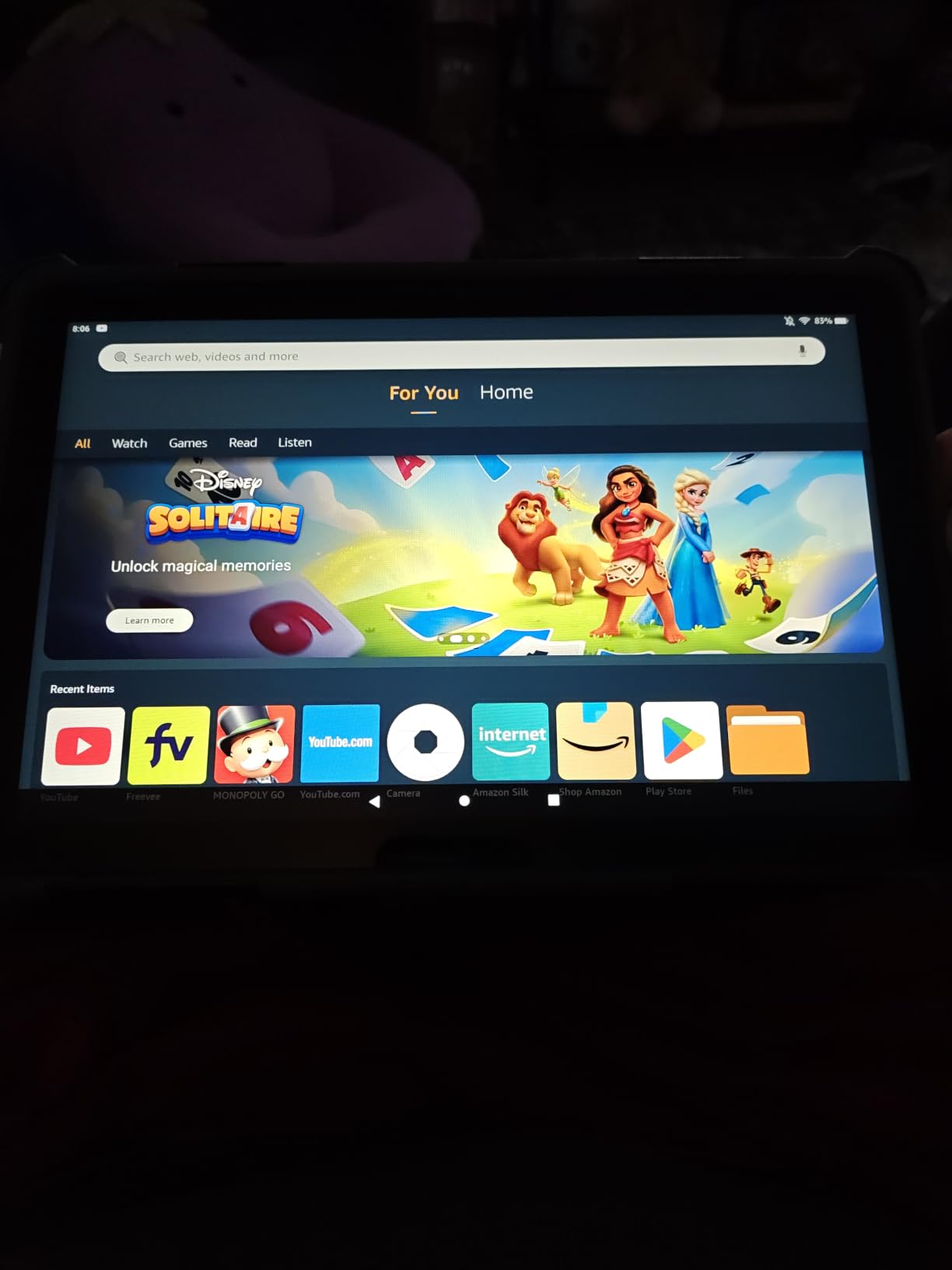
Storage comes in 32GB or 64GB configurations and can be expanded by up to 1TB with a microSD card, sold separately, which is a genuine advantage over sealed tablets. The build uses aluminosilicate strengthened glass, and Amazon rates it at 2.7 times as durable as a 2022 Galaxy Tab A8 in tumble testing, which is reassuring for a device that will be dropped.
The app store is the dealbreaker for some families, and I will not soften it. Fire OS does not run the Google Play Store, so certain banking, telehealth, and video-calling apps are simply not there. Check that the specific apps your parent needs exist on the Amazon Appstore before you buy, not after.
Who the Fire HD 10 suits best
This is the right pick for a parent on a fixed income who mainly wants to read, listen to audiobooks, watch streaming, and make occasional video calls using a family app that is available. It also works well as a shared household tablet that nobody is precious about.
Because it is so widely reviewed, replacement advice is easy to find, and the device is not frightening to hand over. There is no premium feeling that creates anxiety about losing it.
Where the Fire HD 10 disappoints
Lockscreen advertisements appear on wake unless the ad-free option is added, which adds one more screen between the user and what they wanted. Pre-installed apps cannot always be removed, and some reviewers find the leftover software confusing.
Real battery life frequently falls well short of the advertised 13 hours, so it needs charging more often than the number suggests. And if the parent needs their bank, their doctor, or a specific telehealth platform on the device, verify availability first.
3. GrandPad Easy to Use Tablet – Best for Absolute Beginners
GrandPad Easy to Use Tablet & Phone for Seniors [Locked – Not Compatible with Other Wireless Carriers – Requires a Plan]
8-inch LCD at 1920x1200
4G cellular built in
Case stylus and cradle included
380 g
Pros
- Purpose-built large icons and simplified menus
- Private network blocks spam and scams
- Case stylus and charging cradle in the box
- Video and voice calling with family apps
- US-based human customer care
Cons
- Recurring activation plan required
- Locked to GrandPad cellular network
- Older 2019 model with 3GB RAM and 4GB storage
- 8-inch screen is small by modern standards
This is the only tablet on the list that was designed for this buyer rather than adapted to it. The interface has large icons, a shallow menu structure, and a single obvious start point, so a person who has never used a tablet can open it and do something useful in the first minute. In caregiver forums, the word that comes up most often is relief, because there is very little that can be broken.
The box contains a protective case, a stylus, and a wireless charging cradle. That matters more than it sounds: the cradle means the tablet lives on a table where it always has power, and a senior never has to find a cable. The case reduces the damage from a drop, which is the single most common reason these devices end up in a drawer.
![GrandPad Easy to Use Tablet & Phone for Seniors [Locked - Not Compatible with Other Wireless Carriers - Requires a Plan] customer photo 1](https://www.conservatoryweho.com/wp-content/uploads/2026/09/B09S6THZJ1_customer_1.jpg)
Voice and video calling run through companion apps for Android and iOS, so the family installs something on their own phone and the older adult only has to tap one contact. The device runs on a private network that blocks spam, scam, and fraud attempts, which addresses the security anxiety that comes up constantly in discussions about buying for a parent. Customer care is US-based, and 911 calling is available on select plans.
It is also the pick for a home with no reliable internet, because 4G cellular is built in rather than being an optional add-on.
Who GrandPad suits best
This suits a parent with mild memory decline whose family wants remote visibility, a person at real risk of phone scams, and any household without home internet. For a family that values a human support line over a spec sheet, the value is obvious.
The average rating of 4.2 across 137 reviews reflects a niche device rather than a mainstream one, and the small review base is itself informative: this is not a crowd-pleased machine, it is a service.
Where GrandPad disappoints
The recurring activation plan is the top objection in every caregiver thread, and families regret it most when they do the arithmetic over several years. The device is also locked to GrandPad’s own cellular network and will not work with another wireless carrier, so there is no way to move to a cheaper plan later.
On the hardware side, this is a 2019 model year with 3GB of RAM, 4GB of storage, and an 8-inch screen. It is fine for calling, music, and curated content, and poor for anything demanding.
4. Samsung Galaxy Tab A11+ – Best Large-Screen Android Pick
Samsung Galaxy Tab A11+ 6GB RAM, 128GB Storage, Expandable Storage, Gray
11-inch LCD at 1920x1200 and 90Hz
6GB RAM and 128GB storage
1.1 pounds
Quad Dolby Atmos speakers
Pros
- Large 11-inch 90Hz display
- Quad speakers with Dolby Atmos
- Generous 6GB RAM for smooth switching
- Long battery with fast charging
- Google Gemini and Circle to Search
Cons
- LCD panel rather than a brighter AMOLED
- Storage expansion needs a separate microSD
- Android 16 with Samsung's app layer on top
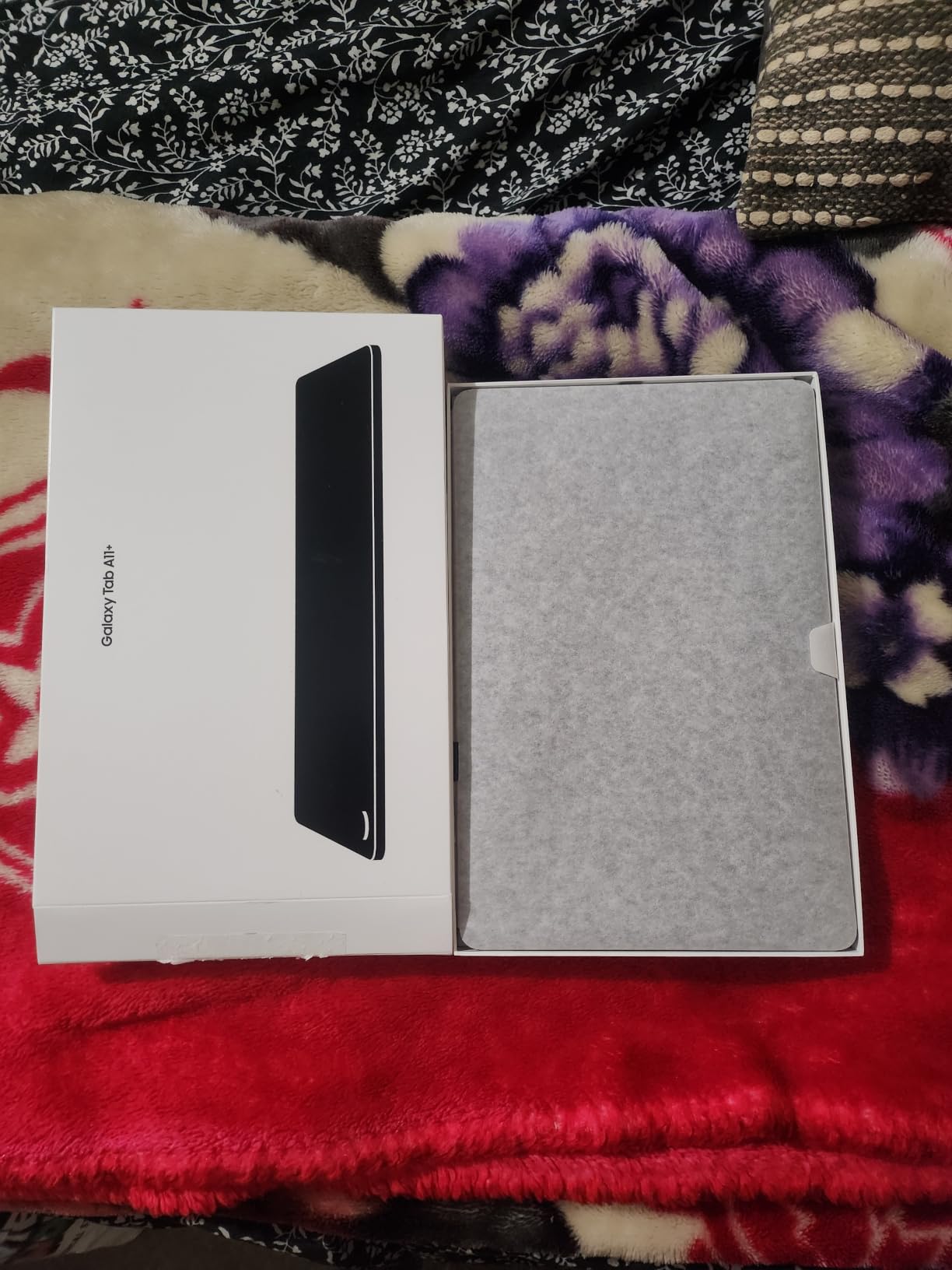
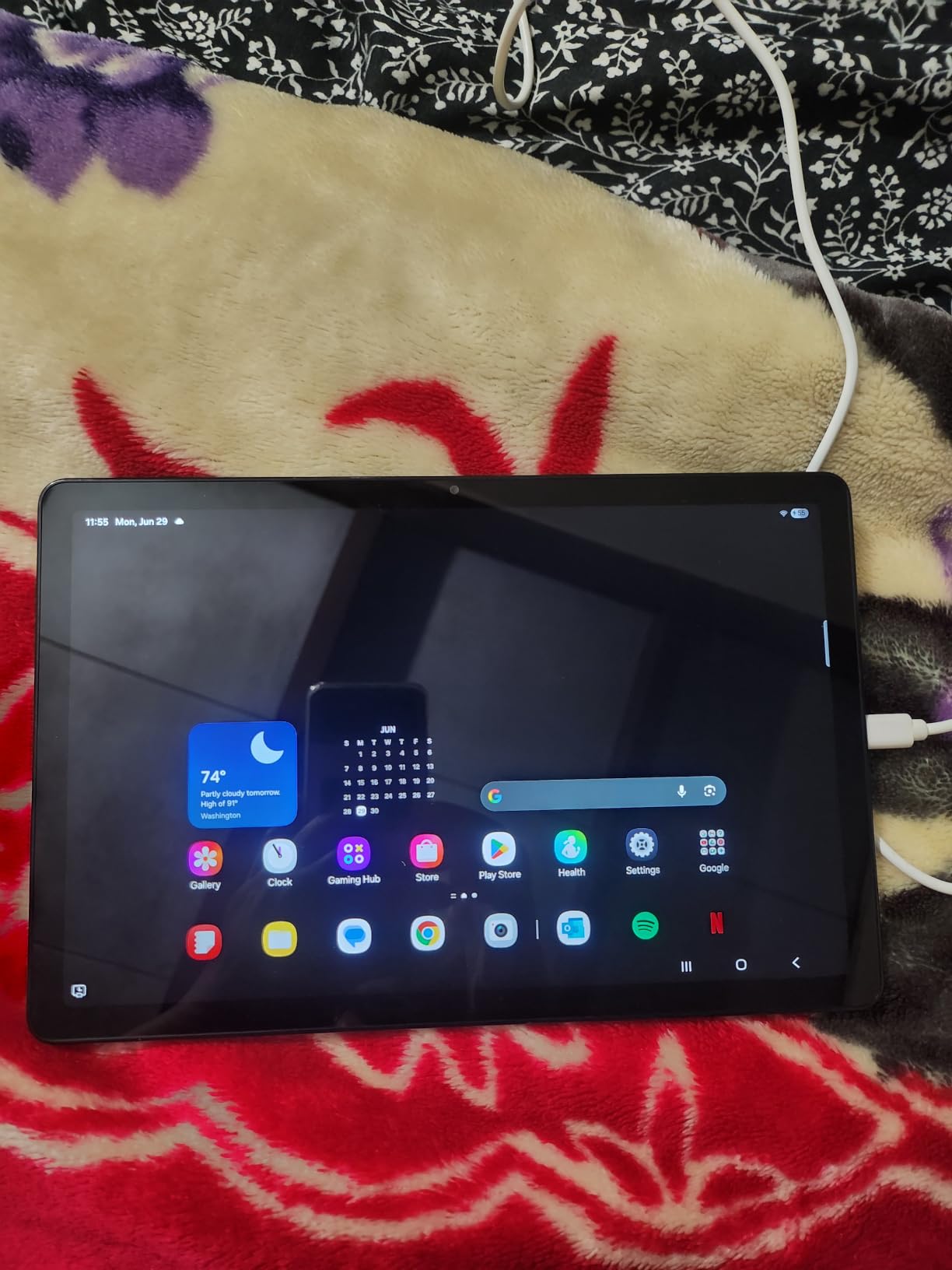
When someone tells me their parent is on a large screen, this is usually the one I suggest for an Android household. The 11-inch LCD runs at up to 90Hz, so scrolling and swiping look smooth rather than sluggish, and 1920×1200 resolution gives real headroom for large text without the interface feeling sparse. At 1.1 pounds it is comfortable for long sessions.
Six gigabytes of RAM is genuinely generous at this price and it shows when the user switches between a video call, a browser, and a streaming app without waiting. The quad speakers with Dolby Atmos are unusually strong for the price, and that matters here because a senior who cannot hear the call will simply stop taking it.
Google Gemini and Circle to Search are practical rather than decorative. A long-press search on anything on screen gets a plain-language answer without opening a browser, which is a low-skill way to look something up. Samsung’s easy mode is available to enlarge icons and strip the home screen down to a short list of favourites.
The 128GB of storage means photos and video from family will not fill it quickly, and the two-year manufacturer warranty is longer than some competitors offer at this level.
Who the Galaxy Tab A11+ suits best
This is the pick for a family that lives in the Android world, wants a large screen for video calls and reading, and expects a tablet to handle streaming as well as calls. It is a strong choice for low vision when combined with bold text and full-screen brightness, since the panel is large and the interface can be enlarged further.
It is also a good second device for a household, because the 6GB of memory leaves room for several users.
Where the Galaxy Tab A11+ disappoints
The display is LCD, so it does not reach the brightness or colour depth of the AMOLED panels found on premium models, and it can be harder to read in direct sunlight. Storage expansion requires buying a microSD card separately.
Samsung layers its own software on top of Android 16, and while easy mode helps, it is still more settings to sift through than the GrandPad or the iPad for a first-time user.
5. Samsung Galaxy Tab S10 Lite – Best for Tremors and Handwriting
Samsung Galaxy Tab S10 Lite, 6GB RAM, 128GB, 2TB Expand, 10.9” LCD, Gray
10.9-inch LCD at 90Hz
S Pen stylus included
8000mAh for up to 16 hours
1.2 pounds
Pros
- S Pen included and needs no charging
- Exceptionally light for a 10.9-inch size
- Up to 16 hours of stated battery life
- Super fast charging adds about two hours
- 6GB RAM keeps apps responsive
Cons
- LCD looks less vivid than AMOLED alternatives
- Some reports of intermittent unit reliability issues
- Samsung Care service described as frustrating
This is the one I recommend when the diagnosis involves hands. The S Pen is in the box, needs no charging, and has none of the latency that makes cheap styluses unusable for anyone with a tremor or arthritis. Writing a note or answering a short message with a pen instead of a keyboard removes the single hardest task on any tablet for this group.
The 10.9-inch LCD at 90Hz is bright and sharp, and Vision Booster adjusts the brightness to the room automatically, which reduces one more thing a caregiver would otherwise have to check. The 8000mAh battery is rated for up to 16 hours, and super fast charging brings it to full in roughly two hours, so a missed charge is not a crisis.
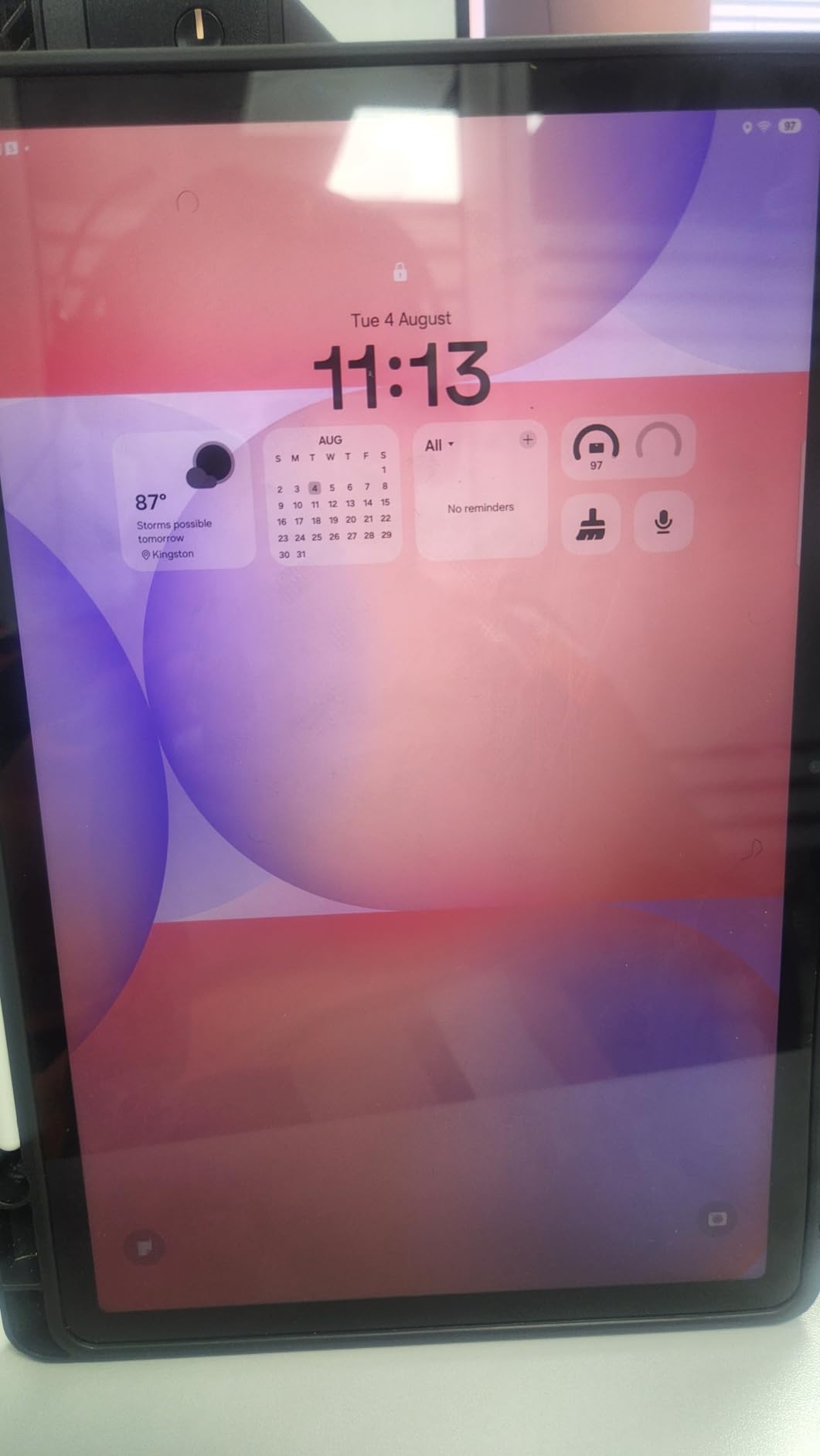
At 1.2 pounds it is thin and light for its screen size, and 128GB of storage expands to 2TB by microSD. Circle to Search and the AI hot key are described by owners as practical rather than novelty features, and SmartThings Map View lets someone check a camera or a door sensor from the sofa.
Software setup was reported as straightforward, with fast data transfer from older Samsung tablets if the family is replacing a previous device.
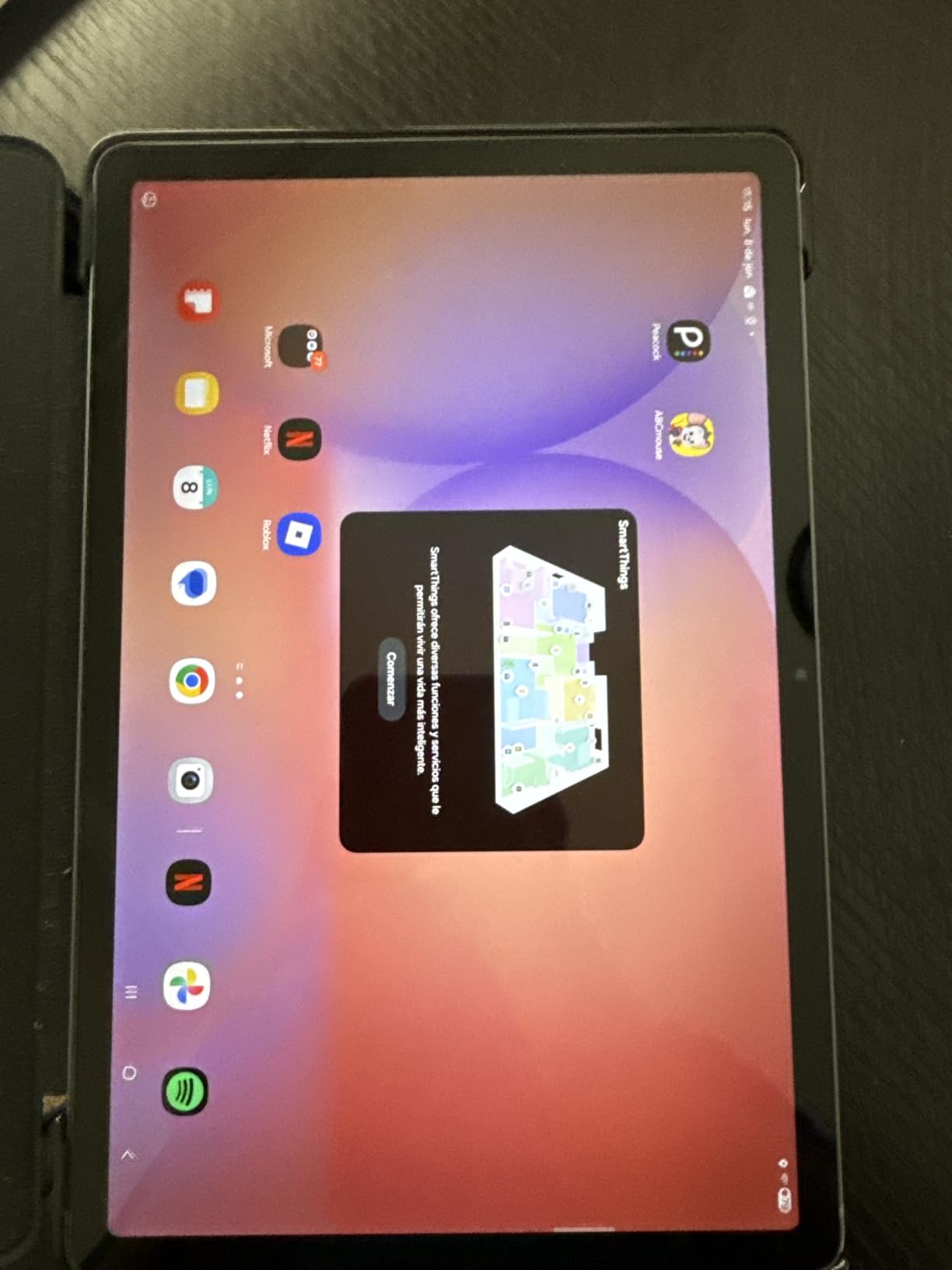
Who the Galaxy Tab S10 Lite suits best
This suits a parent with hand tremors, arthritis, or a history of dropping things, who also wants a modern tablet rather than a simplified one. It works well for a hospital or care-home setting where a relative writes notes, and for anyone who genuinely prefers handwriting to typing.
It is also a good fit for a parent who travels, since the weight is low and the battery covers a long day away from a socket.
Where the Galaxy Tab S10 Lite disappoints
The LCD panel is less vivid than AMOLED alternatives at a similar or lower price, and a small number of reviews report intermittent hardware failures on individual tablets. Samsung Care has been described by some owners as a frustrating process to claim against, which is worth knowing before you buy rather than after.
It is also a pick that costs more than most of the Android options here, and the extra money buys the pen and the polish rather than a simplified interface.
6. Lenovo Tab M11 – Best Pen Tablet on a Mid Budget
Lenovo Tab M11, 11” Display, MediaTek Helio G88 Octa-Core, 4GB RAM, 64GB SSD, 1920×1200 px, Ambient Light-Sensor, 10 Hour Battery, Comes w/Pen, Luna Grey
11-inch 1920x1200 at 90Hz
MediaTek Helio G88
Pen included
1 pound
10-hour battery
Pros
- Excellent sound for the price
- Sharp 11-inch display with ambient light sensor
- Stylus pen in the box
- Battery lasts a full shift
- Full Google Play access
- Lightweight and sturdy
Cons
- Helio G88 is slow when multitasking
- Pre-installed bloatware cannot be removed
- 64GB needs a microSD card
- The standard Android interface is less welcoming to newcomers
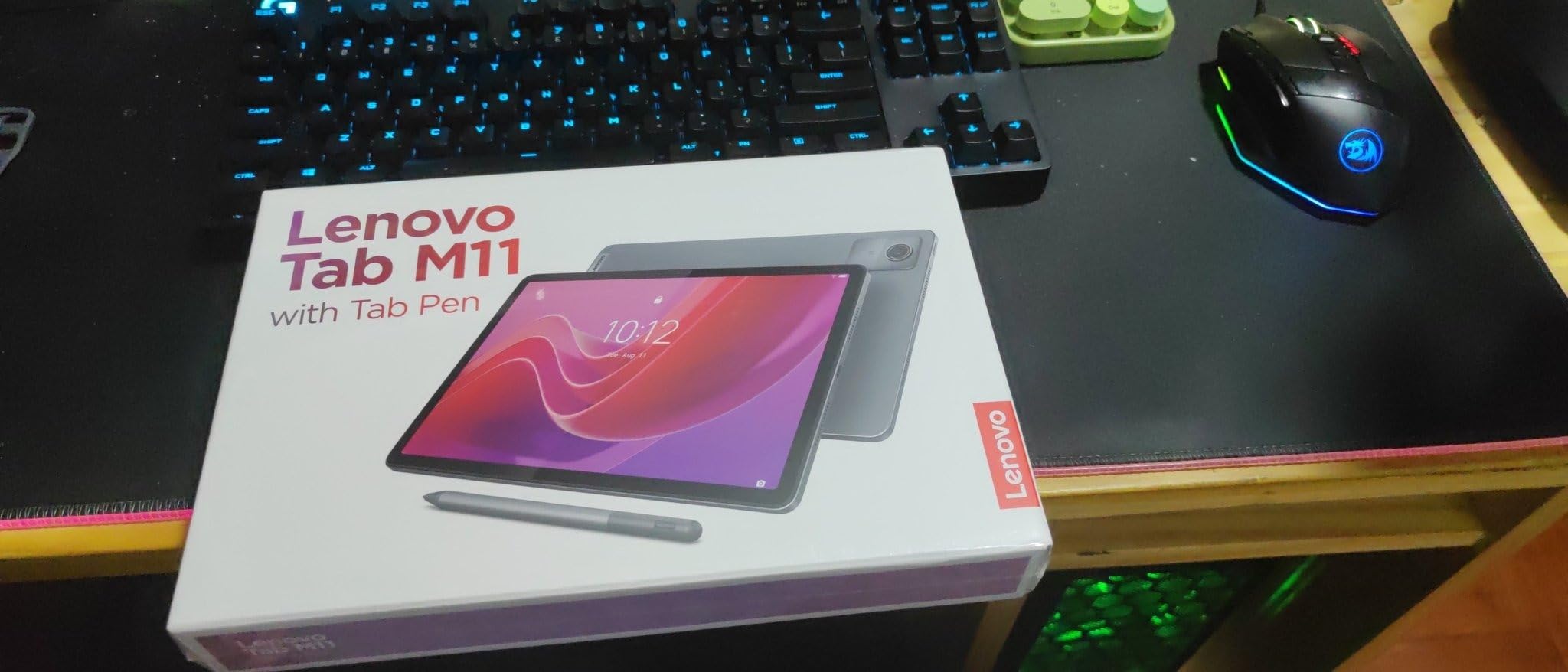
The Tab M11 is the value version of the stylus experience. A pen is in the box, the 11-inch 1920×1200 screen is sharp, and the ambient light sensor adjusts brightness on its own. Owners repeatedly single out the sound quality as a large step up from cheaper off-brand tablets, and the 7040mAh battery lasts a full work shift on moderate use.
It runs full Android with access to Google Play, so banking, telehealth, and video-call apps are all available. That alone puts it ahead of the Fire HD 10 for a parent who needs specific apps, and the 3.5mm headphone jack is a genuine plus for a senior who already owns wired headphones or hearing aid accessories.
At exactly one pound it is light without feeling cheap, and the build is described as sturdy rather than flimsy. The included pen is a real one, not a promotional token, and the 90Hz panel makes writing feel smooth.
This is the tablet I suggest when a family wants pen input and good audio but cannot stretch to a premium price, and when the household already runs Android.
Who the Lenovo Tab M11 suits best
This suits a parent who wants to write rather than type, listens to a lot of music or audiobooks, and needs the full app store without a premium price. It is a good fit for someone whose vision is fine with a standard layout once the text size is increased.
It also works as a shared family tablet for reading and video, where nobody needs high-end performance.
Where the Lenovo Tab M11 disappoints
The Helio G88 processor is the weak point. It is fine for reading and streaming but noticeably slow when several apps are open, and it cannot handle demanding 3D games. Significant bloatware comes pre-installed, and some of it cannot be removed at all, which is a bad first impression for a non-technical user.
The 64GB of storage is minimal without a microSD card, and the standard Android build gives a new user more settings to work through than easy mode on a Samsung tablet.
7. TCL NXTPAPER 11 Gen 2 – Best for Reading and Large Print
TCL NXTPAPER 11 Gen 2 Android Tablet, 11″ Dispaly, 6+64GB
11-inch 1920x1200 anti-reflective display
T-PEN stylus included
8000mAh battery
1.1 lbs
Pros
- True matte anti-glare surface is easy on the eyes
- Paper-like Ink and Color Paper modes
- Sturdy aluminium frame
- Stylus and flip case in the box
- Full day of typical use on one charge
Cons
- Speakers are adequate rather than good
- No headphone jack
- Android update commitment is unclear
- Some apps misread the palm as pen input
A matte, anti-reflective screen is the feature most senior tablets skip, and a matte surface that is unusually kind to ageing eyes. The NXTPAPER 4.0 surface is genuinely non-reflective and flicker-free with low blue light, so it can be read for an hour in a bright room or near a window without the glare that makes an ordinary tablet tiring. The Eye Care Assistant also dims the screen automatically and sends break reminders.
Three display modes change how it behaves: Regular for everything, Ink Paper for a monochrome book-like page, and Color Paper for comics. Combined with the 1920×1200 resolution on an 11-inch panel, that is a strong reading setup for a parent whose vision is the main constraint.
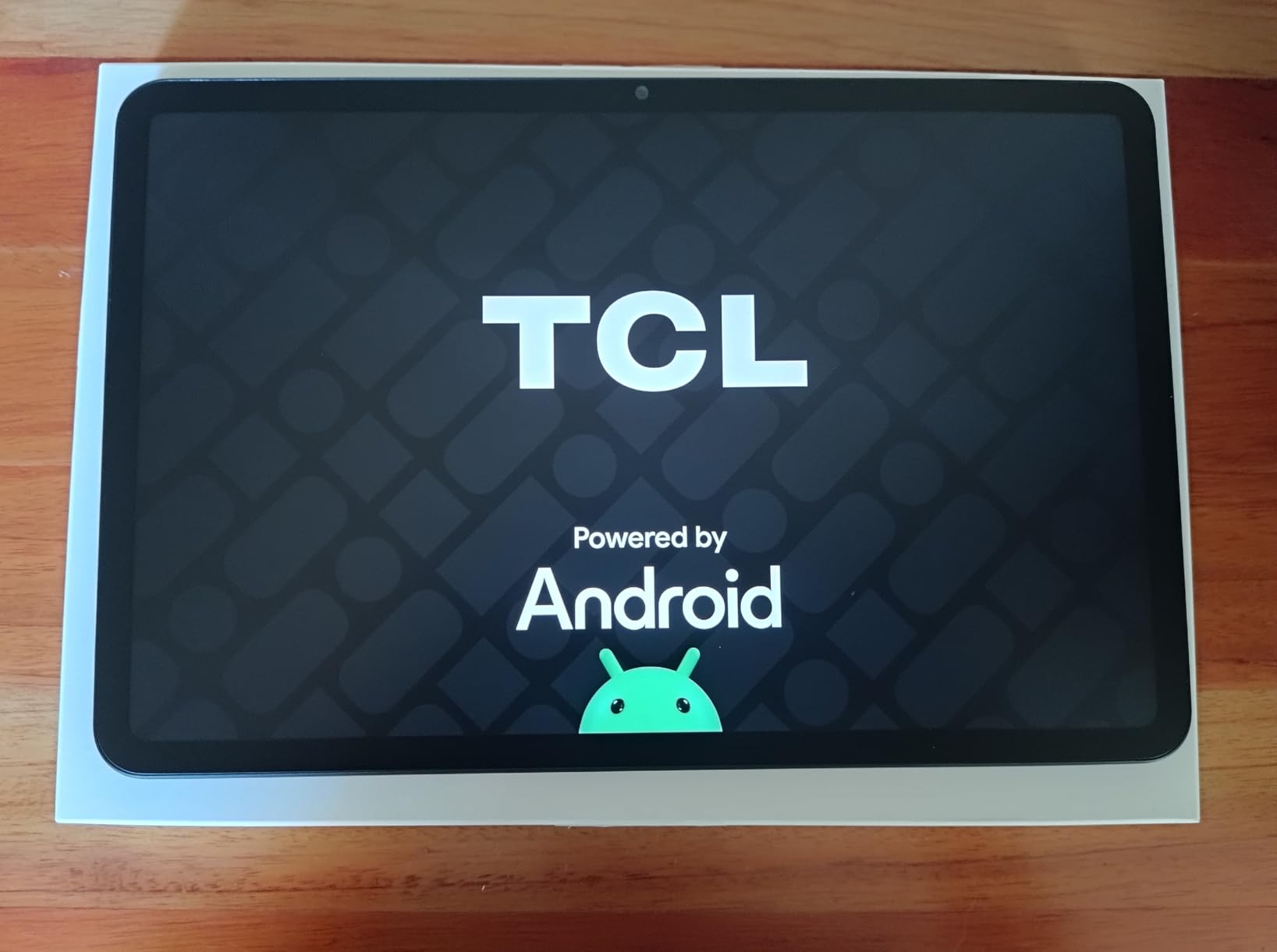
The T-PEN stylus is included, is rechargeable over USB-C, and registers 4096 levels of pressure. The 8000mAh battery with 18W fast charging covers a full day of ordinary use, and reverse charging means the tablet can top up a phone. The aluminium body is only 0.29 inches thick at 1.1 pounds, and a flip case is in the box.
Setup is reported as fast and clean, with a standard Android 15 interface that can be upgraded to Android 16.
Who the TCL NXTPAPER 11 Gen 2 suits best
This is the pick for a parent who mostly reads, whether books, newspapers, or long articles, and whose eyes struggle with glare. The paper-like display modes also make it attractive for handwriting with the included stylus, which helps anyone who cannot comfortably type.
It is a good second or bedside device, because the anti-reflective surface stays readable with a bedside lamp on.
Where the TCL NXTPAPER 11 Gen 2 disappoints
The dual speakers are adequate for video calls but not for music or films, and there is no headphone jack, so audio depends on Bluetooth or built-in speakers. The Mali-G52-MC2 graphics make it unsuitable for demanding games.
Most importantly for a long-term purchase, the manufacturer’s Android software update commitment is unclear, so I would not build a five-year plan around it. A small number of owners have also reported the ambient light sensor being poorly placed and apps registering a palm instead of pen input during note-taking.
8. Lenovo Tab One – Best Lightweight Pick for One-Handed Use
Lenovo Tab One – Lightweight Tablet – up to 12.5 Hours of YouTube Streaming – 8.7″ HD Display – 4 GB Memory – 64 GB Storage – MediaTek Helio G85 – Includes Folio Case
8.7-inch HD display at 480 nits
11.2 ounces
Up to 12.5 hours of video
Folio stand included
Pros
- Lightest device in the roundup at 11.2 ounces
- Easy to hold in one hand
- Up to 12.5 hours of streaming
- Headphone jack plus Bluetooth
- Folio case with built-in stand
- Clean interface once bloatware is disabled
Cons
- Small 8.7-inch screen is not for low vision
- No fingerprint reader
- Weak 2MP front camera for video calls
- Brightness is modest outdoors
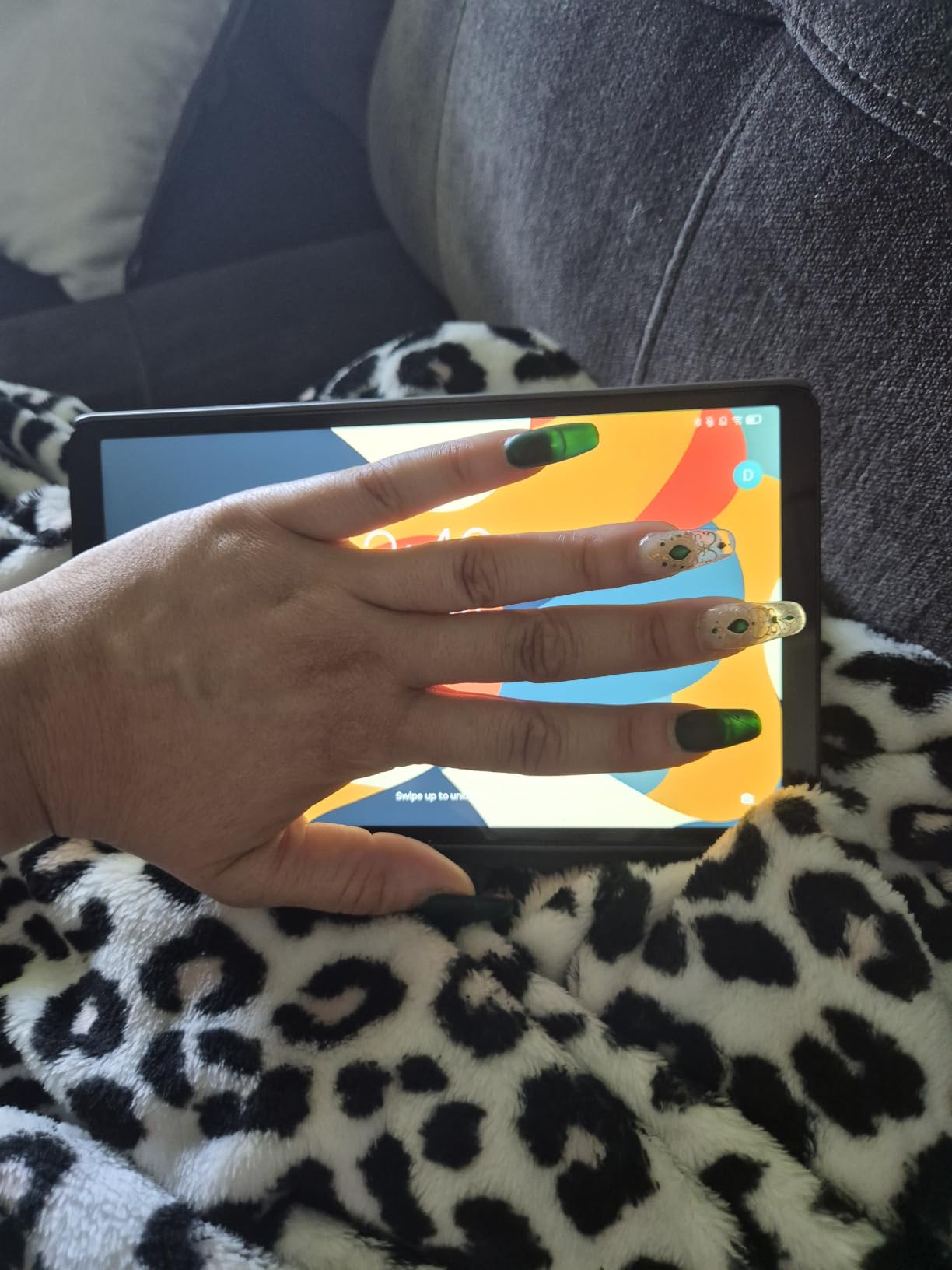
This is the lightest device in the roundup at 11.2 ounces, and the one for anyone who has been told to use something lighter. It is genuinely one-handed, and the folio case with a built-in stand means it can be propped up for a call or a film, which is the arrangement many owners settle on. The battery is rated for up to 12.5 hours of video streaming.
It also keeps a 3.5mm headphone jack, which only one other tablet in this roundup also keeps, and that matters for people who use wired headphones or a specific listening setup. Bluetooth is supported as well, so hearing aid streaming over Bluetooth is possible.
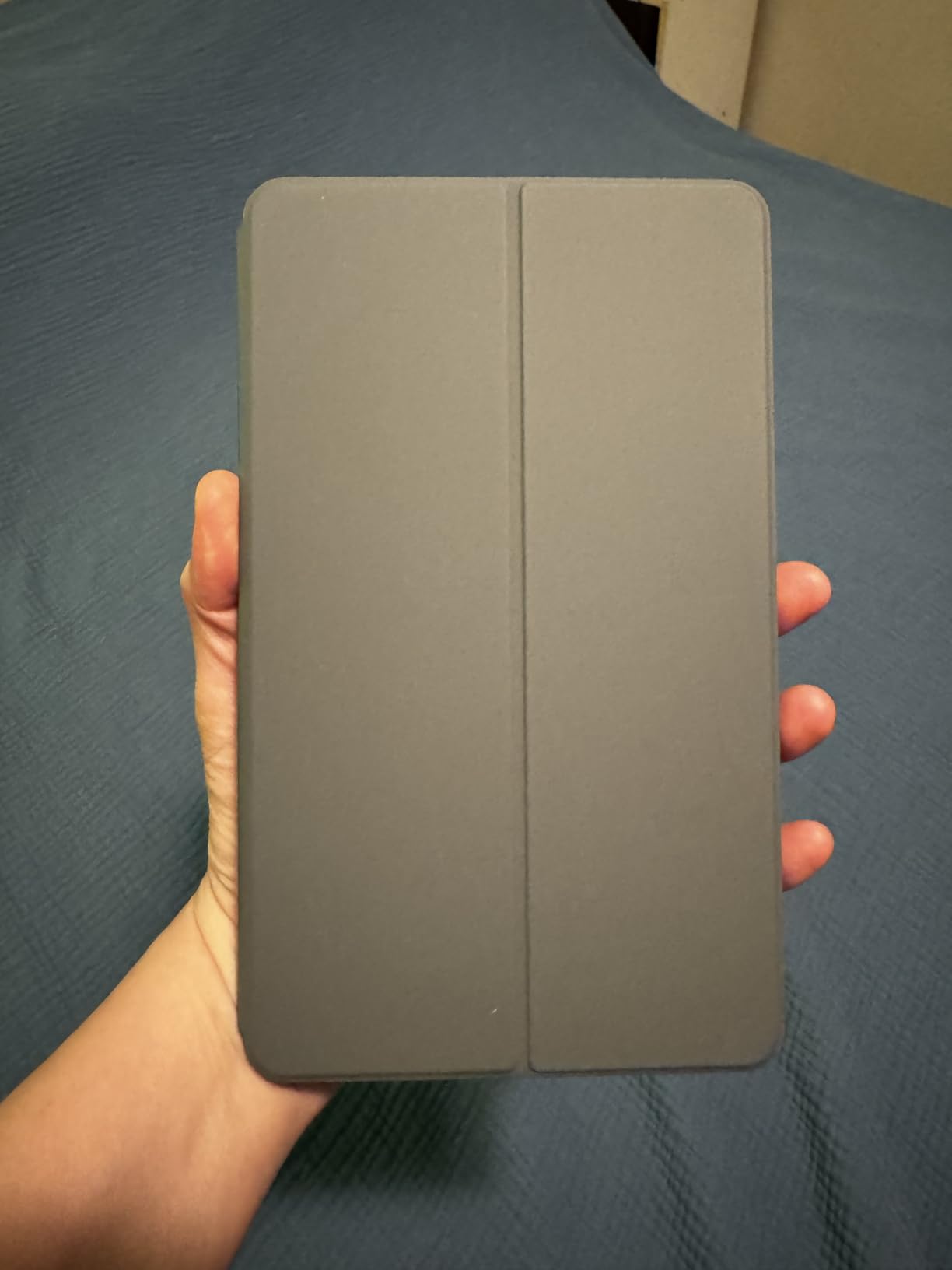
Storage is 64GB with microSD expansion, the dual Dolby Atmos speakers are better than the price suggests, and once the bloatware is disabled the interface is clean and minimal. Users treat it as a compact bedside or travel device for reading, audiobooks, and streaming, which is exactly what it is good at.
The Android 14 platform comes with two years of security patches and a one-year mail-in warranty, both of which are on the modest side for a device you hope lasts a while.
Who the Lenovo Tab One suits best
This suits a parent with limited strength or a recovering injury, or a senior who travels and wants something that can be carried without thinking about it. It is also a good companion for video watching in bed, where the stand is more useful than raw screen size.
For a hearing aid user who prefers wired audio or already owns good wired headphones, the jack removes an extra accessory from the list.
Where the Lenovo Tab One disappoints
The 8.7-inch screen is the clear limit, and I would rule it out for anyone with low vision. Several people asking about large print find screens of this size too small no matter what the text size setting is set to, and 480 nits of brightness is modest for outdoors use.
There is no fingerprint reader, so the only unlock options are a password, pattern, or PIN. The 2MP front camera is weak for video calls, and the device cannot play 60fps video.
9. Lenovo Idea Tab – Best Sharp-Display Value
Lenovo Idea Tab – College Tablet – 11″ 2.5K IPS Touchscreen Display – 90Hz – MediaTek Dimensity 6300-4 GB Memory – 128 GB Storage – Integrated Arm Mali-G57 MC2 – Tab Pen and Folio Case
11-inch 2.5K IPS at 90Hz and 500 nits
128GB storage
Tab Pen and folio included
1.1 pounds
Pros
- Sharp 2.5K IPS panel with 90Hz refresh
- 500 nits works well indoors
- Tab Pen and folio case in the box
- Low blue light hardware certification
- Quad Dolby Atmos speakers
- Up to 12 hours of video
Cons
- Dimensity 6300 causes multi-second app delays
- Some transitions feel sluggish under load
- No printed Wi-Fi setup instructions
- Android rather than a desktop-class system
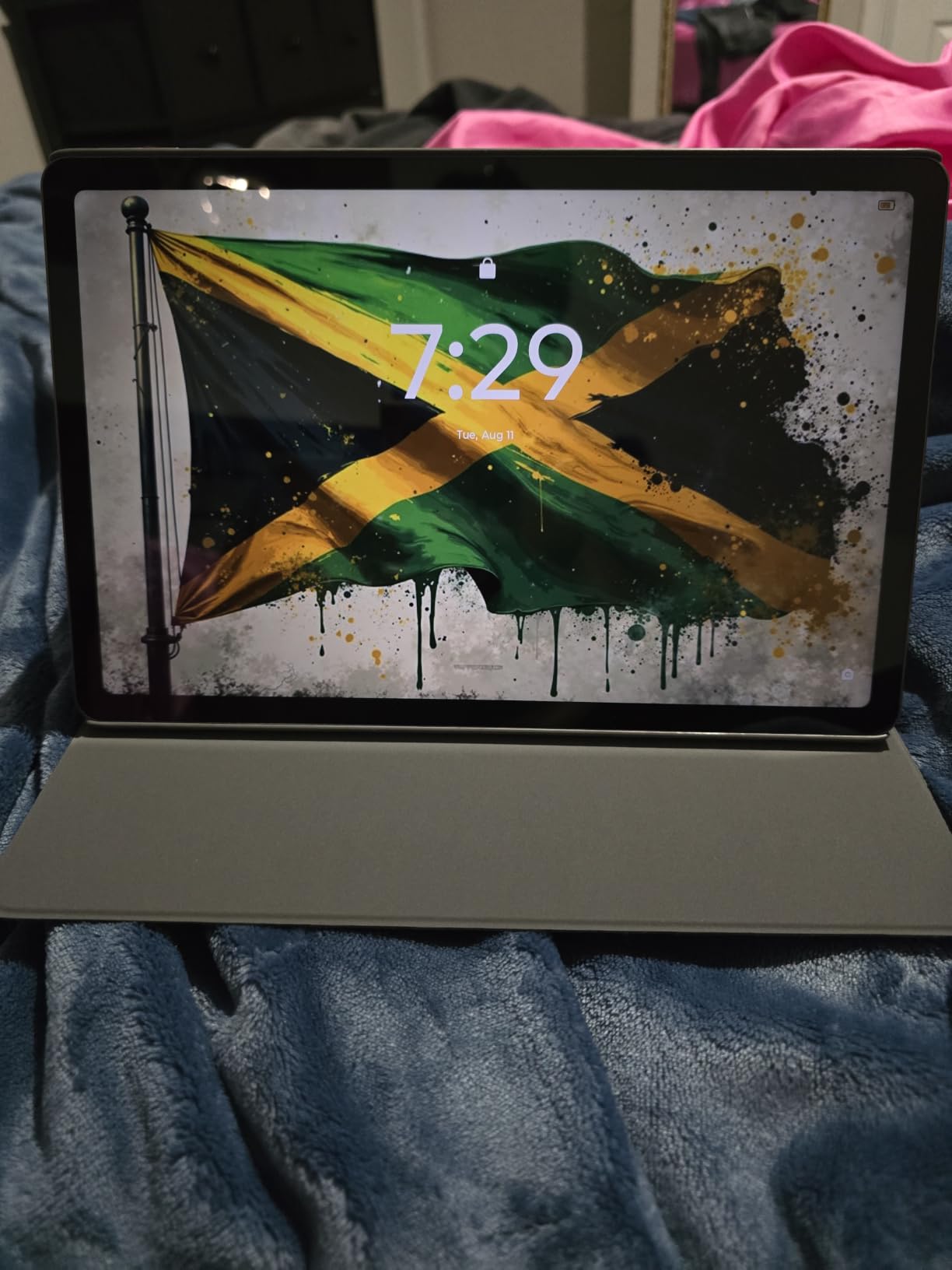
The Idea Tab has the highest-resolution screen in this list: a 2.5K IPS panel at 2560×1600 running at 90Hz with 500 nits of brightness. That resolution headroom is a real advantage for large print, because text stays clean when the size is turned up rather than turning soft. The TUV-certified low blue light hardware treatment also helps with evening use.
Both the Tab Pen and the folio case are in the box, pen input is smooth and responsive, and 128GB of storage means a family photo library fits without a memory card. The quad Dolby Atmos-tuned speakers are good enough that a video call is genuinely usable.
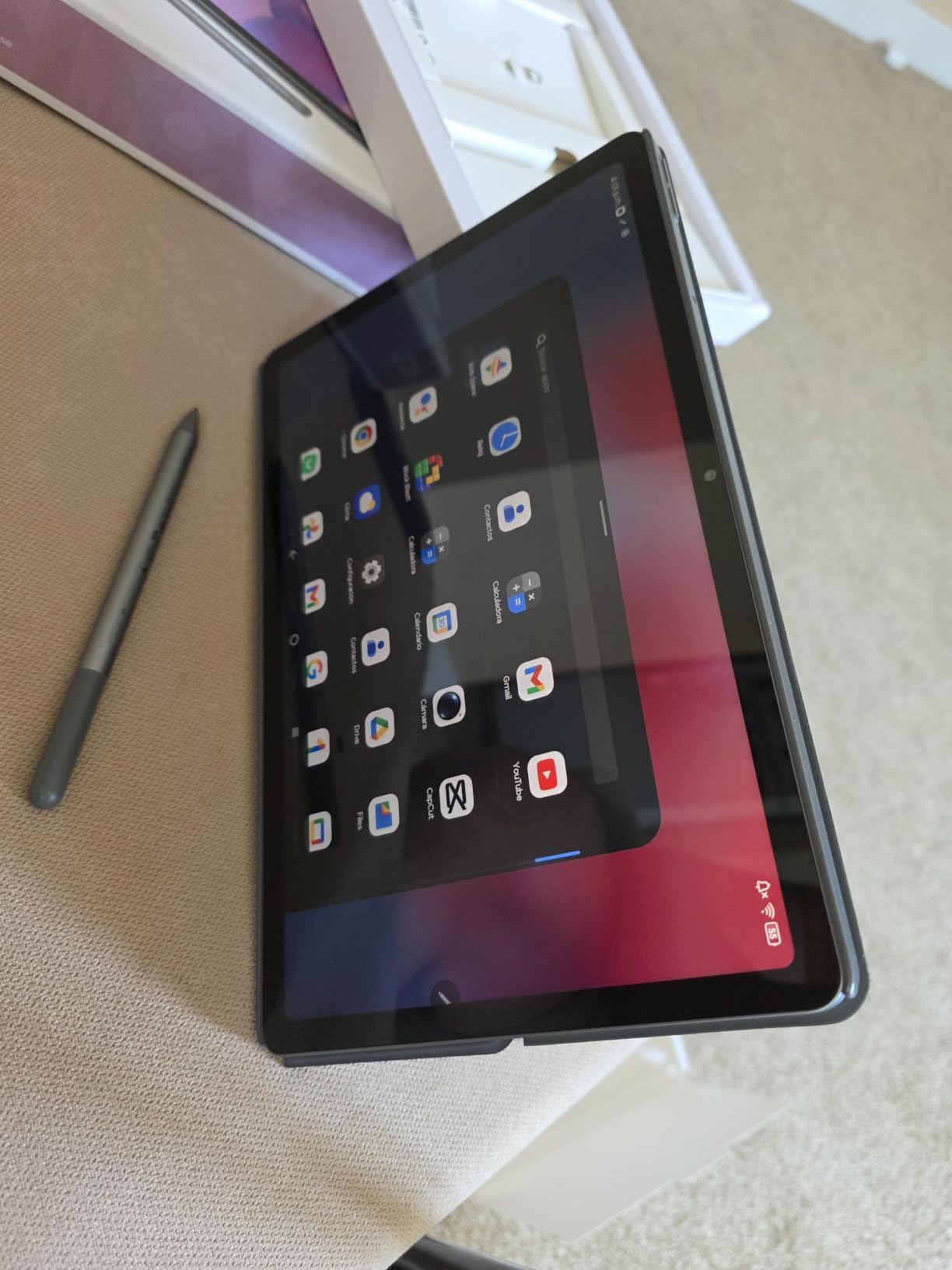
For a large-screen tablet with a pen at this price, the specification sheet is hard to argue with. It pairs with Bluetooth keyboards and mice, connects to network printers, and supports face recognition or password unlock. Reviewers often compare it favourably to the Samsung Galaxy Tab A11 at a similar price.
The 7216mAh battery is rated for up to 12 hours of video, and 20W charging brings it back quickly.
Who the Lenovo Idea Tab suits best
This suits a parent who needs large print on a big screen, uses the tablet for reading and handwriting, and wants a modern-looking device without a premium price. The 500-nit brightness works well indoors, which covers most homes and care settings.
It is also a sensible choice for a parent who already has an Android phone and a Google account, so video calling apps and family sharing work without a new ecosystem.
Where the Lenovo Idea Tab disappoints
The MediaTek Dimensity 6300 is an entry-level processor and reviewers regularly notice delays of two to five seconds between apps, along with sluggish transitions under load. For a non-technical user, a pause after every tap can feel like the device has failed, so this matters more here than it would for a younger buyer.
There are no printed instructions for connecting to Wi-Fi, and the SIM instructions come first in the booklet, which has pushed at least one buyer to look the setup up online. The 72% NTSC colour gamut is also modest.
10. Samsung Galaxy Tab A9+ Renewed – Best for Buying a Large Android Tablet for Less
Samsung Galaxy Tab A9+ 11” 64GB Wi-Fi Android Tablet, Big Screen, Quad Speakers, Upgraded Chipset, Multi Window Display, Slim, Light, Durable Design, US Version, 2023, Navy (Renewed)
11-inch LCD at 1920x1200 and 90Hz
Snapdragon 695 with 4GB RAM
64GB plus microSD
1.1 pounds
Pros
- Large 11-inch 90Hz display
- Quad Dolby Atmos speakers
- Multi Window runs several apps
- Light at 1.1 pounds
- microSD expansion
- Noticeable saving against buying new
Cons
- Renewed condition may show cosmetic wear
- 90-day limited warranty instead of two years
- 4GB RAM and older chipset are dated
- Samsung lists around 8 hours of average battery
This is the same Galaxy Tab A9+ reviewers recommend in Android roundups, offered in renewed condition. The 11-inch 1920×1200 display at up to 90Hz is a large, smooth canvas, the quad speakers with Dolby Atmos make video calls clear across a room, and Multi Window lets a user keep a family photo and a message open side by side.
At 1.1 pounds it stays portable despite the big screen, and microSD expansion solves the 64GB storage limit. Buyers report the expected Galaxy experience at a meaningfully lower outlay, which is the entire point for a household on a fixed income.
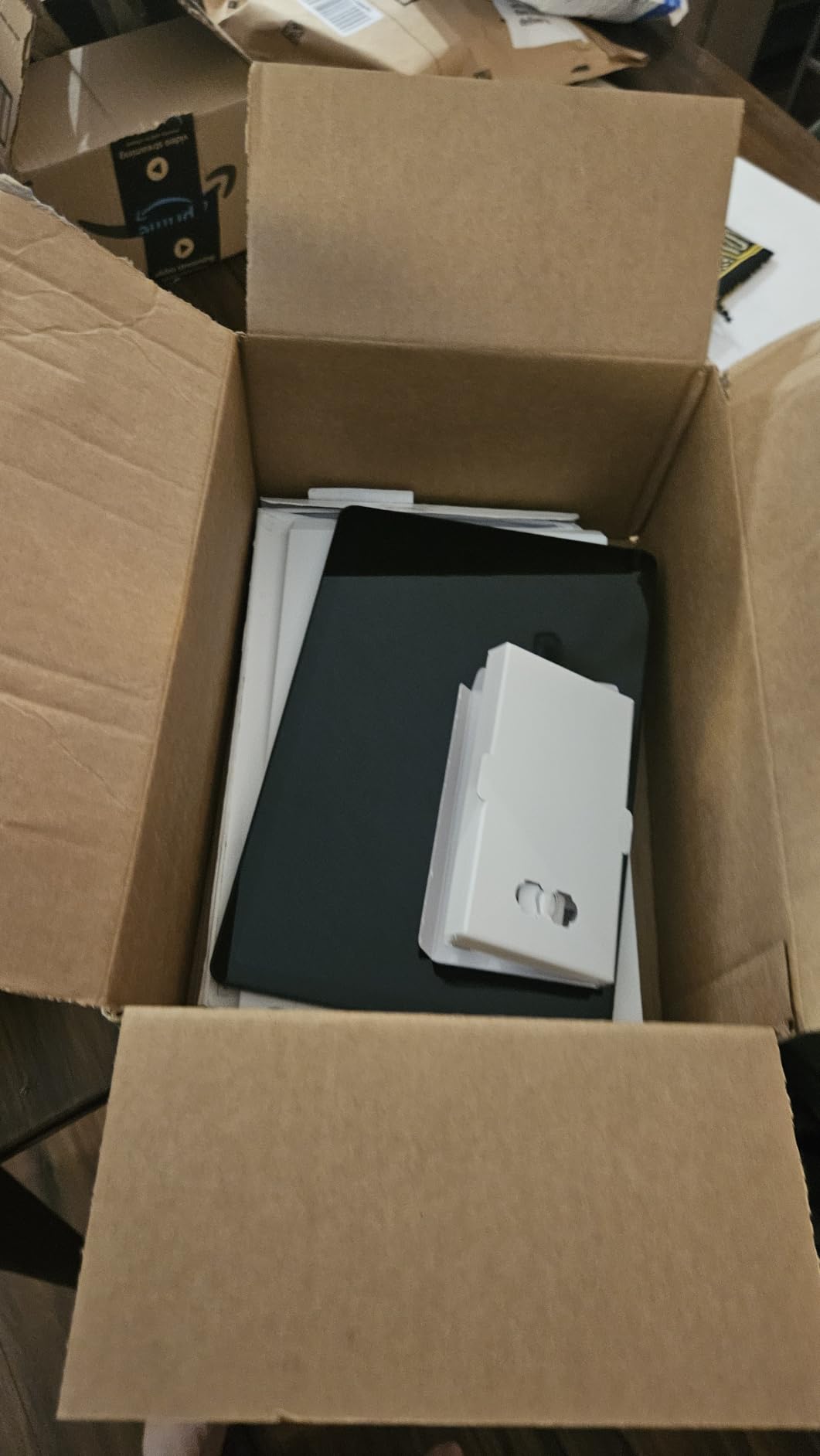
Be clear-eyed about what renewed means here. Cosmetic wear is possible, and the warranty drops from the standard two years to 90 days. That is a real trade: you are trading a year and a half of cover for a lower upfront cost, and whether that is a good deal depends entirely on the household.
The 4GB of RAM and the Snapdragon 695 chipset are also dated next to the 6GB configuration in the Galaxy Tab A11+ above.
Who the Galaxy Tab A9+ Renewed suits best
This suits a family that wants a large 11-inch Android screen for reading, calls, and streaming without the cost of a new unit, and who is comfortable with a device that shows signs of use. It is a good fit for a senior who is not going to be upset by small marks on the casing.
It is also worth considering as a shared or spare tablet, where the shorter warranty matters less than the saving.
Where the Galaxy Tab A9+ Renewed disappoints
The 90-day limited warranty is the main disappointment, because screens and batteries are exactly the parts that fail slowly, and a short window leaves a family carrying the risk. Battery life is listed at around 8 hours of average use, which is the shortest stated figure among the large-screen tablets here.
If the money can stretch to a new Galaxy Tab A11+ with a two-year warranty and 6GB of RAM, I would stretch it. If it cannot, this is a sound way to get a bigger screen for reading.
How to Choose a Tablet for a Senior in 2026?
Screen size is the first filter, and it is more important than any other spec. Caregiver questions on this topic repeat one frustration: a 10-inch screen is still too small once the text is enlarged for low vision. If reading is the main use, start at 11 inches and do not go smaller. If the device is mainly a portable reader for good eyesight, an 8.7-inch panel is fine and far easier to hold.
Weight comes second, because a large screen is useless if the user will not hold it. Most of the tablets in this roundup weigh between 11 ounces and 1.2 pounds, which is a narrow and comfortable range. Anything heavier tends to end up on a table with a stand, so factor in the stand or the case rather than ignoring the weight.
Simplicity modes are the third filter, and they vary enormously. Apple’s Assistive Access turns the tablet into a handful of very large buttons, Samsung Easy Mode enlarges icons and trims the home screen, and Fire OS simply limits what is available in the first place. Purpose-built devices like the GrandPad go further still, with almost no settings to expose.
Voice control deserves a proper test rather than a checkbox. Every tablet here has an assistant available, but they are not equal for a shaky hand, and some are far better at plain questions than at finding an app. Ask the seller to demonstrate the specific tasks the parent will actually perform.
App availability is where budgets collide with reality. Banking, telehealth, and specific video-calling apps are the ones people miss most, and Fire OS is the only platform here without full app store access. Check the required apps by name before buying anything, not after the box is opened.
Update support protects the value of the purchase. A tablet that stops receiving security updates becomes a liability on a home network, and a device with a clear update record is safer to hand to someone who will not be checking. Apple has the longest track record here, Samsung and Lenovo sit in the middle, and one tablet in this list has an unclear update commitment.
Total cost of ownership over three years is the calculation almost every guide skips, and it is where the managed services live. One tablet here requires a recurring activation plan for full functionality, and a family that does not multiply that figure by 36 months will be surprised. The others are one-time purchases, which is a genuine argument in their favour even when the hardware is slower.
A note on how we chose: this roundup is built from manufacturer specification data plus tens of thousands of owner reviews, with each pick assessed against the same criteria above rather than against a different standard. Where owners consistently report the same problem, that problem is stated plainly rather than softened.
Which Tablet Matches Which Need?
Most buying mistakes happen because people match a tablet to a price rather than to a person. These are the situations that come up most often in caregiver discussions.
Parkinson’s disease or hand tremors: the priority is a stylus or voice input, not screen size. The Samsung Galaxy Tab S10 Lite includes an S Pen that needs no charging, and the Samsung Galaxy Tab A11+ adds strong speakers for hands-free calls. Avoid anything that depends on a small keyboard or a small unlock target.
Low vision or large print: go large. The Lenovo Idea Tab has the highest-resolution 2.5K panel here, the Samsung Galaxy Tab A11+ combines an 11-inch screen with 6GB of memory, and the TCL NXTPAPER 11 Gen 2 has a matte anti-reflective surface for glare. Skip the 8.7-inch and 8-inch options entirely.
Mild memory decline: pick a device with fewer things to remember. The GrandPad has almost no settings, large icons, and a family app that lets a relative see what is happening. An iPad with Assistive Access configured in advance is the alternative, but only if someone in the family will keep it that way.
No home internet: cellular has to be built in. The GrandPad includes 4G on its own network with no Wi-Fi needed, and it is the only tablet in this roundup where that is true out of the box. Everything else needs a connection of some kind.
Fixed income or a tight budget: the Amazon Fire HD 10 covers reading, streaming, and audiobooks for the least outlay, provided the required apps are available. If app access matters, the renewed Galaxy Tab A9+ is the better route to a large screen.
Hearing aid streaming: the Lenovo Tab One keeps a 3.5mm headphone jack and supports Bluetooth audio, which makes it the most flexible of the set. The others stream over Bluetooth only, so confirm the hearing aid model pairs cleanly before buying.
Accessibility Settings to Turn On Before You Hand It Over
Whatever tablet you choose, the first twenty minutes of setup decide whether it gets used. Do all of this yourself before the device leaves your hands, then hand it over already configured.
Turn text size up two or three notches and enable bold text. On iPadOS, that is Settings, then Display and Brightness, then Text Size and Bold Text, plus Display Zoom under Accessibility. On Android, it is Settings, then Display, then Font size and a larger Display size, and on Samsung add Easy Mode from Settings to strip the home screen down to a short list.
Set up a biometric unlock so there is no passcode to read aloud. Touch ID is in the top button on the iPad; face recognition or a fingerprint reader covers most Android models here; the Lenovo Tab One is the exception, with PIN and pattern as its only options, so use a four-digit code written on a card in a drawer rather than something they must remember.
Turn on voice dictation and the voice assistant, and practise one real task with them. Being able to say a name out loud instead of typing it is what makes a tablet usable for someone with arthritis, and the Fire HD 10, the Galaxy Tab A11+, and the iPad all handle plain questions well.
Reduce motion, raise contrast, and enable a night shift schedule if the user is sensitive to bright light. Then fill the lock screen with Medical ID and emergency contact details, and confirm that emergency calling works on the chosen device and plan.
Finally, restrict purchases. On Apple, Screen Time with a Screen Distance or app limit and Ask to Buy approval stops an accidental in-app purchase. On Android, Google Family Link and purchase approvals do the same job. On the GrandPad, the private network already blocks spam and fraud attempts. For a parent targeted by scams, this step is not optional.
A 30-Minute Setup Checklist a Family Member Can Finish
One person, one sitting, and the tablet is ready. This is the sequence that has worked best for us.
1. Update the tablet before anything else, then create the family account. Two minutes now avoids the confusing restore screens later.
2. Connect to Wi-Fi and get the operating system update out of the way completely.
3. Sign in and turn on device tracking or Find My so a lost tablet can be located.
4. Set text size, bold text, display zoom, and the simplified mode for that platform.
5. Set the biometric unlock, then confirm it works after a restart.
6. Install video calling, medication reminders, a news reader, and a streaming app, then open each one once.
7. Load the family photo album and one or two contacts under large names, so the first call is easy to make.
8. Turn on purchase approvals, reduce motion, and fill in the emergency medical details.
9. Fit the case and any stand, then charge the tablet fully and leave it in its usual place overnight.
10. Write a short card with three instructions: how to answer a call, how to open the video app, and who to call for help.
Who Should Not Buy a Tablet
Some situations are better served by something else, and saying so saves money and frustration. A tablet is a poor choice for someone in the middle to late stages of dementia, where a locked-down managed device with human support will cause less distress than a home screen of icons. A simple feature phone with pre-programmed numbers is often the more humane device at that stage.
A tablet is also the wrong call for a parent who refuses all technology, or for a household where nobody has the time or confidence to maintain it. In that case a purpose-built managed service with human phone support is worth every recurring cost, because the alternative is a device that stops working quietly and never gets used.
And for video calls on a television in a shared room, a large-screen tablet may simply be the wrong size. Check whether the home already has a smart display before adding another screen.
Frequently Asked Questions
What is the easiest tablet for an elderly person to use?
The GrandPad Easy to Use Tablet is the easiest, with oversized icons, a shallow menu, 4G cellular built in, and a protective case, stylus, and charging cradle in the box. It also includes human customer care and a private network that blocks spam and scam attempts. The main drawback is the recurring activation plan required for full functionality. If no recurring cost is possible, an Apple iPad configured with Assistive Access is the next simplest option.
What is the best tablet for seniors in 2026?
The Apple iPad 11-inch with the A16 chip is our pick for the best tablets for seniors in 2026. It combines an 11-inch Liquid Retina display, an A16 chip that never stalls, around 12 hours of real battery life in owner reports, Touch ID instead of a passcode, and by far the broadest app library of any tablet here. Buyers rate it 4.7 out of 5 across more than 28,000 reviews. The Fire HD 10 is the lower-cost alternative.
Is an iPad or an Android tablet better for seniors?
It depends on the operating system the family already understands, more than on the hardware. An iPad has the longest software support window, the best app availability for banking, telehealth, and video calling, and Touch ID for password-free unlock, though it also costs more than the Android picks. Android tablets such as the Galaxy Tab A11+ and Galaxy Tab S10 Lite offer larger screens, pen support, and lower prices, with Samsung Easy Mode to simplify the interface.
What is a good basic tablet for seniors on a budget?
The Amazon Fire HD 10 is the most affordable option, with a 10.1-inch 1080p Full HD display, an octa-core processor, Alexa for hands-free help, and storage expandable to 1TB by microSD. Its limitation is Fire OS, which has no Google Play Store, so some banking, telehealth, and video-calling apps are unavailable. Check that the apps your parent needs exist before buying.
What is the best tablet for seniors who do not have internet access?
The GrandPad is the only tablet in this roundup with 4G cellular built in and working out of the box, with no Wi-Fi required, and it is locked to GrandPad’s own network. Every other tablet listed needs a home connection or a separately purchased cellular plan. If the parent also wants a managed device with family oversight and human support, this is the pick.
The Best Tablets for Seniors in 2026
After working through ten devices, the honest answer is that there are three good ways to buy the best tablets for seniors in 2026, and the right one depends on who maintains the device. The Apple iPad 11-inch with the A16 chip is the pick when a relative is willing to help now and then, because it has the longest support life, the most complete app store, and a lock-free Touch ID unlock. It is our editor’s choice for that reason.
The Amazon Fire HD 10 is the pick when cost is the binding constraint and the parent mainly wants to read and watch, as long as the required apps are available on Fire OS. The GrandPad is the pick when the family wants a managed device with built-in cellular, scam protection, and a human support line, and when a recurring plan is affordable over the long term.
Everything in between is a matter of condition. Tremors point to the Galaxy Tab S10 Lite, low vision to the Lenovo Idea Tab or the Samsung Galaxy Tab A11+, reading to the TCL NXTPAPER 11 Gen 2, and one-handed portability to the Lenovo Tab One. Whatever you choose, configure the accessibility settings and the purchase approvals yourself before you hand it over, because the setup is where most of these tablets are won or quietly abandoned.