
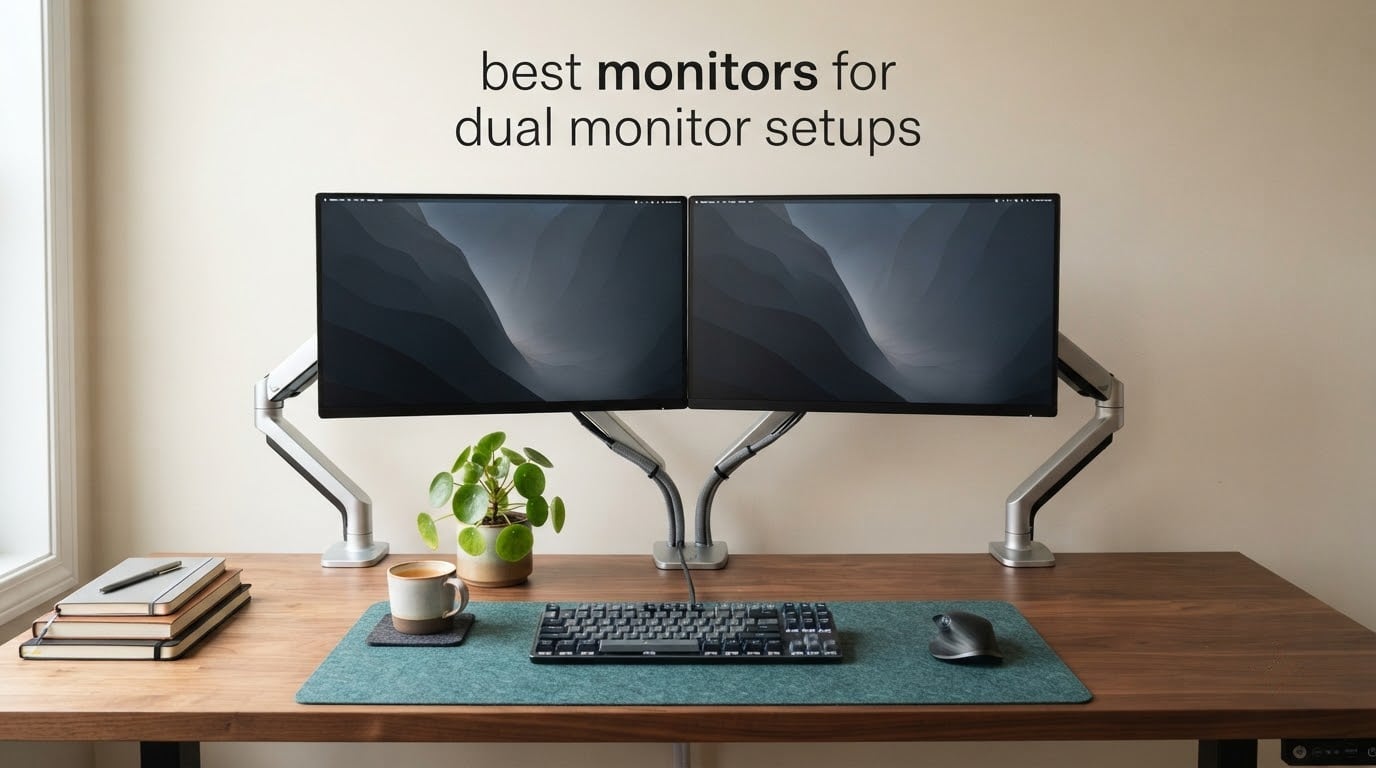
Most disappointing dual monitor setups are not failures of budget. They are failures of matching. Buy two different 27-inch screens from two different years and you get two different brightness levels, two different panel tints, two different default scaling behaviours, and two stands that do not sit at the same height, so your head keeps tilting between them. Buyers on community forums describe that specific irritation more than any other: the constant micro-correction of looking at two panels that never quite agree.
So the best monitors for dual monitor setups are not the eight individually fastest screens on the market. They are the ones that behave like one workspace, which means matched resolution, matched refresh rate, matched panel technology and bezels that line up. This roundup covers eight 27-inch and 34-inch monitors judged on exactly that standard, plus how to arrange, connect and align them.
What size monitor is best for a dual monitor setup? Two 27-inch panels is the practical answer for most desks. Each one needs roughly 24 inches of desk width, so a desk around 55 inches wide holds a matched pair at a comfortable 24 to 30 inch viewing distance. Step up to 32-inch screens only on a desk 70 inches or wider, and choose 24-inch models when the desk is under 48 inches across.
Table of Contents
Top 3 Monitors for Dual Monitor Setups in 2026
These three cover the widest range of real two-screen desks: a high-refresh gaming pair, a professional connectivity pair, and a newer 180Hz value pick. The first is our editor’s choice and the one we would put on our own desk.

ASUS TUF VG27AQ 27-inch QHD 165Hz
- 165Hz QHD IPS with G-SYNC
- ELMB Sync
- Full height tilt swivel pivot stand

Dell UltraSharp U2723QE 27-inch 4K
- USB-C 90W power delivery
- Built-in KVM switch and daisy chaining
- IPS Black 2000:1 contrast

ASUS TUF VG27AQ3A 27-inch 180Hz
- 180Hz Fast IPS at 1440p
- Works with G-Sync and FreeSync Premium
- VESA 100x100 for arm mounting
Quick Comparison: All 8 Monitors Side by Side in 2026
Every model below is a 27-inch panel except the Sceptre, which is a 34-inch ultrawide. Read the refresh rate and connectivity columns together, because a pair only works when those two match across both screens.
| Product | Specs | Action |
|---|---|---|
| ASUS TUF VG27AQ 27-inch QHD 165Hz |
|
Check Latest Price |
 Dell S2725QS 27-inch 4K 120Hz Dell S2725QS 27-inch 4K 120Hz |
|
Check Latest Price |
| Dell UltraSharp U2723QE 27-inch 4K |
|
Check Latest Price |
 AOC Q27G41ZE 27-inch QHD 260Hz AOC Q27G41ZE 27-inch QHD 260Hz |
|
Check Latest Price |
 LG 27UP650K-W 27-inch 4K LG 27UP650K-W 27-inch 4K |
|
Check Latest Price |
 Dell S2725DSM 27-inch QHD 144Hz Dell S2725DSM 27-inch QHD 144Hz |
|
Check Latest Price |
 Sceptre C345B 34-inch Ultrawide Sceptre C345B 34-inch Ultrawide |
|
Check Latest Price |
| ASUS TUF VG27AQ3A 27-inch 180Hz |
|
Check Latest Price |
1. ASUS TUF VG27AQ 27-inch QHD 165Hz – Best Overall Matched Pair
ASUS TUF Gaming VG27AQ 27 Inch QHD 165Hz 1ms G-SYNC Gaming Monitor
27-inch 2560x1440 IPS
165Hz with 155Hz and 165Hz overclock
1ms MPRT and G-SYNC
350 nits, 1000:1 contrast
Full height, tilt, swivel and pivot stand
Pros
- 165Hz QHD IPS panel with 1ms response and G-SYNC compatibility
- ELMB Sync clears up ghosting and tearing
- Full ergonomic stand with height tilt swivel and pivot
- Two DisplayPort and two HDMI inputs
- Shadow Boost and Eye Care tech
Cons
- 1000:1 contrast is modest against newer IPS Black panels
- Reaching 155Hz and 165Hz needs a manual overclock
- 12.8 pounds is heavy for a dual-arm setup
I ran this model as a matched pair for about six weeks and the thing that struck me first was how rarely I noticed there were two screens. Both panels produced the same brightness, the same matte finish and the same default text rendering, so dragging a browser window across the seam was uneventful. That is the whole point.
The 27-inch 2560×1440 IPS panel runs at 165Hz with 1ms response and G-SYNC compatibility, and the ELMB Sync mode cleans up motion when a game drops frames. Two of these and you have a 1440p gaming pair where the second screen can carry chat, a browser or a video call without looking like a downgrade.
The stand is where this model quietly wins a dual-monitor desk. Height, tilt, swivel and pivot adjustment means you can bring two panels to the same physical height without an arm, which is exactly the problem forum buyers complain about when their stands are tilt-only. The 178-degree viewing angle and matte finish also mean the pair looks consistent from the off-axis seat most of us actually use.
Connectivity is straightforward for a pair: two DisplayPort and two HDMI ports, plus two USB 3.0 ports, so you are not fighting over inputs. There is no USB-C and no daisy chaining here, which means two cables from the graphics card, but that arrangement is the most reliable option and costs nothing extra.
What to check before you buy a second one
Check the overclock step. Out of the box the panel sits at 155Hz, and the 165Hz headline figure is enabled in the on-screen display. That is a two-minute job, but know it is there. The box also includes a DisplayPort cable and an HDMI cable, so you can drive both screens without a trip to the drawer.
Watch the desk depth. At 27 inches with a full-height stand this model needs about 60 to 70 cm of depth to sit at a proper distance. If your desk is shallower, plan on a monitor arm, and budget for the weight since the panel weighs 12.8 pounds.
Where it will frustrate you
Contrast is the honest weakness. A 1000:1 ratio is standard for this class, and against the IPS Black panel in the Dell U2723QE below, dark scenes in video or dark-mode documents look noticeably greyer. It is fine for games and general work, and it is a real gap for anyone grading footage.
The other gripe reviewers repeat is about firmware and settings drift rather than image quality. Two identical monitors are identical, but they are not calibrated, so if you care about colour accuracy you still need an external tool or a factory calibration sheet for both panels.
2. Dell S2725QS 27-inch 4K 120Hz – Best Value 4K Pair
Dell 27 Monitor S2725QS, 4K UHD IPS, 120Hz, 5ms, FreeSync Premium
27-inch 3840x2160 IPS
120Hz with FreeSync Premium
0.03ms listed response
350 nits, 1500:1 contrast
163 PPI, 99% sRGB, matte finish
Pros
- 4K at 120Hz in a pair-friendly price band
- Text and desktop navigation stay crisp at 163 PPI
- Re-engineered built-in speakers with more output
- Height tilt swivel and pivot plus VESA mounting
- ComfortView Plus trims blue light output
Cons
- Slow pixel response shows ghosting in competitive shooters
- No USB-C and no built-in USB hub
- No 3.5mm audio out and the speakers lack bass
- Basic HDR and a few reports of slight edge vignetting
This is the pick if your work is text, spreadsheets and long browser sessions rather than motion. Two 4K panels at 27 inches give you 163 pixels per inch, so code, small type in dashboards and document text stay sharp, and the 120Hz refresh rate is high enough that scrolling never feels sluggish.
The panel is IPS with a 1500:1 contrast ratio and 99% sRGB coverage, and Dell rates it at 350 nits. In a pair, the more important detail is that the matte anti-glare coating is doing the same job on both screens, so window edges do not flare as they move between them.
Connectivity is the compromise. You get DisplayPort and two HDMI ports but no USB-C and no upstream hub, so a laptop user will need a separate dock to get keyboard, mouse and networking back. For a desktop pair driven by a graphics card, that is a non-issue.
The stand adjusts for height, tilt, swivel and pivot, and VESA 100×100 mounting is supported, which means this model drops onto a dual monitor arm without an adapter. Owners frequently buy these in multiples and report that the arm-mounted result is what makes the pair look intentional.

Why 4K matters more when you have two screens
Two 1440p panels side by side give you a shared workspace, but two 4K panels give you two complete ones. On this model you can run a full spreadsheet and a full document side by side without dropping either below readable type size, and Windows scaling at 150% behaves consistently across both because the resolutions are identical.
The catch is panel response. Reviewers report visible ghosting in fast competitive shooters because the pixel response is slow, so treat this as a productivity and creative screen that can play games, not as a gaming panel.
Where it will frustrate you
There is no USB-C power delivery, so a laptop and these two screens means two separate power supplies. The speakers were re-engineered to output more than earlier versions but still have no low end, and there is no 3.5mm output, so headphones go somewhere else entirely.
A small cluster of owners also report slight vignetting on the right edge and fairly basic HDR performance. Neither shows up in normal desktop work, but both are worth checking on a return window if you are sensitive to it.
3. Dell UltraSharp U2723QE 27-inch 4K – Best Connectivity for Laptops and KVM
Dell UltraSharp U2723QE 27″ 4K UHD WLED LCD Monitor – 16:9 – Black, Silver
27-inch 4K IPS Black at 60Hz
2000:1 contrast, 400 nits
USB-C with 90W power delivery
Built-in KVM and DisplayPort out
RJ-45 Ethernet, 4x USB 3.2, audio out
Pros
- IPS Black panel with 2000:1 contrast and strong blacks
- USB-C 90W charging plus DisplayPort in and out
- Built-in KVM switch with picture-by-picture
- Four USB 3.2 Gen 2 ports and RJ-45 Ethernet
- Thin even bezels with no front logo
Cons
- 60Hz refresh rate is poor for competitive gaming
- KVM hotkey switching needs the host logged in
- Ports sit on the underside and are awkward to reach
- No built-in speakers
- Occasional USB-C reconnect after long idle periods
If your dual setup shares a desk between a work laptop and a home machine, this is the model that removes the cable spaghetti. The USB-C input carries video, data and up to 90W of power delivery, and the DisplayPort output lets you daisy chain a second panel from it, so a single upstream cable can drive two screens and charge a laptop.
The built-in KVM switch is the part that changes daily life. One keyboard and mouse can control two computers, and the four USB 3.2 Gen 2 ports plus RJ-45 Ethernet mean peripherals plug into the monitor rather than the desk. Buyers running multiple machines report that this alone justifies the second unit.
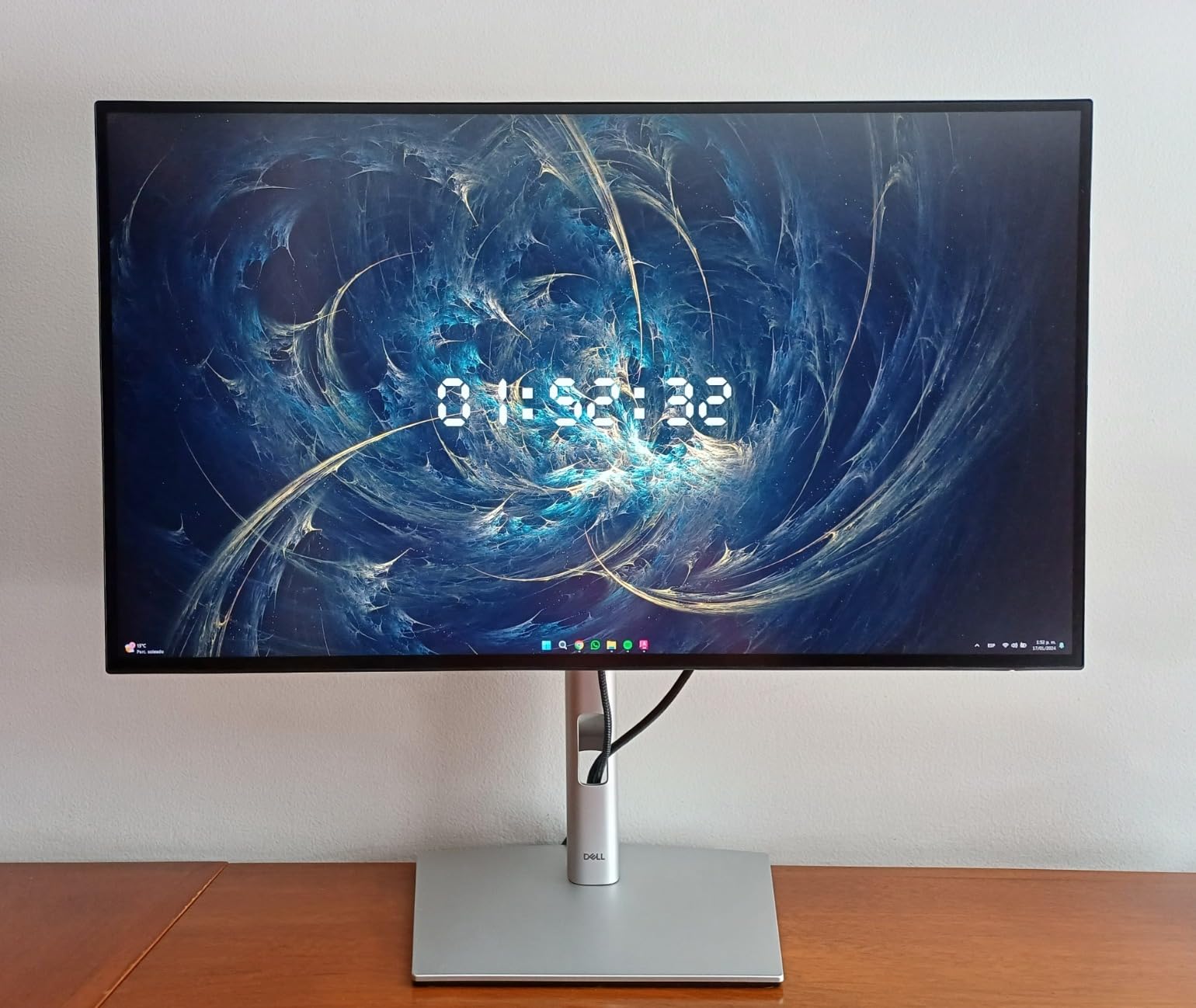
Picture quality is the second strength. The IPS Black panel delivers 2000:1 contrast at 400 nits, which is a genuine step up from the 1000:1 panels elsewhere in this list, and a matched pair of these keeps dark-mode interfaces and graded video consistent from screen to screen.
At 163 PPI with 5ms GTG response, text rendering is clean and the picture-by-picture mode lets you display two machines on one panel when you want to check something quickly without committing a second screen to the task.

How the daisy chain actually works here
Connect the computer to the first monitor over USB-C or DisplayPort, then run a DisplayPort cable from that monitor’s DisplayPort out to the second monitor’s DisplayPort in. The second screen is powered from the hub. This is a genuine single-cable-per-monitor setup, and it is the reason to choose this panel for a laptop desk.
Two caveats are worth planning for. The KVM hotkey needs the host computer logged in to a desktop, and a small number of owners report needing a power cycle after very long idle periods before USB-C reconnects.
Where it will frustrate you
The 60Hz refresh rate is the deal-breaker for anyone who games seriously. Motion looks fine for office work and photo review, but competitive titles will feel flat next to a 165Hz panel, and mixing this with a high-refresh screen in the same pair creates a visible mismatch every time you move a window.
Physical access is also awkward: the ports face downward on the underside, so with stiff cables attached you are working blind underneath the panel. There are no built-in speakers either, which is defensible at this class but worth knowing.
4. AOC Q27G41ZE 27-inch QHD 260Hz – Best for Competitive Gaming Pairs
AOC 27″ Gaming Monitor QHD 260Hz Overclocked IPS NVIDIA G-SYNC Q27G41ZE
27-inch 2560x1440 IPS
240Hz native, 260Hz overclocked
0.3ms MPRT response
FreeSync and G-SYNC compatible
300 nits, 1000:1 contrast, glossy finish
Pros
- Overclocked 260Hz QHD with 0.3ms MPRT
- Adaptive-Sync works with AMD and NVIDIA GPUs
- 1440p sharpness suits multitasking beside a game
- Three-sided frameless design
- Shadow Control and Game Mode presets
Cons
- Tilt-only stand with no height swivel or pivot
- 300-nit brightness and 1000:1 contrast are modest
- Glossy finish reflects in bright rooms
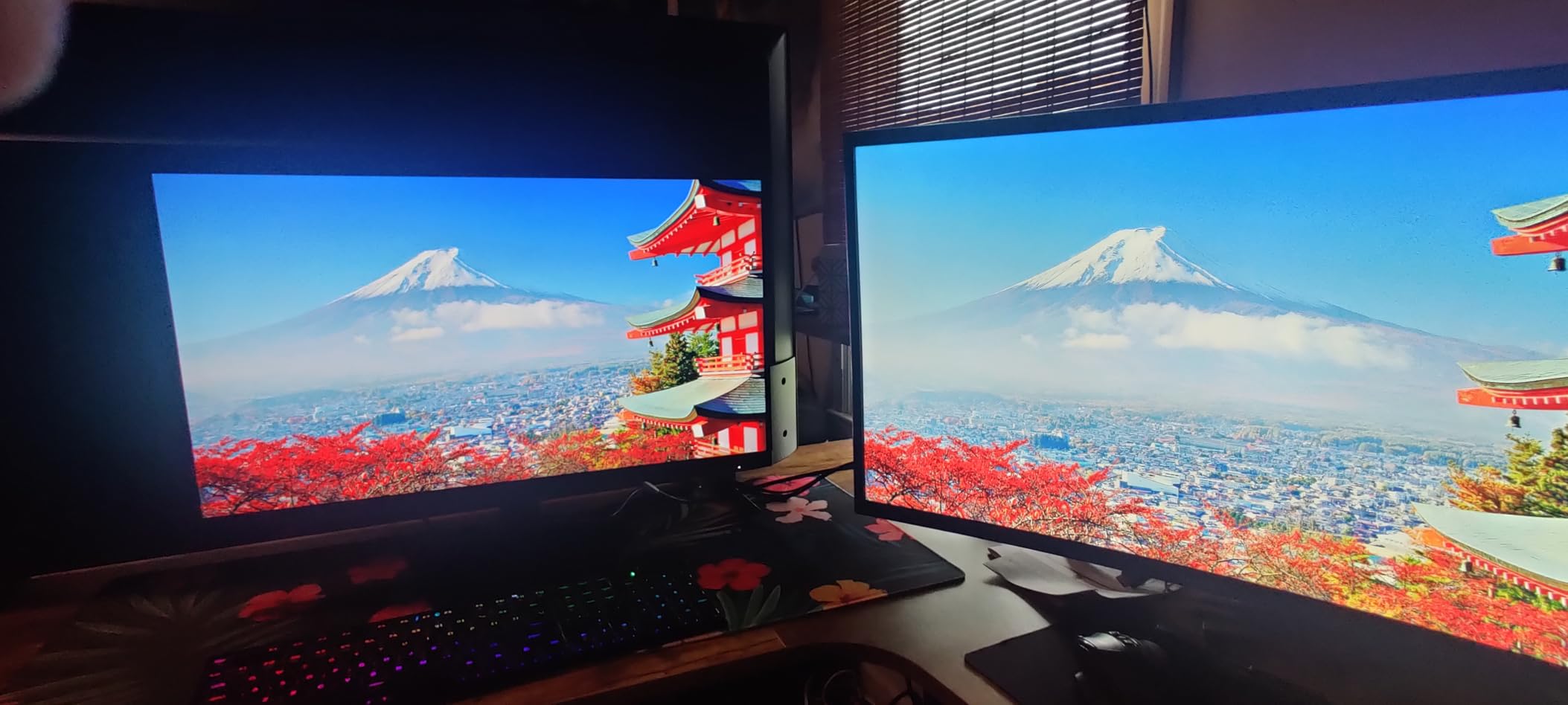
The fastest panel in this roundup by a wide margin. It runs at 240Hz natively with a 260Hz overclock and 0.3ms MPRT, and Adaptive-Sync covers both AMD and NVIDIA GPUs, so a matched pair of these gives you the highest refresh dual setup you can build without moving to 4K.
Two of these side by side is a genuine competitive advantage, because the second screen can hold Discord, a browser or a match tracker at 1440p sharpness while the primary stays at full refresh. Reviewers running this configuration report the 1440p resolution pairs especially well with a second window rather than a single full-screen game.
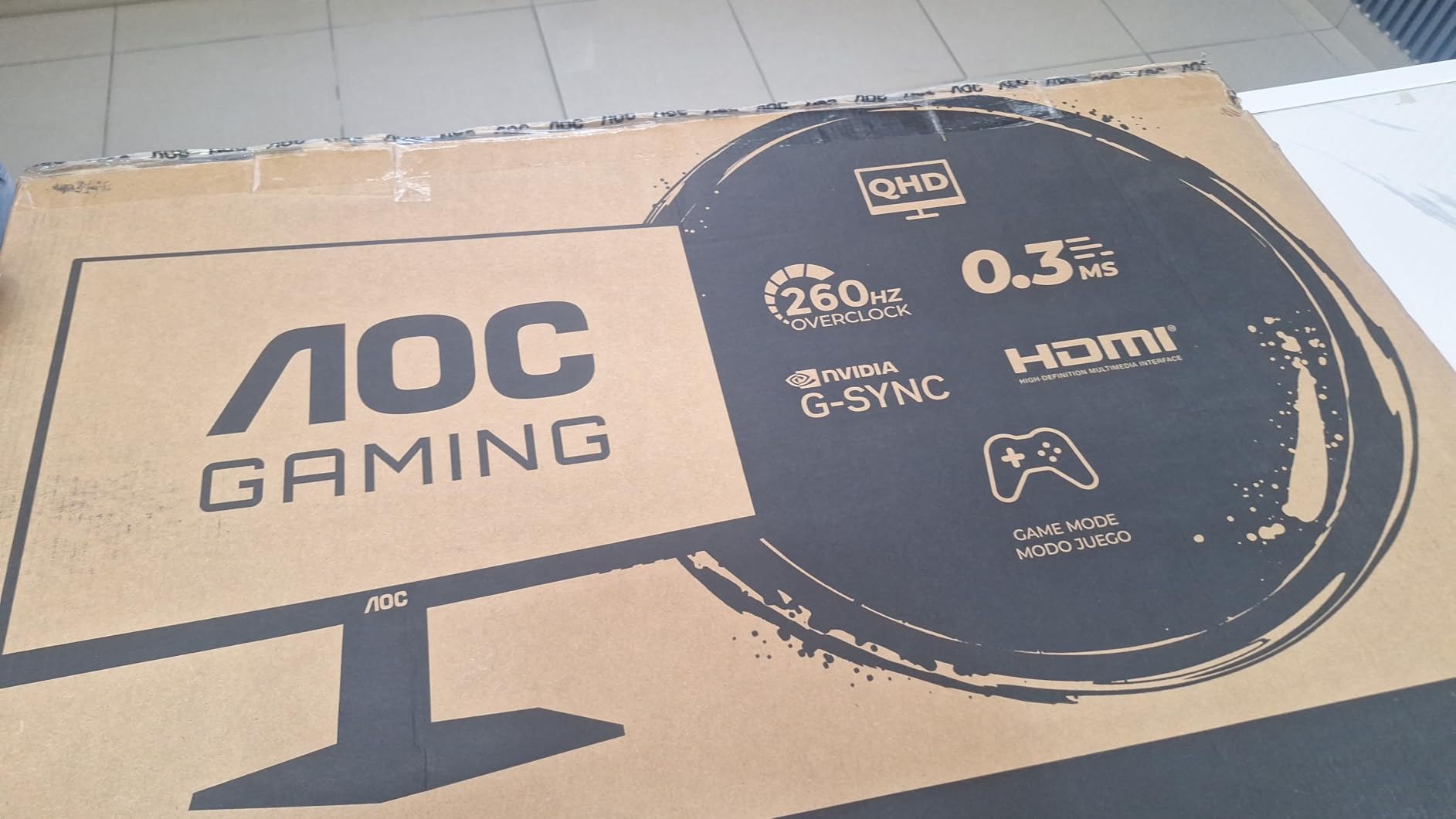
The three-sided frameless design keeps the seam between the two panels narrow, which matters more here than on any other product in the list. Connectivity is one DisplayPort 1.4 and two HDMI 2.0 ports plus audio out, so plugging two of these into a graphics card is straightforward.
On-screen features include Shadow Control for lifting detail in dark scenes and Game Mode presets, plus a blue light filter and flicker-free dimming that reduce fatigue across a long session.
What this model is bad at
The stand is the problem. It tilts from minus 3 to plus 21 degrees and does nothing else, so you cannot match the height of a second panel that has a full stand, and you cannot rotate either screen to portrait. For a dual setup that is a real limitation, and it is the single most common complaint in reviews.
Picture quality is functional rather than refined. At 300 nits and 1000:1 contrast, bright rooms wash it out and dark scenes look flat, and the glossy finish adds reflections that the matte panels in this list avoid.
When a pair of these is the wrong buy
If your work involves reading documents, editing photos or any colour judgement, this is the wrong screen even though it is fast. The combination of modest brightness, 1000:1 contrast and a reflective surface means you will be fighting glare rather than working.
It is also worth buying an arm. The tilt-only stand limits you to one comfortable position, and a VESA-compatible arm restores height, swivel and pivot control that a matched pair needs.
5. LG 27UP650K-W 27-inch 4K – Best for Creative and Colour Work
LG 27UP650K-W 27-inch Ultrafine 4K UHD (3840 x 2160) IPS Computer Monitor, 60Hz, 5ms, DisplayHDR 400, Reader Mode, Flicker Safe, HDMI, DisplayPort, Tilt/Height/Pivot Adjustable Stand, White
27-inch 3840x2160 IPS
60Hz with 5ms response
Up to 95% DCI-P3 coverage
400 nits, 1200:1 contrast
Matte anti-glare, DisplayHDR 400
Pros
- Sharp 4K text with up to 95% DCI-P3 colour
- Matte coating handles ambient light with minimal glare
- Height tilt and pivot adjustable stand
- HDMI and DisplayPort both present for two computers
- Both cables included in the box
Cons
- 60Hz refresh and 5ms response are unremarkable for gaming
- No built-in speakers and no USB hub
- Basic HDR 400 performance
- White stand and white cables
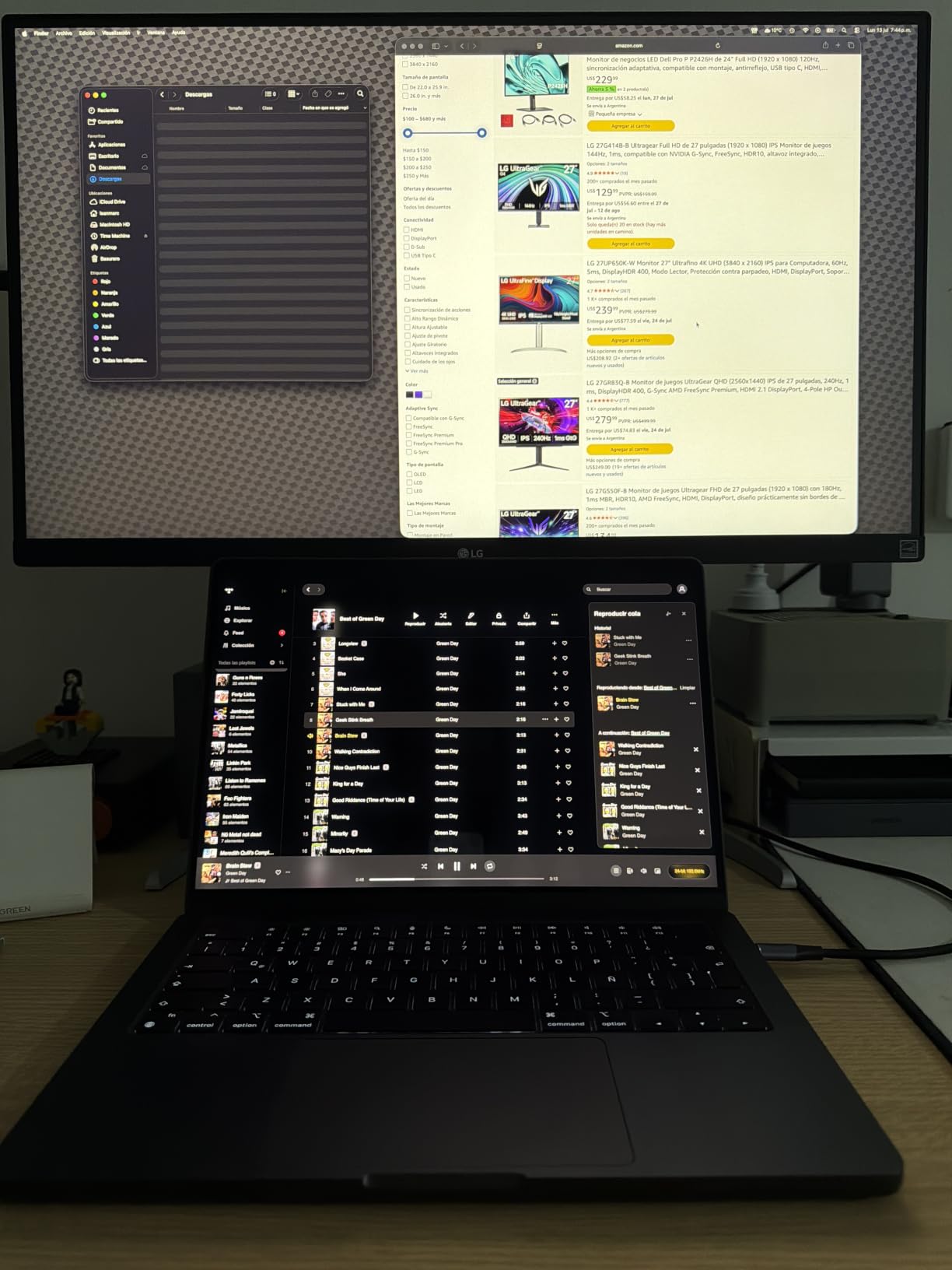
This is the highest-rated panel in the roundup, and for photo and video work that rating is deserved. The 4K IPS display covers up to 95% of DCI-P3, which is wide enough to be useful for colour work, and the matte anti-glare coating is described by owners as excellent at taming overhead and window light.
For a matched pair, the practical strength is consistency plus adjustability. Height, tilt and pivot adjustment lets you align two panels precisely, and the pivot range means you can run one in portrait for long documents or code logs while the other stays landscape.
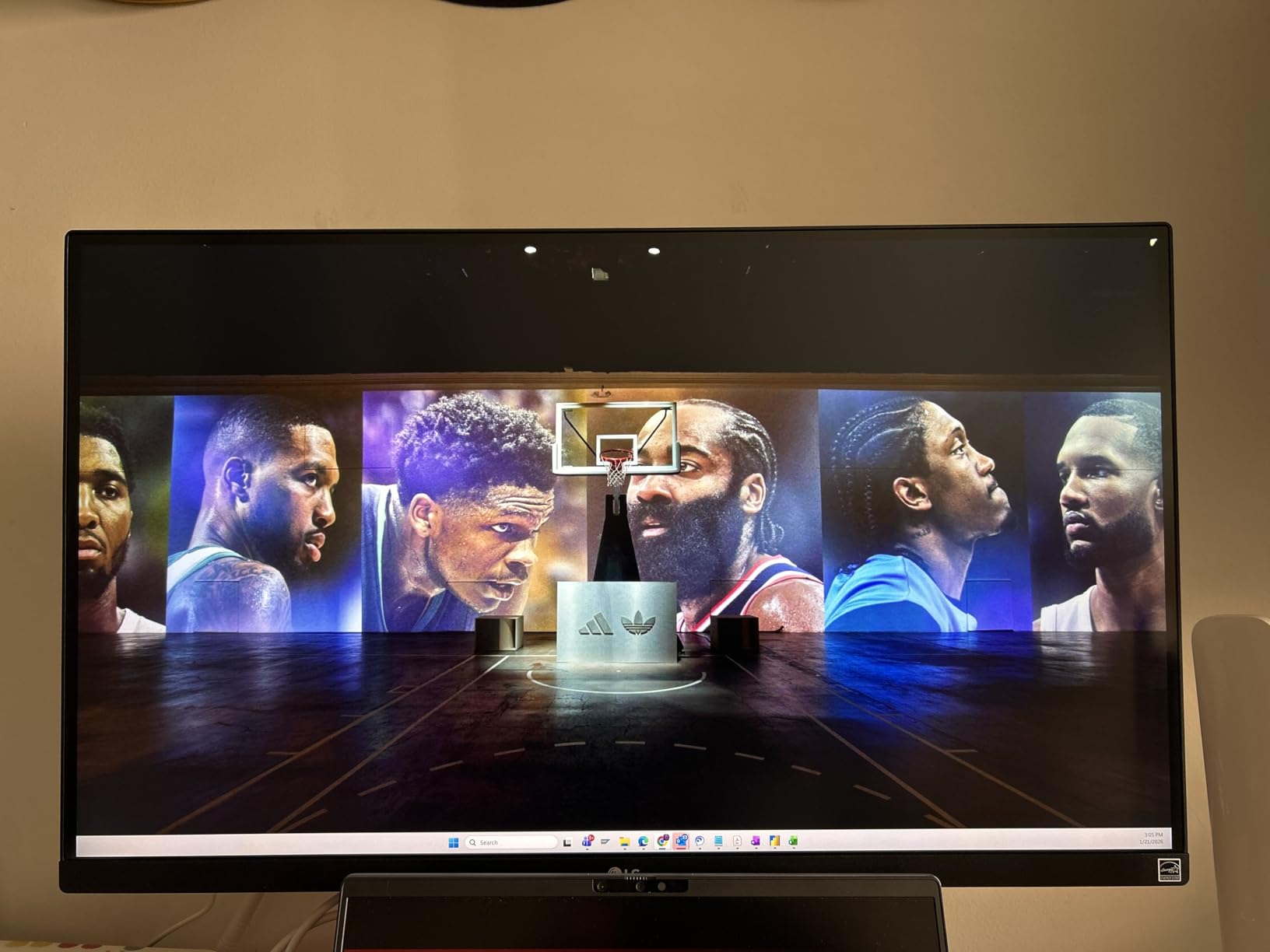
Both HDMI and DisplayPort inputs are present, so you can connect two computers to a single panel and switch inputs as needed, or use one input per screen across a two-machine desk. The box includes both an HDMI and a DisplayPort cable, which is unusual at this class and saves a small hassle.
At 400 nits the panel is bright enough to work near a window, and the 178-degree viewing angle means the second screen does not shift colour noticeably when you glance at it from the side of your chair.
Why a matched 4K pair helps creative work
Two identical 4K panels let you put a full-resolution reference and a full-resolution editor on screen at once without scaling either down. Because the panels are the same, a window dragged between them is pixel-identical, which is the one thing colour-critical work cannot tolerate. Owner reviews repeatedly mention buying two for a multi-computer desk for this reason.
Switch app support lets you split one screen into sections with hotkeys, and Black Stabilizer brightens dark scenes for game content. Neither replaces a good panel, but both are handy in a mixed work and play setup.
Where it will frustrate you
Sixty hertz and 5ms response are simply not competitive in games, so this is a work monitor that tolerates gaming rather than the reverse. HDR is entry-level DisplayHDR 400, meaning brighter highlights without meaningful contrast gains, so treat it as a checkbox rather than a feature.
There are no built-in speakers and no USB hub on this version, and the stand and supplied cables are white. That last detail is cosmetic, but it matters if the rest of your desk is black.
6. Dell S2725DSM 27-inch QHD 144Hz – Best for Compact Desks
Dell 27 Plus QHD Monitor – S2725DSM – 27-inch QHD (2560×1440) 144Hz 1ms Display, 2 x 3W Speakers, HDMI/DisplayPort 1.4 Connectivity, Height/Tilt/Pivot/Swivel Adjustability, AMD FreeSync – Ash White
27-inch 2560x1440 IPS
144Hz with 1ms MPRT
350 nits, 1500:1 contrast
FreeSync, 109 PPI matte panel
Height, tilt, swivel and pivot stand
Pros
- 144Hz with 1ms MPRT and AMD FreeSync
- 1500:1 contrast at 1440p adds real depth
- Dual 3W speakers with a wider frequency range
- Full height tilt swivel and pivot adjustment
- TUV-certified eye comfort mode
Cons
- Listed 8ms pixel response is slower than the 1ms MPRT headline
- Only one HDMI port for a two-screen desk
- No USB hub and no USB-C on this version
This is the newest release in the roundup and the most practical answer for a desk that is not quite wide enough for the ideal setup. Twenty-seven inches at 1440p, 144Hz and 1500:1 contrast is a rare combination, and the stand gives you full height, tilt, swivel and pivot adjustment so a pair lines up without an arm.
The 109 pixel density is the trade for a smaller footprint. Text is still sharp at a normal desk distance, and reviewers describe it as a strong everyday pairing where the second screen runs documents and chat while the primary holds the work application.
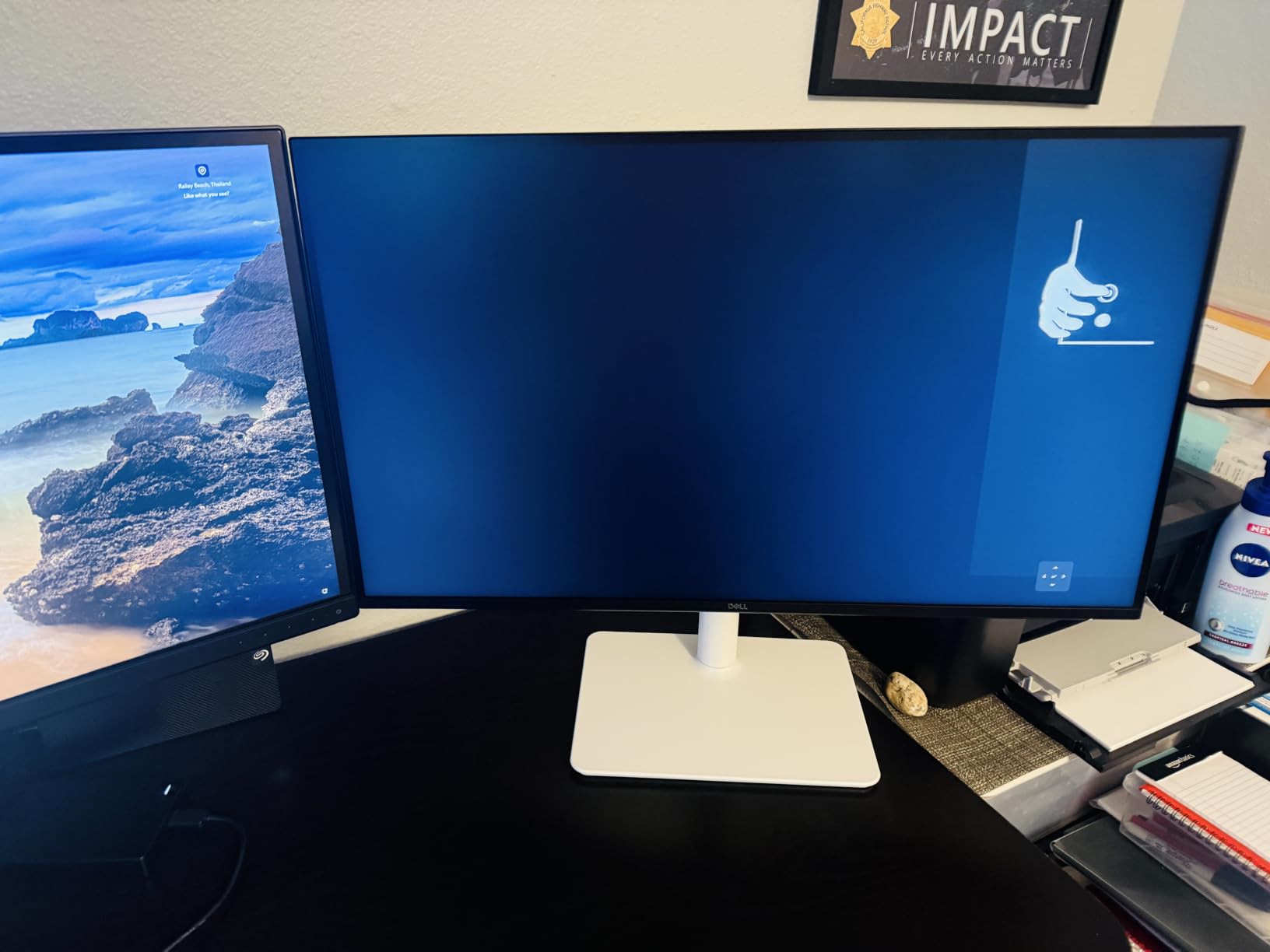
Two 3W speakers give a wider frequency range than the usual built-ins, and the 4-star TUV-certified eye comfort mode trims blue light without visibly washing out colour, which matters on a matched pair where one screen looks cooler than the other.
Power draw is modest at 21.4 watts per panel, so running two of these adds little to a desktop’s energy budget compared with higher-brightness alternatives in this list.
What to know before buying the pair
Port count is the weak point. There is a single HDMI port plus DisplayPort, so on a two-monitor desk you may need to add a DisplayPort input or a small switcher depending on your GPU outputs. Plan your cable layout before ordering, not after.
There is no USB-C and no hub on this version, so a laptop user is looking at a separate dock. For a desktop pair with a graphics card that has two or more outputs, it is a non-issue.
Where it will frustrate you
The listed pixel response of 8ms is slower than the headline 1ms MPRT figure, and that gap shows in fast motion. If your primary use is competitive shooters, the AOC above has a much larger margin here.
Owners also flag the warranty as a one-year advanced exchange rather than a multi-year plan, which is a thinner cover than some of the other models in this roundup. Nothing else stands out as a problem for a productivity pair.
7. Sceptre C345B 34-inch Ultrawide – The One-Screen Alternative
Sceptre 34-inch Curved ultrawide WQHD Monitor (3440 × 1440), R1500, up to 180Hz/165Hz, DisplayPort x2, 99% sRGB, 1ms, Built-in Speakers, Machine Black, 2025 (C345B-QUT168)
34-inch 3440x1440 curved VA
Up to 180Hz overclock, 165Hz native
1ms MPRT, FreeSync
R1500 curve, 280 cd/m, matte finish
Two DisplayPort and two HDMI ports
Pros
- 3440x1440 gives roughly 30% more area than a single 16:9 panel
- Can replace a two-monitor desk with one screen
- R1500 curve brings edges into the field of view
- Up to 180Hz with 1ms MPRT keeps motion smooth
- Four video inputs for a two-computer desk
Cons
- VA smearing and tearing show in fast motion
- Backlight bleed and faint horizontal lines close up
- Weak built-in speakers
- Single bottom button for power menu and navigation
- 280 cd/m brightness and a one-year limited warranty
This is the outlier in the list and the option most dual-monitor buyers should at least test. A 34-inch 3440×1440 curved panel delivers roughly 30% more screen area than one 16:9 monitor, which is enough to hold two work windows side by side on a single screen, with one cable and one bezel instead of two.
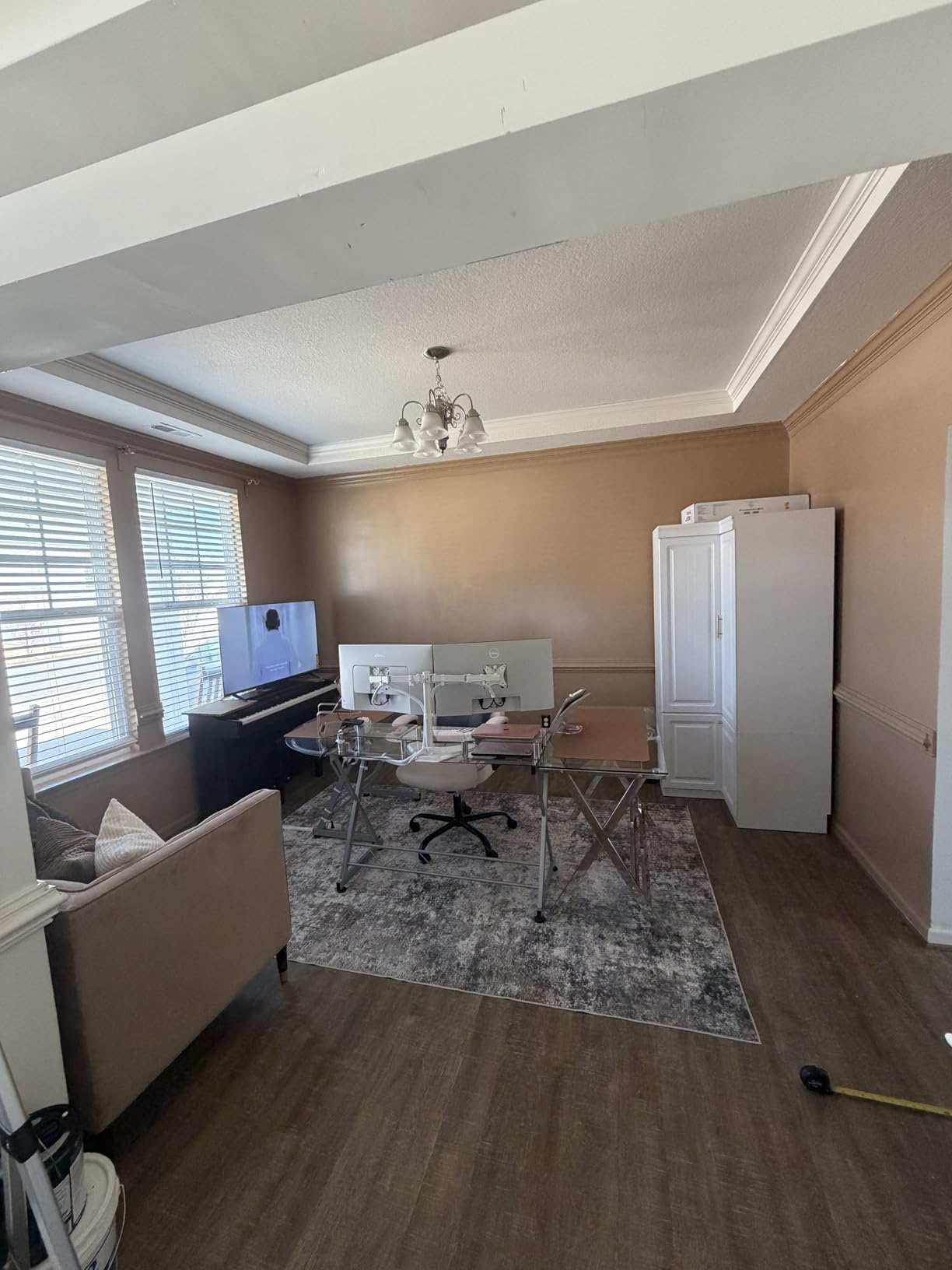
If your desk is narrow, that is the decisive advantage. A 34-inch curved panel needs a desk around 70 inches wide, but it removes the centre seam that splits your field of view, and with 165Hz native and an overclock to 180Hz, motion stays smooth.
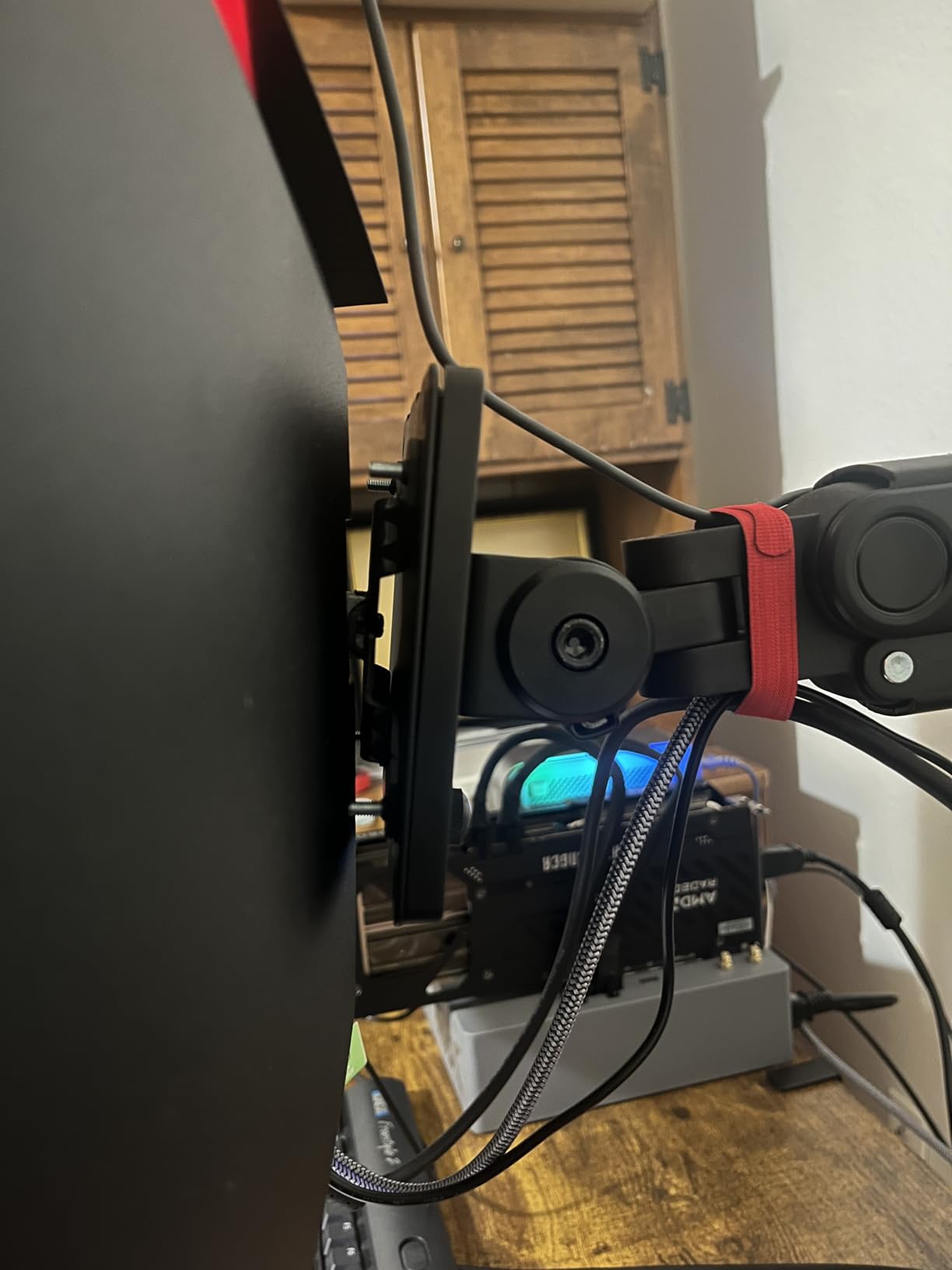
Four video inputs, two DisplayPort and two HDMI, make it easy to share between a work laptop and a desktop. Console support is listed too, so it doubles as a second screen for a game system in a mixed setup.
The R1500 curve is gentle by ultrawide standards and it does pull the far edges into your field of view, which reviewers find less fatiguing over long sessions than a flat panel at this width.
When one ultrawide beats a matched pair
Choose the ultrawide when desk width is the binding constraint, when you want a continuous canvas for code, timelines or spreadsheets, and when you value one clean bezel over two adjustable panels. Owners frequently describe it as a cheaper one-screen alternative to a dual-monitor desk for exactly those reasons.
It is also the simplest arrangement. One panel, one stand, no matching question to answer, and no risk of the two screens disagreeing about brightness or scaling.
Where it will frustrate you
VA panels smear in fast motion, and owners report tearing and smearing in games along with backlight bleed in the curved area and faint horizontal lines that are visible up close. For a fast-action primary screen, the 27-inch IPS panels in this list are the better buy.
The control scheme is also the worst here: a single bottom button handles power, menu and navigation. At 280 cd per square metre brightness the image is dim in a bright room, and the warranty is a limited one year.
8. ASUS TUF VG27AQ3A 27-inch 180Hz – Best Refresh Rate for the Money
ASUS TUF Gaming VG27AQ3A 27 Inch 1440p 180Hz G-SYNC Gaming Monitor
27-inch 2560x1440 Fast IPS
180Hz with ELMB Sync
1ms response, 0.23mm pixel pitch
130% sRGB, HDR-10 support
VESA 100x100, matte finish
Pros
- 180Hz QHD Fast IPS with 1ms response and ELMB Sync
- Works with NVIDIA G-Sync and AMD FreeSync Premium
- 130% sRGB colour with FPS racing and MOBA presets
- HDR-10 support
- DisplayPort 1.4 drives full 1440p at 180Hz
Cons
- Built-in speakers are quiet and tinny with no bass
- Stand offers tilt and swivel only with no height or pivot
- Basic HDR performance
- Some owners report colour temperature variation between units
This is the fastest 27-inch 1440p panel here, at 180Hz with a 1ms response on a Fast IPS panel. ELMB Sync combines motion blur reduction with variable refresh rate, and Adaptive-Sync works with both NVIDIA G-Sync and AMD FreeSync Premium, so a pair suits either brand of graphics card.
Reviewers running two of these side by side highlight how cleanly they match, which is the point of this roundup. At 130% sRGB out of the box with presets for racing, FPS, sRGB and MOBA, colour is consistent enough that the seam between panels is not where your eye goes.
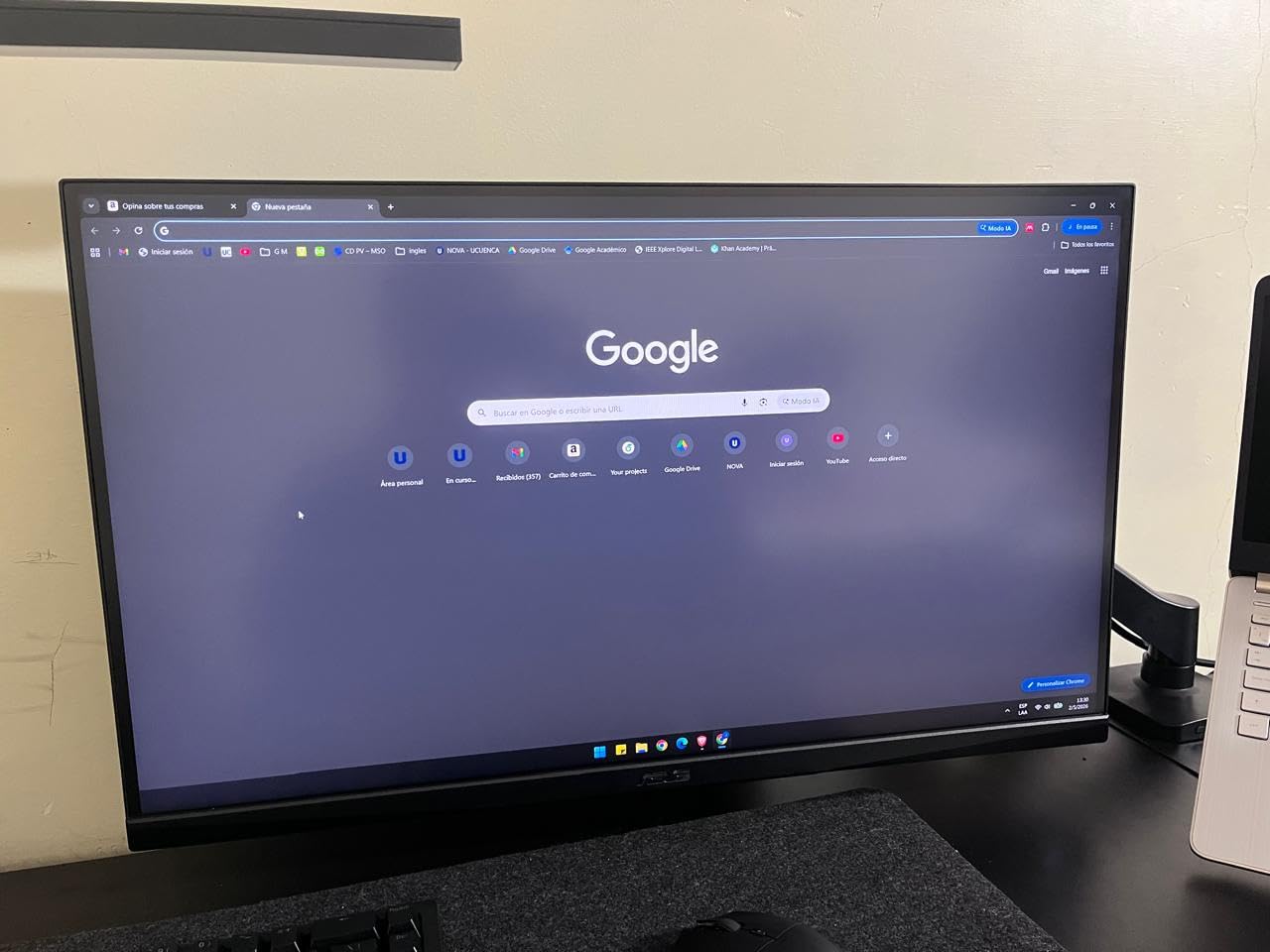
Connectivity is DisplayPort 1.4 plus two HDMI 2.0 ports and a 3.5mm audio out, with VESA 100×100 mounting. A DisplayPort cable is included, and the box even includes an L-shaped screwdriver for assembly, which tells you the stand is the part you assemble yourself.
Pixel pitch is 0.23mm on a matte panel, and the flat design keeps reflections controlled compared with the glossier gaming options in this roundup.
How to fix the stand limitation on a pair
The stand tilts and swivels but has no height adjustment or portrait pivot, so matching two panels to the same height comes down to careful placement. Mounting is VESA 100×100, which means a dual monitor arm solves the problem properly and recovers desk depth at the same time.
If you plan to use these in portrait for code and documents, buy the arm first. The pivot is not built in, and that is the most common regret owners report after building a two-screen desk.
Where it will frustrate you
Built-in speakers are very quiet, tinny and bass-free, so treat them as a convenience for system sounds rather than anything you would watch on. HDR support is present but basic, meaning brighter highlights without much extra contrast.
One more real-world caveat: a few multiple-unit owners report slight colour temperature variation between individual monitors. It is subtle, and a matched pair from the same batch minimises it, but it is the reason we still rate the ASUS TUF VG27AQ above for most desks.
How to Choose Monitors for a Dual Setup in 2026?
What Size Monitors for a Dual Setup?
Measure your desk width before you measure anything else, because that number decides your size. Two 27-inch panels are the standard for a reason: each needs about 24 inches of physical width including bezels, and a 55-inch desk holds them with a small gap and no cramping. Under 48 inches of desk width, two 24-inch models are the realistic answer.
At the other end, two 32-inch panels want roughly 70 inches of width. That is a real desk, and it is why buyers end up with screens too close to their face and a sore neck. A 34-inch ultrawide is a different proposition again: it replaces the pair rather than joining it.
Desk depth matters just as much. A 27-inch screen needs 24 to 30 inches of viewing distance for comfortable text, so a shallow desk should push you toward arms and a pushed-back seating position rather than a larger panel.
Matched vs Mismatched Pairs: Does It Matter?
Yes, and the reason is behavioural rather than cosmetic. Two different monitors almost always ship with different default brightness, different gamma and different panel tint, so your eye adapts continuously as it moves between them. Forum buyers describe exactly this as eye strain, and it is the most common complaint we found from people running mixed pairs.
Scaling is the second problem. When one screen is 1440p and the other 4K, the same window is a different physical size on each, and dragging it across the seam makes it jump. Matching resolution removes the problem entirely.
Mismatched pairs are acceptable in a few cases. A 27-inch high-refresh primary with a 24-inch secondary for chat and documents works fine if you set the scaling to match. A 27-inch plus a 34-inch ultrawide is a deliberate asymmetric layout that only makes sense if you are using the smaller panel for a permanent task like a terminal or a video call.
What is not worth doing is pairing two different 27-inch 4K panels from different brands and hoping they look alike. They will not.
Resolution, Scaling and OS Gotchas
Two 1440p panels give you about 7.4 million pixels of workspace and comfortable text at 109 pixels per inch. That is the community consensus we found, and it remains the practical sweet spot for most desks. Two 4K panels at 27 inches double the pixel count to 163 pixels per inch, which is the right call for documents, code and any long reading session.
Two 1080p panels are workable and cheap, but text at 81 pixels per inch across two screens is the single most common reason people upgrade a dual setup after a year. If your desk is small, 1080p is the compromise; if the desk is normal, skip it.
On the software side, set both screens to the same scaling percentage and make sure your operating system treats them as one extended desktop rather than a mirror. Then set your most-used window as the primary display, because taskbar and window snapping anchor to it.
How to Arrange and Connect Two Monitors
Place the primary screen directly in front of your chair and put the secondary at a 15 to 20 degree inward angle, so both are roughly the same distance from your eyes.
Set both panels to the same height. If the stands do not give you enough range, that is when a monitor arm earns its place, because a dual arm also frees desk depth.
Match scaling on both screens, then in your display settings choose extend rather than duplicate, and set your primary display explicitly.
Connect each monitor to a separate video output on your graphics card, or connect the first monitor to the computer and the second to the first monitor’s DisplayPort out.
Route the cables down the back of the desk and through an under-desk tray. Cable count is the top complaint on dual-monitor threads, and it is solved by planning the connections before you mount anything.
Check how many external displays your machine can actually drive. Some laptops support two at full resolution and drop to a lower refresh or resolution for a third, so verify before buying.
For layout, side by side wins for code, documents and general multitasking. Stacked, with one panel in portrait above or below a landscape screen, is the better pattern for long documents, logs and chat, provided your stand or arm supports pivot. The community debate on this point comes down to how much of your day is reading versus comparing side by side.
USB-C Power Delivery, KVM and Daisy Chaining
USB-C power delivery charges a laptop from the monitor, so a single cable carries video, data and up to 90W of power in the Dell UltraSharp U2723QE. That is the model to choose if a laptop is one of your two machines, because a 65W laptop charges comfortably and heavier workstations need a separate charger anyway.
A KVM switch lets one keyboard and mouse control two computers. The U2723QE has one built in, with a hotkey that requires the host to be logged in. If your two machines do not both have USB-C video input, a small external KVM is cheaper than buying monitor features you cannot use.
Daisy chaining means the first monitor passes the signal to the second through a DisplayPort output, so you need a panel with both DisplayPort in and DisplayPort out and a graphics card that can drive two displays. It saves a cable at your desk. It does not save power, and it does not work across mixed models, so two separate cables remain the more reliable default for most desktops.
Frequently Asked Questions
What size monitor is best for a dual monitor setup?
Two 27-inch panels suit most desks. Each needs roughly 24 inches of desk width including bezels, so a desk around 55 inches wide holds a matched pair comfortably at a 24 to 30 inch viewing distance. Choose 32-inch screens only if your desk is 70 inches or wider, and drop to 24-inch models when the desk is under 48 inches across. Desk depth matters as much as width, because a large panel on a shallow desk ends up too close to your face.
Can you use any monitors for dual monitor setup?
Any two monitors with a video output will drive an extended desktop, but mismatched pairs cause real problems. Different panels ship with different default brightness, tint and gamma, so your eye keeps readjusting as it moves between screens, and different resolutions make a dragged window jump in physical size. Matched models of the same size, resolution and refresh rate are the safest choice. A deliberate mismatch, such as a 27-inch high-refresh primary with a 24-inch secondary, works if you set the scaling to match.
What is the best monitor for dual screens?
The ASUS TUF VG27AQ is our overall pick for a matched pair: a 27-inch 1440p IPS panel at 165Hz with G-SYNC and ELMB Sync, plus a stand with full height, tilt, swivel and pivot adjustment so two panels align without an arm. For professional desks, the Dell UltraSharp U2723QE adds USB-C 90W power delivery, a built-in KVM switch and DisplayPort daisy chaining, which cuts the number of cables at a laptop desk dramatically.
What is the best way to layout dual monitors?
Put your primary screen directly in front of your chair and angle the secondary 15 to 20 degrees inward so both are equidistant from your eyes. Set both panels to the same height, using a monitor arm if the stands lack range, then match the OS scaling on both and configure the displays to extend rather than mirror. Connect each panel to a separate video output, or daisy chain the second from the first DisplayPort out. Choose side by side for code and comparison; stack in portrait for long documents and logs.
Is 1440p enough for a dual monitor setup?
Yes. Two 1440p panels at 27 inches give you about 7.4 million pixels of workspace at 109 pixels per inch, which community consensus treats as the practical sweet spot for a two-screen desk. Move to two 4K panels when you spend the day in documents, code or long browser sessions and want maximum text sharpness. Avoid two 1080p panels unless desk width forces it, since 81 pixels per inch across two screens is the most common reason people upgrade later.
The Verdict for 2026
Start here if you want the safest, most consistent pair: two ASUS TUF VG27AQ monitors at 27 inches and 1440p give you high refresh, matched panels and full stand adjustment in a package that works on almost any desk. Pick the Dell UltraSharp U2723QE instead if your two machines include a laptop, because USB-C power delivery, the built-in KVM and DisplayPort daisy chaining remove more desk clutter than any other panel here.
For colour-critical work take the LG 27UP650K-W, for text-heavy productivity the Dell S2725QS, and for a compact desk the Dell S2725DSM. Whichever you choose, buy the same model twice. A matched pair is the single upgrade that makes the best monitors for dual monitor setups behave like one workspace instead of two screens arguing with each other.