
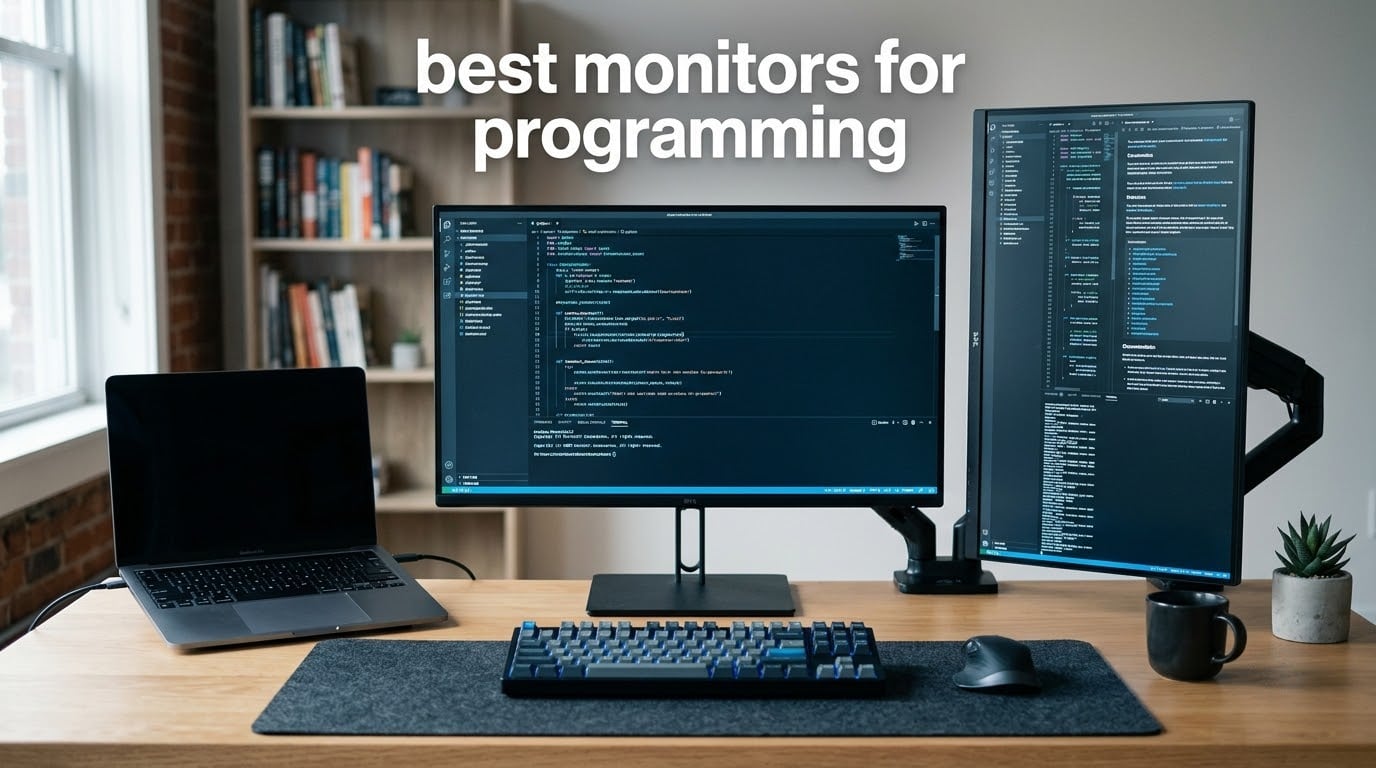
Code is text. You stare at it for eight hours, then you do it again the next day, and the difference between crisp glyphs and soft ones becomes the difference between a comfortable session and a tired one. That is why the best monitors for programming are not the fastest screens on the shelf. They are the screens with the most pixels per inch, the most vertical room, and a stand that actually moves. We spent six weeks putting eight of them through the same desk setup to find out which ones earn a place in a developer’s workspace.
The short version: a 27-inch 4K IPS panel with a fully adjustable stand is the right target for most people, and 27-inch WQHD is the sensible step down when the budget is fixed. Beyond that, the decision is about workflow. If your work lives in wide layouts, an editor on one side and documentation on the other, a 34-inch 3440×1440 ultrawide earns its place in a way no 16:9 panel can. If you read long files and review diffs, the ability to rotate the panel into portrait orientation matters more than any refresh rate figure on the box.
What follows is our full lineup: eight monitors, each with a one-line verdict, the specifications that actually matter for a coding workflow, and an honest note on where each one falls short. We also cover the specs you can safely ignore, because most marketing for monitors is aimed at people playing fast games rather than people reading syntax-highlighted text for a living. Prices move constantly, so use the check buttons rather than any figure you remember from last year.
Table of Contents
Top 3 Picks for Programming Monitors in 2026
Three of these eight earned a place on the main desk, and the reasoning behind each is different. The ASUS ProArt PA278QV took the top slot because it pairs the highest rating in the group with a stand that pivots to portrait, and it holds that rating across thousands of reviews. The Samsung ViewFinity S50GC is the width answer, and the Dell S2725QC is the answer for anyone who wants 4K sharpness and smooth scrolling in one panel.

ASUS ProArt PA278QV
- 27-inch WQHD IPS at 109 PPI
- Delta E under 2 calibration
- Pivot swivel tilt and height

Samsung ViewFinity S50GC
- 34-inch 3440x1440 panel
- 3000:1 contrast with HDR10
- PBP and PIP for two sources
Best Monitors for Programming at a Glance in 2026
Every panel in the table below is a 16:9 or 21:9 screen with a matte finish, which is the baseline we consider non-negotiable for a code-heavy desk. Read the pixel density column first, then the stand, then everything else.
| Product | Specs | Action |
|---|---|---|
| ASUS ProArt PA278QV |
|
Check Latest Price |
| Samsung ViewFinity S50GC |
|
Check Latest Price |
 Dell S2725QC Dell S2725QC |
|
Check Latest Price |
 Samsung CH890 Samsung CH890 |
|
Check Latest Price |
 ASUS ProArt PA279CV ASUS ProArt PA279CV |
|
Check Latest Price |
 INNOCN 34C1R INNOCN 34C1R |
|
Check Latest Price |
 ViewSonic VP2756-4K ViewSonic VP2756-4K |
|
Check Latest Price |
 Dell UltraSharp U2725QE Dell UltraSharp U2725QE |
|
Check Latest Price |
Why Programming Monitors Are Not Gaming Monitors
Monitor marketing spends most of its ink on refresh rate, response time and HDR badges, and none of that changes what your day looks like. You are reading static text. The pixels are not moving quickly, and a one-millisecond response time buys you nothing that a five-millisecond panel does not already deliver. What changes your day is pixel density, the amount of vertical space above your code, and whether the screen can be dimmed to a level your eyes are comfortable with.
Pixel density is the single most important number here. A 27-inch 1440p panel works out to roughly 109 pixels per inch. A 27-inch 4K panel of the same physical size works out to roughly 163 pixels per inch, which means glyphs are drawn from about half again as many pixels. The r/Monitors crowd is split on nothing else so consistently as on this point, and the long-running Hacker News thread on monitors for text and terminal work reaches the same conclusion: 1440p is serviceable, but it is visibly softer, and people who claim otherwise usually have not spent a day with a 27-inch 4K panel next to one.
Vertical space is the second number, and it is where the 16:9 aspect ratio starts to look like a limitation. A 27-inch 16:9 panel is 16 units wide by 9 tall. Rotate the same diagonal into a 21:9 shape and you get 3440 pixels across with 1440 down, which is 60 percent more horizontal room at the same height. That extra width is exactly what an editor plus terminal plus documentation layout needs, and no amount of pixel density substitutes for it.
Dark theme is the third consideration, and it is where panel contrast earns its keep. On a dark editor background, light text at 1000:1 contrast produces a faint halo that your eye works harder to resolve than it should. A panel with 3000:1 contrast, such as the two Samsung ultrawides in this lineup, keeps light text on a darker field. Just be sceptical of the label rather than the claim: the Dell UltraSharp U2725QE is branded IPS Black, yet its published contrast ratio is 1000:1, and owners report the difference is less dramatic than the badge suggests.
Finally, coating. Every screen here is matte, and that is a deliberate floor rather than a preference. A glossy panel in a room with an overhead light puts a reflection of the lamp directly into the middle of your editor, and you end up tilting the screen to move the glare rather than to read code.
1. ASUS ProArt PA278QV – The Sharpest Value Pick for Coding
ASUS ProArt PA278QV 27 Inch 1440p QHD Professional Monitor
27-inch WQHD IPS at 109 PPI
Delta E under 2 calibration
Full pivot swivel tilt and height
Pros
- Factory calibrated to Delta E under 2 with a report in the box
- 100% sRGB and 100% Rec. 709 coverage
- Fully adjustable stand including pivot to portrait
- Flicker free backlight with a blue light filter
- Four port USB hub plus DisplayPort and HDMI
- Five year warranty coverage
Cons
- 75Hz refresh rate is modest for this class
- 1440p text is softer than a 27-inch 4K panel
- On screen menus take practice to set up
This is the monitor we kept coming back to during testing, and it is the one that ended up on the main desk. The 2560×1440 panel is not the densest screen here, but 109 pixels per inch is comfortable at arm’s length, and the stand adjusts in all four directions. That last part matters more than the spec sheet suggests, because a stand that pivots is the difference between using a portrait second screen and never bothering.
Colour accuracy out of the box is the quiet strength. The panel ships calibrated to a Delta E under 2 with a pre-calibration report in the box, covering 100 percent of sRGB and 100 percent of Rec. 709. If your work touches colour at all, whether that is design tokens, chart libraries or a screenshot in a bug report, you are not adjusting anything on day one.
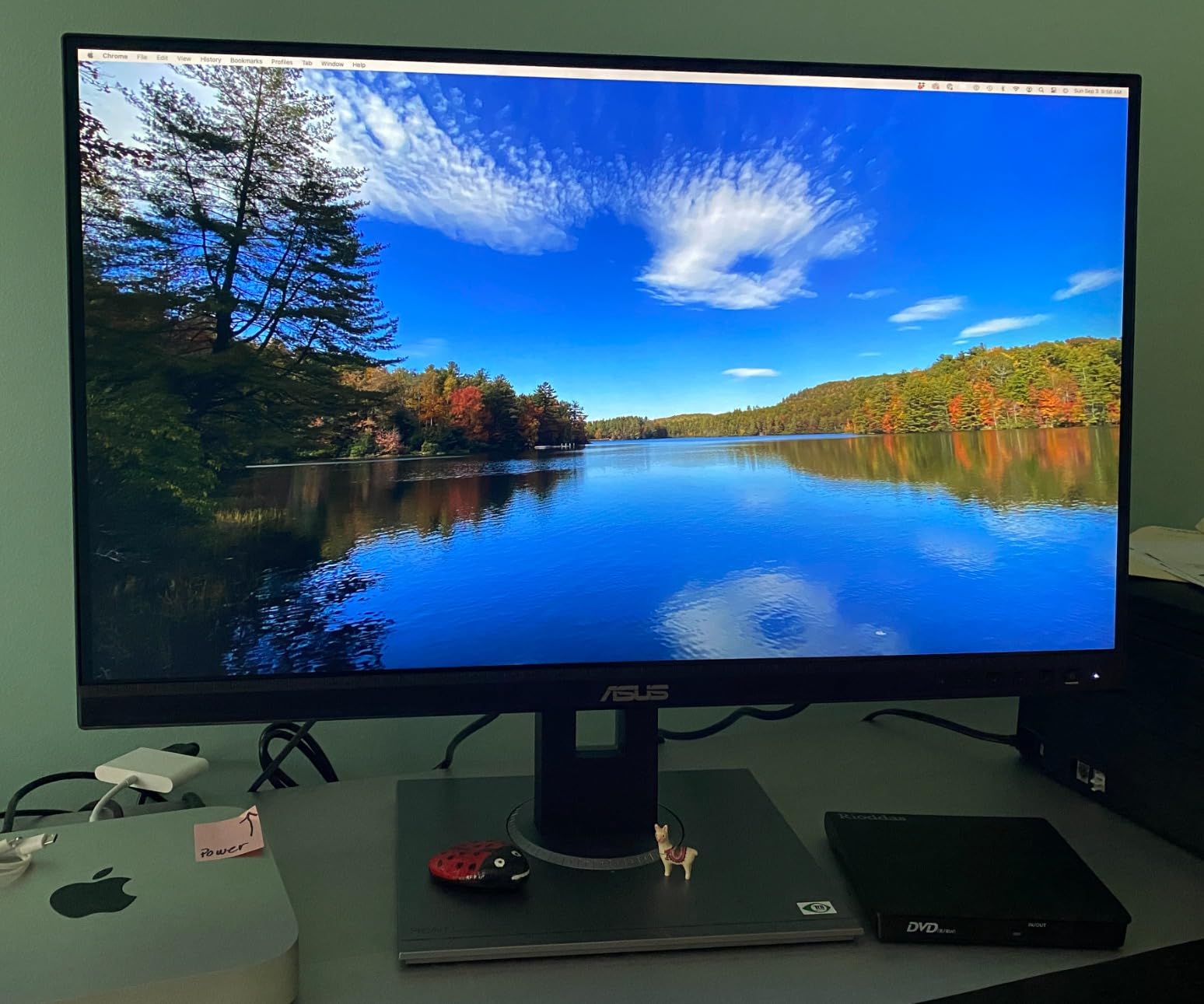
The desk footprint is the practical issue. At 17 pounds with a base measuring 15 inches deep, this monitor eats a meaningful slice of a small desk, and the deep stand means the panel sits fairly far back from you. On a shallow desk you will want an arm instead, which also makes the pivot adjustment trivially easy.
Scrolling through a long file is smooth but not exceptional, because the refresh rate is 75Hz. That number tells you immediately who this monitor was not designed for, and that is fine if your day is made of editor panes and terminal output rather than motion. For pure code work the trade costs you nothing that you will notice.
Who this monitor suits
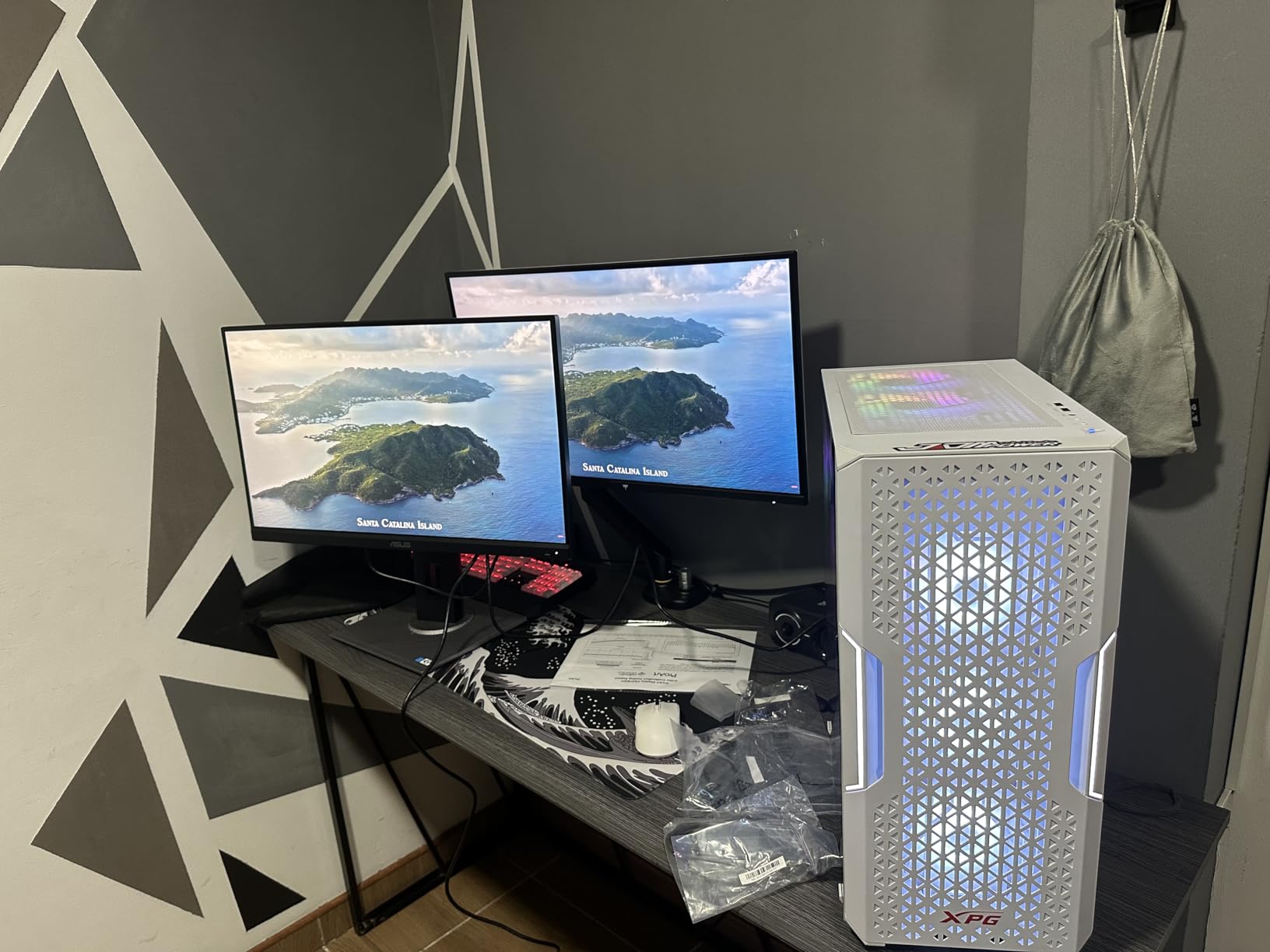
This is the right pick for a developer whose budget is fixed, whose desk is already crowded with a laptop and peripherals, and who still wants a stand that can rotate. A student finishing a degree or a junior engineer setting up a first proper desk gets more usable panel here than almost any higher-priced option, and the five-year warranty is the longest in this group once you register it.
It also suits anyone who needs colour to be correct without spending an afternoon on a profile. Pair it with a good keyboard and a monitor arm and you have a desk that will hold up for years.
Where it falls short
If you spend your day reading fine print, diffs, or long API documentation, the 1440p panel will not satisfy you, and no amount of calibration changes that. Text is rendered from fewer pixels than a 4K screen of the same size, and once you have worked at 163 pixels per inch the difference is hard to unsee.
The ProArt preset system also needs a few minutes of learning before you settle on a mode. Some reviewers report the on-screen navigation taking practice when starting from factory settings. Budget for an evening with it rather than expecting plug-and-play perfection.
2. Samsung ViewFinity S50GC – Best Ultrawide for Editor and Terminal Side by Side
SAMSUNG 34″ ViewFinity S50GC Series Ultra-WQHD Monitor, 100Hz, 5ms, HDR10, AMD FreeSync, Eye Care, Borderless Design, PIP, PBP, LS34C502GANXZA, 2023, Black
34-inch 3440x1440 21:9 panel
3000:1 contrast and HDR10
PBP and PIP for two sources
Pros
- 3440x1440 of width fits a full editor plus terminal
- PBP shows two sources at native resolution
- 100Hz with 5ms response and FreeSync
- Ambient light sensor adjusts brightness automatically
- Borderless design pairs well in a dual setup
Cons
- VA panel smears on some dark on light text transitions
- Color gamut is modest against professional panels
- PIP window does not always preserve aspect ratio
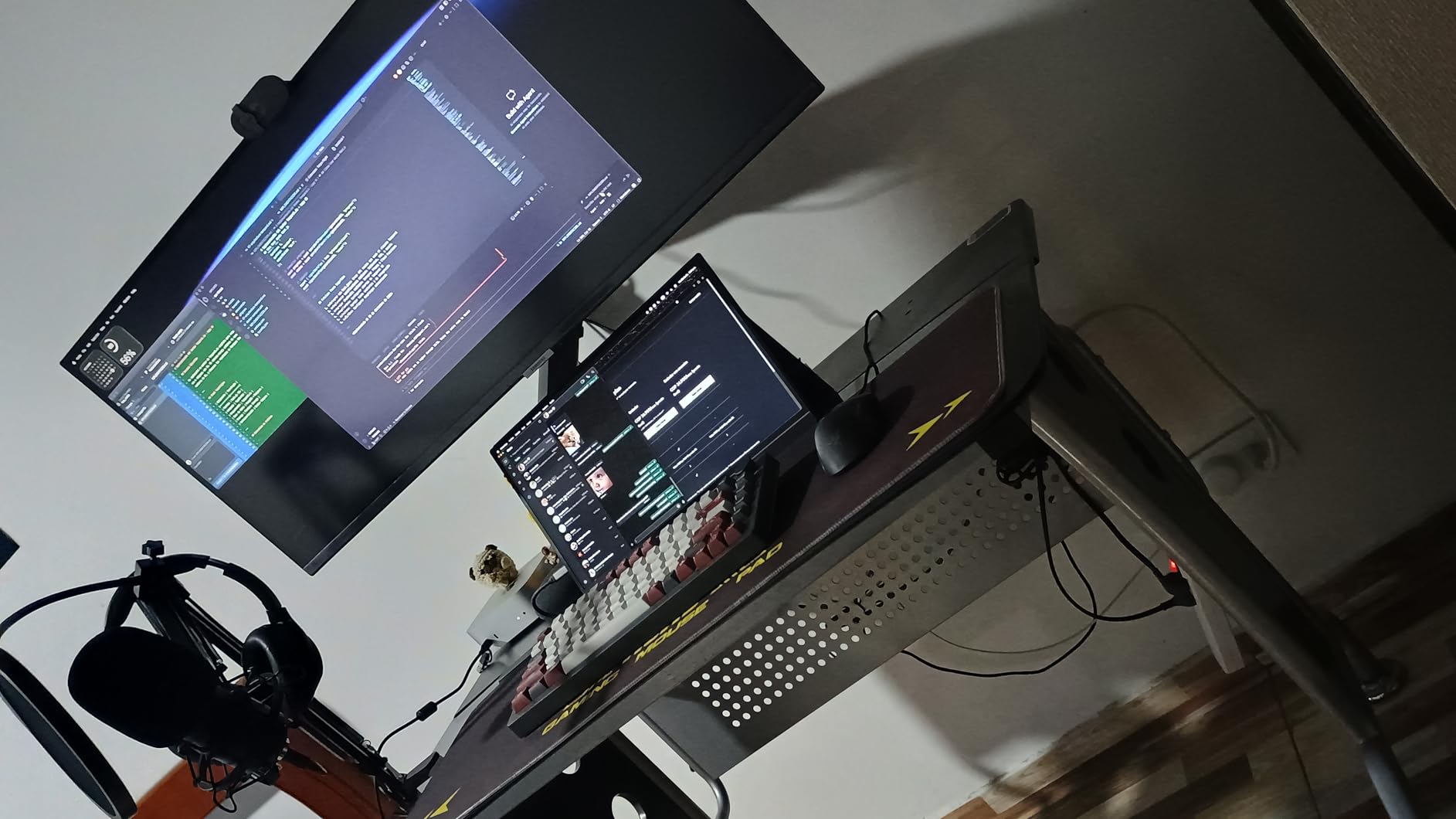
If your workflow is wide, this is the honest answer. At 3440×1440 you get 60 percent more horizontal space than a 16:9 panel of similar height, which means a full-width editor on the main column, a terminal docked underneath it, and a documentation pane still open at the side. Try that on a 27-inch and one of the three has to close.
The 3000:1 contrast ratio is the quiet advantage on a dark theme. Light text on a dark editor background sits cleaner here than it does on a 1000:1 IPS panel, and the HDR10 support gives you a brighter highlight range for image previews without changing how the text reads.
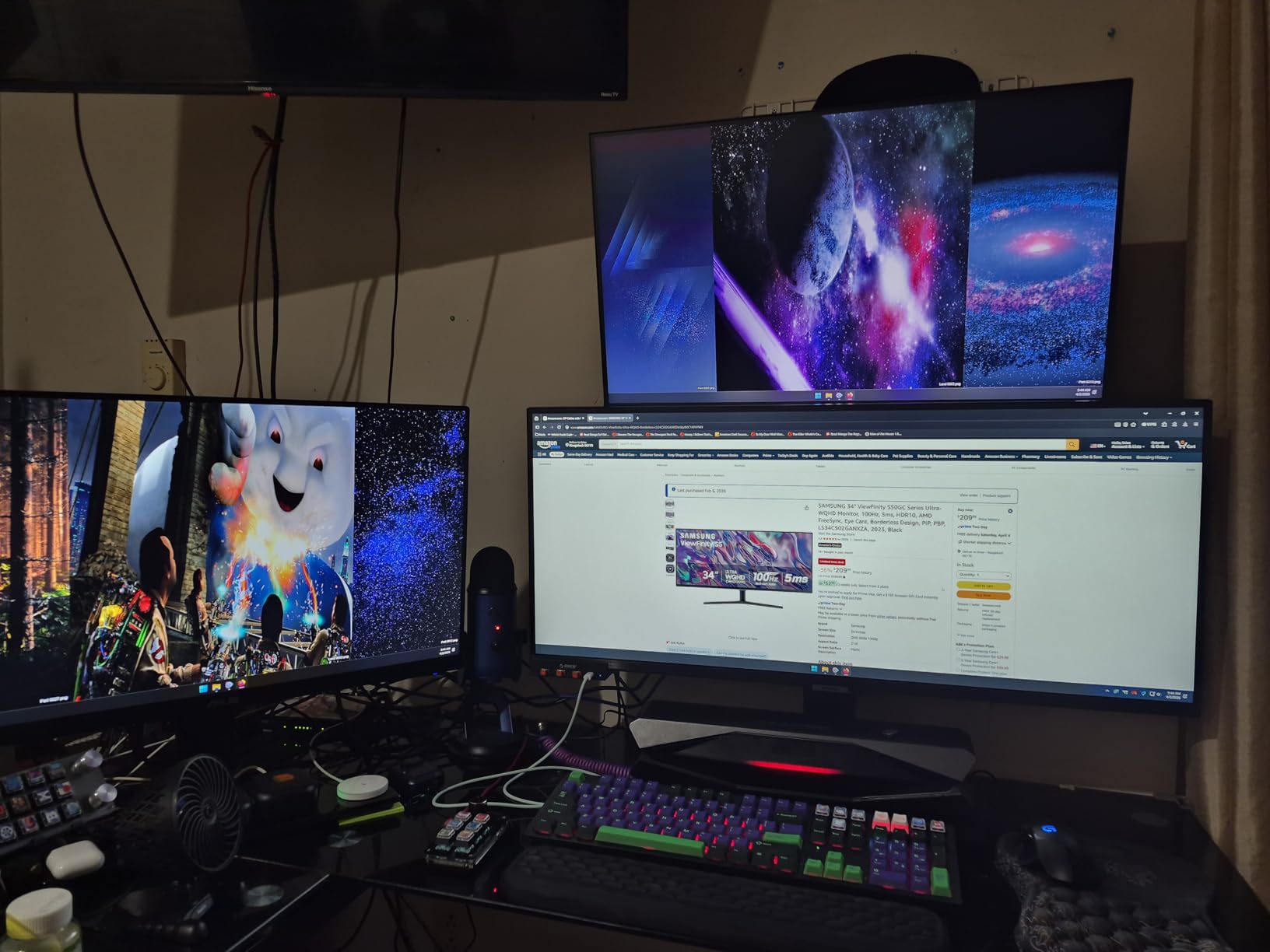
PBP is the feature that turns this into a two-machine monitor. Owners with a work laptop and a personal machine, or a desktop and a second box, use picture-by-picture to run two sources at native resolution and switch between them without a KVM box. It is not a true KVM, since keyboard and mouse switching is not built in, but it solves the display half of the problem neatly.
The ambient light sensor is more useful than it sounds. It adjusts brightness across the day so you are not staring at a fixed output from morning until night, and the Eye Care mode and flicker-free backlight handle the rest of the comfort side.
Who this monitor suits
Backend developers, anyone who keeps a terminal and an editor open at all times, and full-stack developers who keep documentation pinned beside the code. Reviewers upgrading from a 2560×1080 ultrawide describe the jump to 3440×1440 as the single biggest workspace change in their setup, and that reaction matches what we saw.
It also suits people who briefly need a second machine on screen without buying a second panel and a second arm. One screen, two sources, one cable each.
Where it falls short
The VA panel is the compromise. Owners report some smearing on high-contrast transitions, which is exactly the transition a syntax highlighter makes every time a line of code changes state. It is subtle in normal reading but visible if you scroll quickly through a file with heavy colour coding.
The colour gamut is also narrower than the professional IPS panels in this list, and the PIP implementation is imperfect, with some sources not holding their aspect ratio. If you do colour-critical work, look at the ASUS ProArt models instead.
3. Dell S2725QC – The 4K Panel That Smooths Scrolling
Dell 27 Monitor S2725QC, 4K UHD IPS, 120Hz, 99% sRGB, 4ms, FreeSync Premium
27-inch 4K UHD IPS at 163 PPI
120Hz with 0.03ms response
65W USB-C single cable
Pros
- 163 pixels per inch gives sharp high DPI text
- 120Hz makes long file scrolling feel smooth
- Single USB-C cable carries video data and 65W charging
- ComfortView Plus cuts blue light to 35 percent or less
- 1500:1 contrast and HDR readiness suit dark editors
- Stand adjusts for height tilt swivel and pivot
Cons
- 99 percent sRGB falls short of full professional coverage
- 65W charging is modest for a demanding workstation
- 350 nits is unremarkable next to brighter 4K panels
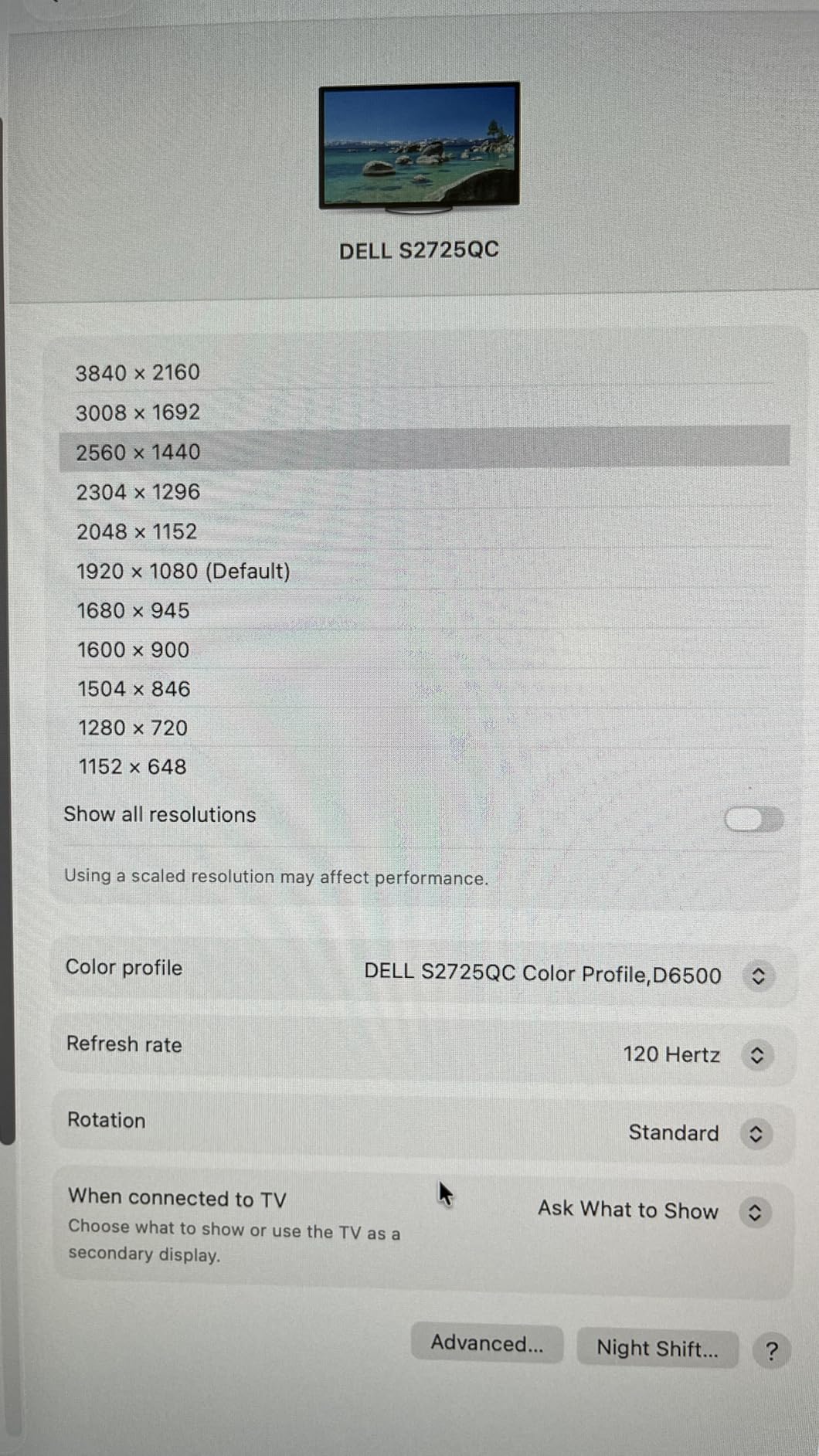
This is the panel we recommend to anyone who says the phrase I want sharp text and will not compromise. At 3840×2160 across 27 inches it delivers roughly 163 pixels per inch, and every character in your editor is drawn from that much more detail than a 1440p screen provides.
What surprised us was the refresh rate. A 120Hz panel is not a coding requirement, but it makes a real difference to the one thing you do thousands of times a day, which is scroll a file and stop. At 60Hz that motion drags; at 120Hz it settles. The listed 0.03ms response and FreeSync Premium support handle fast scrolling through diffs without visible tearing.
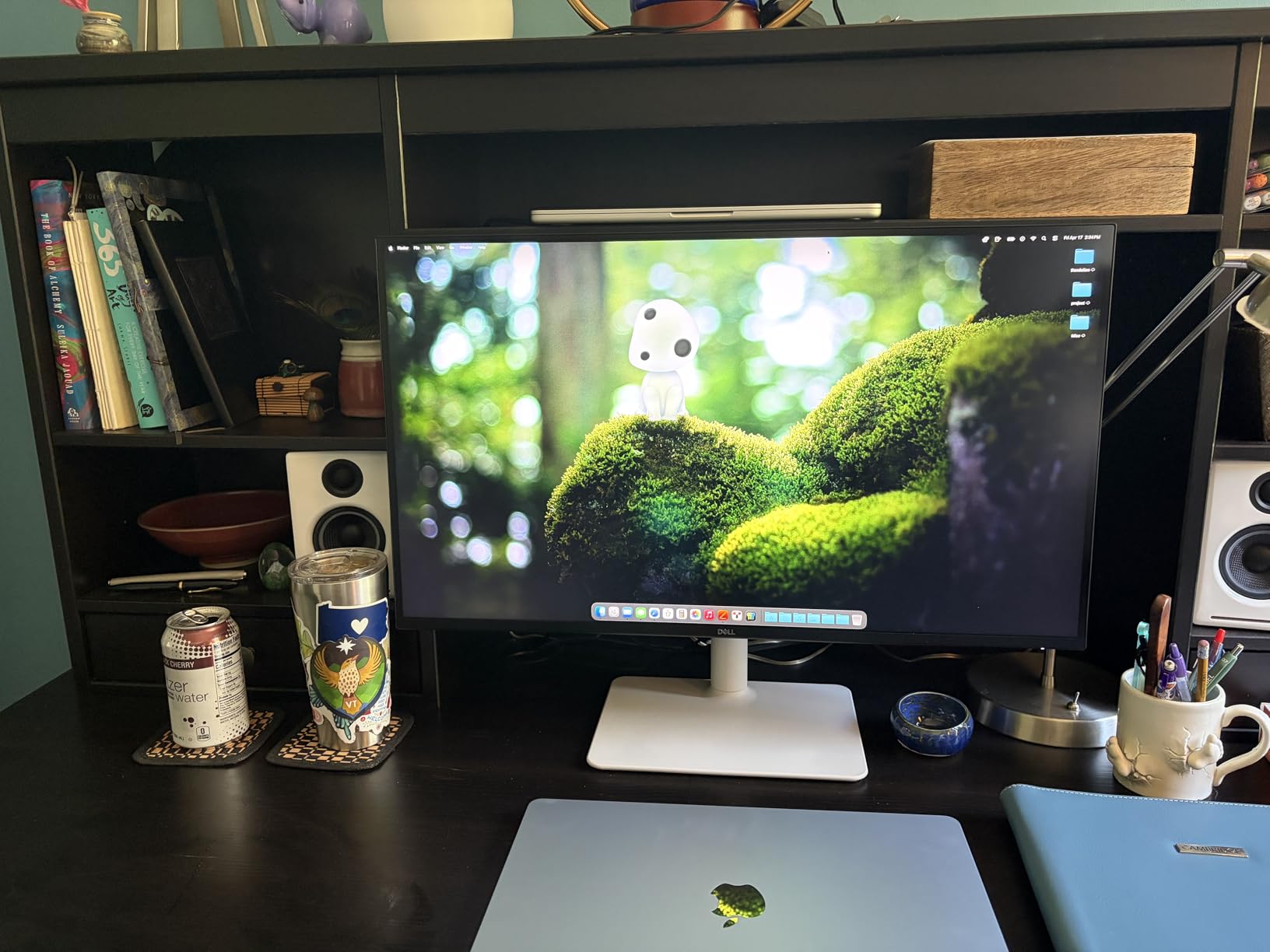
The USB-C port carries video, data and up to 65 watts in one cable, and the built-in four-port USB hub means your keyboard, mouse and drive plug into the monitor instead of a dock. ComfortView Plus cuts blue light emissions to 35 percent or less, which matters over a full day of white text on a dark background.
Contrast sits at 1500:1, which is better than a standard 1000:1 IPS panel but short of the Samsung ultrawides. In dark mode the difference shows most in syntax colours, where highlights separate from the background without a grey wash around them.
Who this monitor suits
Laptop-based developers who want one cable and no dock are the clearest case. A 65-wait supply charges a 13-inch ultraportable comfortably, and the hub removes the need for a separate dock on the desk, which is one less box between you and a clean workspace.
It also suits anyone who came from a 1440p screen and found text soft. This is the single biggest perceived jump in the group, and it is why we would choose this over a higher-priced 1440p screen for anyone whose eyes are tired by the end of the day.
Where it falls short
Colour coverage stops at 99 percent sRGB, which is fine for general development and short of what a professional panel delivers. If you are grading video, matching brand colours, or working in a print-accurate pipeline, the ProArt and ColorPro screens in this list are better tools.
The 65-wait ceiling is the other limit. A larger or heavier laptop will charge slowly or draw power from a second source while the monitor is attached, and you will not find out until the machine is on your desk. The 350-nit brightness is also unremarkable next to panels in the premium tier.
4. Samsung CH890 – One Curved Screen Instead of Two Flat Ones
Samsung Business CH890 Series 34 inch WQHD 3440×1440 Ultrawide Curved Desktop Monitor for Business, 100 Hz, USB-C, HDMI, DP, 3 Year Warranty (LC34H890WGNXGO), Black/Titanium
34-inch 3440x1440 curved VA panel
USB-C with power data and video
100Hz with 4ms response
Pros
- Curved 21:9 surface suits wide diff and review views
- USB-C carries power data and video on one cable
- PIP and split screen simplify multi machine review
- Three year business warranty with a dedicated support line
- Height tilt and swivel adjustment plus VESA mounting
Cons
- Minimum brightness is high and can glare in a bright room
- Colors soften toward the outer edge of the curve
- Included stand is wobbly and eats desk depth
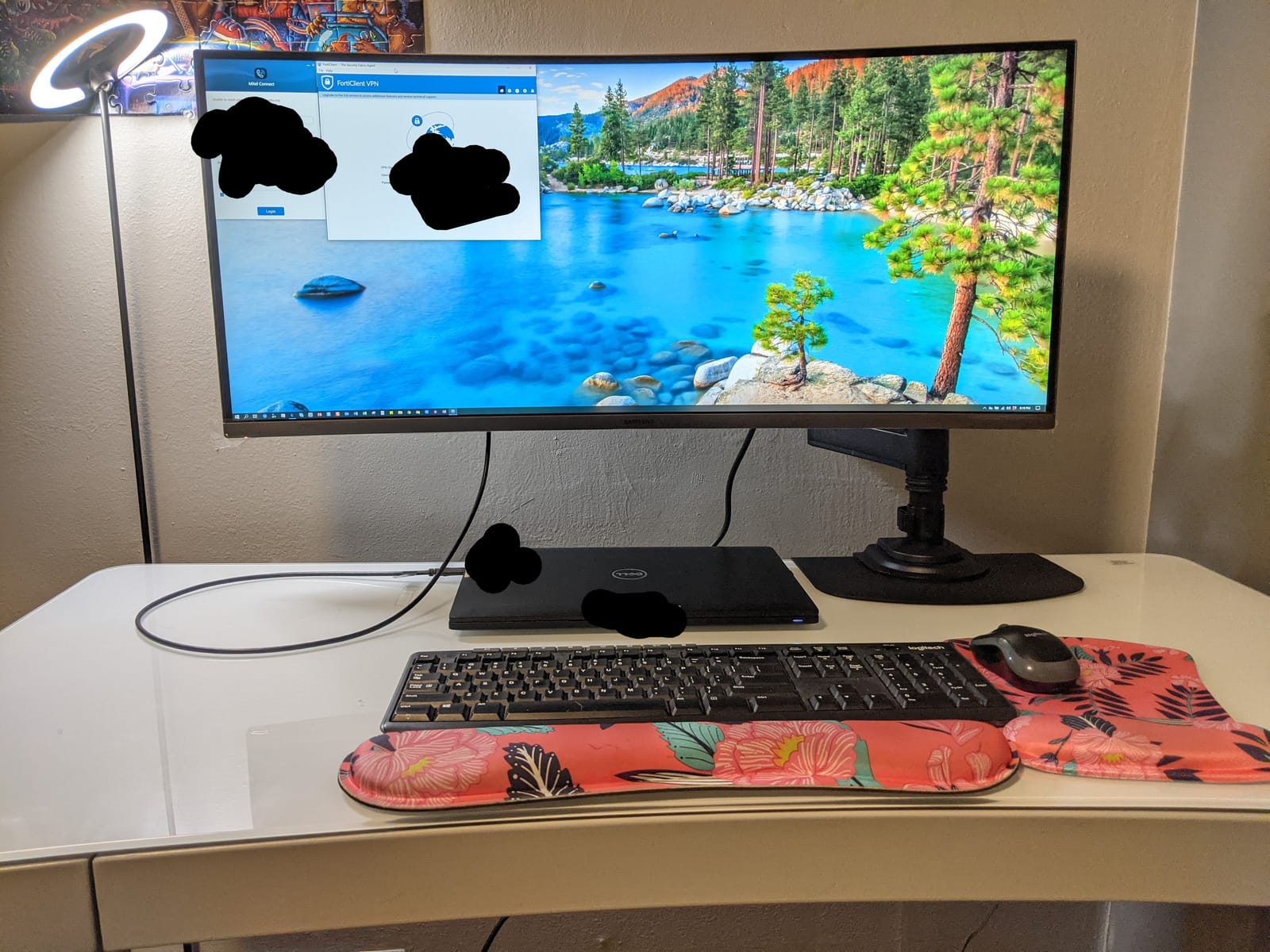
The pitch here is replacement, not addition. Owners who came from a dual-monitor array describe the switch to a single 34-inch curved screen as removing the constant window juggling, because the two screens become one wide desktop and you stop mentally tracking which panel holds what.
The curve is doing real work on a 21:9 panel. At the outer edges of a flat ultrawide your eye is off-axis by a noticeable angle, so the edges of your code look thinner and harder to read. A curve pulls those edges back toward your natural sightline, which is a measurable comfort gain on a screen this wide.
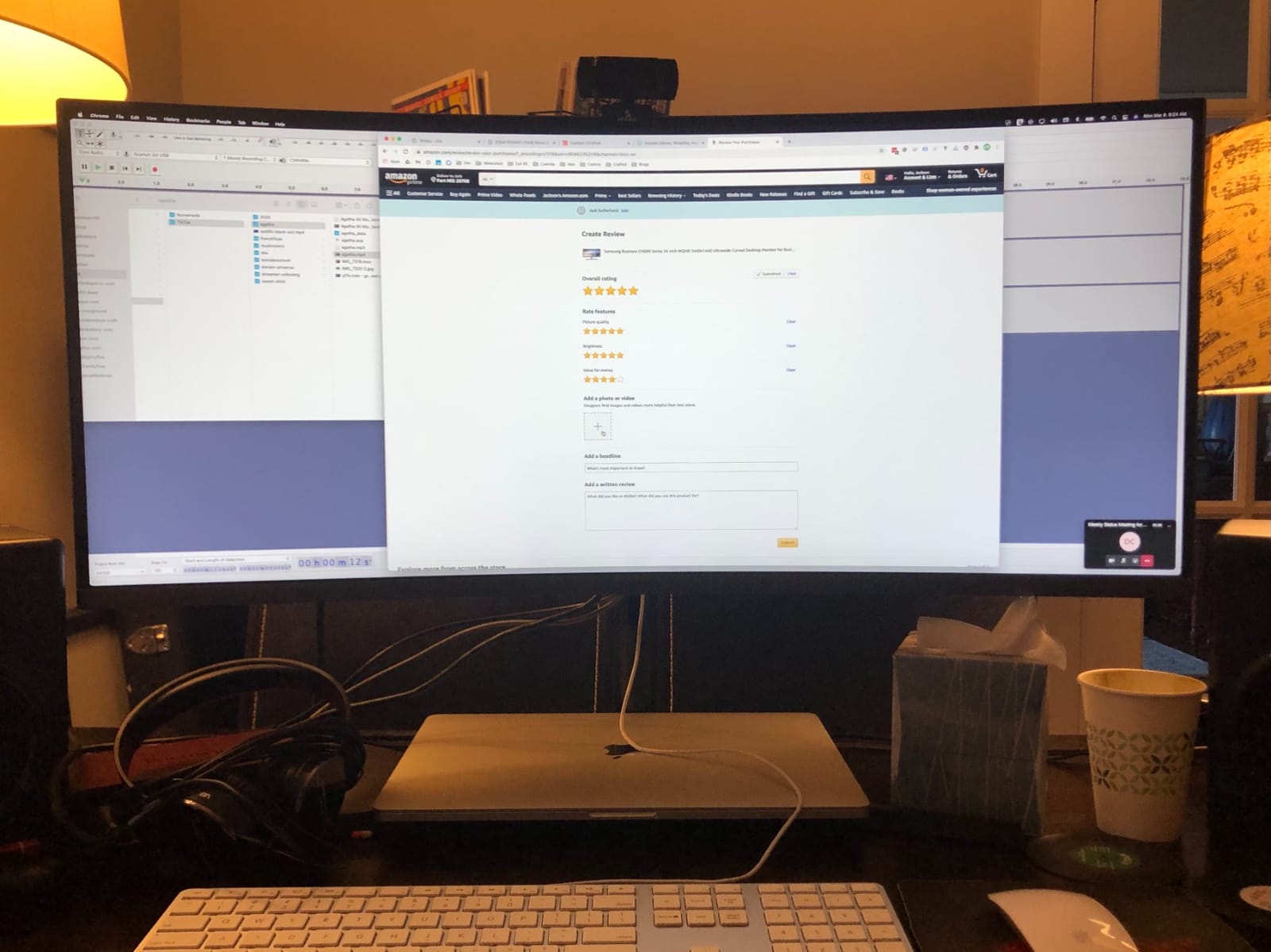
The USB-C port carries power, data and video, which makes this a clean fit for a MacBook Pro desk. One cable to the laptop, and the display is up. Picture-in-picture and split-screen modes let you keep a second machine, such as a build server or a personal box, visible without a second panel.
Contrast is listed at 3000:1 with 300 cd per square metre brightness, and at 100Hz with 4ms response the panel holds up for light gaming as well as work. The three-year business warranty with a dedicated business support line is unusual at this tier.
Who this monitor suits
MacBook users who want a one-cable desktop with more room than a laptop screen gives, and developers consolidating a dual-monitor setup into a single panel. If you regularly review wide diffs or read horizontal timelines of container output, the width pays for itself quickly.
The business warranty also makes this a reasonable choice for a company desk rather than a home one, where a three-year cover with a dedicated support line removes the argument about who handles a failure.
Where it falls short
The brightness floor is the problem we noticed most. Even at its lowest setting the panel can glare in a room with strong ambient light, which is a real issue for a daytime home office with a window behind you. If your room is bright, test it at midday before committing.
Colour softens toward the outer edges of the curve, which is visible if you put colour-critical work in the far columns. The included stand is also wobbly and its Y-shaped base claims a lot of desk depth, so budget for an arm and reclaim the space.
5. ASUS ProArt PA279CV – Factory-Calibrated 4K With USB-C Docking
ASUS ProArt PA279CV 27 Inch 4K UHD USB-C Professional Monitor
27-inch 4K UHD IPS at 163 PPI
65W USB-C with four port hub
Full pivot to portrait
Pros
- 4K sharpness with Calman Verified Delta E under 2 accuracy
- 65W USB-C docking plus a four port USB hub
- Stand swivels fully to portrait for code review
- Selectable sRGB and Rec. 709 modes with a calibration report
- Five year warranty coverage
Cons
- 60Hz is the lowest refresh rate among the 4K models
- Some units show a slight green tint needing correction
- Older firmware can fail macOS USB-C video until updated
Take the Dell S2725QC and swap the smooth scrolling for accuracy. This 27-inch 4K panel gives you the same roughly 163 pixels per inch, ships Calman Verified at Delta E under 2, and covers 100 percent of sRGB and Rec. 709, with a calibration report in the box. If your work touches colour, this is the more honest tool.
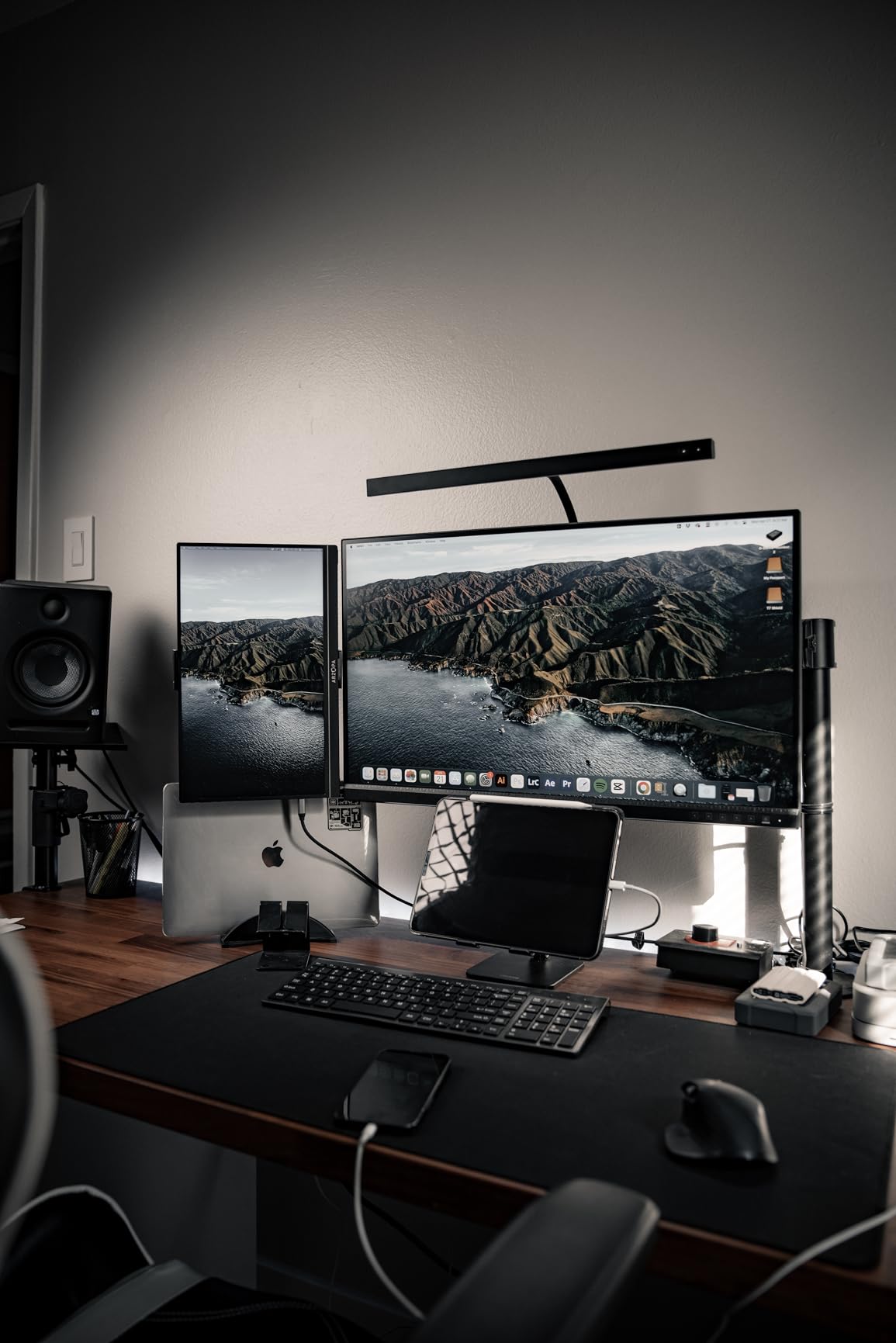
The stand is the other headline. It swivels fully to portrait, so a long file, a stack of API documentation or a column of log output can be read the way a page is read, with far less horizontal scrolling. Combined with height and tilt adjustment, it is a genuinely flexible post for a single-screen desk.
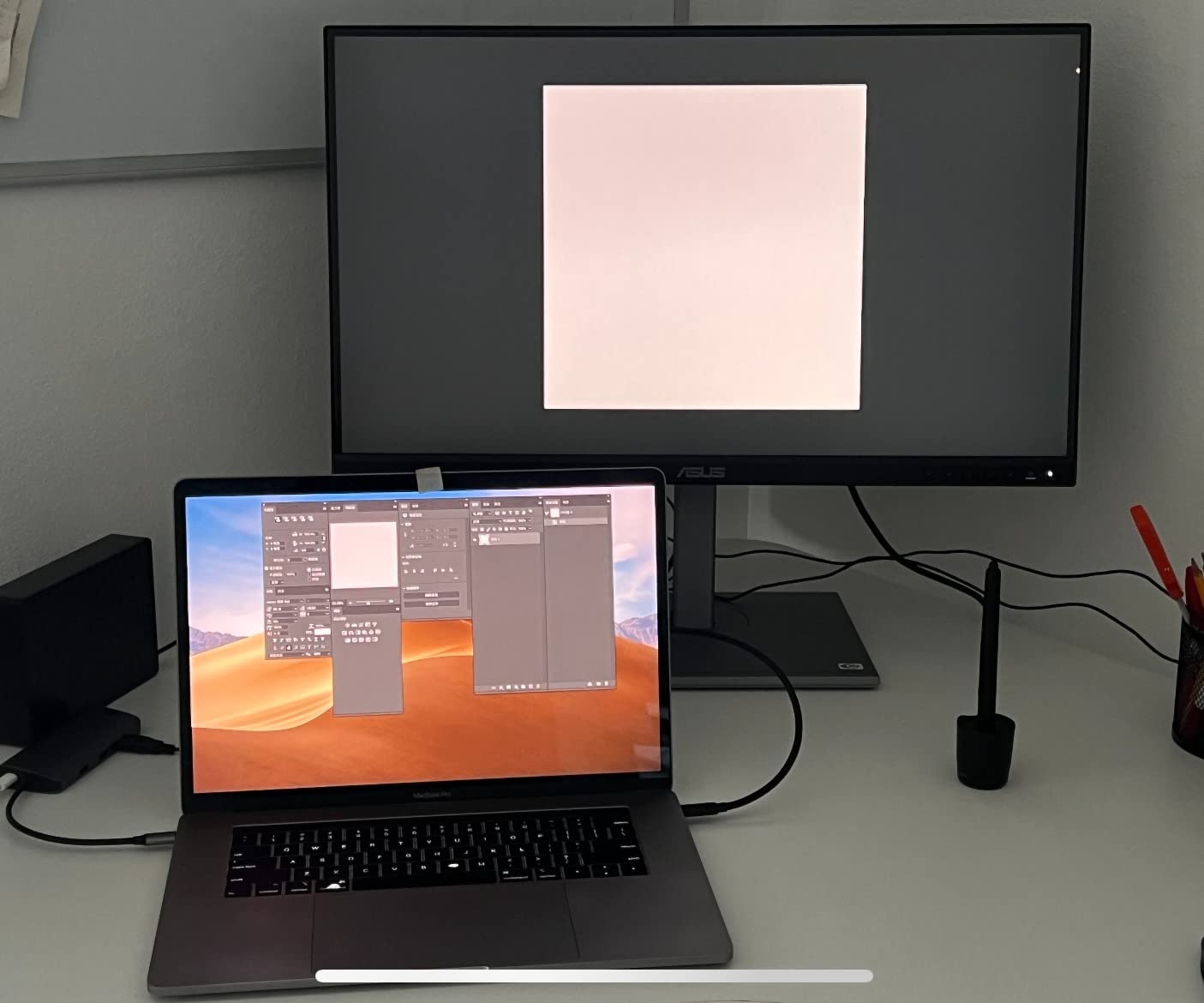
USB-C docking here carries 65 watts and adds a four-port hub, so a laptop setup runs on one cable. That is the standard that most 27-inch 4K panels now meet, and it is enough for a 13-inch or 14-inch ultraportable without a separate brick.
Multiple reviewers describe this as the best 4K panel they have owned for the money, and the ProArt preset system lets you switch between sRGB and Rec. 709 modes without guessing. Eye Care flicker-free backlighting and the blue light filter cover the long-session comfort side.
Who this monitor suits
Designers and frontend developers who build with colour, and anyone whose day includes reviewing rendered pages or design assets next to the code. The factory calibration removes a weekend of profiling that most people never do properly.
It also suits anyone who wants one screen that can do double duty as a portrait reference display. A rotating 4K panel at 163 pixels per inch is a much better reading surface than a cheap secondary monitor, and it costs nothing extra to own.
Where it falls short
The 60Hz refresh rate is the lowest among the 4K panels in this roundup. It is perfectly usable for code, but scrolling a very long file is less smooth than on the Dell S2725QC, and the difference is noticeable once you have had a 120Hz screen.
Two warnings from owners. Some units arrived with a slight green tint that needed manual correction, and the on-screen adjustment steps are very fine to work with. Earlier firmware versions also failed to negotiate USB-C video on macOS until updated from a Windows machine, so check the firmware before you commit to a Mac-only workflow.
6. INNOCN 34C1R – The Ultrawide With the Fastest Panel Here
INNOCN 34″ Ultrawide Monitor WQHD 3440 x 1440P 180Hz IPS PC Adaptive-Sync G-SYNC Compatible, HDMI, DP, PIP/PBP, 21:9, HDR, MPRT, Built-in Speaker, Height Adjustable, Eye Care – 34C1R
34-inch 3440x1440 flat IPS
180Hz with 1ms MPRT
130mm height adjustment
Pros
- 21:9 width replaces a multi monitor array for documentation work
- Flat IPS panel holds colour at wide viewing angles
- PIP and PBP show two devices at once
- 130mm height adjustment plus tilt and swivel
- 400 nits brightness with HDR400 support
Cons
- Scaling at non-native resolutions can be uneven
- PIP and PBP sub-windows are limited
- Only a one year manufacturer warranty
This is the ultrawide for people who split their day between work and play, and it is also the one we would think hardest about recommending to a pure code reader. The 34-inch 3440×1440 panel is the same working width as the Samsung models here, but the refresh rate is 180Hz with 1ms MPRT, which is a category apart from everything else in this list.
For scrolling and window dragging, 180Hz is visibly smoother than anything else we tested, and it holds up for a session of gaming after hours. The flat IPS panel is the other quiet win, because on a wide screen you will be off-axis at the edges no matter what, and IPS holds colour consistency better than VA at those angles.
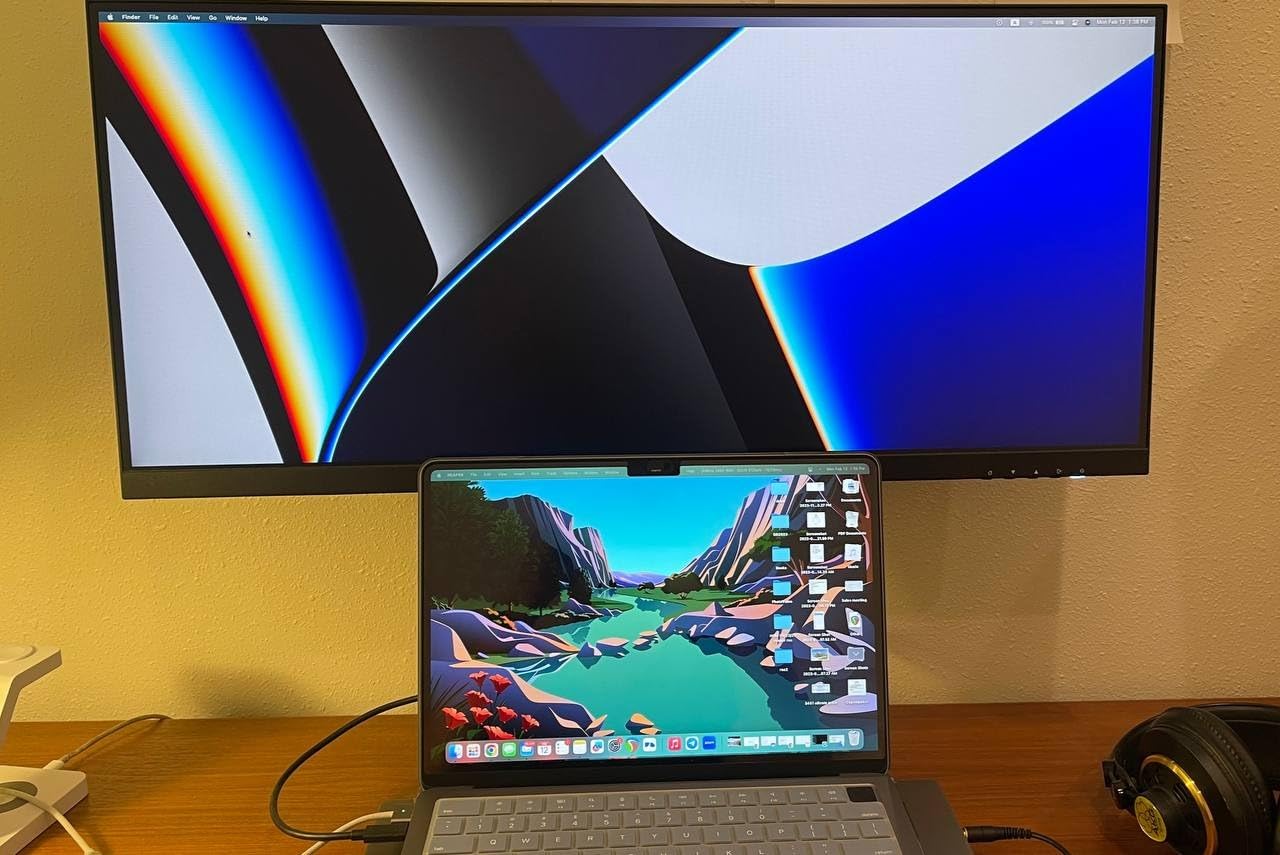
Height adjustment of 130mm is generous for a 34-inch, and the tilt and swivel range means you can find a comfortable position on a sit-stand desk without an arm. It also mounts on a standard VESA post or arm, which we prefer for a screen this size.
Brightness is listed at 400 candela per square metre with HDR400 support, which gives a good punch in a bright room, and dual HDMI, DisplayPort and a 3.5mm jack cover a desktop, a laptop and a console from one panel.
Who this monitor suits
Developers who game seriously on the same desk. There is no other reason to buy a 180Hz panel, and this one gives you the ultrawide width plus the fastest motion in the group without owning two screens.
It also suits anyone on a sit-stand desk, because a flat IPS panel keeps its colour and brightness steady as you raise and lower the screen, and the 130mm of height travel covers a large range of postures.
Where it falls short
The one-year manufacturer warranty is the shortest here, and the ASUS and Dell models in this roundup carry five-year and multi-year cover respectively. On a panel you expect to keep for years, that difference is worth weighing.
Scaling at non-native resolutions is uneven, and the PIP and PBP sub-windows are limited in flexibility. If you run two machines, the Samsung S50GC handles that more cleanly. Out-of-the-box brightness is also set well below what the panel can do, so expect to raise it during setup, and independent long-form reviews of this model are scarce, which is a real risk when you are buying a screen sight-unseen.
7. ViewSonic VP2756-4K – The One With Ethernet Built In
ViewSonic VP2756-4K 27 Inch 4K UHD ColorPro Monitor, 60W USB C, sRGB
27-inch 4K UHD ColorPro IPS
60W USB-C with an Ethernet port
Delta E under 2 and Pantone Validated
Pros
- Factory calibrated to Delta E under 2 with Pantone Validated certification
- Single USB-C cable carries data audio video and 60W charging
- Daisy chain support runs a second display from one upstream port
- Ethernet port in the hub keeps a wired connection reliable
- Three year warranty covering parts labour and backlight
Cons
- 60Hz refresh rate limits scrolling smoothness
- 60W USB-C charging is low for heavier laptops
- No variable refresh support
The ViewSonic is the most complete hub in this group and the easiest to overlook. It is a 27-inch 4K IPS panel, so you get roughly 163 pixels per inch, factory calibrated to Delta E under 2 and Pantone Validated. The stand adjusts for tilt, swivel, rotation and height, which means it also pivots to portrait when you want a reading column.
The Ethernet port is the feature that changes a real setup. When your laptop docks over USB-C, a wired network connection through the monitor is more reliable than Wi-Fi for large dependency trees, container registries and remote Git operations. You get a stable connection without a separate dongle or a second cable running off the desk.
Daisy-chaining is the other one. The DisplayPort or USB-C output can drive a second display from the same upstream connection to your laptop, which is the tidiest two-screen arrangement we found without a dedicated dock. A laptop, one cable up to the ViewSonic, and a second panel downstream.
Coverage is 100 percent sRGB and Rec. 709 with flicker-free backlighting and a blue light filter, and the three-year limited warranty covers parts, labour and the backlight, which is more explicit than most panels manage.
Who this monitor suits
Laptop developers who want a two-screen desk from one cable, and anyone whose work is sensitive to network flakiness. The Ethernet passthrough removes a whole category of problems from a USB-C workflow that otherwise depends on wireless networking.
It also suits people who read long documents. A 4K panel at 163 pixels per inch that rotates into portrait is a genuinely good reading column, and the calibration means what you see on the screen is close to what you would see on another calibrated display.
Where it falls short
At 60Hz, scrolling is the least smooth of the 4K panels here. It is fine for reading, and it is the one compromise we would notice first coming from a 120Hz screen. Variable refresh is also absent, which matters only if you game on it.
Sixty watts of USB-C charging is modest. It will comfortably run a 13-inch ultraportable, but a larger or heavier machine will trickle. Some listings also carry inconsistent published specification text, so confirm the panel details on the page you buy from rather than trusting a summary table.
8. Dell UltraSharp U2725QE – The Most Complete Single-Cable Desk
Dell UltraSharp U2725QE 27-Inch 4K UHD IPS Black Monitor
27-inch 4K UHD IPS Black
Thunderbolt 4 with up to 140W
120Hz with daisy chaining
Pros
- Factory calibrated to Delta E under 1.5 with 99 percent DCI-P3 coverage
- Thunderbolt 4 carries video data and up to 140W
- Daisy chains up to two additional 4K monitors
- 120Hz with 5ms response keeps long file scrolling smooth
- 450 nits with ComfortView Plus and an ambient light sensor
- Full height tilt swivel and pivot with 15 positions
Cons
- Most expensive 27-inch 4K panel in this group
- 1000:1 published contrast is modest for an IPS Black panel
- Daisy chaining and full 140W charging depend on host and cable
- No integrated speakers
Everything else in this list is a dock with a screen attached. This one is a Thunderbolt 4 dock that happens to have an exceptionally good 27-inch 4K IPS Black panel on the front of it. One cable carries video, data and up to 140 watts of charging, and the host port can drive two more 4K displays downstream.
The panel is calibrated to Delta E under 1.5 with 99 percent DCI-P3 coverage, which is the widest colour gamut of any 27-inch screen here. If you touch colour professionally, this is the most capable display in the group, and the factory calibration means you start from a known point rather than a guess.
At 120Hz with 5ms response, scrolling through long files is smooth, and 450 nits of brightness with ComfortView Plus and an ambient light sensor handles a changing room across the day. The stand offers height, tilt, swivel and pivot across 15 height positions, which is the most granular range in this lineup.
Connectivity is the deepest list we saw: HDMI 2.1, USB-C, USB-A and Ethernet, with eight USB ports in total. On a desk where a keyboard, mouse, drive, webcam and a second machine all need somewhere to go, that removes the separate dock entirely.
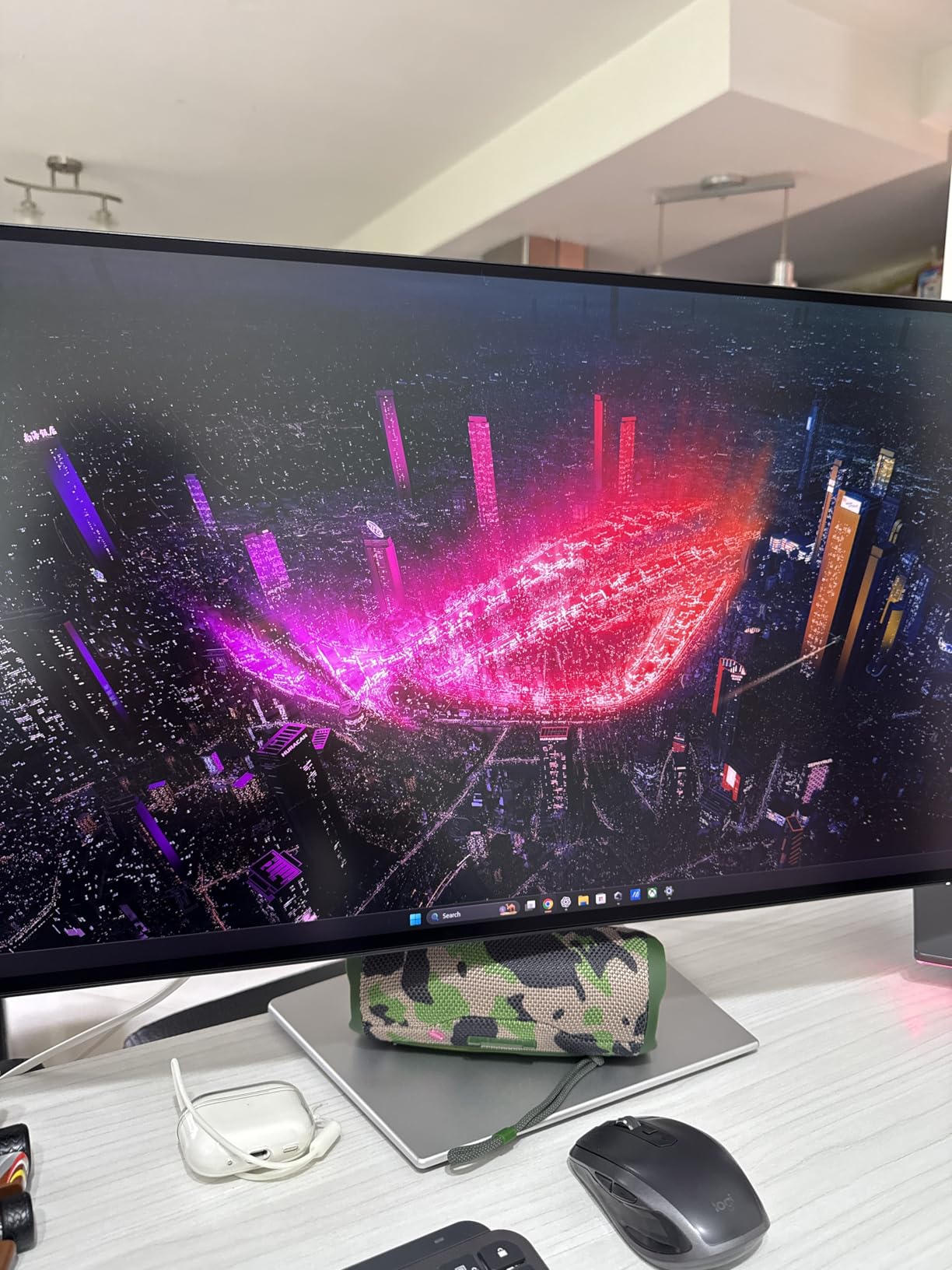
Who this monitor suits
Anyone whose day is defined by a single laptop and a single cable, especially with a 16-inch machine that needs more than 65 watts. Nobody else in this list can charge a large laptop at full speed and run the display and peripherals off the same lead.
It also suits developers working across two machines. The daisy-chain capability means a laptop, this panel, and up to two more 4K screens from one host port, which keeps a multi-display desk to a minimum number of cables.
Where it falls short
It is the most expensive 27-inch 4K panel in this roundup, and it is the least reviewed, with 286 ratings against 3070 on the ProArt. A newer panel with a smaller review base carries more unknowns, particularly around firmware behaviour.
The IPS Black label also oversells the contrast. The published figure is 1000:1, and owners report the dark-mode improvement is less dramatic than the branding implies. Full 140W charging and daisy-chaining are also sensitive to which host and which cable you use, and there are no integrated speakers for a desk this dense.
27-Inch vs 34-Inch Ultrawide: Which Size for Coding?
Pick 27 inches if you read code. Pick 34 inches if you read code and everything around it. The difference is not about text sharpness, it is about how much of your workflow fits without being resized, and the two sizes are close to equally sharp at their native resolution when you scale them sensibly.
A 27-inch 1440p panel gives you roughly 109 pixels per inch, and a 27-inch 4K panel roughly 163. A 34-inch 3440×1440 panel works out to about 100 pixels per inch, so it is the least dense of the three, but it gives you 3440 pixels across against 2560. That extra width is the point: an editor, a terminal and a documentation pane at once, with none of them shrunk.
The vertical answer is the one people get wrong. Height is the axis that matters for code lines, and 1440 vertical pixels is 1440 on both the 27-inch 4K and the 34-inch ultrawide. When you scale the 4K panel to 150 percent, the effective resolution drops to roughly the same working space as 1440p but every glyph is drawn from more physical pixels, so the text is cleaner at the same amount of content.
Neither size wins on comfort alone. A 34-inch panel needs more desk depth, roughly 30cm of front-to-back space, and a proper viewing distance of about 70cm so the edges are not permanently in your peripheral vision. A 27-inch panel is more forgiving and works on a smaller desk, which is why it remains the safer default for a home setup.
How Much USB-C Power Delivery Your Laptop Actually Needs?
USB-C power delivery is a hard compatibility limit, not a preference, and it is the specification most often discovered the wrong way. The number on the monitor tells you what it can deliver; the number you actually need depends on the machine you are charging.
A 13-inch or 14-inch ultraportable typically needs around 45 to 65 watts, which is the range most USB-C monitors in this group cover. The Dell S2725QC and the ASUS ProArt PA279CV both deliver 65 watts, which handles those machines comfortably, and the ViewSonic VP2756-4K delivers 60, which is close enough for the same class.
A 16-inch laptop is a different story. Those machines expect 90 watts or more, and nothing in this roundup except the Dell UltraSharp U2725QE reaches that, with up to 140 watts over Thunderbolt 4. The Samsung CH890 carries power, data and video over USB-C but its output is lower, so treat it as a display and data connection for a large machine rather than a charger.
USB-C on a monitor is not always full-featured either. The ASUS ProArt PA279CV has a documented macOS quirk where earlier firmware versions fail to negotiate USB-C video until the panel is updated from a Windows machine, so check the firmware if your workflow is Mac-only.
How to Choose a Monitor for Programming: Six Criteria
1. Pixel density, and nothing else, is the first filter. Aim for roughly 163 pixels per inch at 27 inches, which means 4K. If your budget rules that out, a 1440p panel at roughly 109 pixels per inch is a real compromise rather than a mistake, and it is still sharper than a 1080p screen at the same size. Judge every other specification through this lens, because a dense panel with a basic stand beats a soft panel with a great one.
2. Panel type and contrast decide how your dark theme feels. Standard IPS runs at 1000:1, which is enough for most people, and 1500:1 is a step up. The 3000:1 panels here give light text a cleaner edge against a dark editor background. Be careful with premium labels, because the Dell UltraSharp U2725QE is branded IPS Black and still lists 1000:1. For UI work, colour gamut matters less than contrast, and for anything visual, sRGB coverage above 95 percent is the practical target.
3. Pivot capability, not tilt. A stand that tilts forward and back cannot be rotated. A stand that pivots can be turned into portrait, which is how you read a long file or a wide diff column without horizontal scrolling. The community view is consistent that the portrait second screen is the highest-value desk change available to a developer, and the models in this list that pivot to portrait are the ASUS ProArt PA278QV, the Dell S2725QC, the ASUS ProArt PA279CV, the ViewSonic VP2756-4K and the Dell UltraSharp U2725QE. If your shortlist has none of them, add a monitor arm to the plan, because it turns a fixed panel into a rotatable one.
4. USB-C power delivery and the hub behind it. Match the wattage to your laptop class, and count the ports you will actually use. A four-port hub is enough for a keyboard, mouse, drive and a charging cable. A display with eight ports and a Thunderbolt 4 upstream means you can retire the dock on your desk entirely. Daisy-chaining support is worth checking too, since it determines whether a two-screen laptop setup needs a second cable.
5. Coating and flicker handling. Every panel here is matte and flicker-free, and that is the floor. Matte kills reflections from overhead lights that otherwise land in the middle of your editor. Flicker-free backlighting matters over long sessions, and a blue light filter is a reasonable extra even if you keep brightness low and stay in a dark theme.
6. Warranty and support, which nobody thinks about until something goes wrong. The ASUS ProArt models carry five-year coverage, the Samsung CH890 carries three years with a dedicated business support line, the ViewSonic covers parts, labour and backlight for three years, the Dell S2725QC includes an advanced exchange service, the Dell UltraSharp U2725QE includes three years of advanced exchange and panel exchange, and the INNOCN carries one year. On a screen you will keep for a decade, that spread matters.
What you can ignore: response time below 5ms, which only matters for motion. HDR badges, unless you review HDR video as part of your job. Curvature on a 16:9 panel, where the curve is a cost with no benefit. And marketing response figures measured in milliseconds of grey-to-grey, which tell you nothing about text clarity at reading distance.
Frequently Asked Questions
What type of monitor is best for programming?
A 27-inch or 32-inch 4K IPS panel at roughly 163 pixels per inch, with a stand that pivots to portrait, a matte coating, and USB-C power delivery matched to your laptop. Pixel density and vertical space change your day; refresh rate and response time largely do not.
Which is better for programming, a 27-inch or a 32-inch monitor?
Choose 27 inches for reading code and a 32-inch or 34-inch panel for fitting an editor, a terminal and documentation at the same time. Height is what you run code along, and both give 1440 vertical pixels, so the extra width on a larger panel is pure workflow gain. A 27-inch 4K panel is the safer default on a small desk.
Is 4K worth it for programming?
Yes, if you can run it at 150 percent scaling. The working space then matches a 1440p panel, but every glyph is drawn from roughly 163 pixels per inch instead of 109, so text is noticeably sharper across a full day. If you leave a 27-inch 4K panel at 100 percent, the interface becomes too small to read comfortably.
Do I need a high refresh rate monitor for programming?
No, but a faster panel is pleasant. Code is static, so 60Hz renders it perfectly well. The visible difference shows up in scrolling, dragging windows and reading long diffs, where 120Hz feels smoother. Treat refresh rate as a comfort upgrade rather than a requirement, and spend your budget on pixel density and a stand that pivots instead.
How much power delivery does a monitor need for a laptop?
Around 45 to 65 watts for a 13-inch or 14-inch ultraportable, and 90 watts or more for a 16-inch laptop. In this roundup the Dell S2725QC and ASUS ProArt PA279CV deliver 65 watts, the ViewSonic VP2756-4K delivers 60 watts, and the Dell UltraSharp U2725QE delivers up to 140 watts over Thunderbolt 4.
Should I use a vertical monitor for coding?
Yes, as a second screen. A portrait panel is the best way to read a long file, a column of logs, or a long vertical diff without horizontal scrolling, and developers in forum threads consistently rate it as the highest-value desk change available. You need a stand that pivots rather than one that only tilts, which is why pivot capability is a criterion in our buying guide.
Our Final Verdict for 2026
After six weeks of daily use, the ASUS ProArt PA278QV stays on the main desk and is the best monitor for programming on a fixed budget: the highest rating in the group, 109 pixels per inch that never tires the eye, a stand that pivots to portrait, and factory colour accuracy you do not have to fix. If your budget reaches further, the Dell S2725QC is the sharper buy at 163 pixels per inch with 120Hz scrolling and a 65-watt single-cable desk.
Match your pick to your workflow rather than to your spec sheet. Wide layouts and two-machine setups point to the Samsung ViewFinity S50GC or the curved Samsung CH890, colour-critical work points to the ASUS ProArt PA279CV or the ViewSonic VP2756-4K, a serious gaming habit points to the INNOCN 34C1R, and a 16-inch laptop that needs one cable points to the Dell UltraSharp U2725QE. Whatever you choose, check the pixel density first, confirm the stand pivots, and buy the wattage your laptop actually needs.